Cleaning Up Client Data
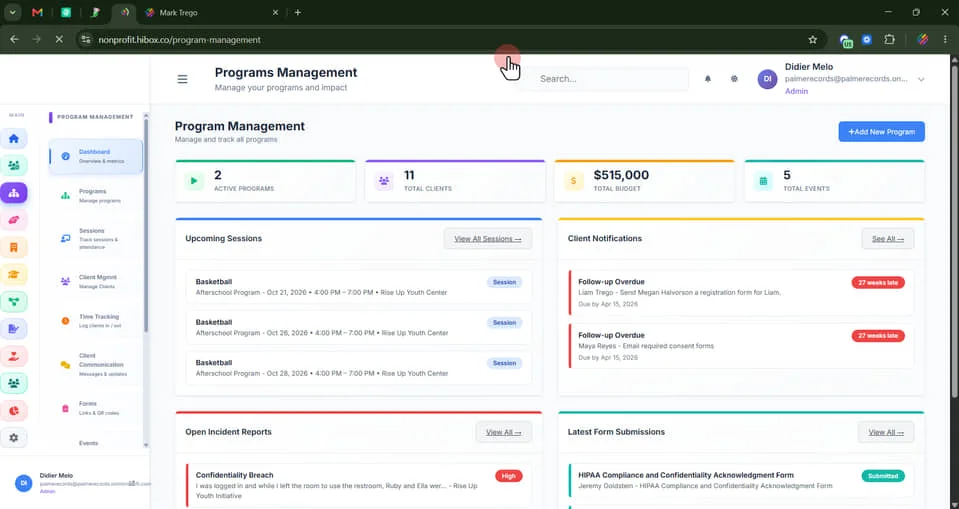
1. Click "Programs Management" on the left-side menu
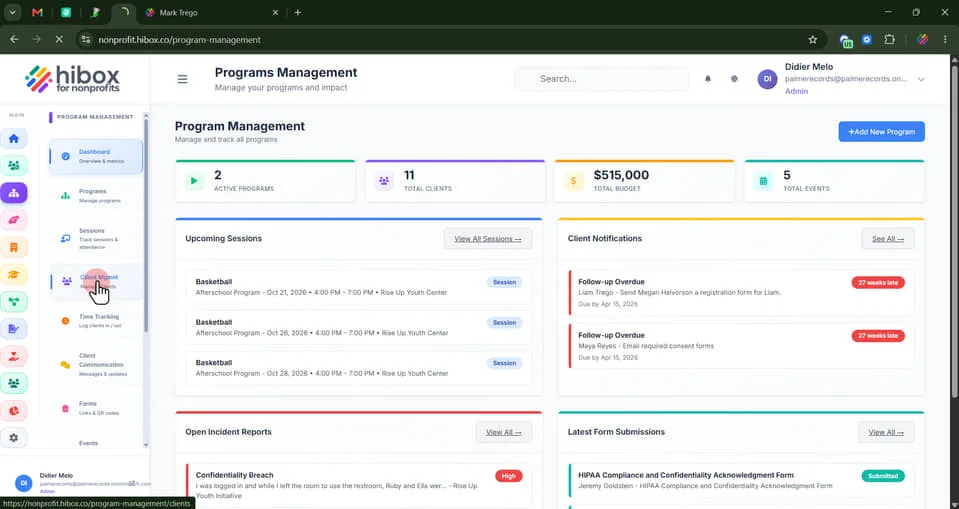
2. Click "Client Mgmnt" on the sub-menu
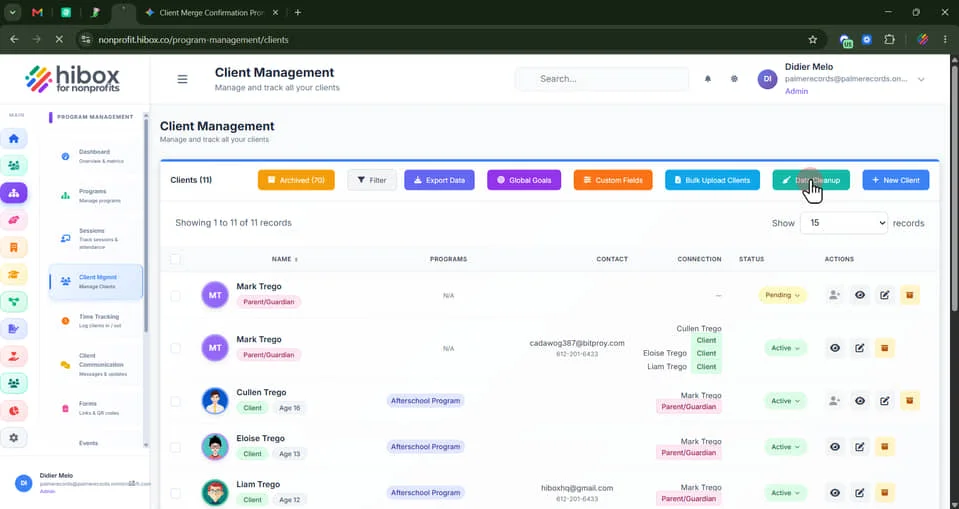
3. Click "Data Cleanup"
4. Select "Duplicates"
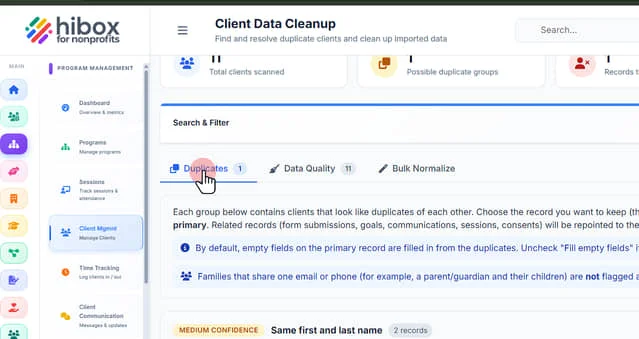
5. Click "Client Data Cleanup" Each group below contains clients that look like duplicates of each other. Choose the record you want to keep (the primary), tick the duplicates to merge in, and click Merge into primary. Related records (form submissions, goals, communications, sessions, consents) will be repointed to the primary, and the merged duplicates will be removed.
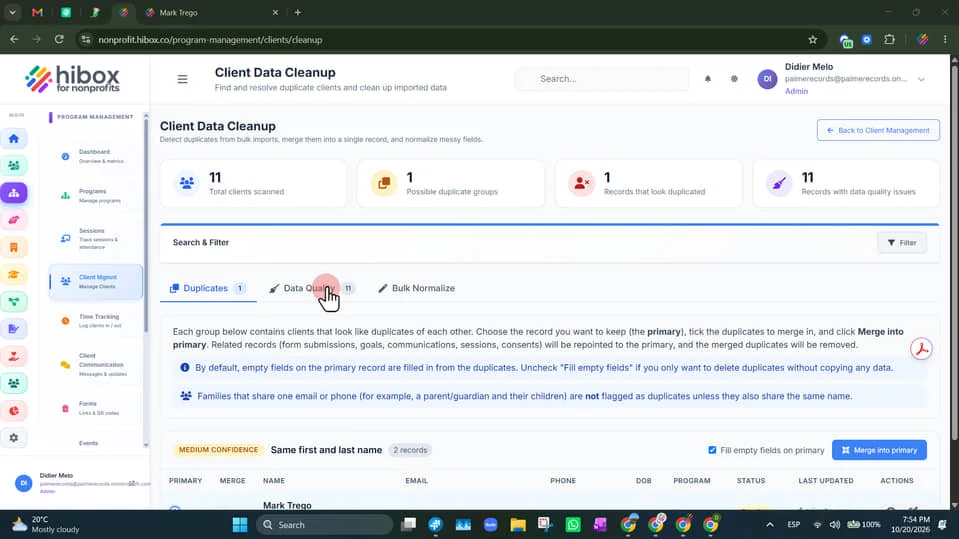
6. You will find a quick summary of the main alerts here
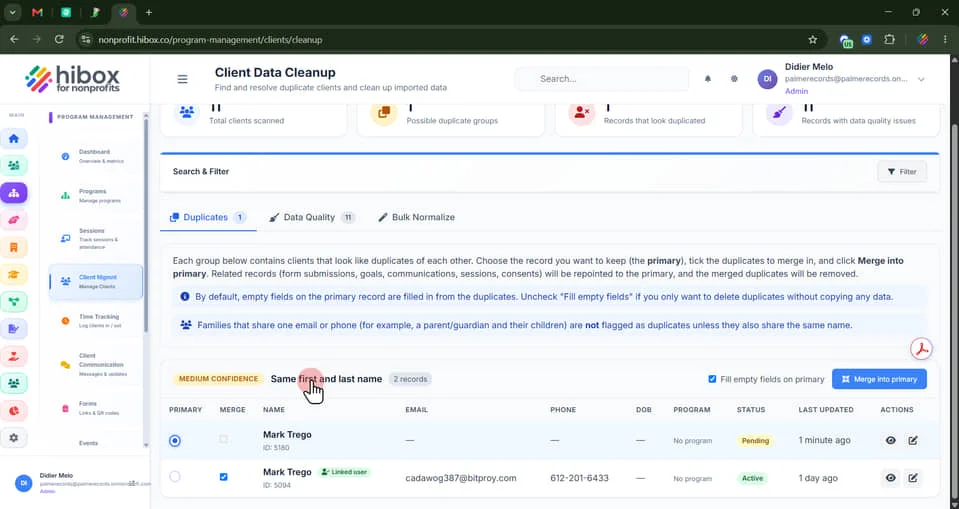
7. By default, empty fields on the primary record are filled in from the duplicates. Uncheck "Fill empty fields" if you only want to delete duplicates without copying any data. Families that share one email or phone (for example, a parent/guardian and their children) are not flagged as duplicates unless they also share the same name.
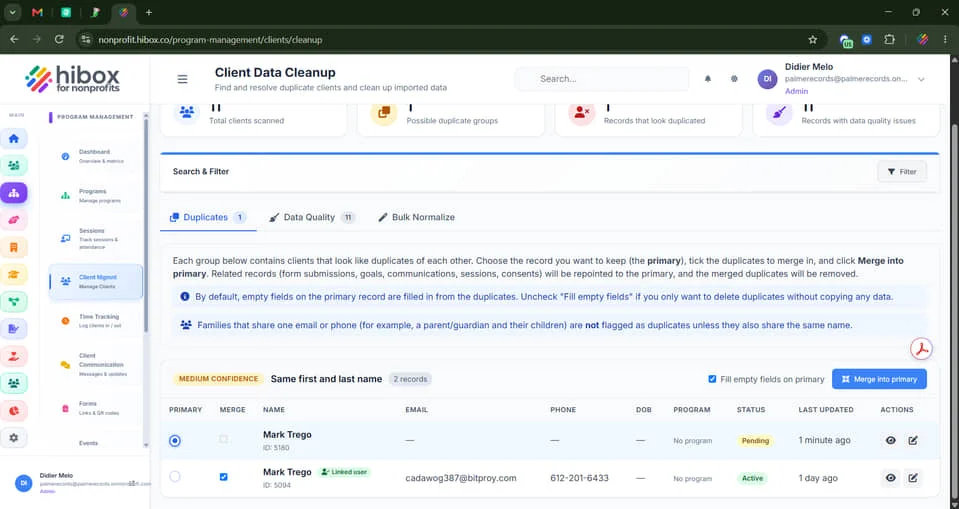
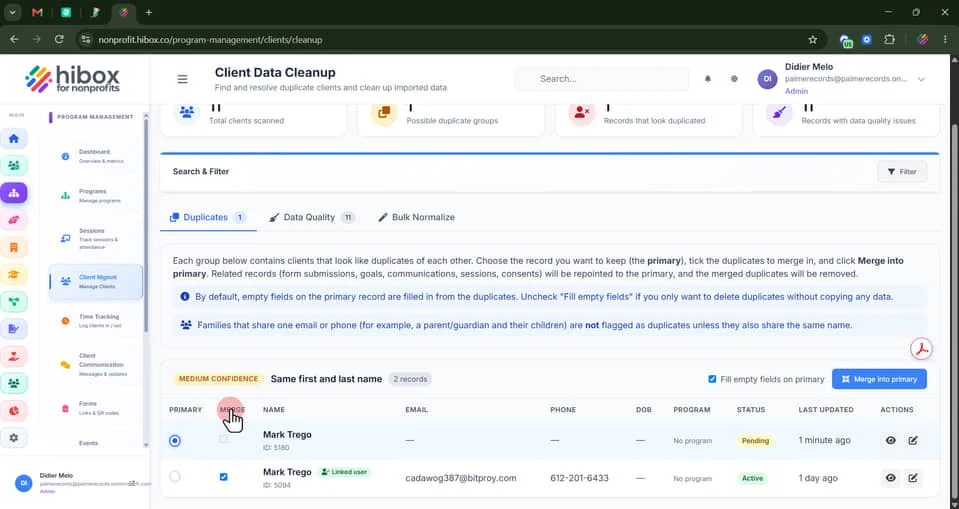
8. Select the client that will remain as the "Primary" profile and select the other profile which will be merged with the primary client"MERGE"
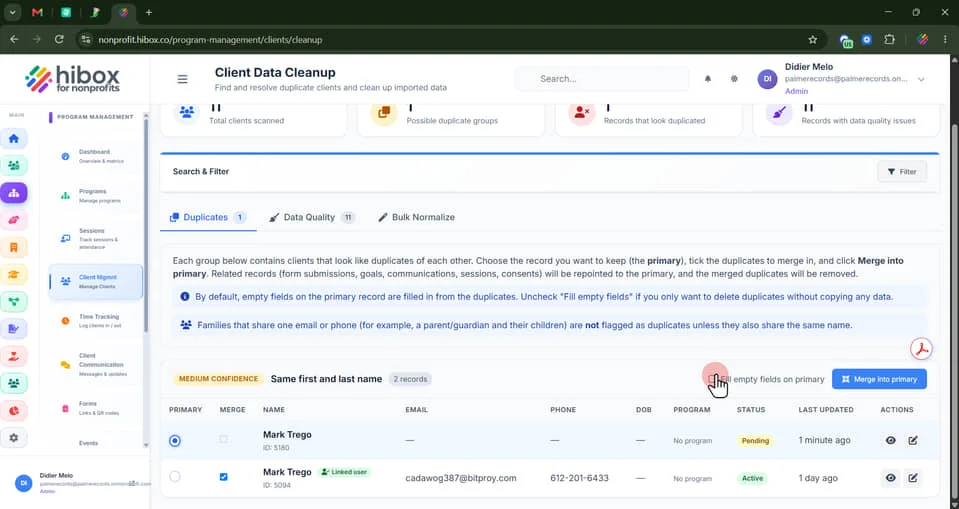
9. Choose if you want to "Fill empty fields on primary"
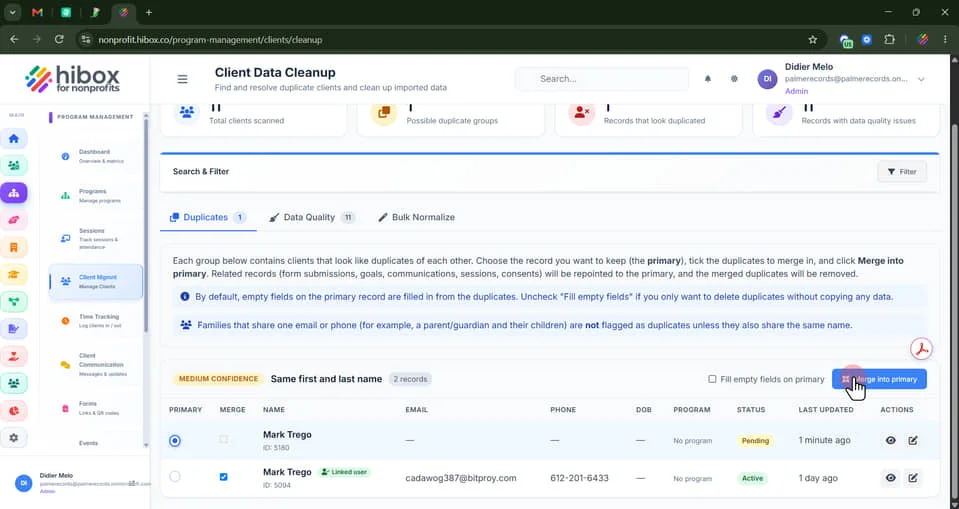
10. Click "Merge into primary" to start the merge
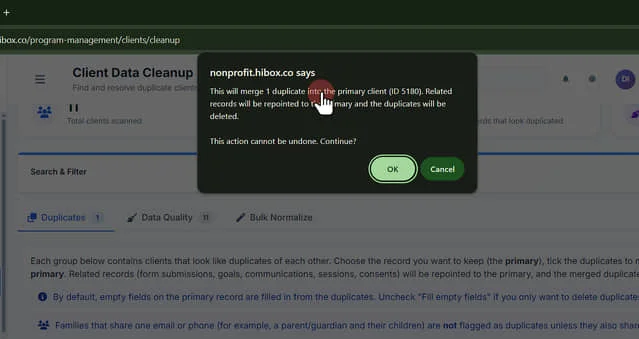
11. This will merge 1 duplicate into the primary client (ID 5180). Related records will be repointed to the primary and the duplicates will be deleted
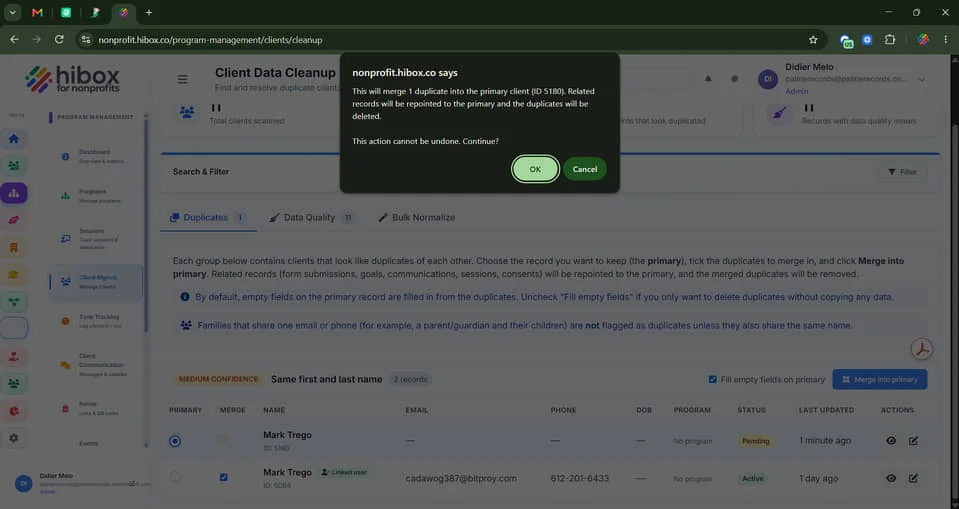
12. Click "OK" to continue
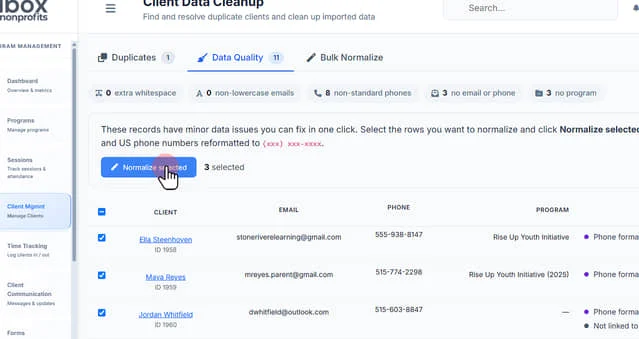
13. Click "Data Quality" to see records that have minor data issues you can fix in one click. Select the rows you want to normalize and click Normalize selected. Whitespace will be trimmed, emails lowercased, and US phone numbers reformatted to (xxx) xxx-xxxx.
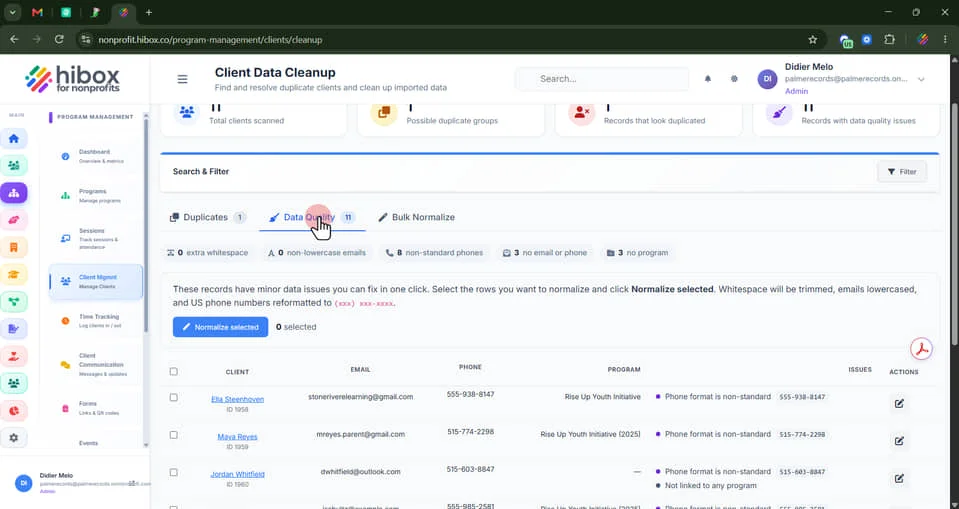
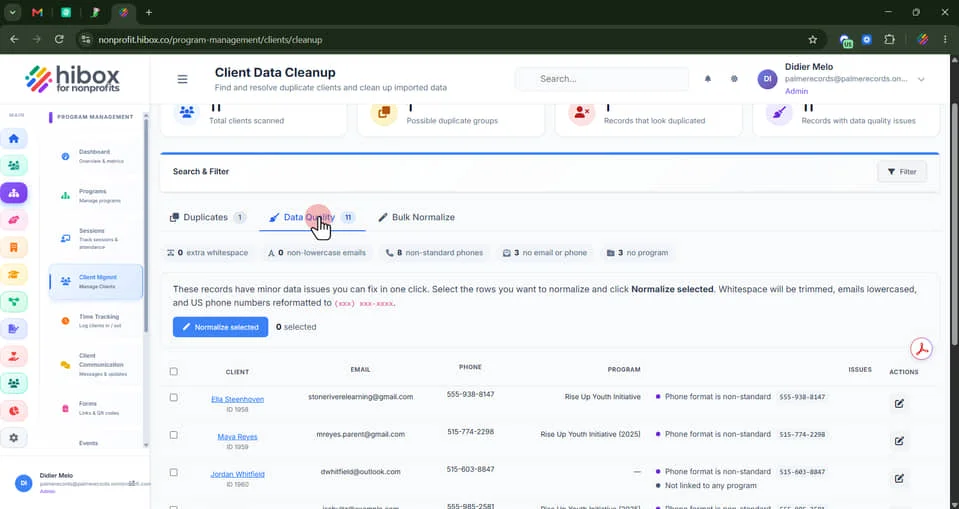
14. Click "Data Quality" to see records that have minor data issues you can fix in one click. Select the rows you want to normalize and click Normalize selected. Whitespace will be trimmed, emails lowercased, and US phone numbers reformatted to (xxx) xxx-xxxx.
15. Select the rows you want to normalize and click Normalize selected. Whitespace will be trimmed, emails lowercased, and US phone numbers reformatted to (xxx) xxx-xxxx.
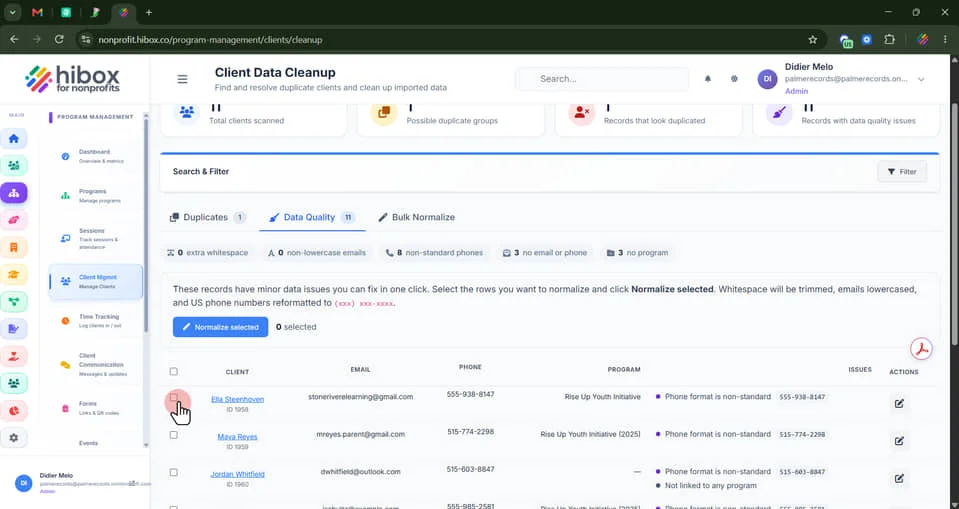
16. Click "Normalized Selected"
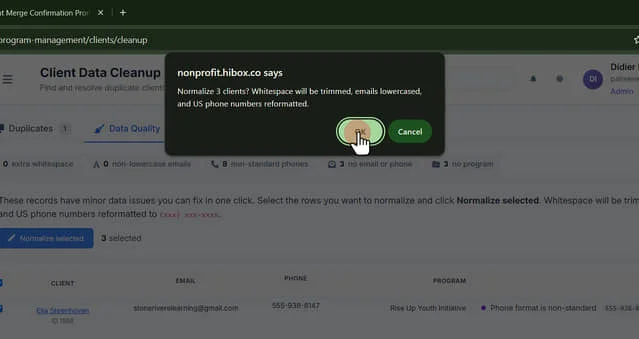
17. Click "OK" to Normalize the selected clients. Whitespace will be trimmed, emails lowercased, and US phone numbers reformatted. Click "ok to cotninue"
18. Click "Bulk Normalize"
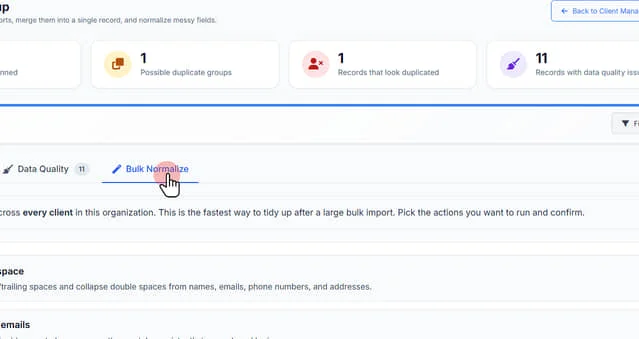
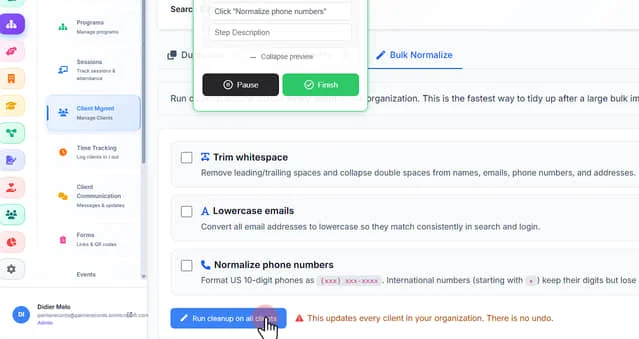
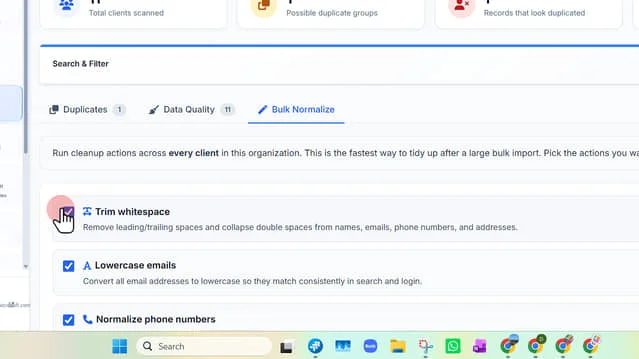
19. Run cleanup actions across every client in this organization. This is the fastest way to tidy up after a large bulk import. Pick the actions you want to run and confirm.
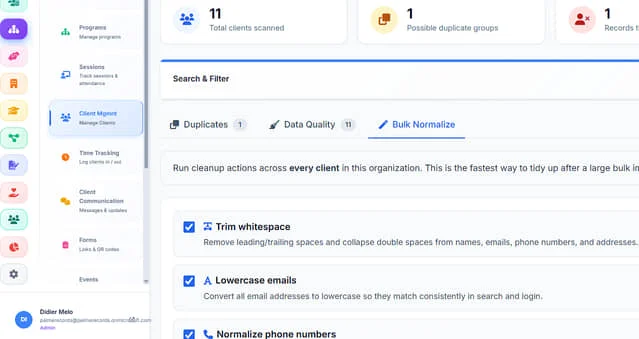
20. Check "Trim whitespace" to remove leading/trailing spaces and collapse double spaces from names, emails, phone numbers, and addresses."
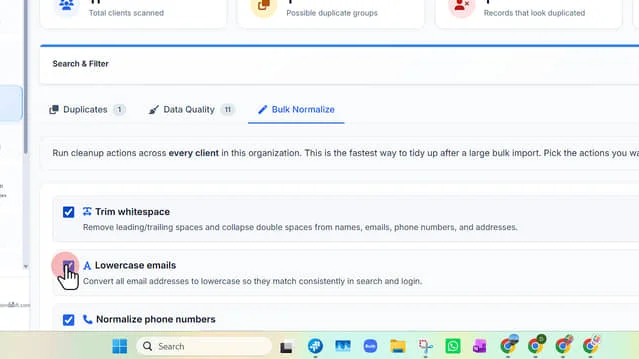
21. Click "Lowercase emails" to convert all email addresses to lowercase so they match consistently in search and login.
22. Click "Normalize phone numbers" to format US 10-digit phones as (xxx) xxx-xxxx. International numbers (starting with +) keep their digits but lose extra punctuation
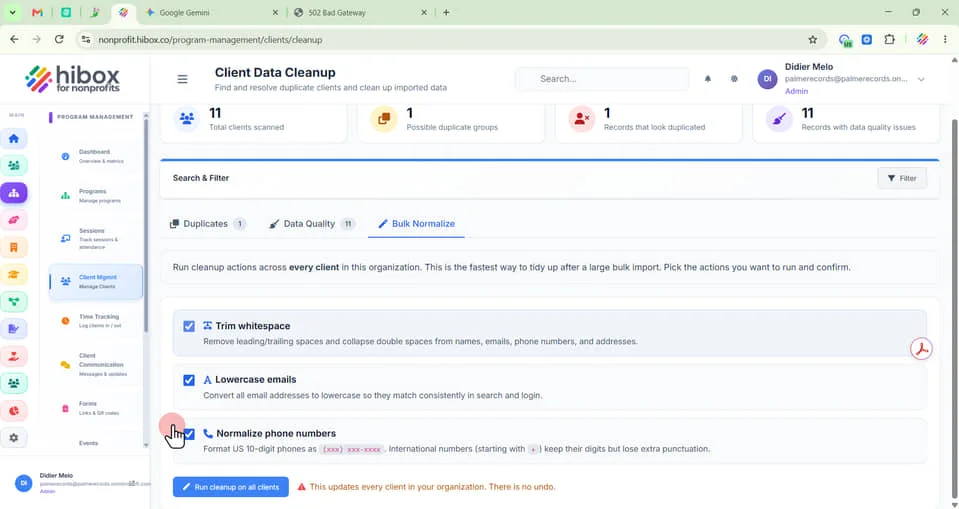
23. Click "Run cleanup on clients" This updates every client in your organization. There is no undo