Client/Parent Account Overview
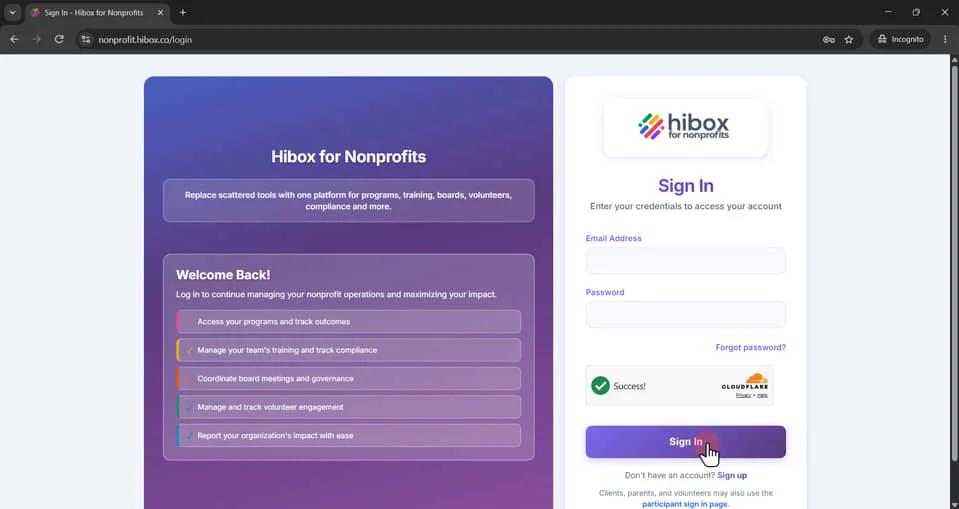
1. Open any web browser and go to "nonprofit.hibox.co"
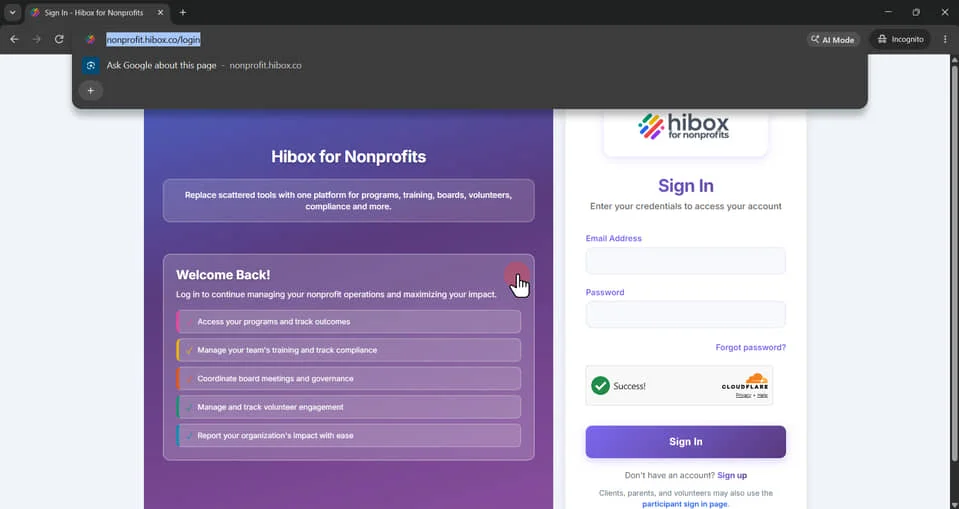
2. Enter your "Email Address"
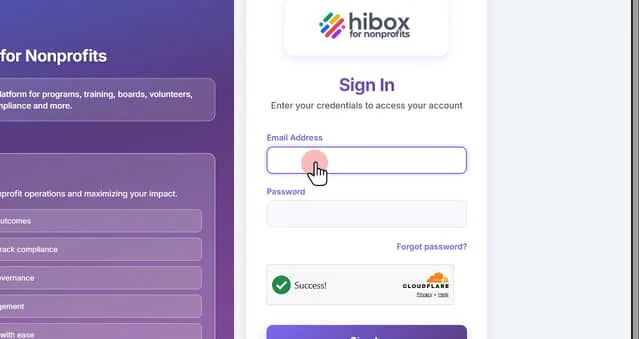
3. Type your password. The default password for client/parent account is the e-mail address
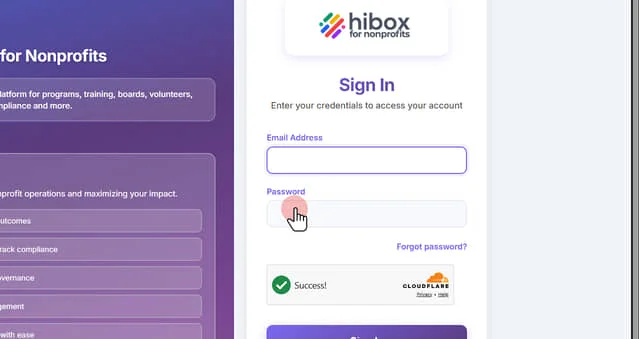
4. Click the checkbox to "verify that you are a human"
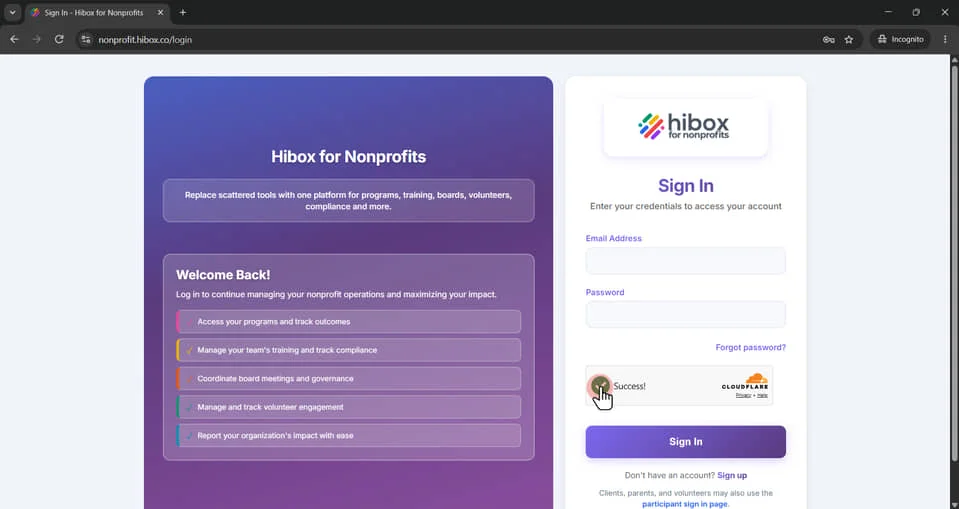
5. Click "Sign in"
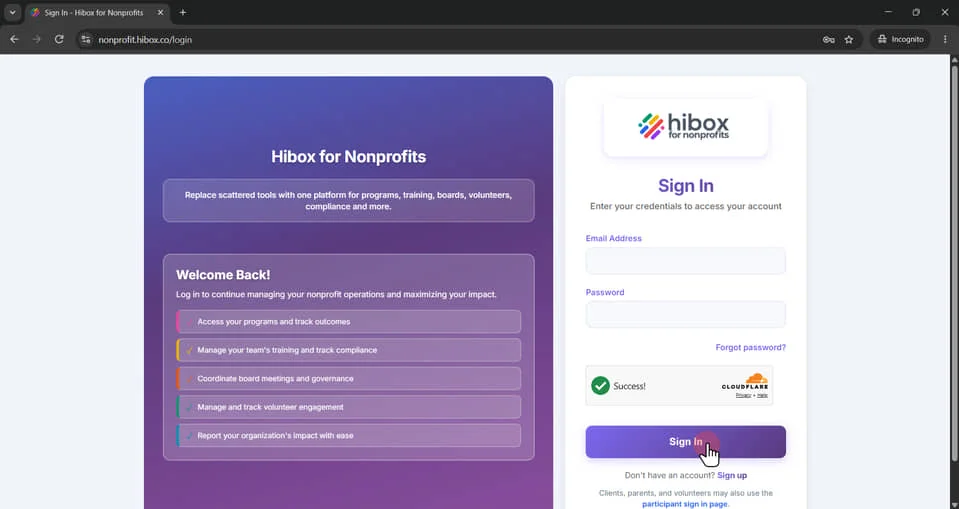
6. If you are not able to log in, click the "forgot password" button and a reset password email will be ssent into the registered email on the account. Please make sure you check your SPAM folder
7. As soon as you log in as a client, you will see a pop up with required actions such as filling out consent forms "Action required"
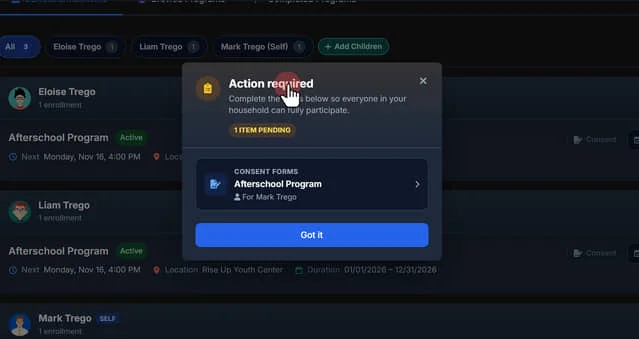
8. Copy "Got it" to close the pop-up window for now, (skip to step 17)
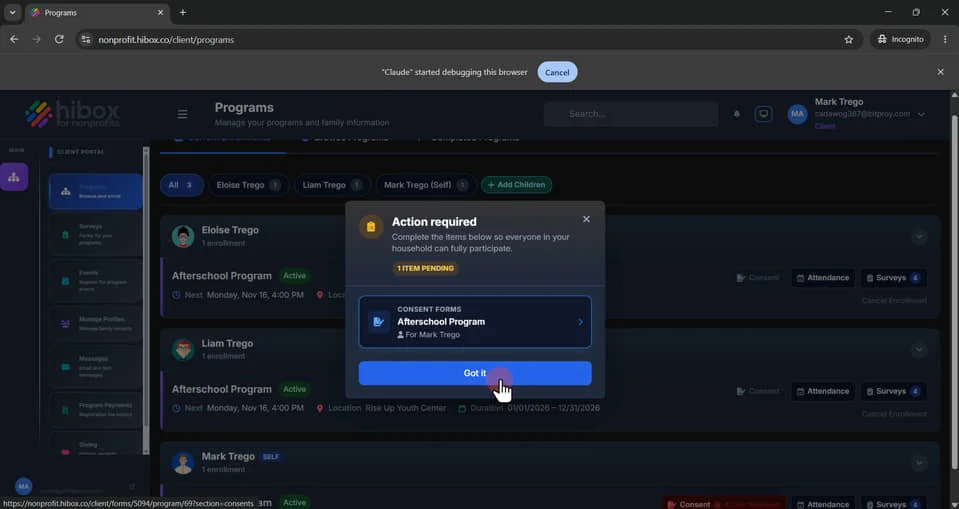
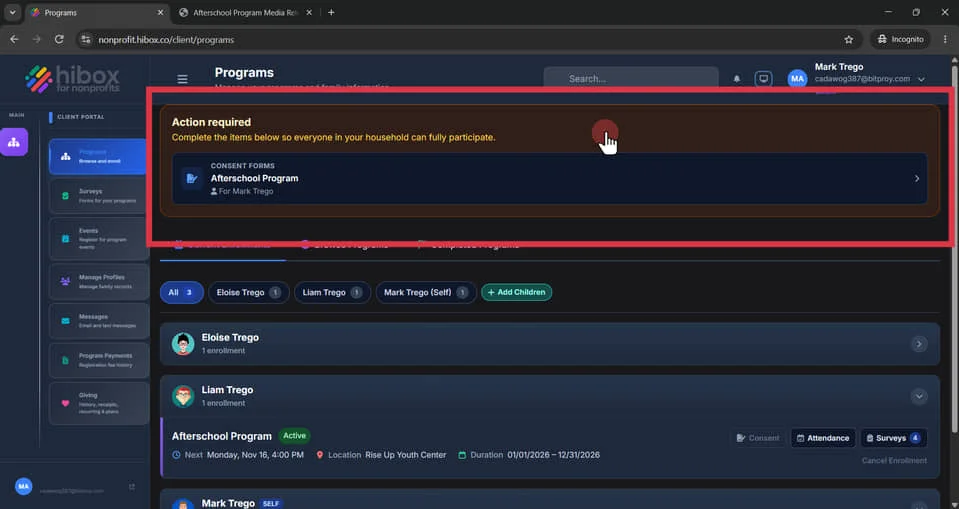
9. Complete the items below so everyone in your household can fully participate
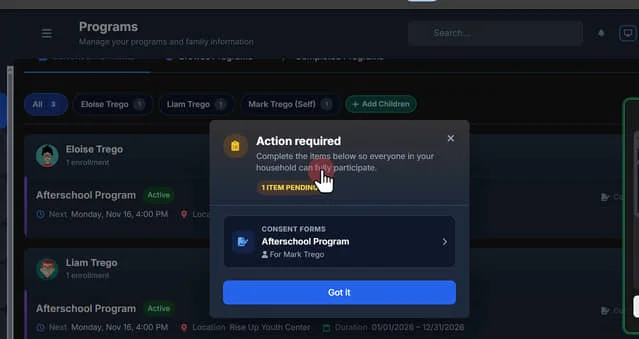
10. Click inside the box to get started
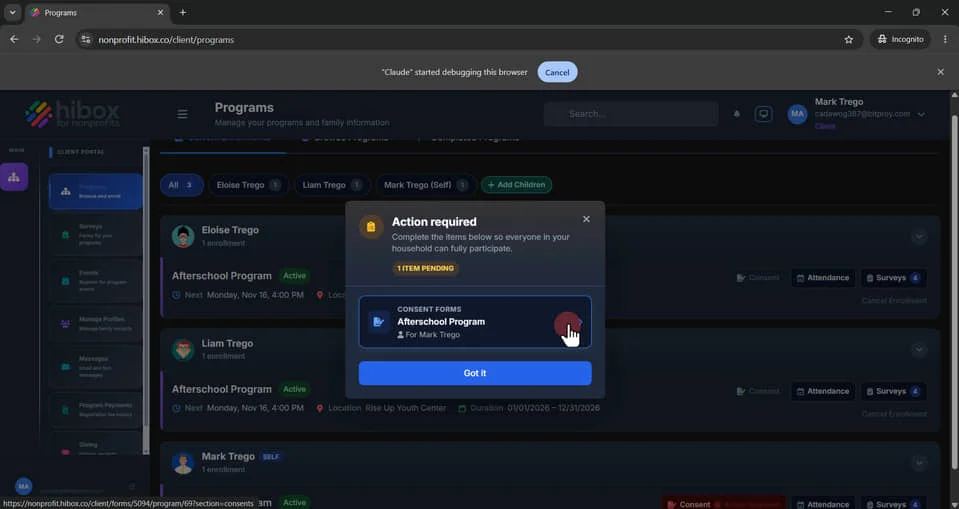
11. Click "Open" or "Start"
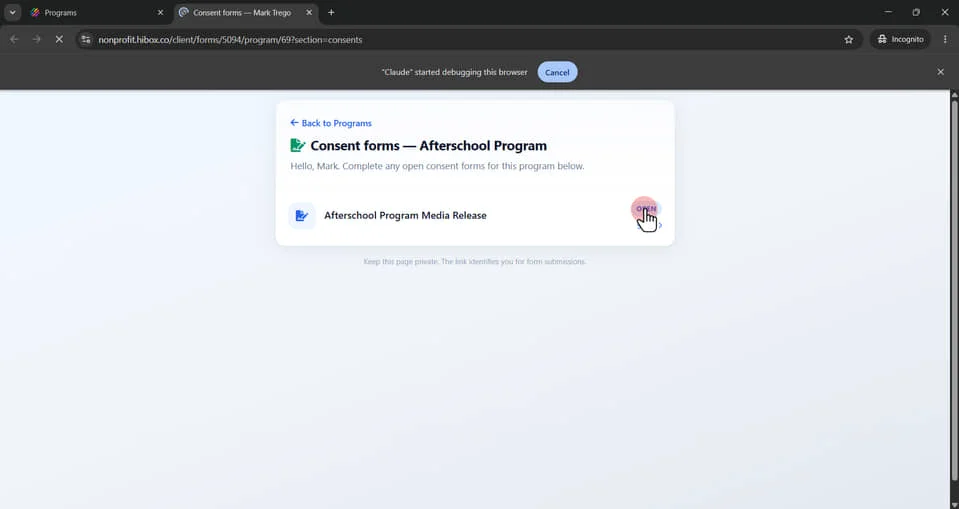
12. The missing form will open you it can be completed
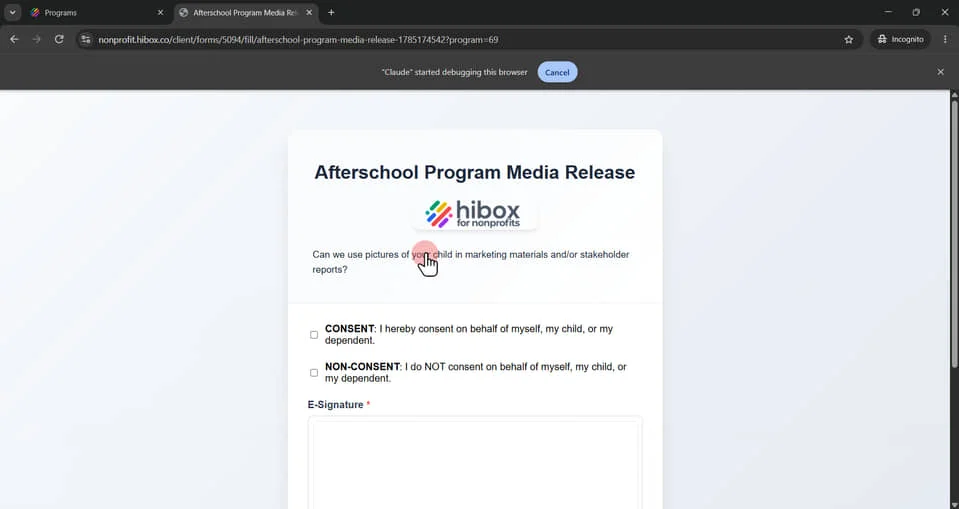
13. Complete the form by answering all the questions
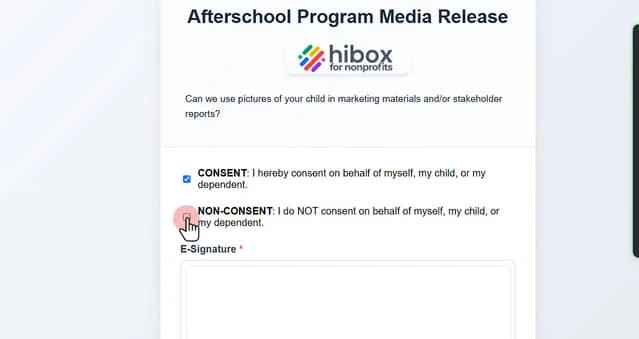
14. Use your mouse (or finger) to leave your e-signature
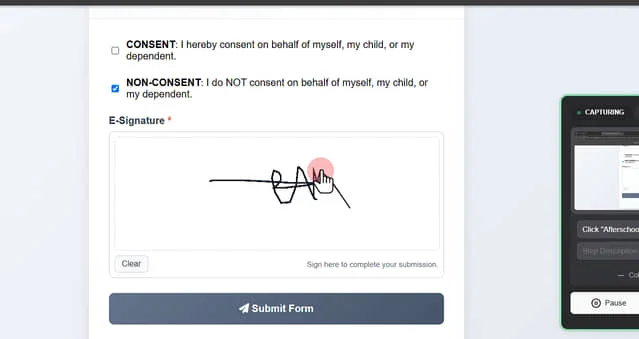
15. Click "Clear" to restart the e-signature
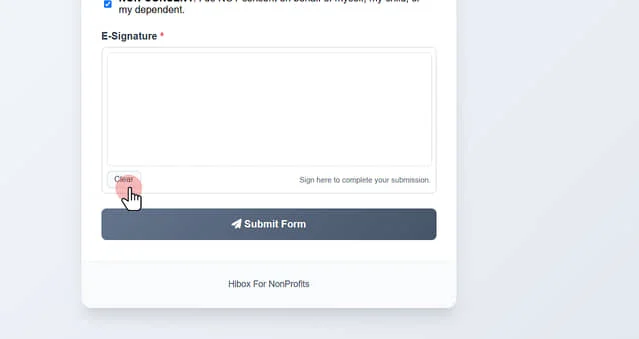
16. Scroll down and click "Submit form" to finish
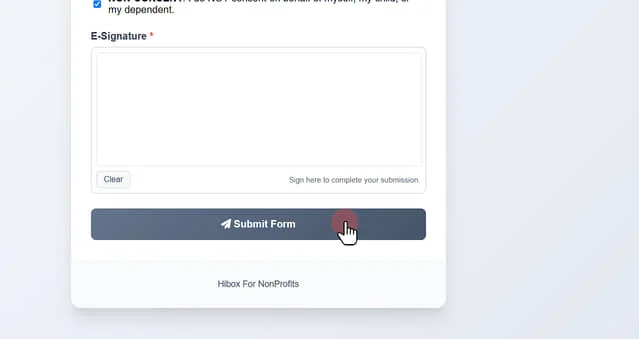
16.1. Once the form has been submitted, you will land into the Programs section
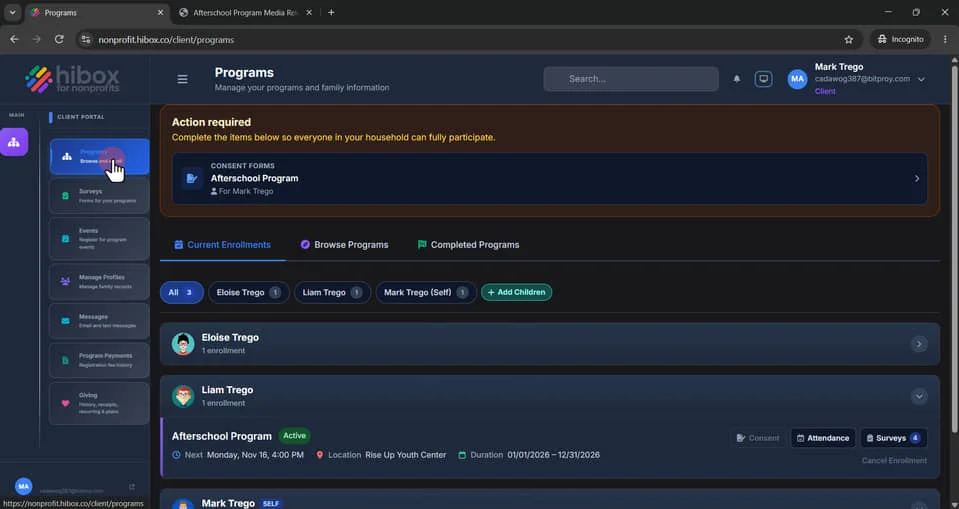
17. If there is documentation pending, you will find it on this section here
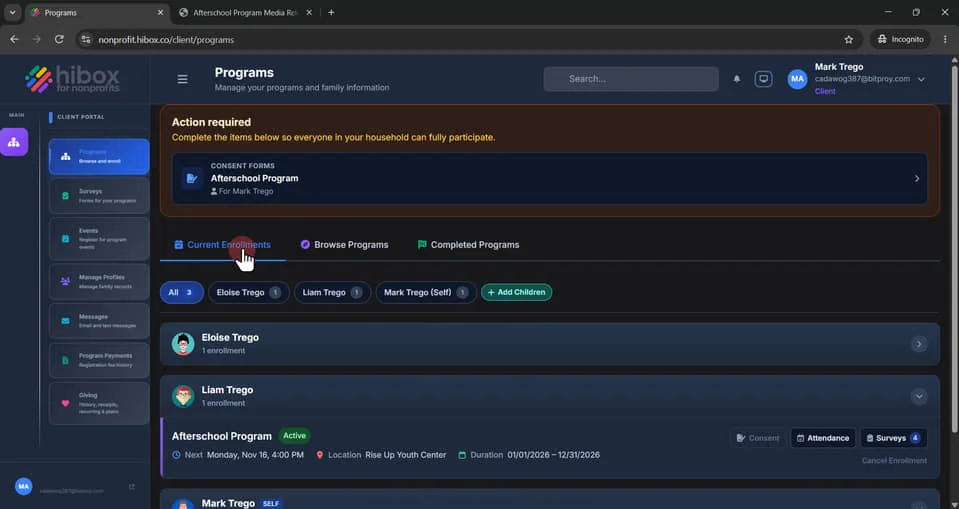
18. Click "Current Enrollments"
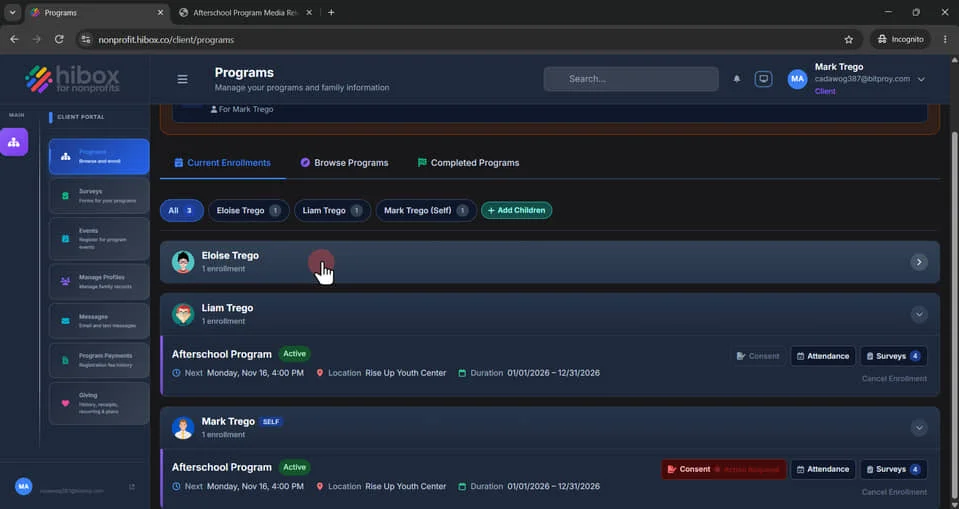
19. Click on any of the children's names to see more details about what they are enrolled in
20. Click "Attendance" to see all attendance details
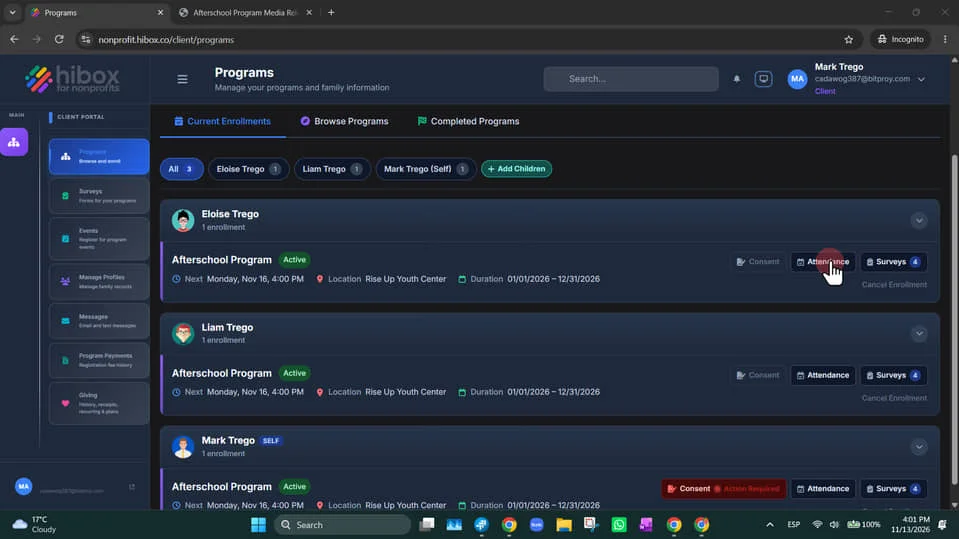
21. Find a qucik dashboard here
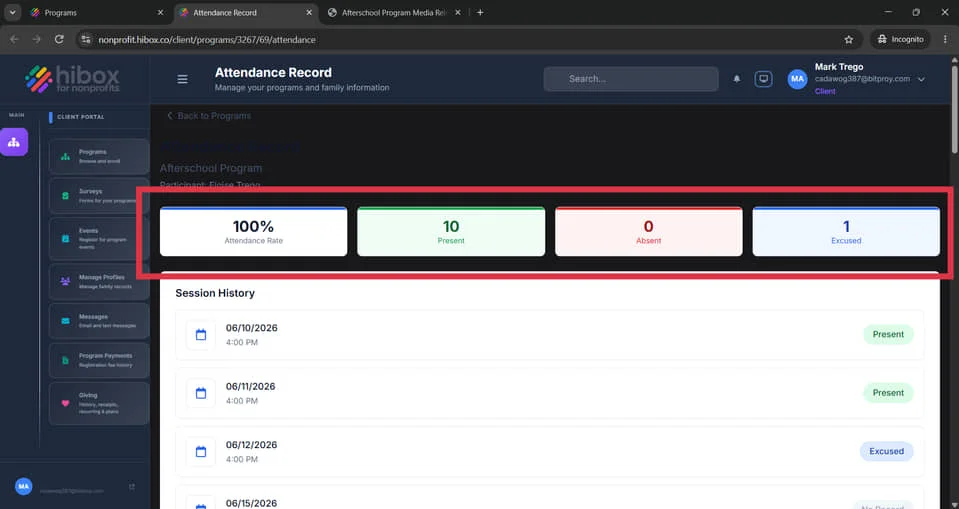
22. Scroll down to see all sessions
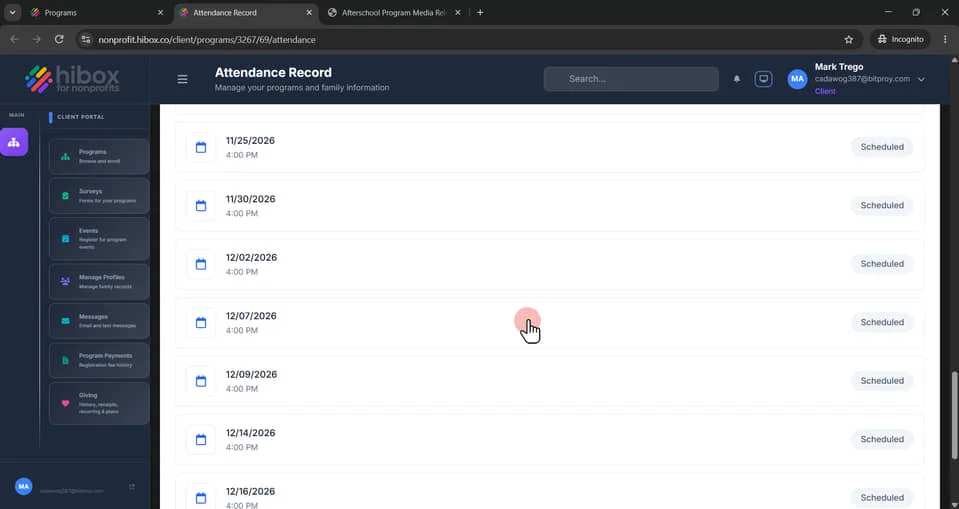
23. Click any session to view its attendance details.
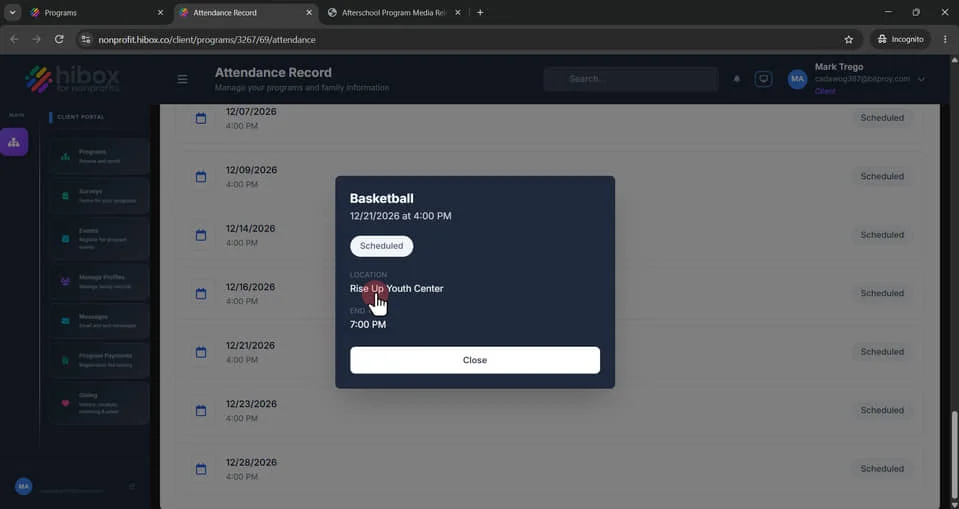
24. Click "Close"
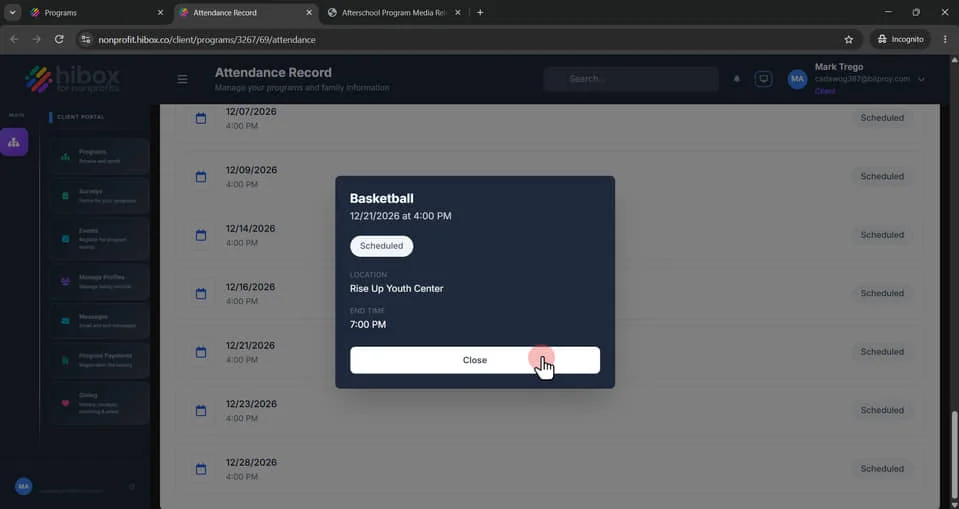
25. Click "Back to Programs"
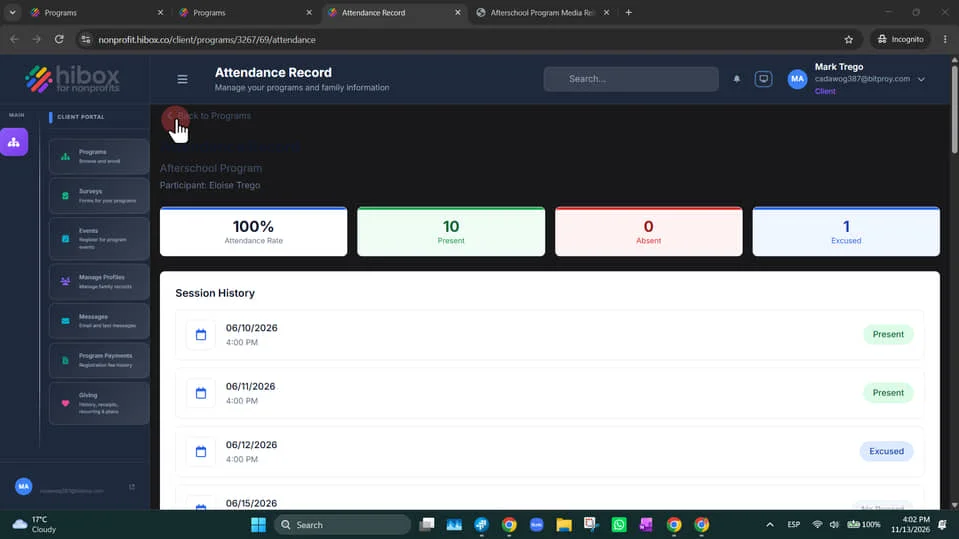
25.1. Click "Surveys" to see more details about surveys for this person
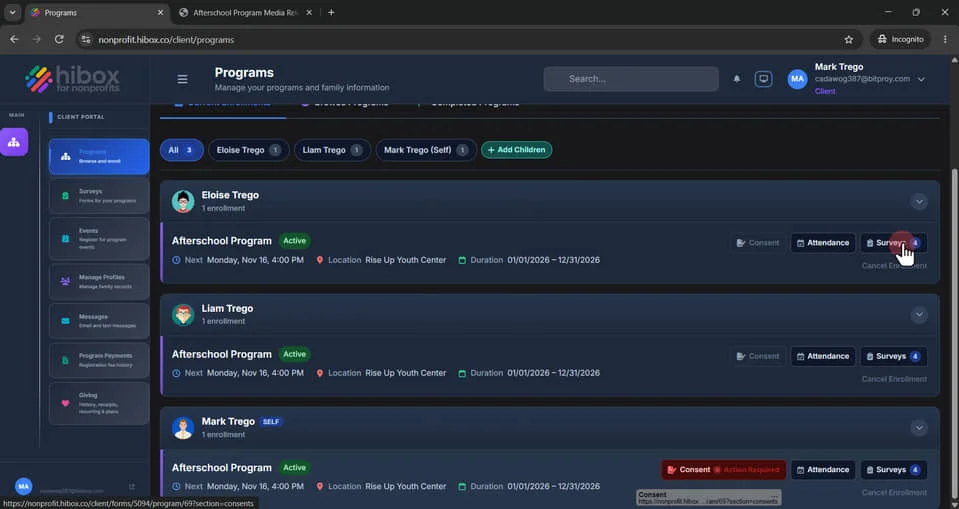
26. Find how many surveys are pending here
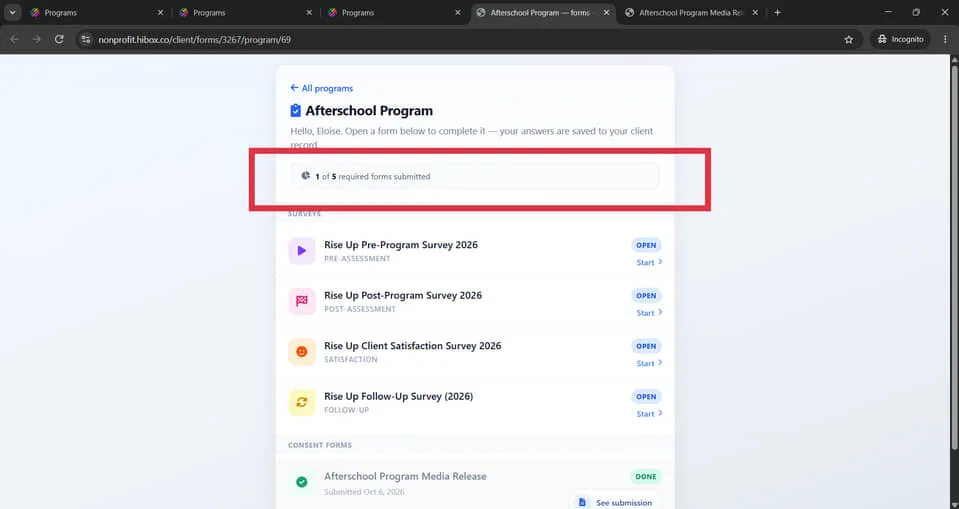
27. Find the missing consent form at the bottom
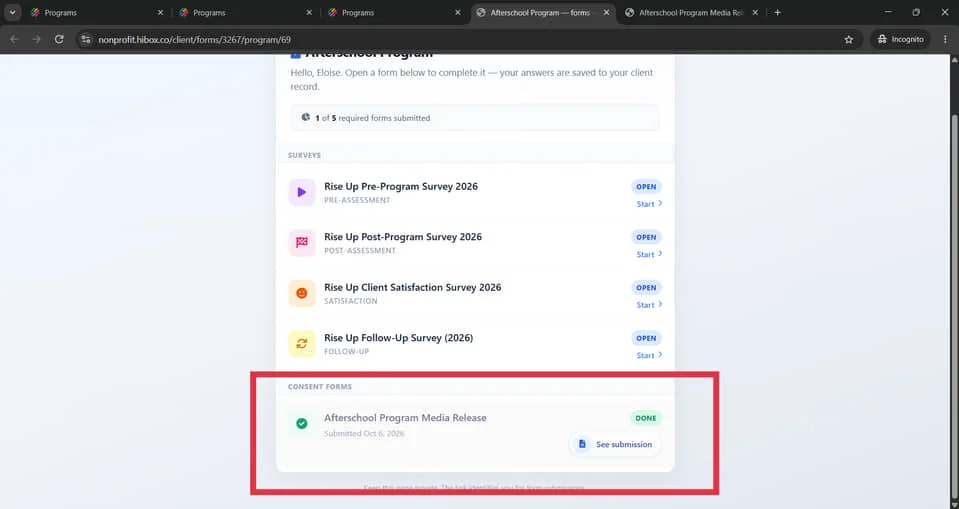
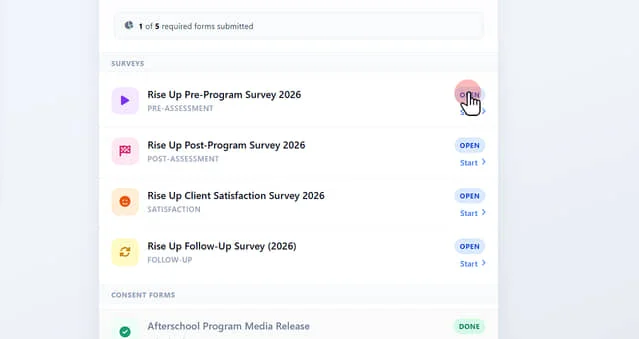
28. Click "Start" to complete the survey
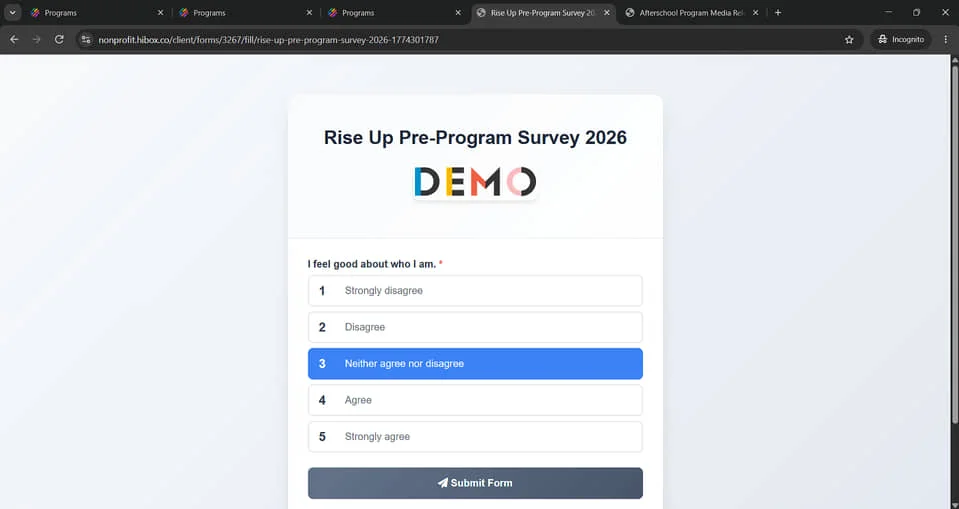
29. Complete the survey accordingly
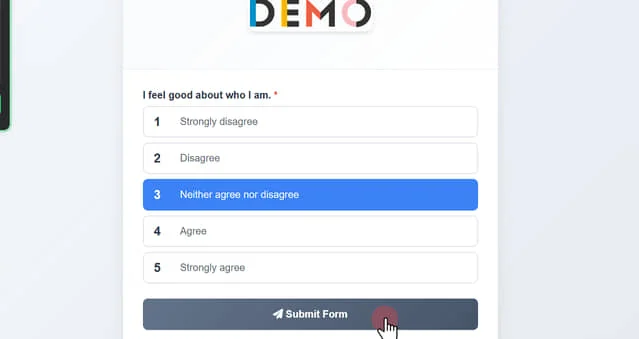
30. Click "Submit Form" to complete the survey
31. Now the submitted survey will show as complete here
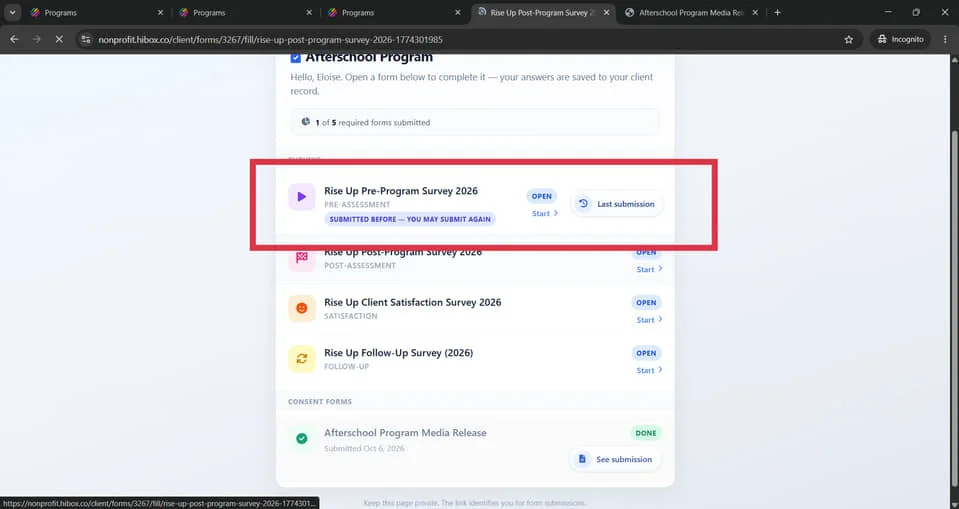
32. Complete the rest of the surveys by clicking on the "Start" button
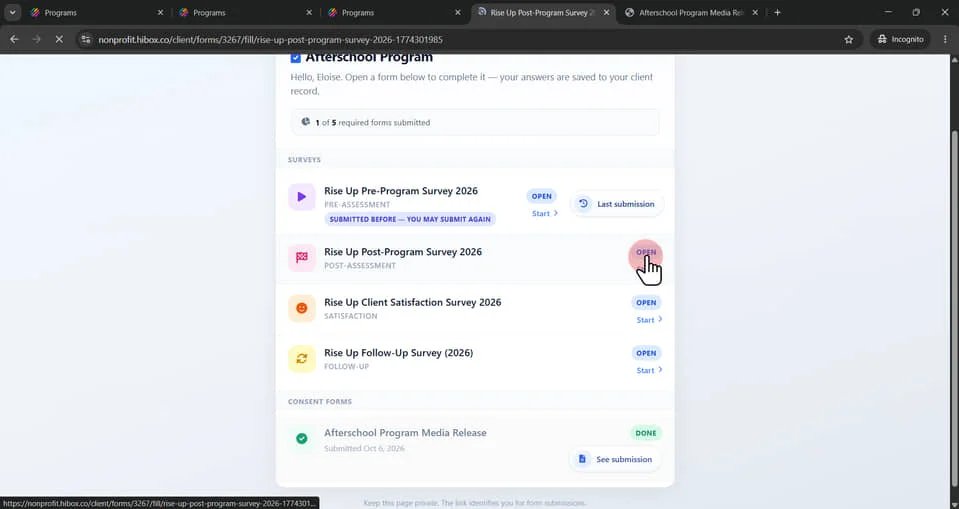
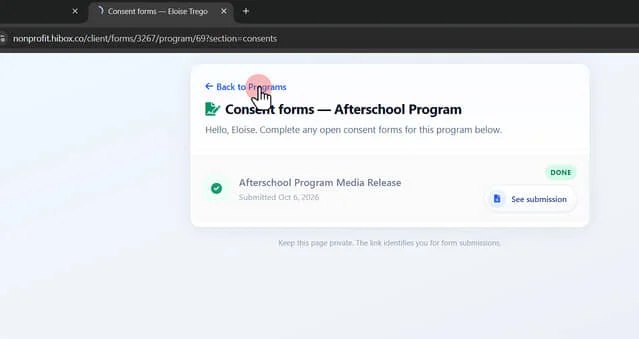
33. Scroll down to the "Consent Form" section and click "See submission" to see the form submission details
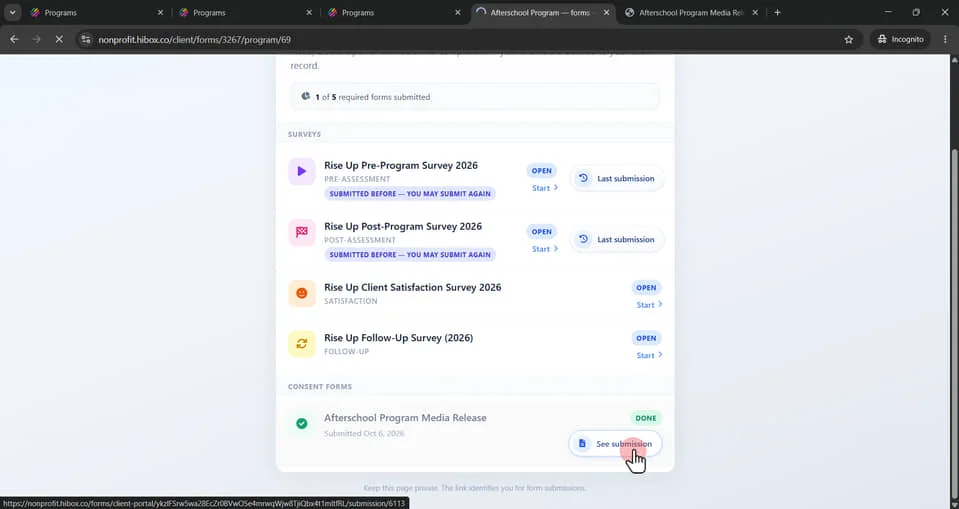
34. This is the form submission, review it and click "Back to Programs"
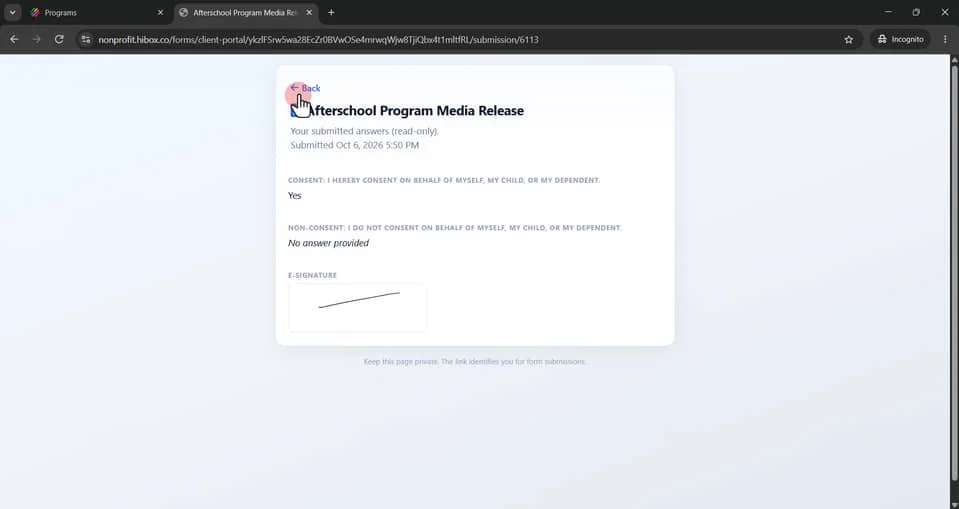
35. Click "Back to Programs"
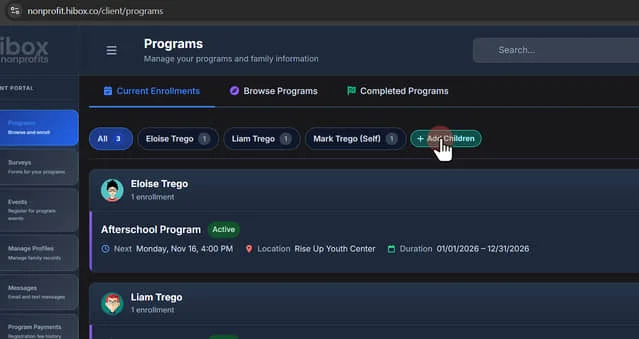
36. Click "Add a children to add another children under the parent's account"
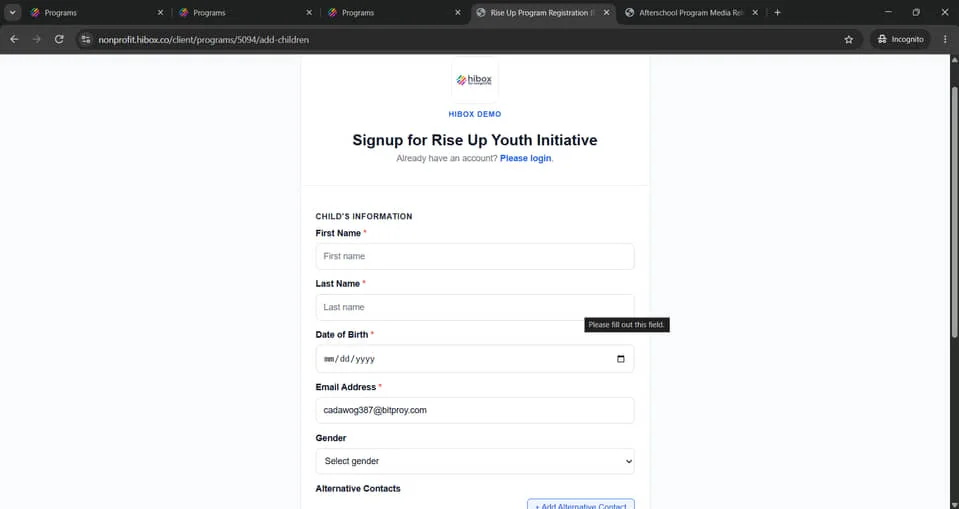
37. Complete the form information
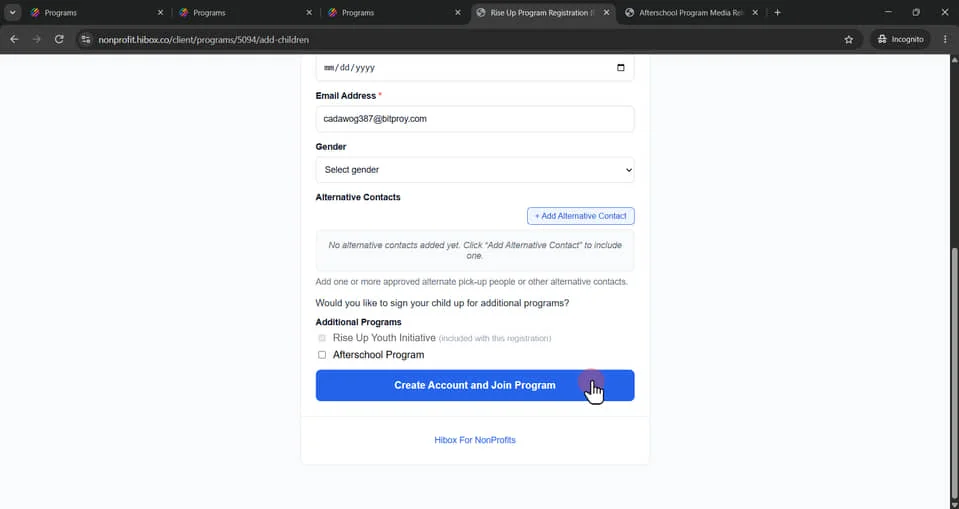
38. Click "Create Account and Join Program" when finished
39. Navigate to the "Browse Programs" tab to find more available programs
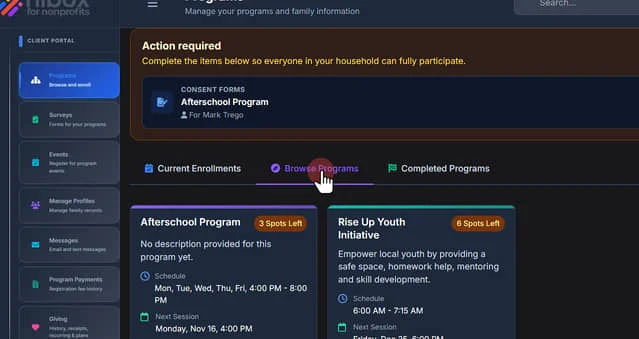
40. Find all the details for each program
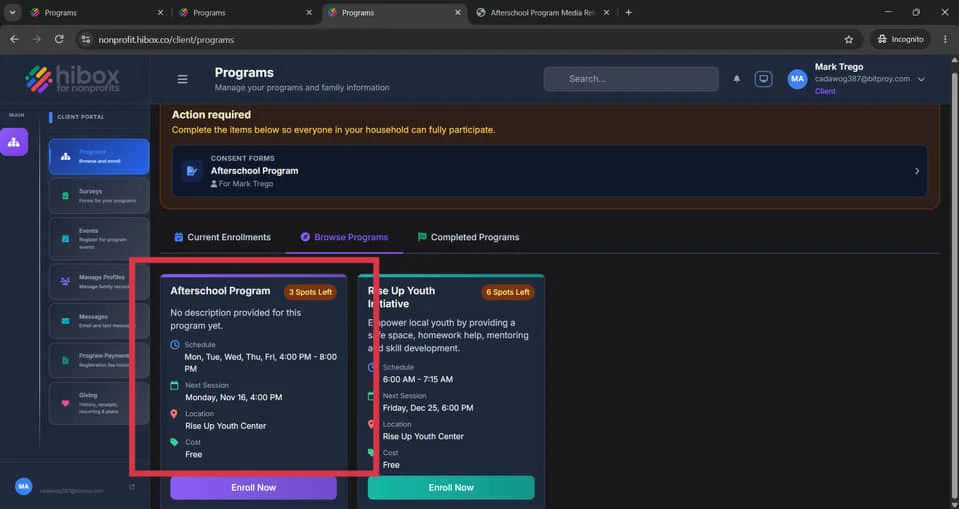
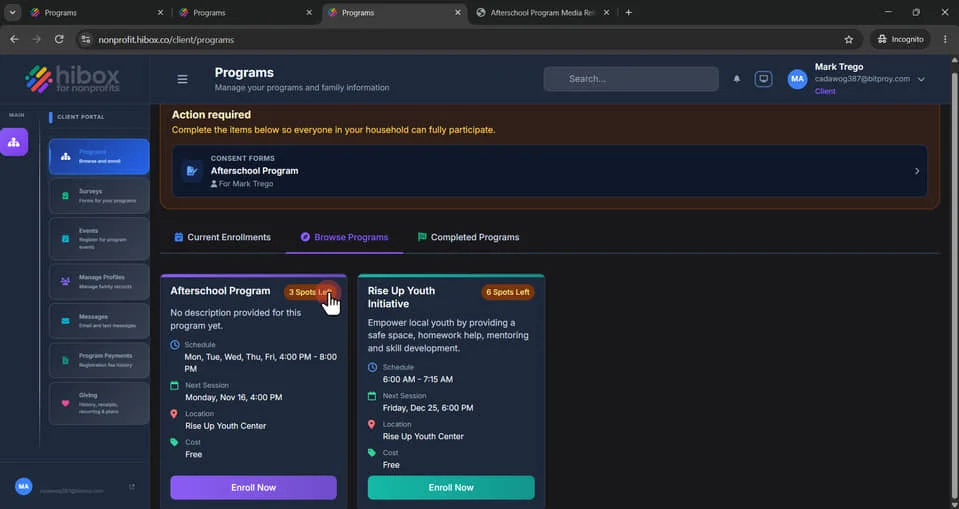
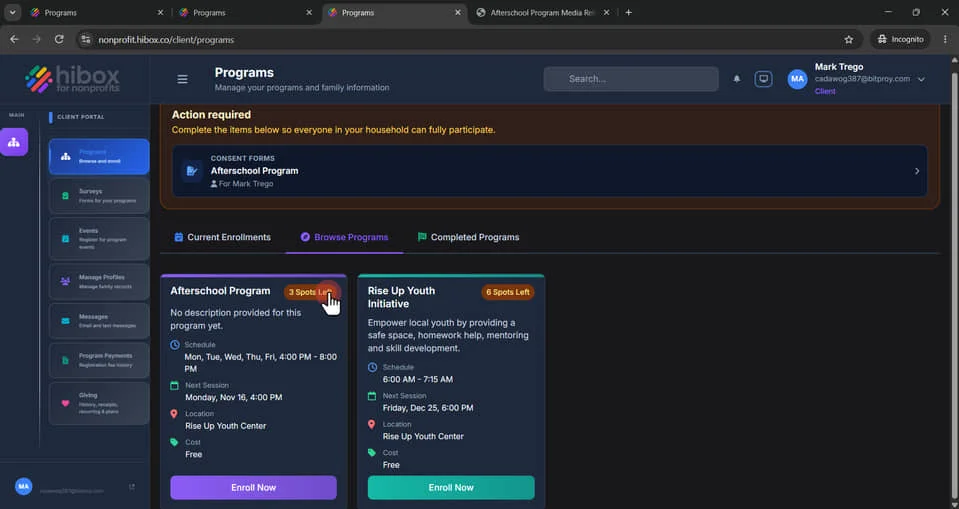
41. See how many "Spots are left"
42. Click "Enroll Now" to enroll into the program
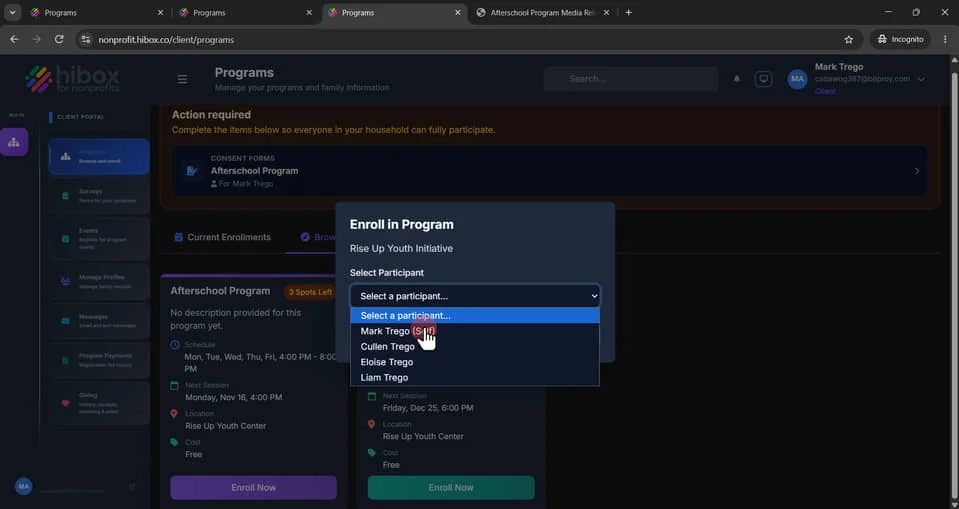
43. Use the dropdown menu to select a Participant
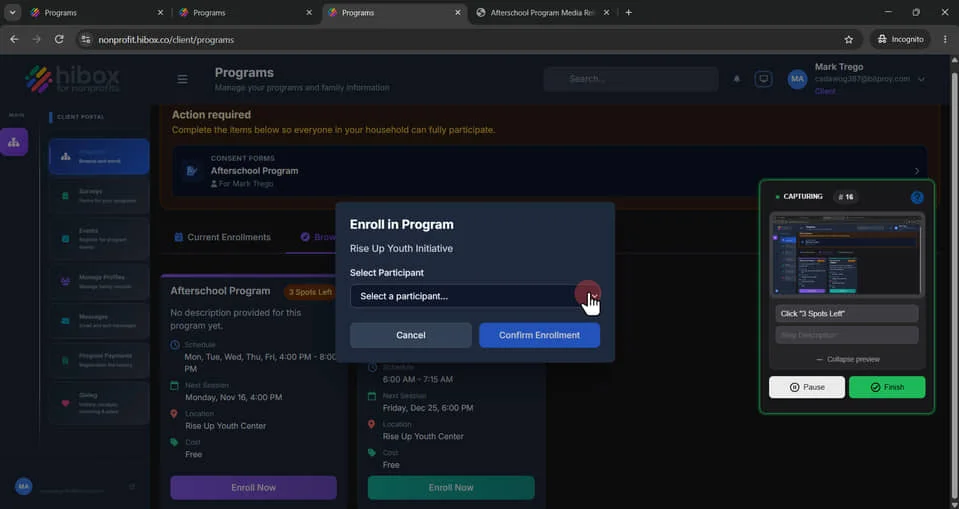
44. Select "Select a participant..."
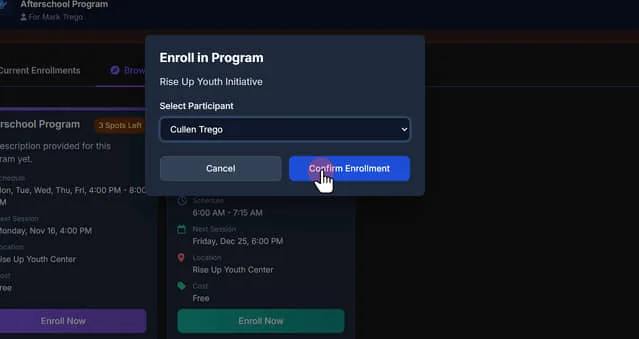
45. Click "Confirm Enrollment"
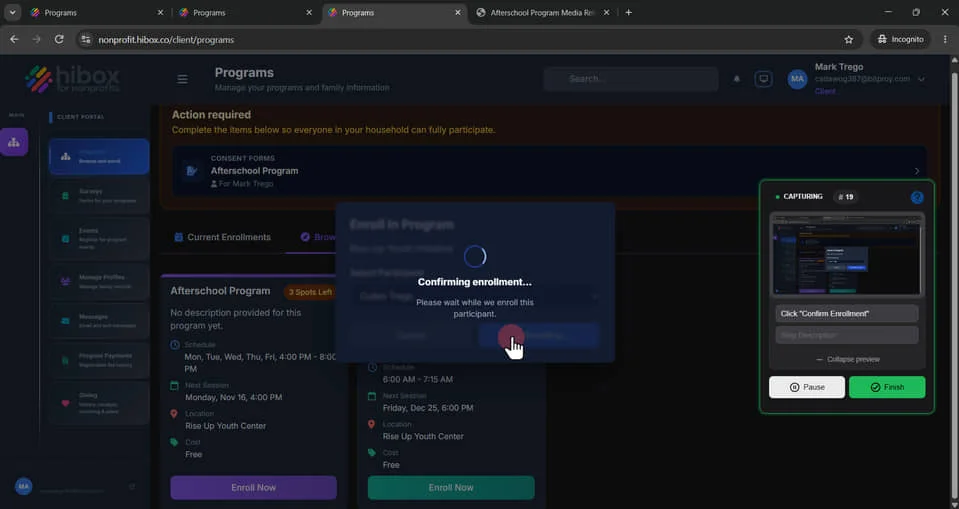
46. Click "Enrolling..."
47. If there are any fees involved, proceed with the payment. Choose your payment method and follow the instructions
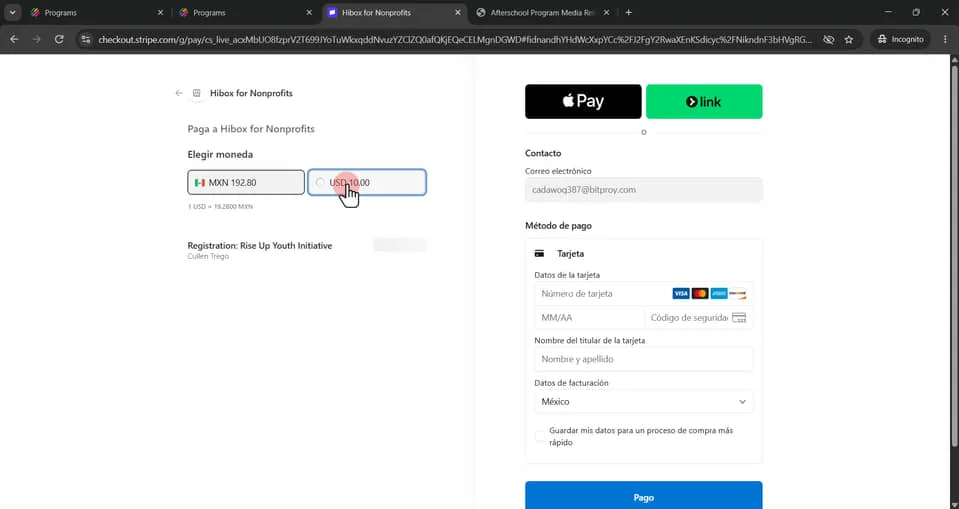
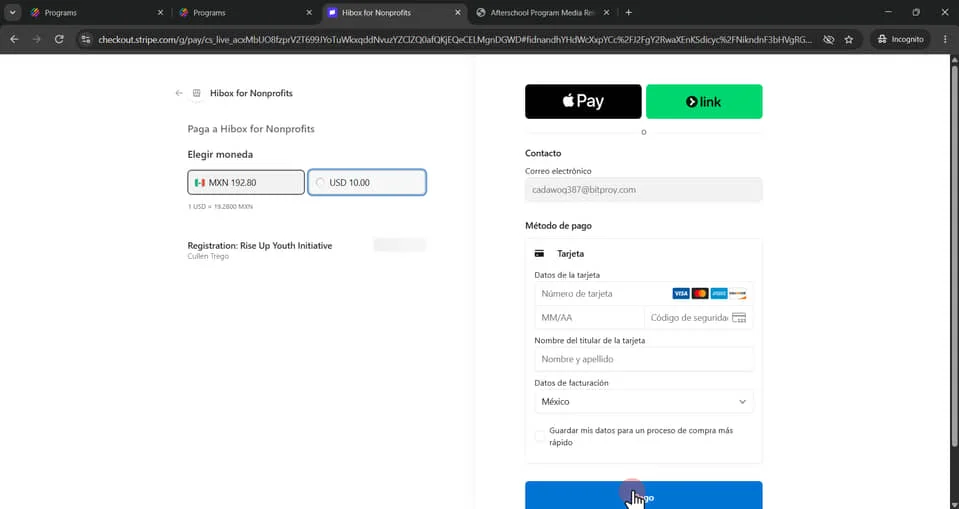
48. Click "Pay"
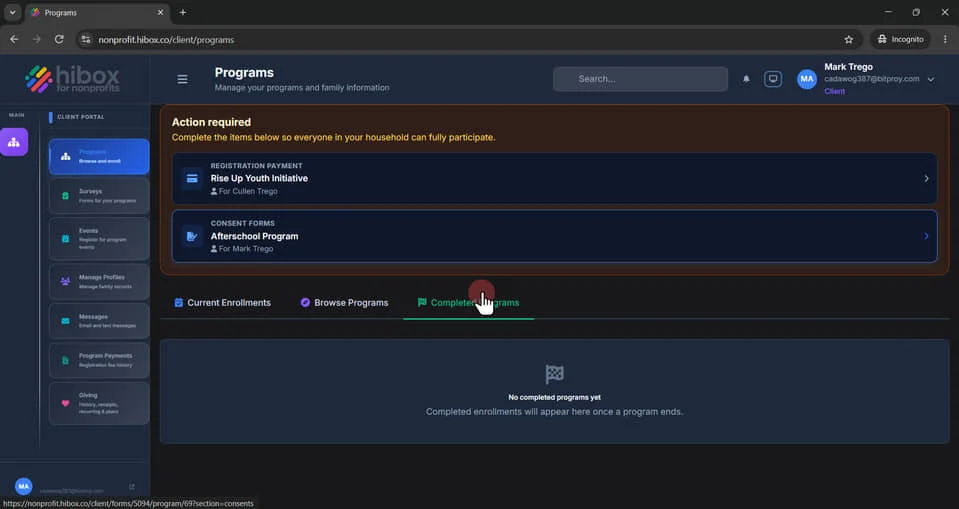
49. Click "Completed Programs" to see past programs
50. Click " Surveys Forms for your programs"
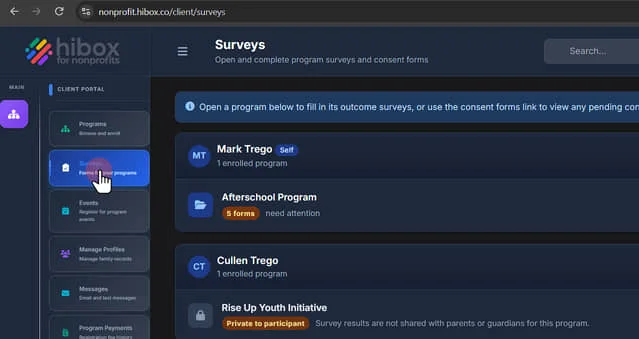
51. Click here
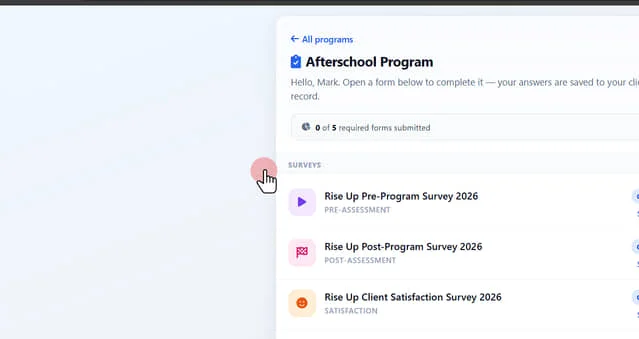
52. Click " Back to Programs"
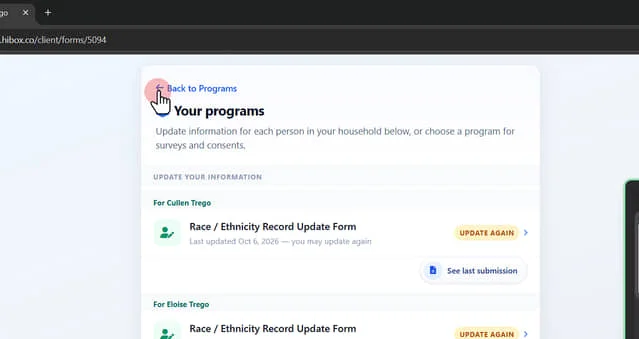
53. Click "Back to Programs"
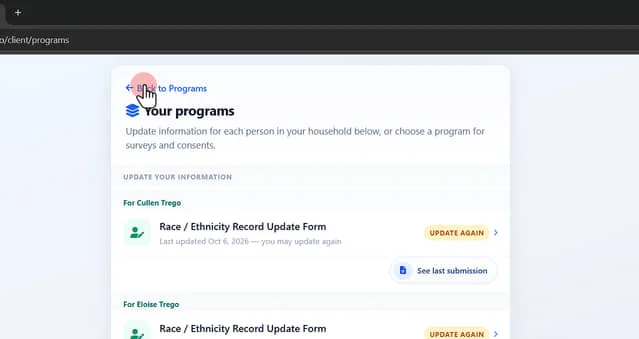
54. Click "Surveys" on the sub-menu
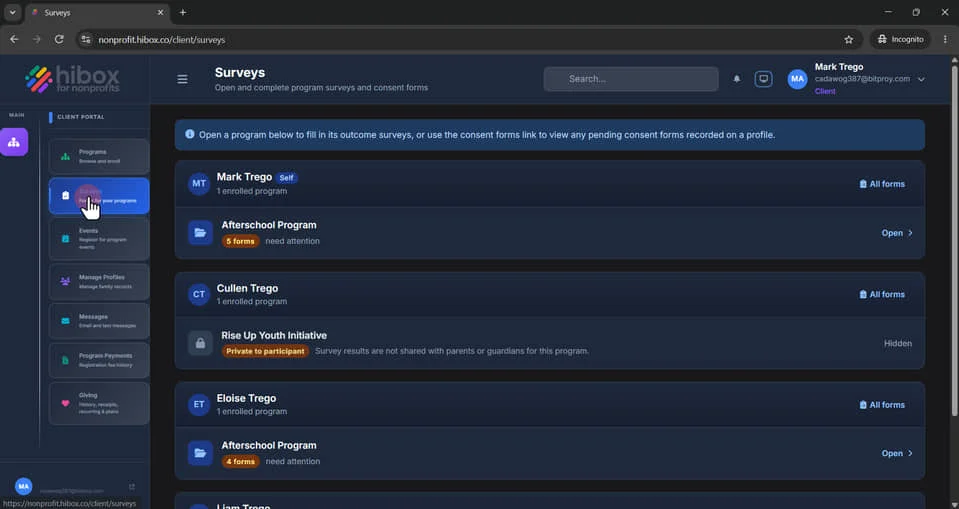
55. Click on any of the programs to see more survey details for that program
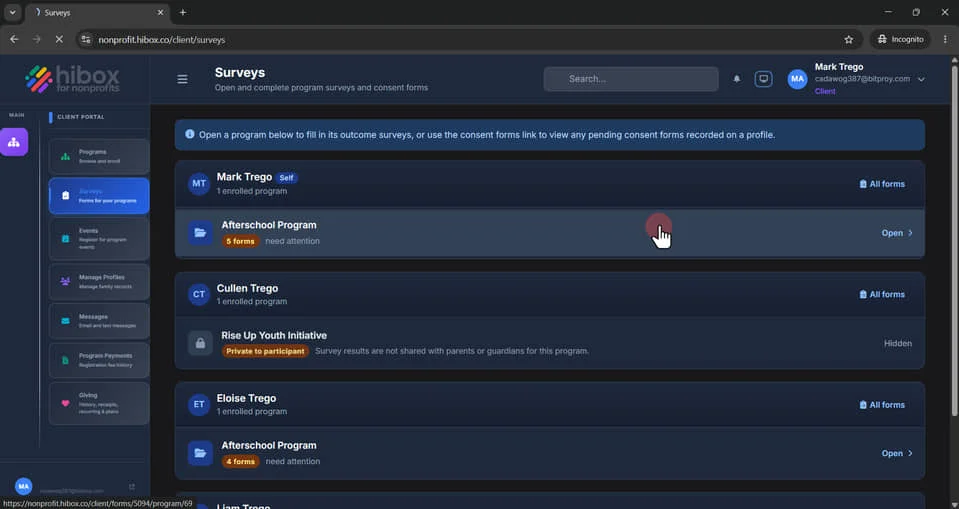
56. Find the pending surveys here
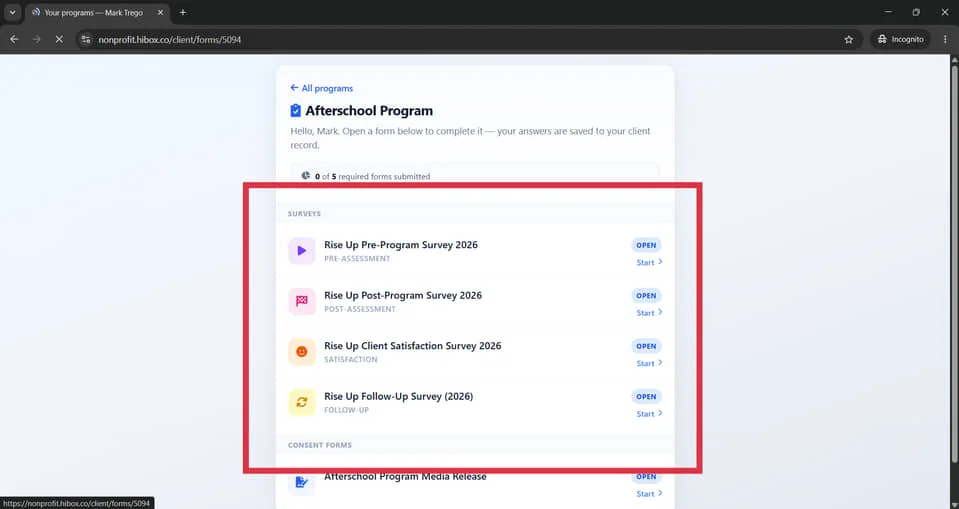
57. Click "Open" to start the survey
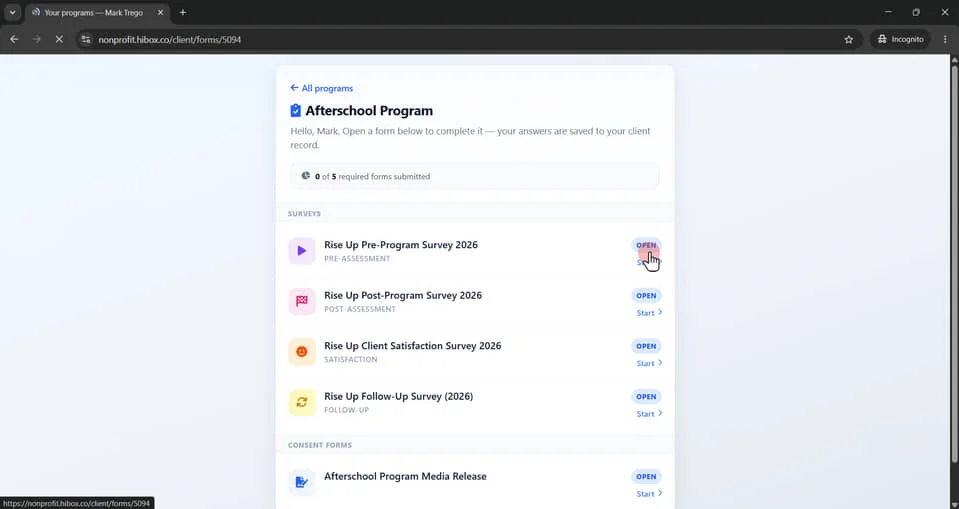
58. Click "All Programs" to go back
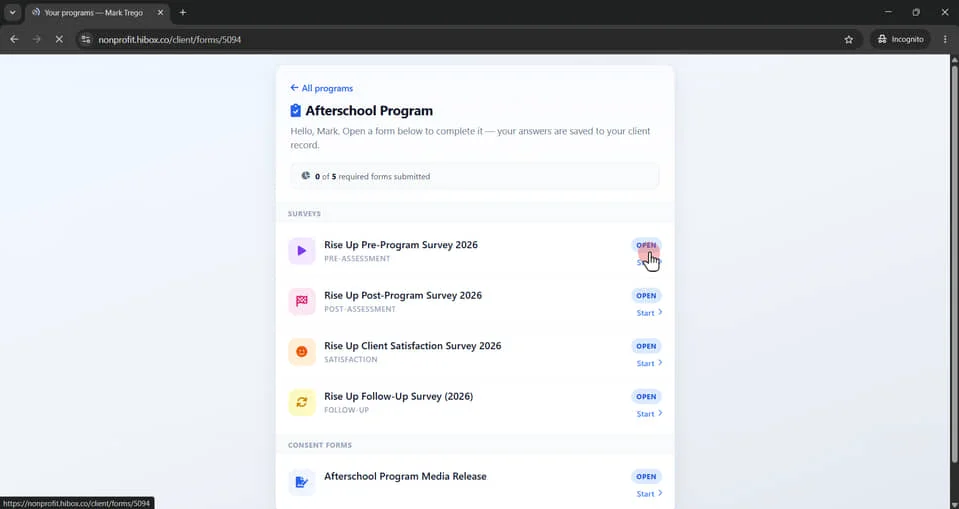
59. Click "All Forms" to see all forms for that person
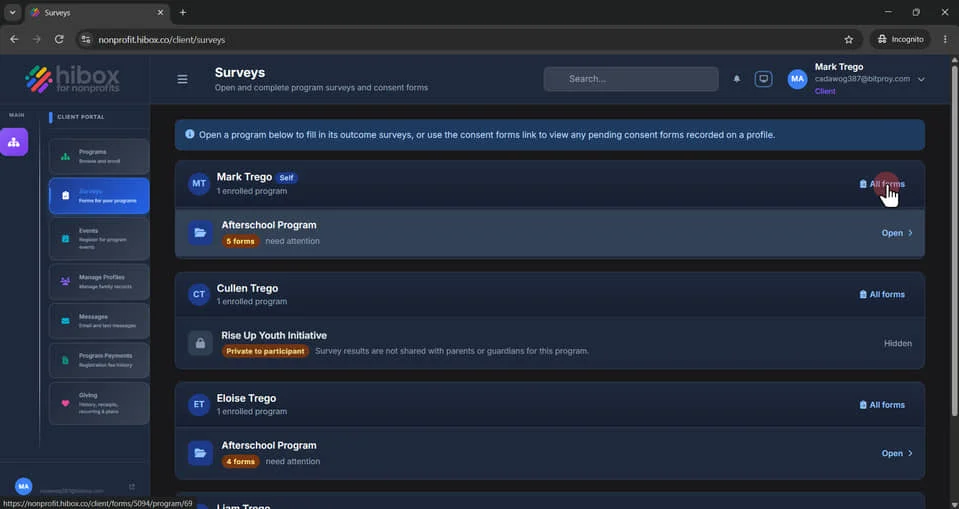
60. Find All Forms here
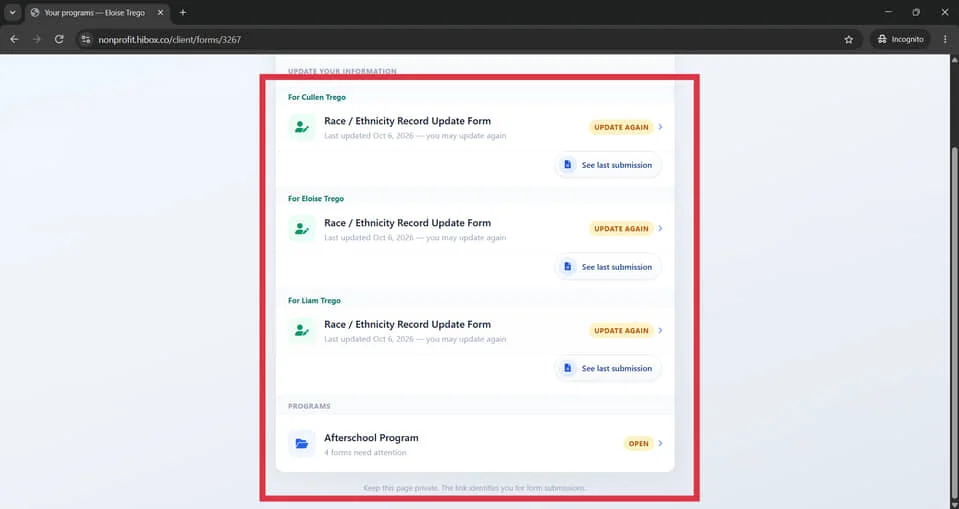
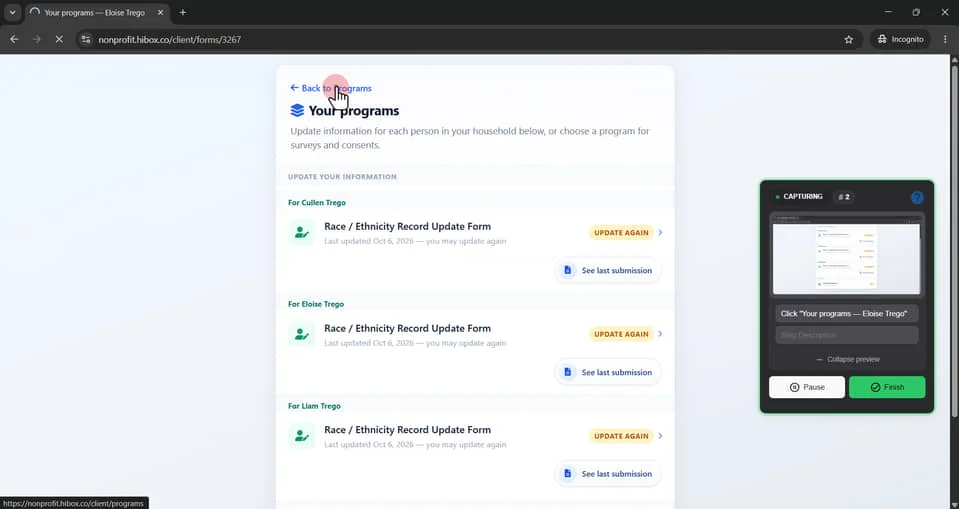
61. Click "Back to Programs"
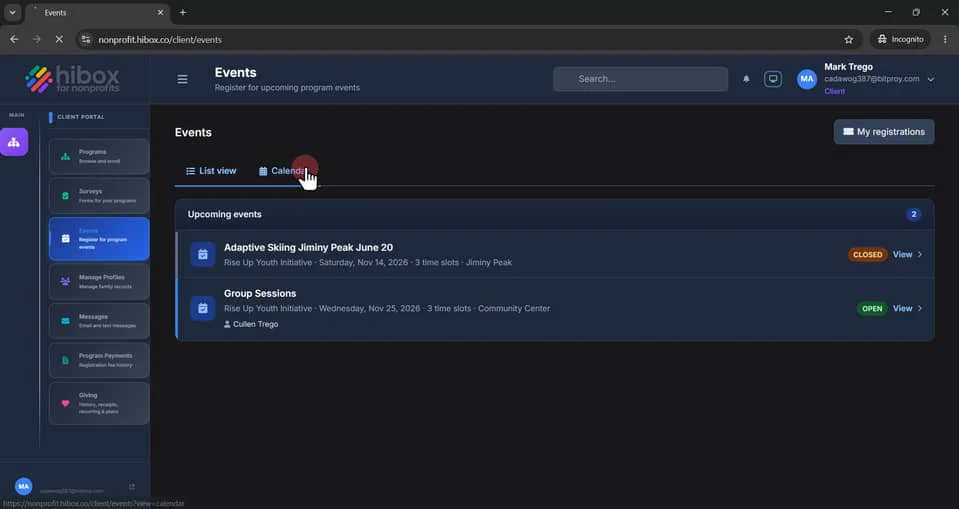
62. Click "Events" on the sub-menu
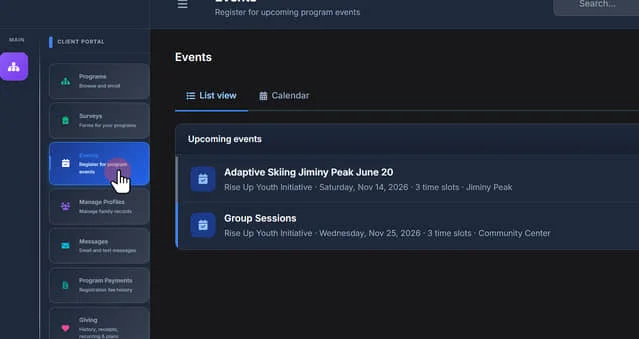
63. Find the "Upcoming events" section using the "List View"
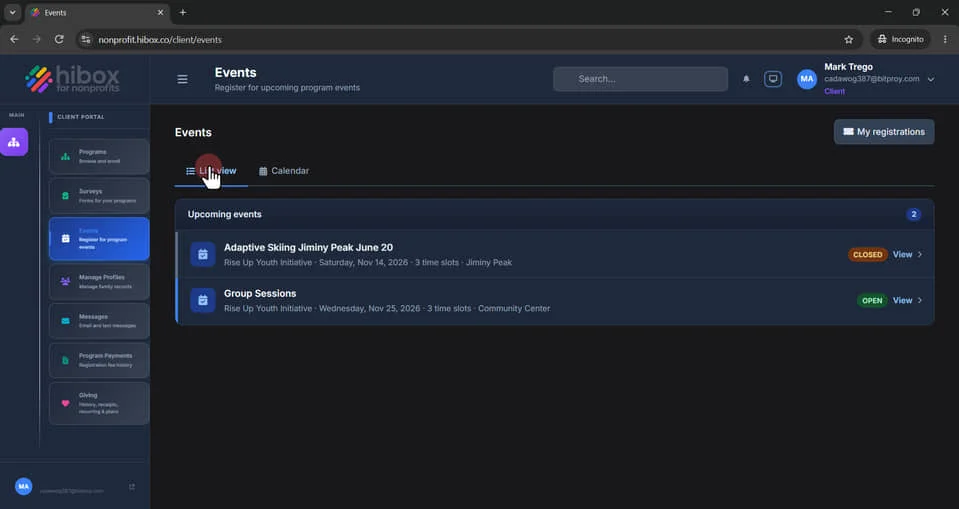
64. Click on "My Registrations"
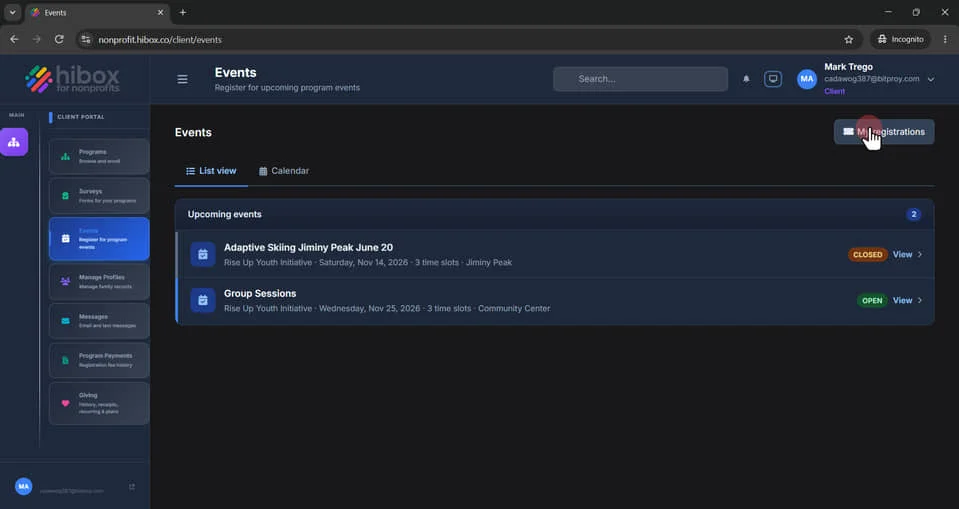
65. Browse events from here
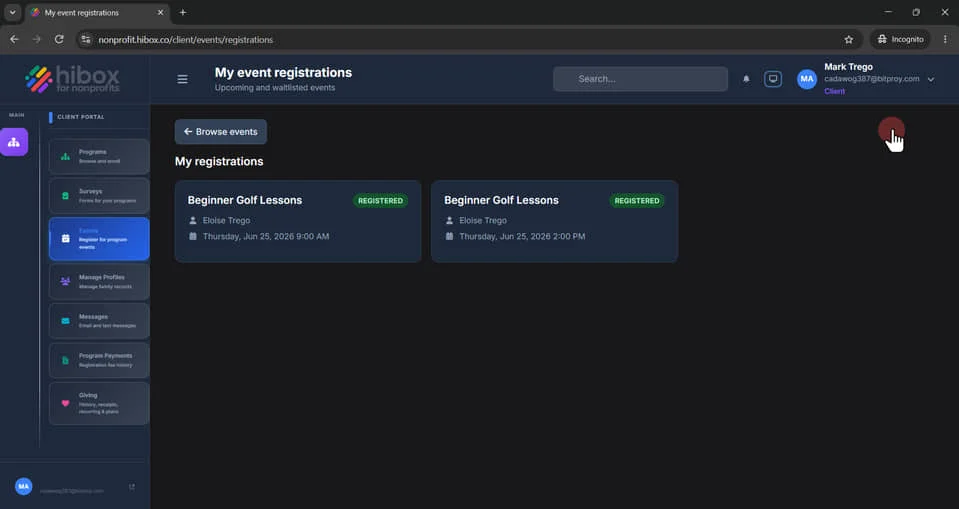
66. See all details here
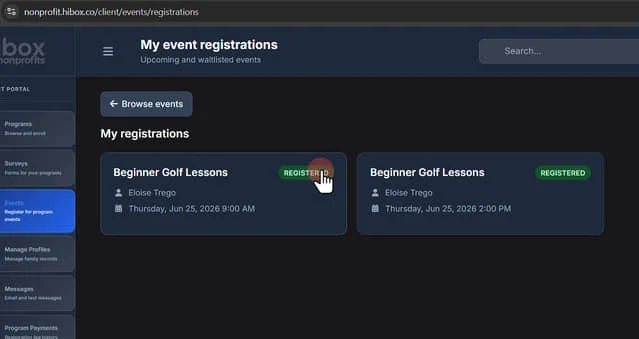
67. Click "Browse Events" to go back
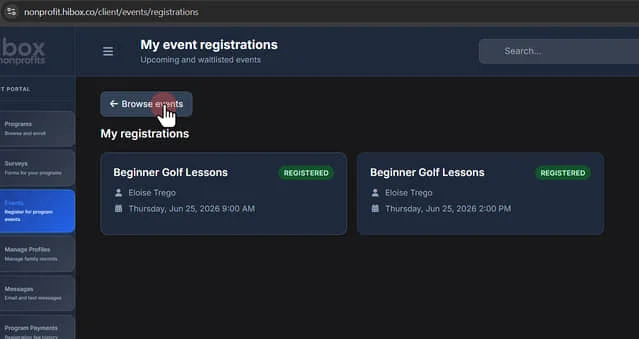
68. Click " Back to events"
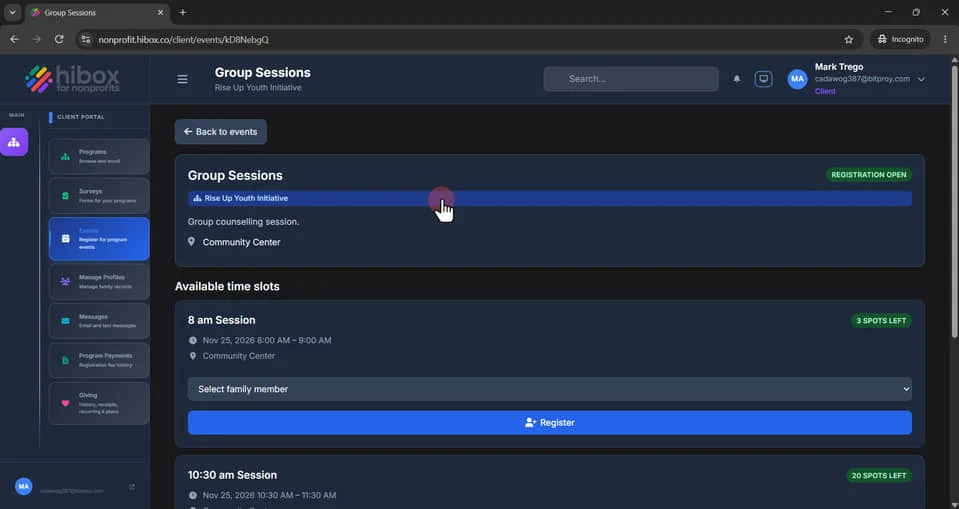
69. Select "Select family member"
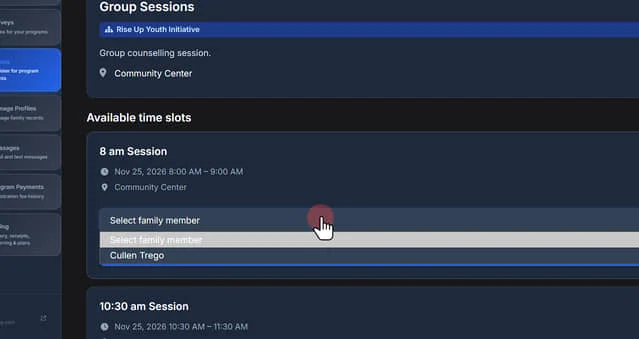
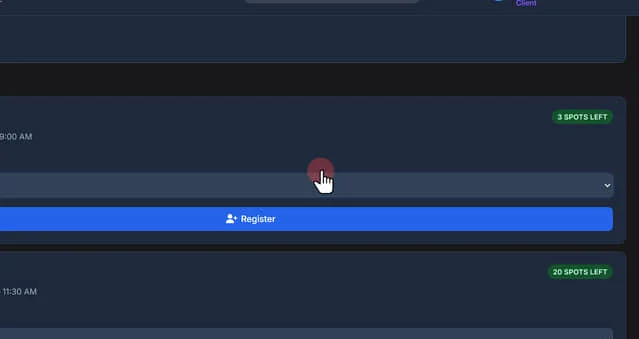
70. Click here
71. Click "Cullen Trego"
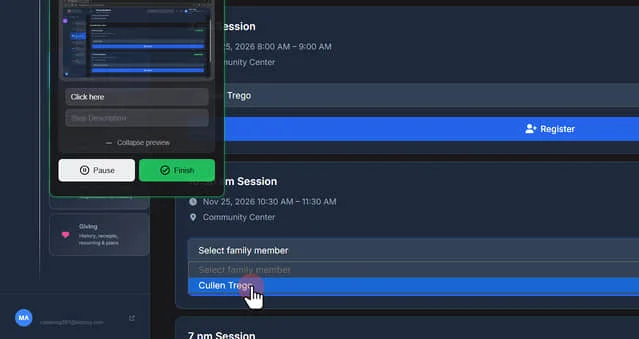
72. Click " Back to events"
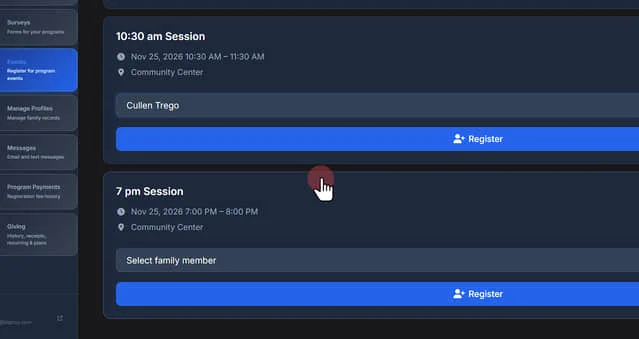
73. Click " Register"
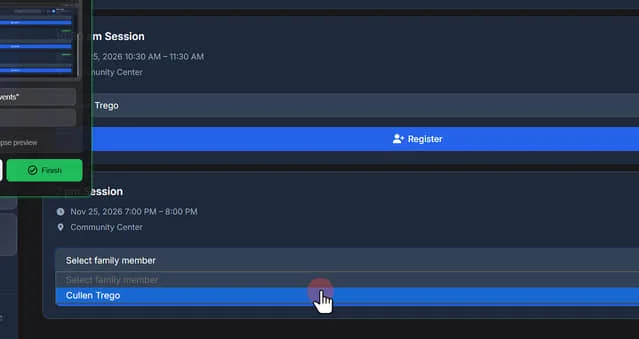
74. Click " Back to events"
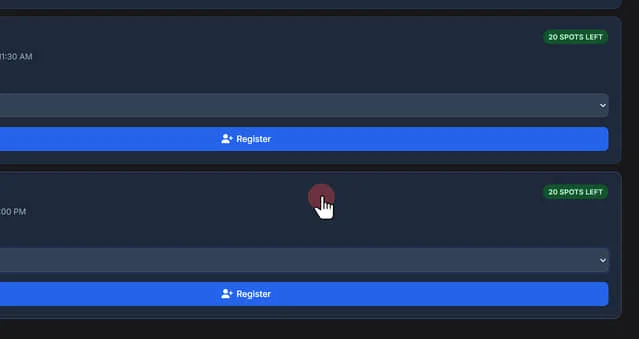
75. Click " Back to events"
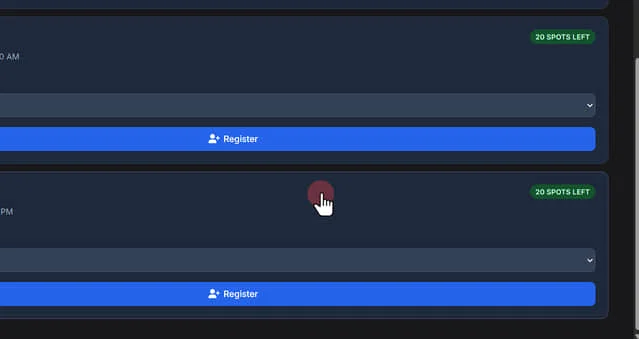
76. Click "Calendar"
Click on any of the programs to see more survey details for that program
 Powered by ProductLift