Create a New Course
Create a New Course
1. Click "Training & Onboarding" on the left-side menu
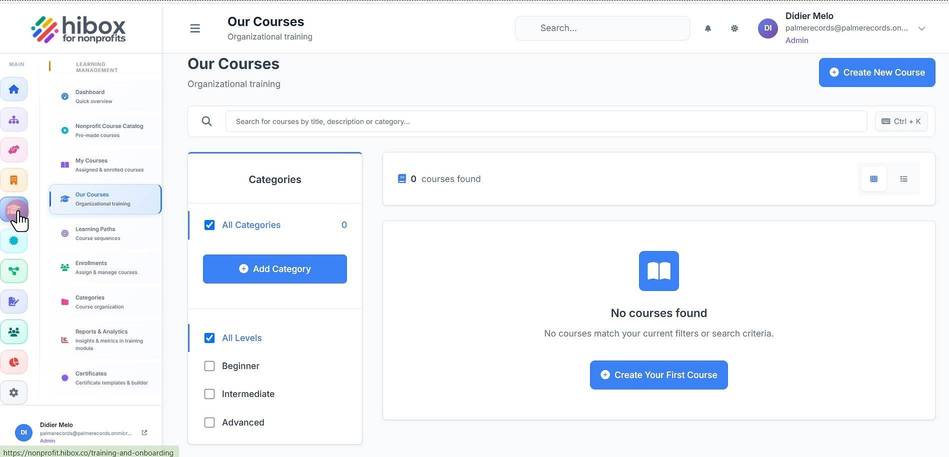
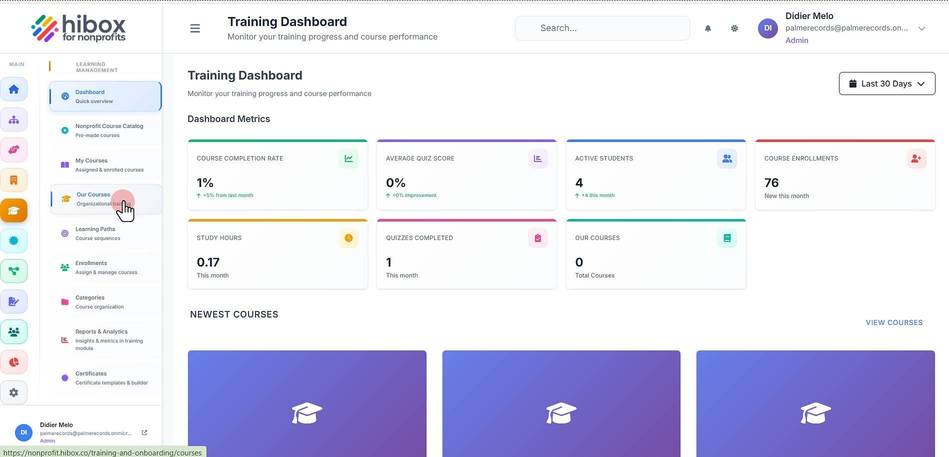
2. Click "Our Courses" on the sub-menu
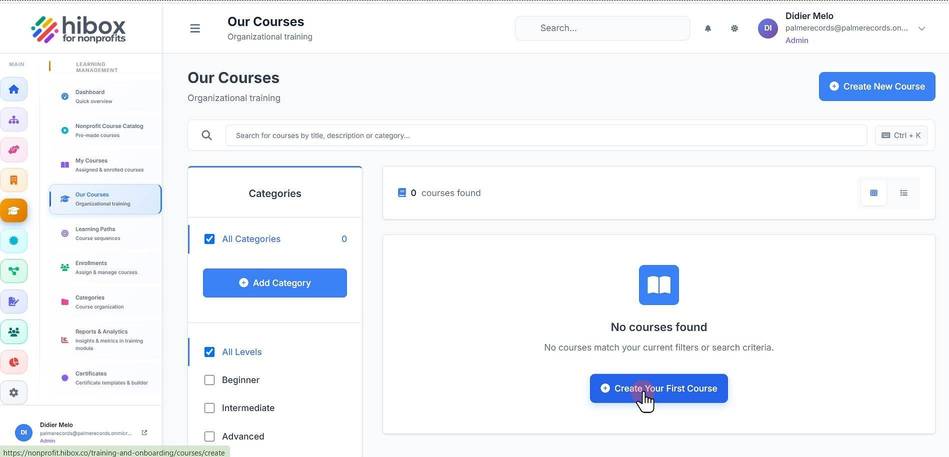
3. Click "Create Your First Course" to build a new training course for your organization
4. This is the "Course Details" section
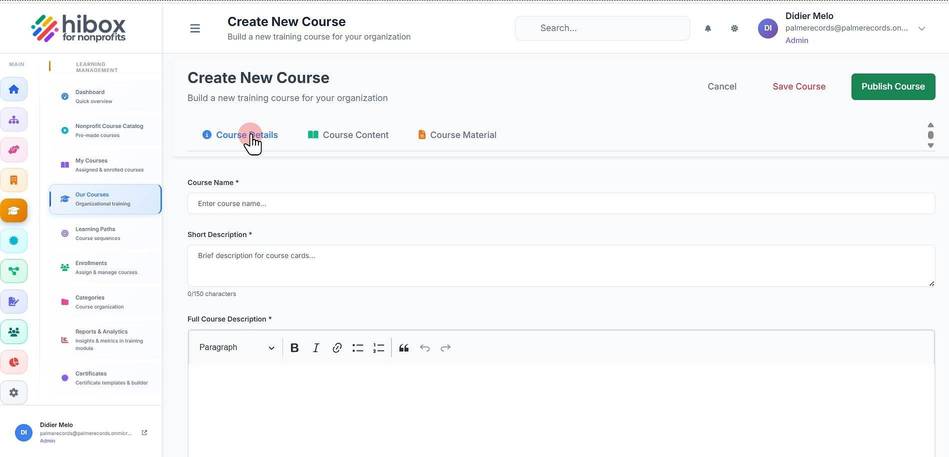
5. Enter the "Course Name *"
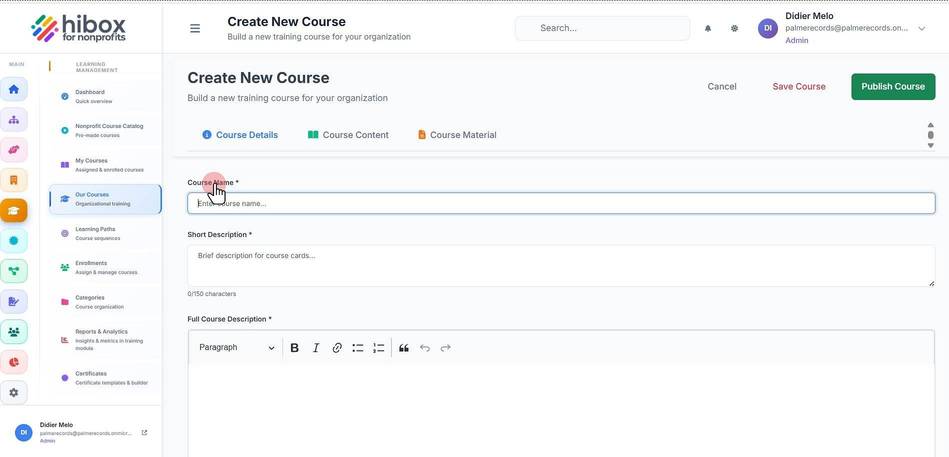
6. Enter a "Short Description *"
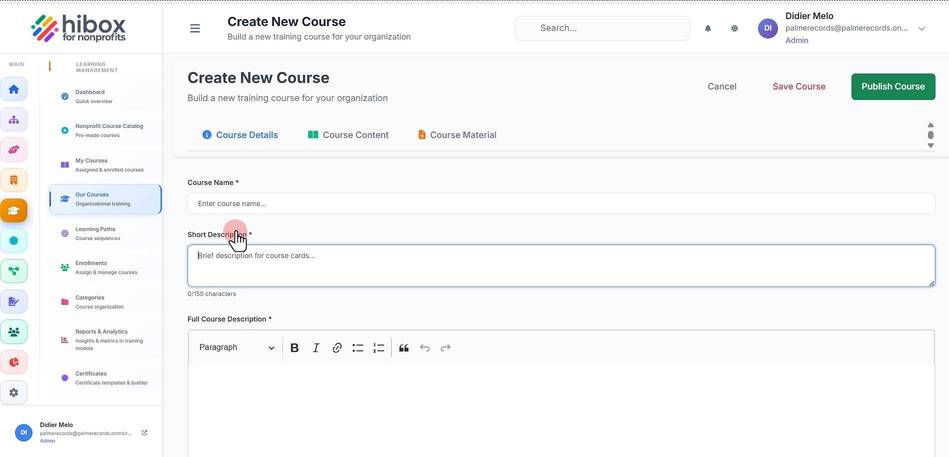
7. Enter the "Full Course Description *"
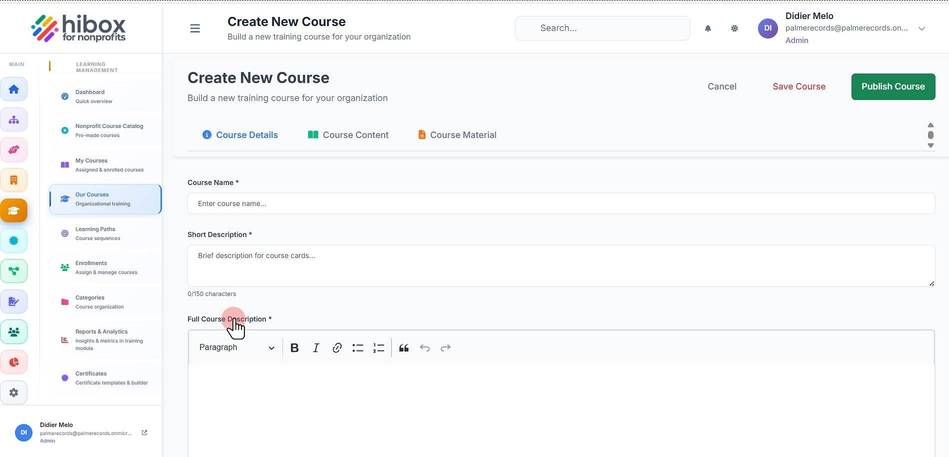
8. Enter the "Learning Outcomes"
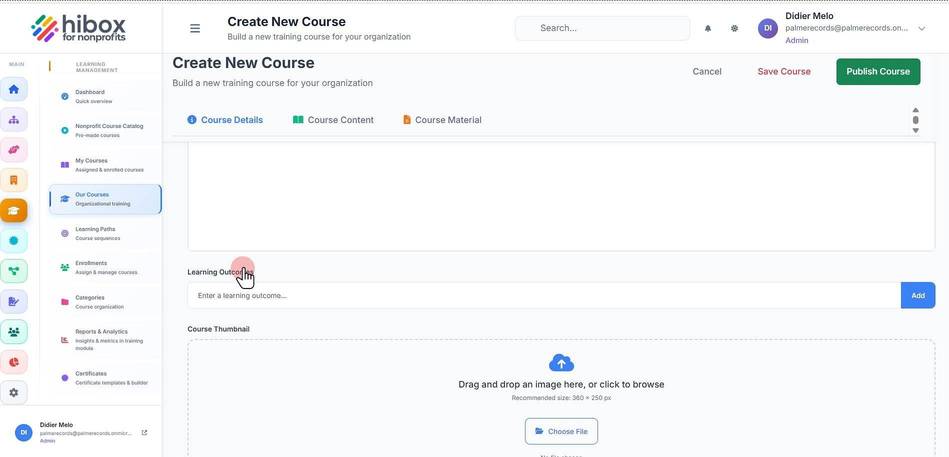
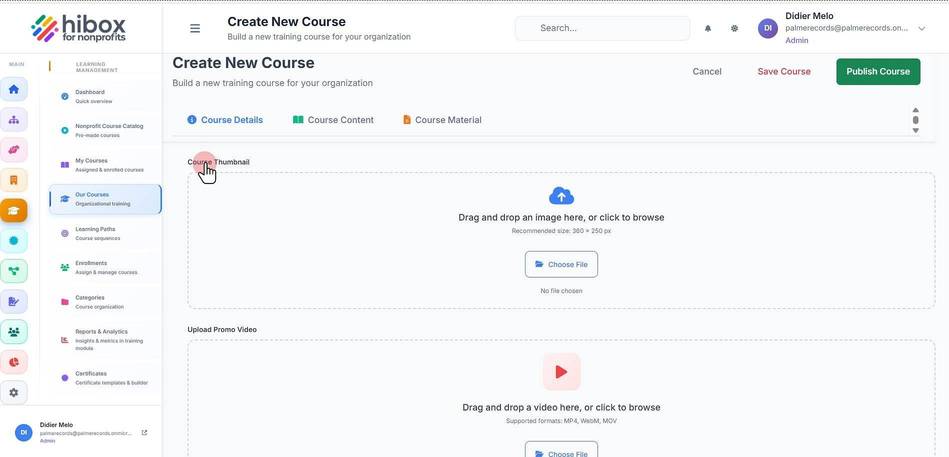
9. Upload a "Course Thumbnail"
10. Enter the "Course Categories *"
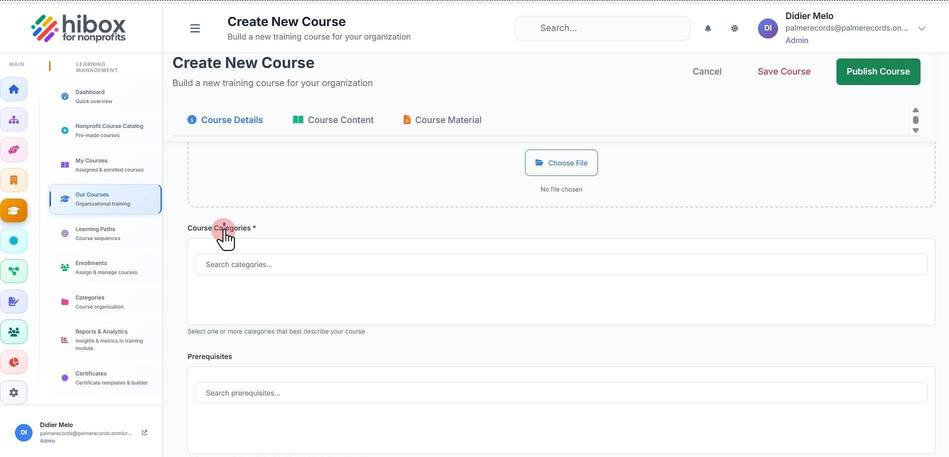
11. Select one or more categories that best describe your course
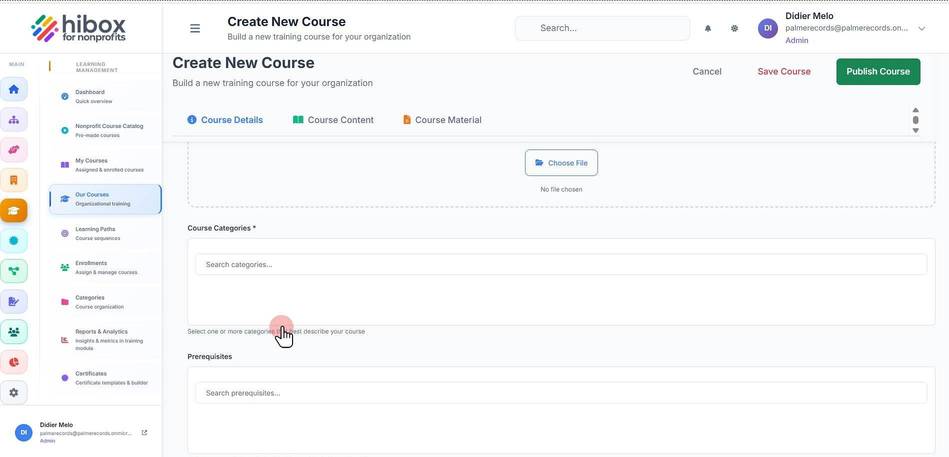
12. Enter the "Prerequisites"
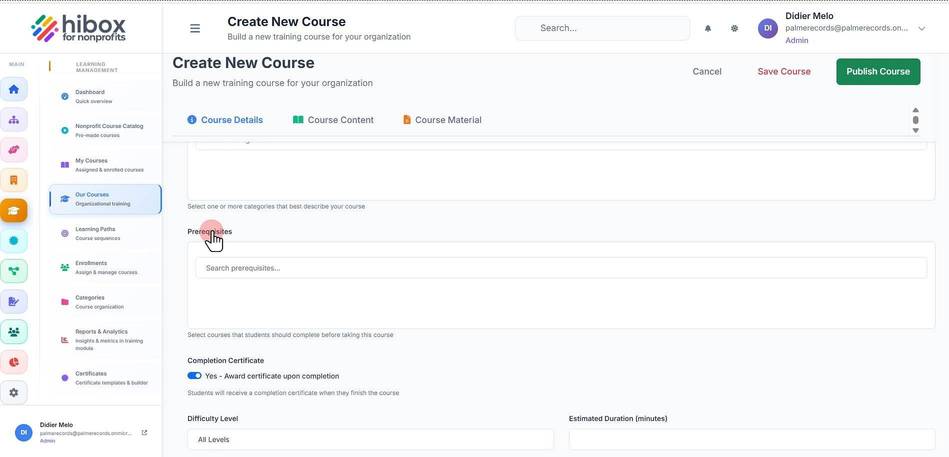
13. Click here to search prerequisites
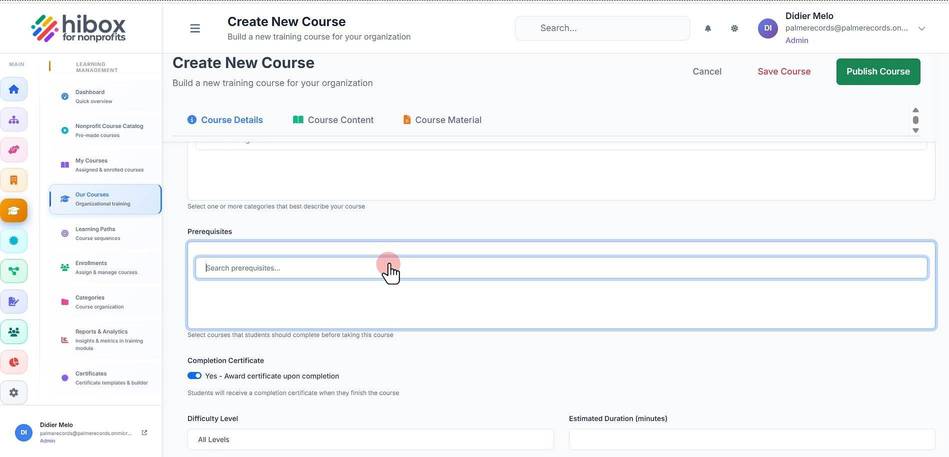
14. Select the courses that students should complete before taking this course
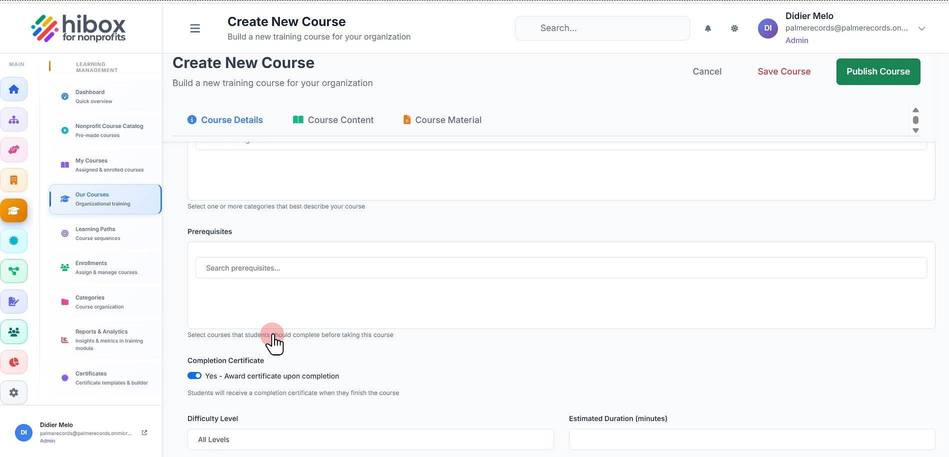
15. Enable or disable the "Completion Certificate"
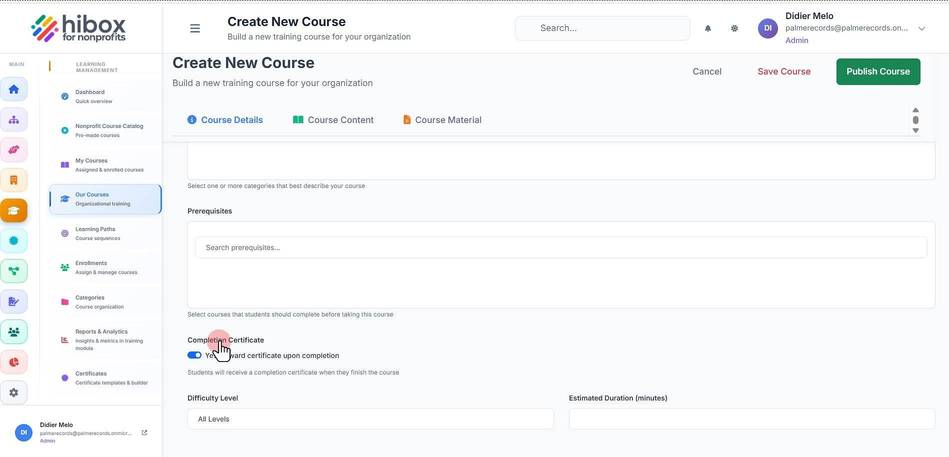
16. Enter the "Difficulty Level"
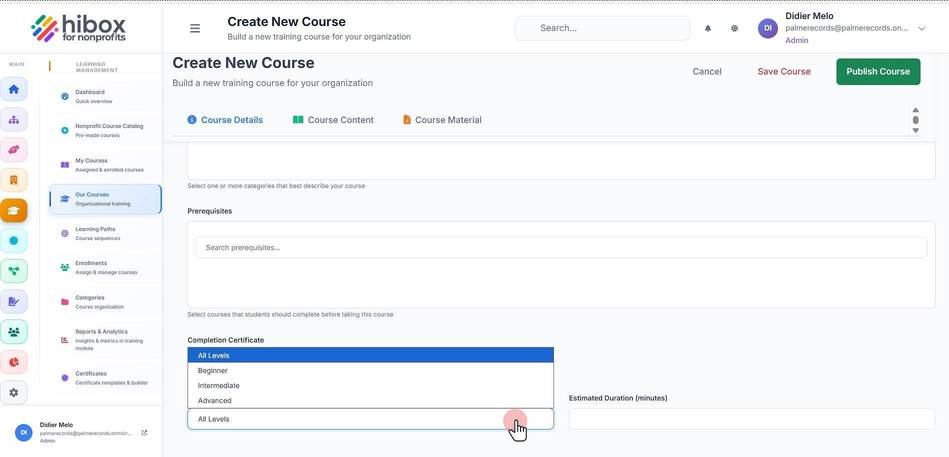
17. Enter the "Estimated Duration in minutes"
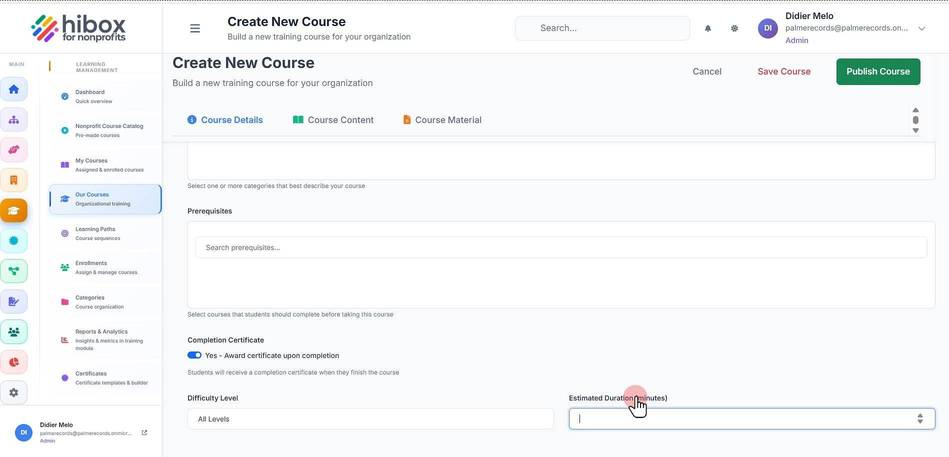
18. Navigate to the "Course Content" section
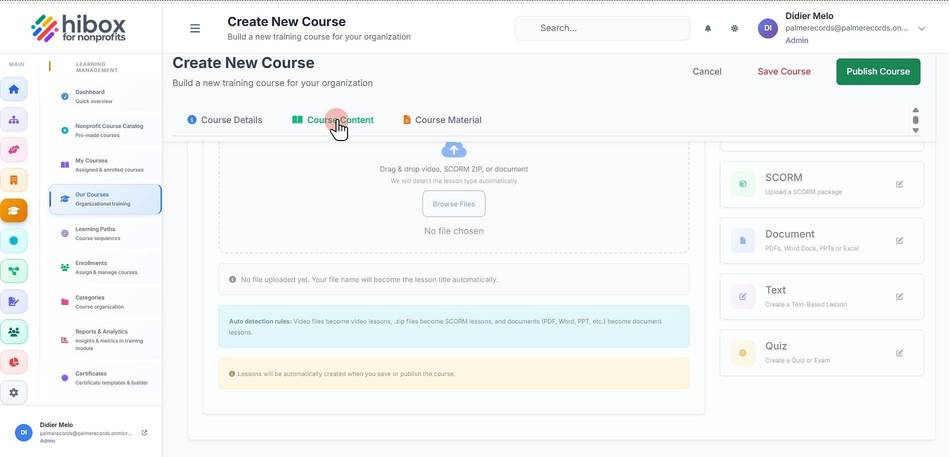
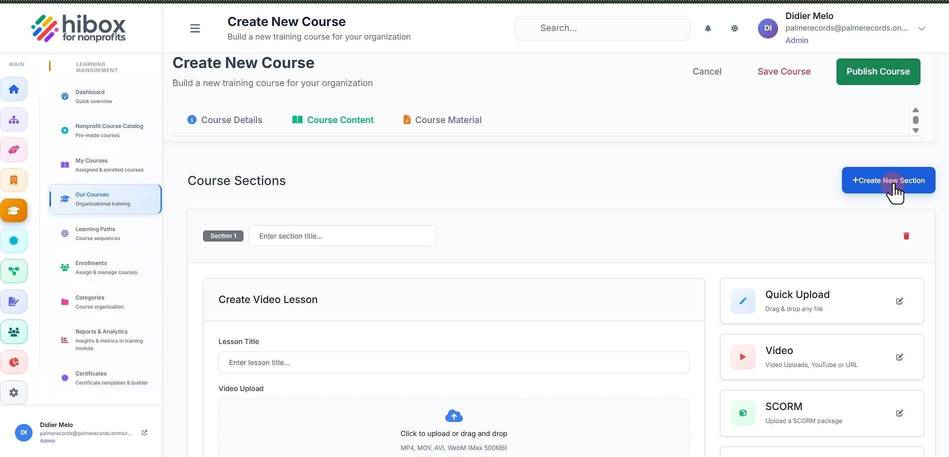
19. Enter section title for section 1
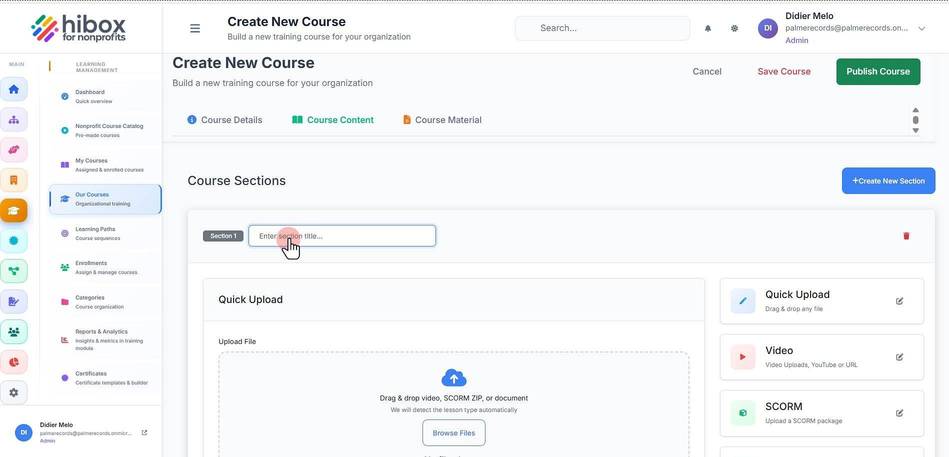
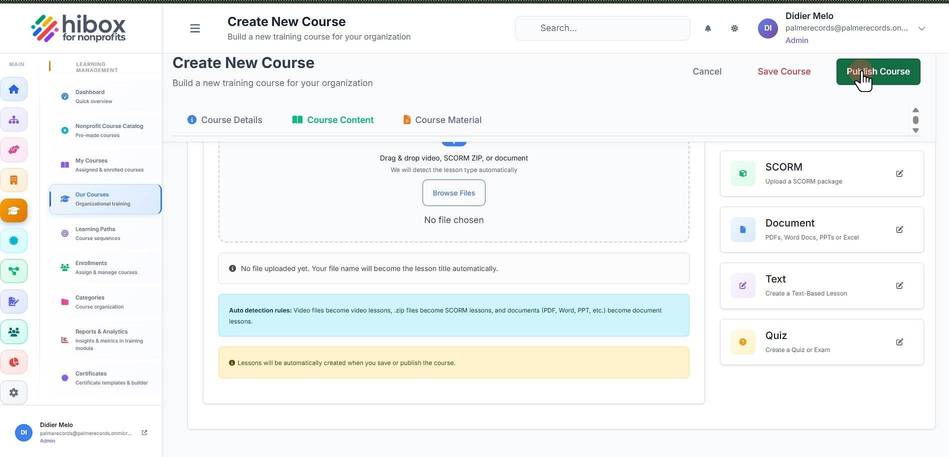
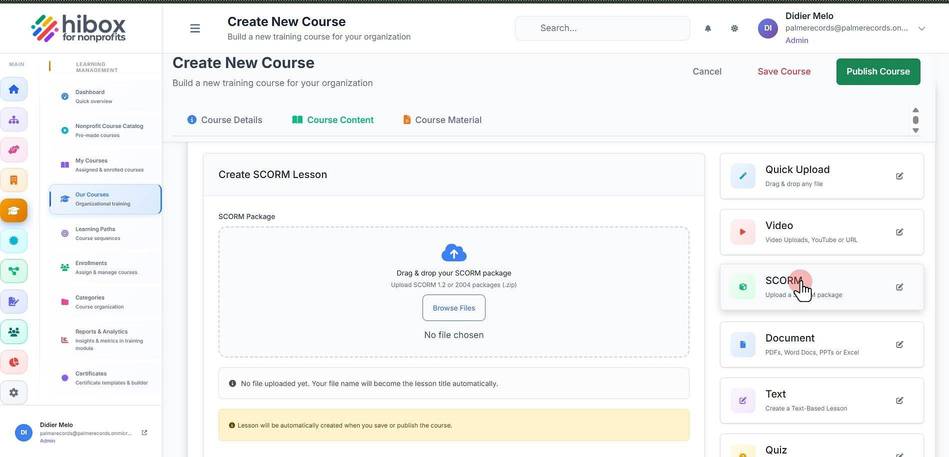
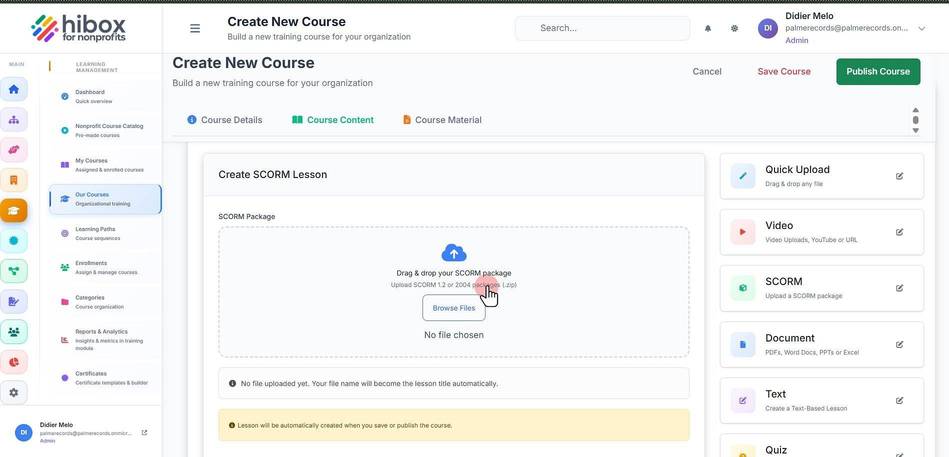
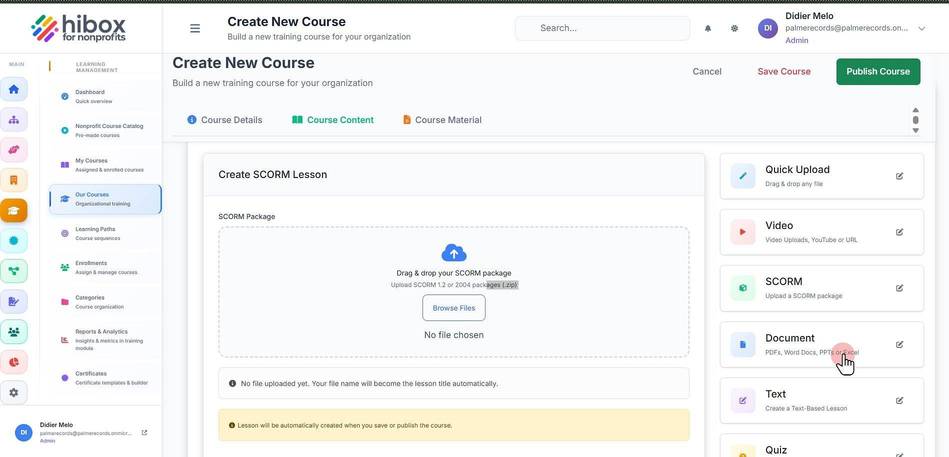
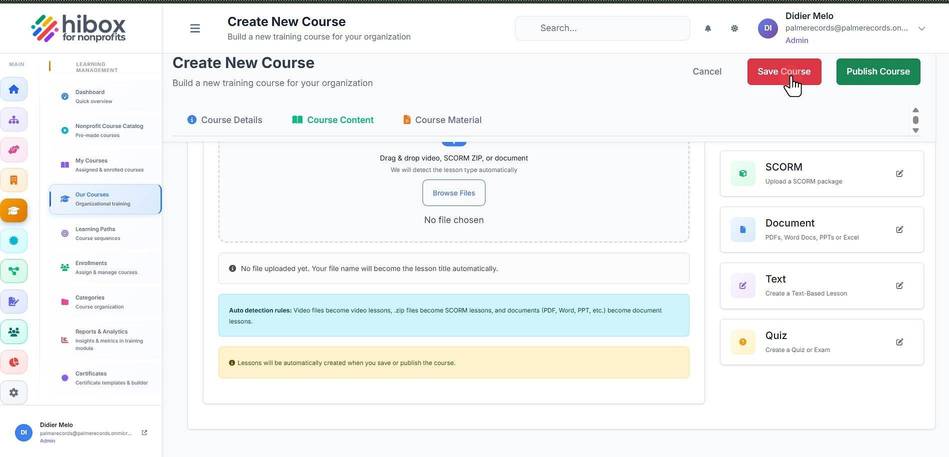
20. Drag & drop video, SCORM ZIP, or documents
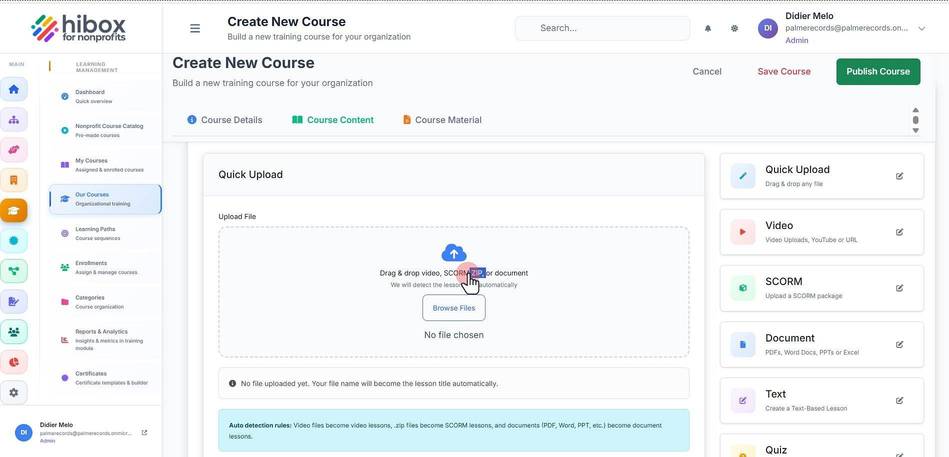
21. Video files will become video lessons, .zip files become SCORM lessons, and documents (PDF, Word, PPT, etc.) become document lessons. Lessons will be automatically created when you save or publish the course
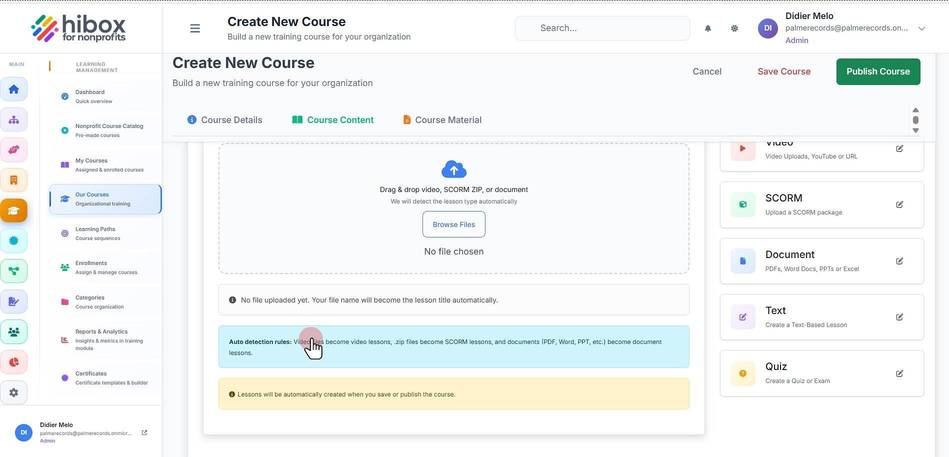
22. Click "Video" to upload a video or use an existing video URL
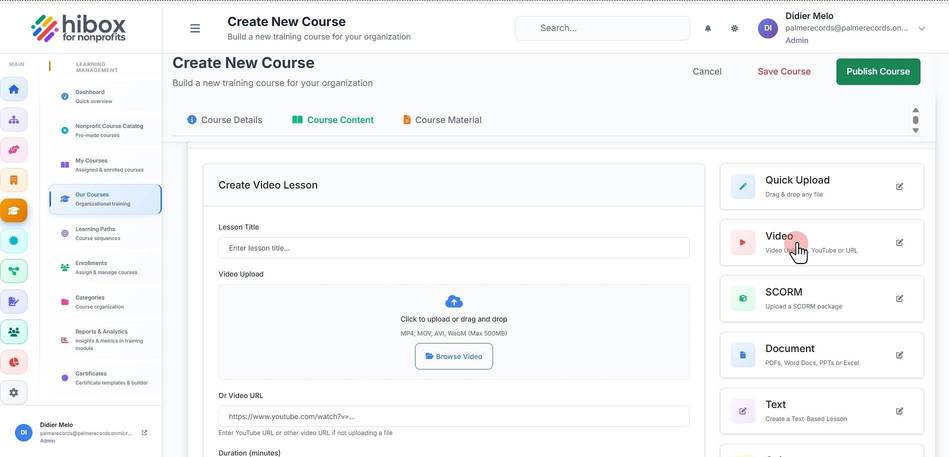
23. Enter a "Lesson Title"
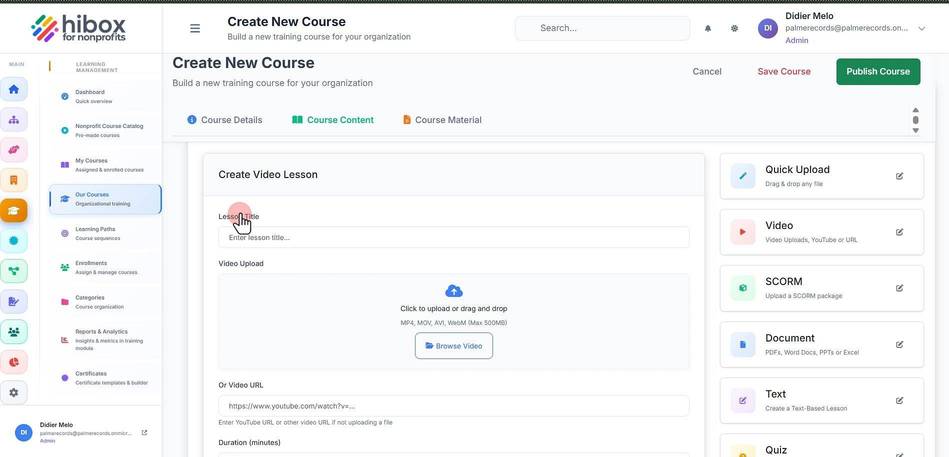
24. Or use a video URL directly. (Please make sure the video is public)
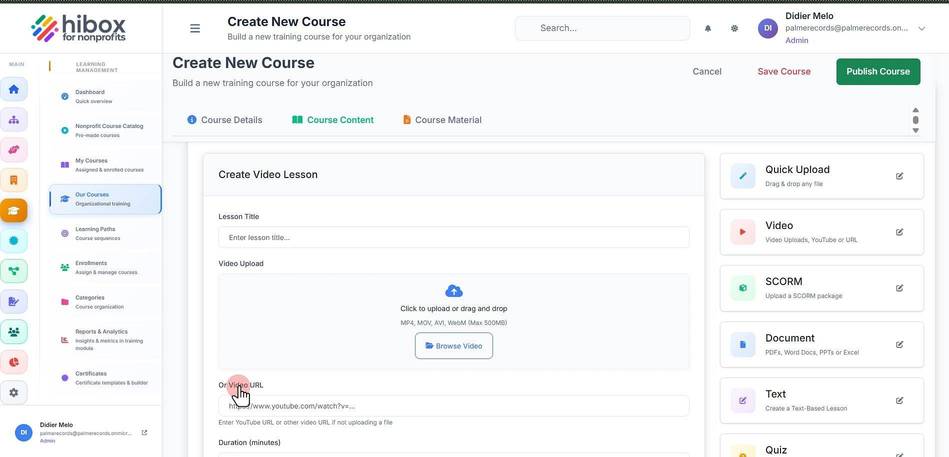
25. Set the "Duration"
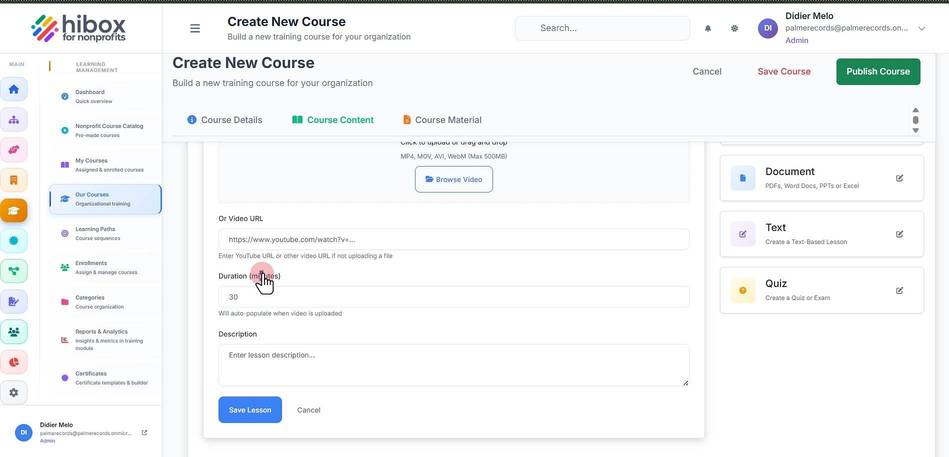
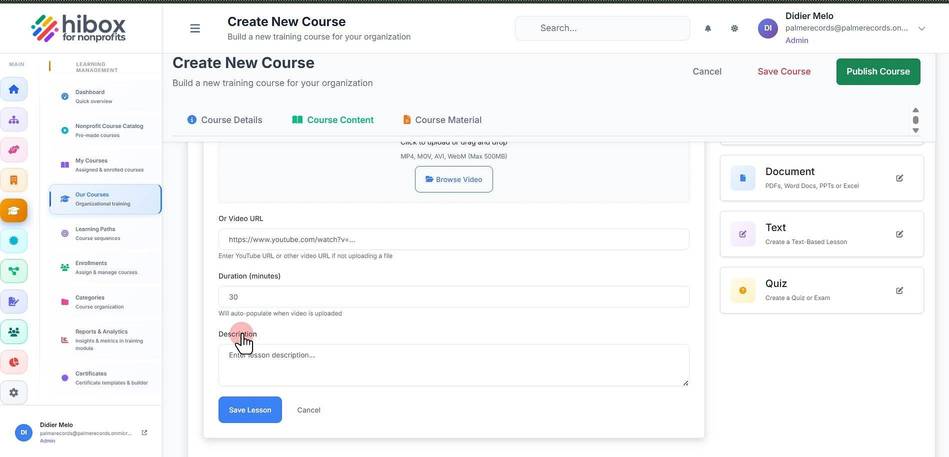
26. Enter a "Description"
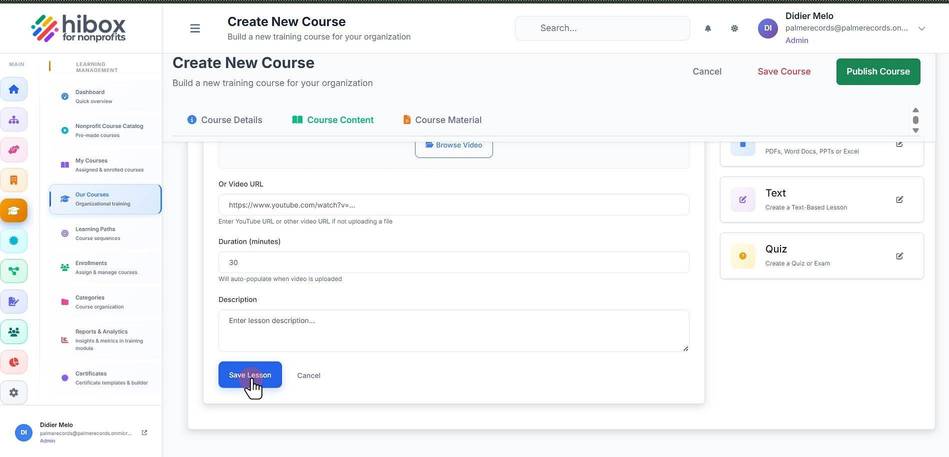
27. Click "Save Lesson"
28. Scroll up and click "+ Create New Section" to create a new lesson on this course
29. Click "SCORM" to upload a SCORM file
30. Click "Upload" to upload the SCORM file
31. Click "Document" to upload PDFs, Word Docs, PPTs or Excel
32.
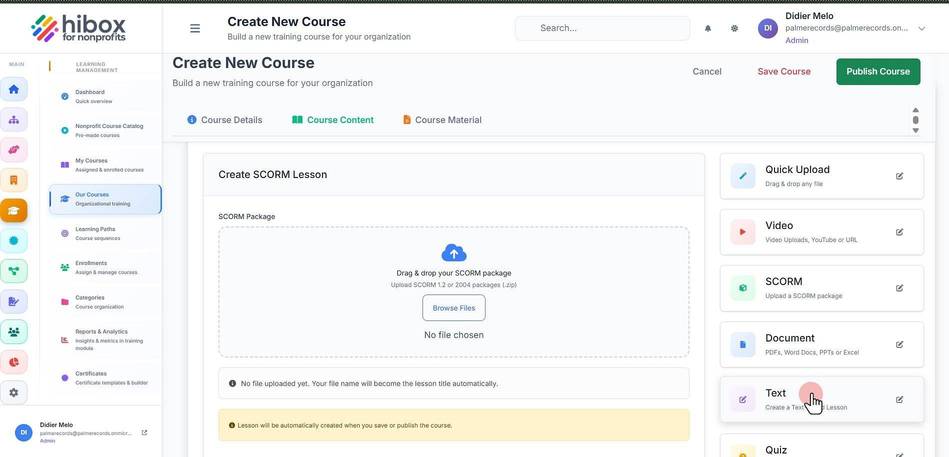
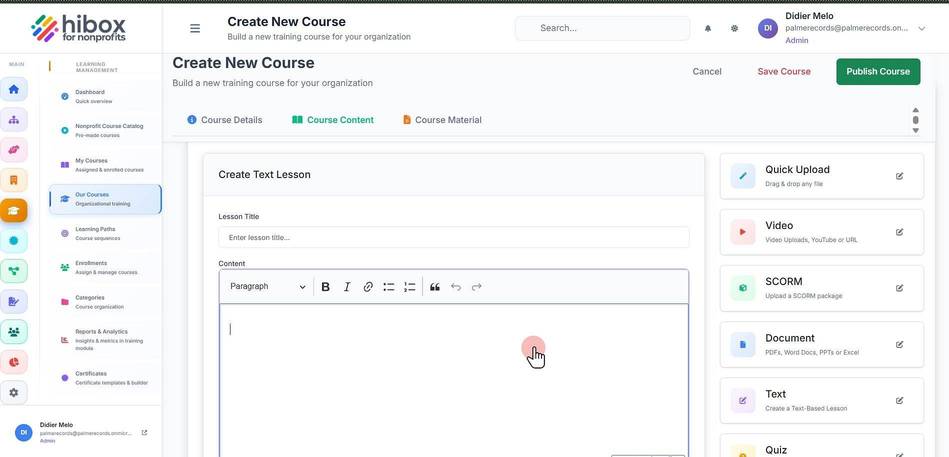
33. Type text directly into the "Content" section
34. Click "Quiz" to create a quiz or exam
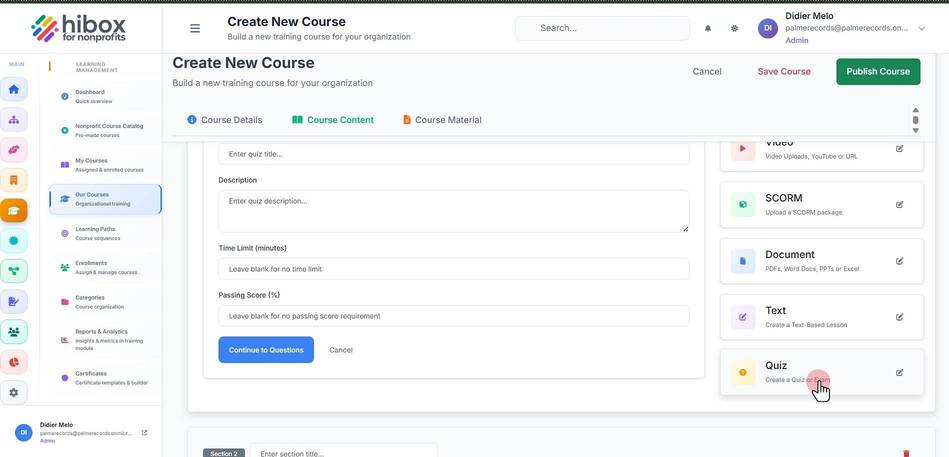
35. Enter the "Quiz Title"
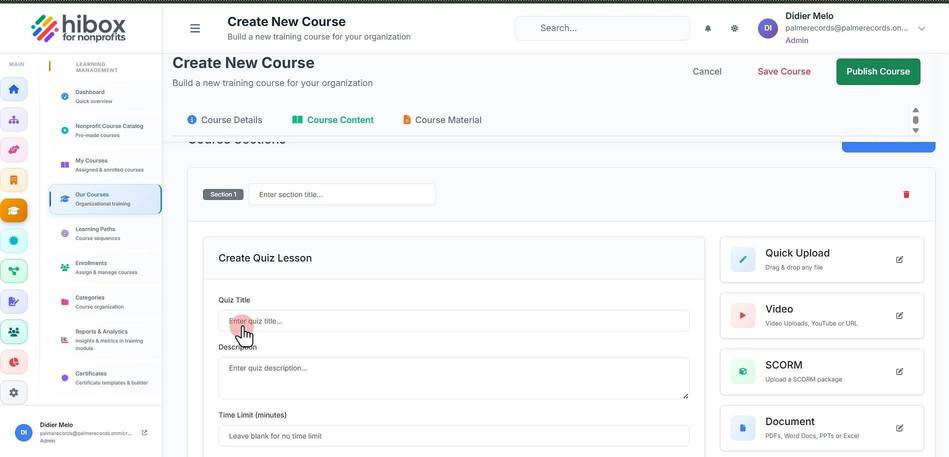
36. Click "Description"
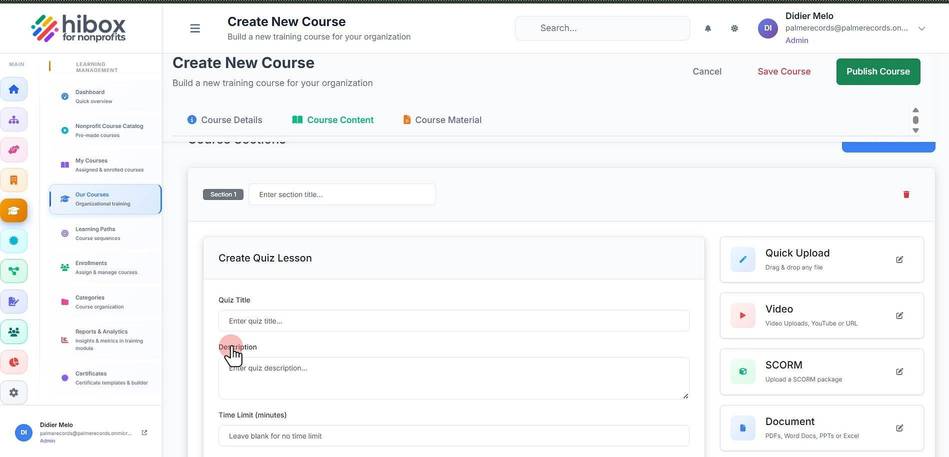
37. Click "Enter quiz description..."
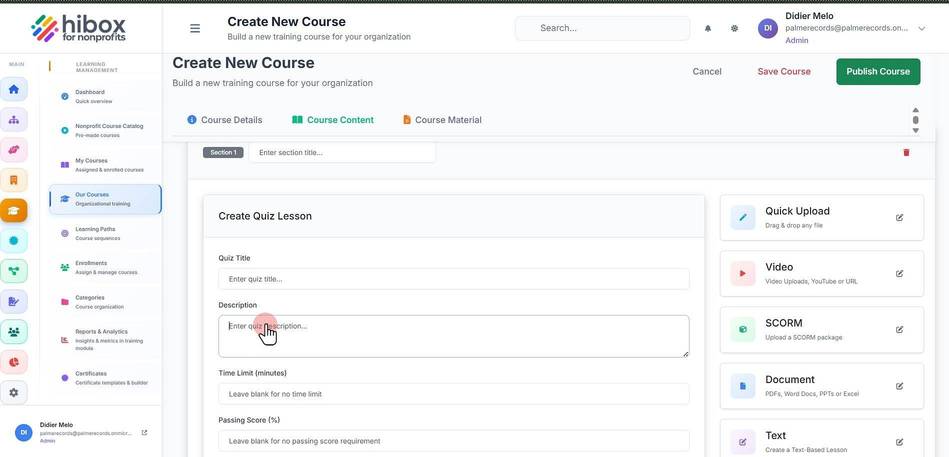
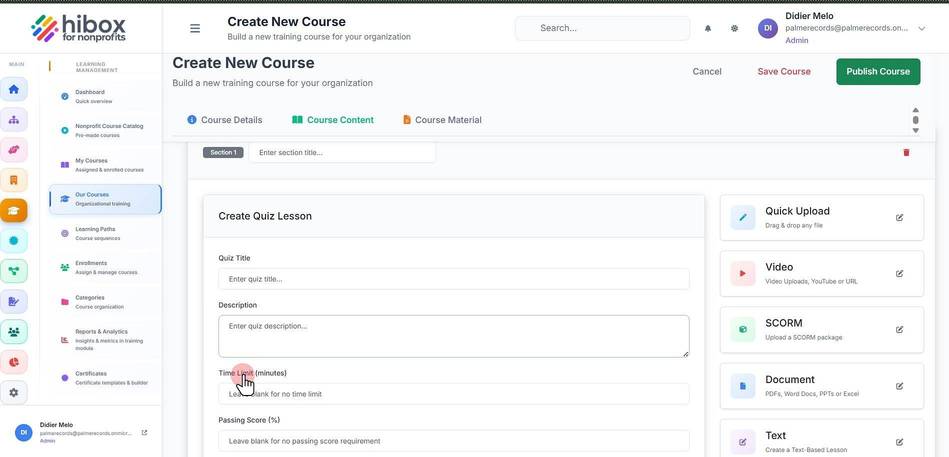
38. Click "Time Limit (minutes)"
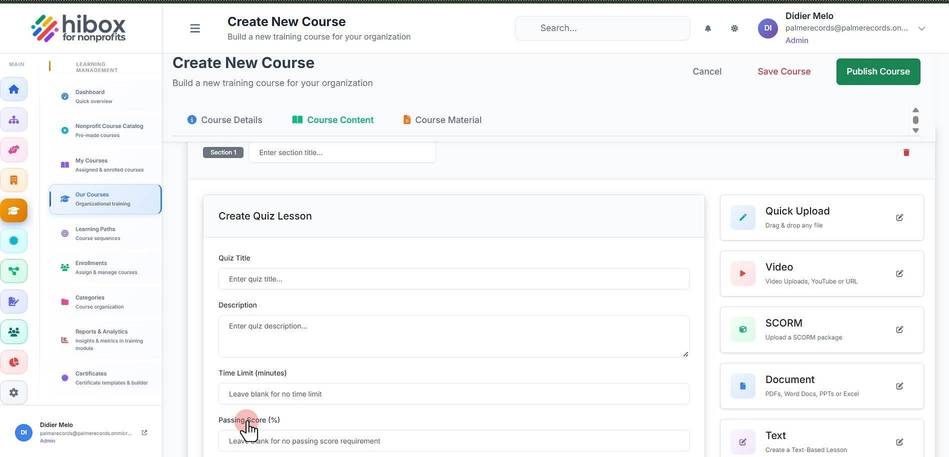
39. Click "Passing Score (%)"
40. Click "Question 1"
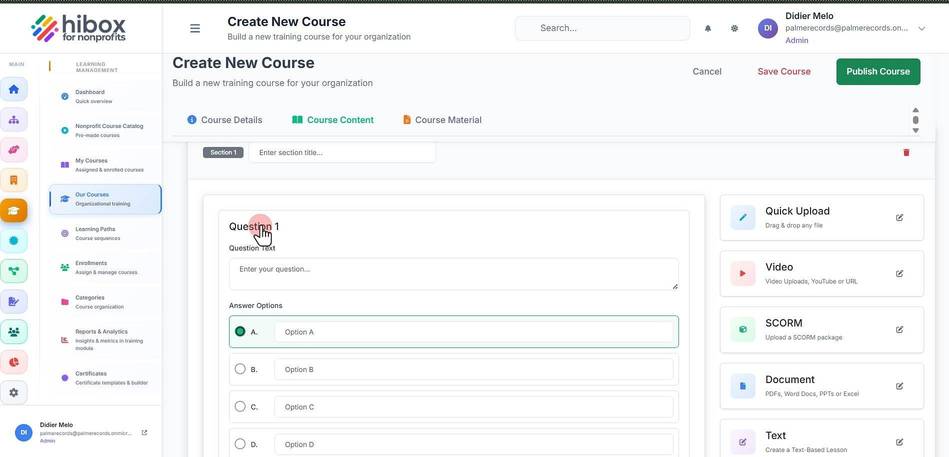
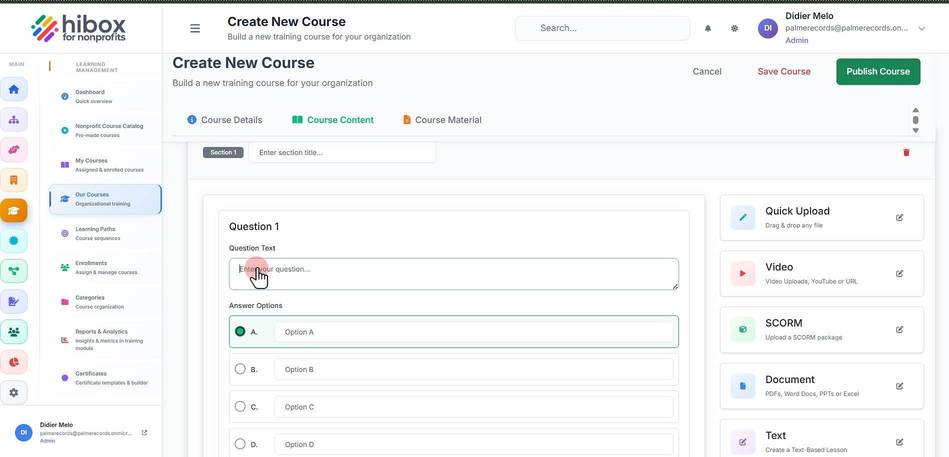
41. Click "Enter your question..."
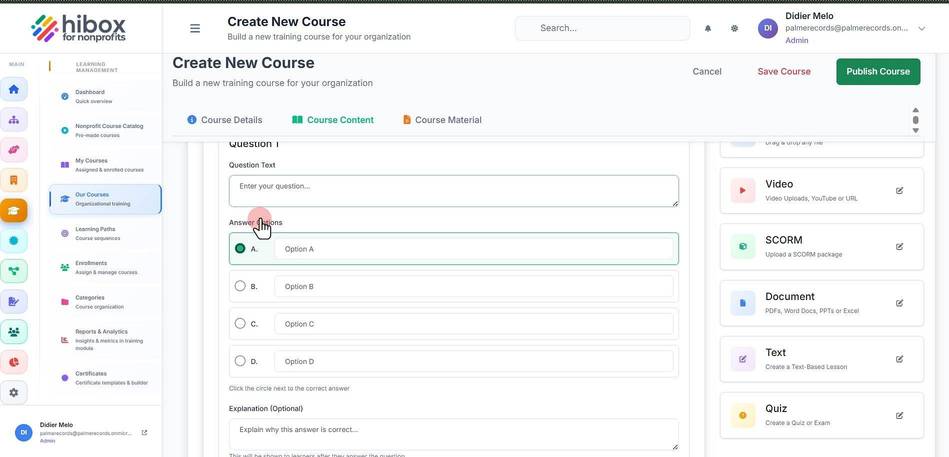
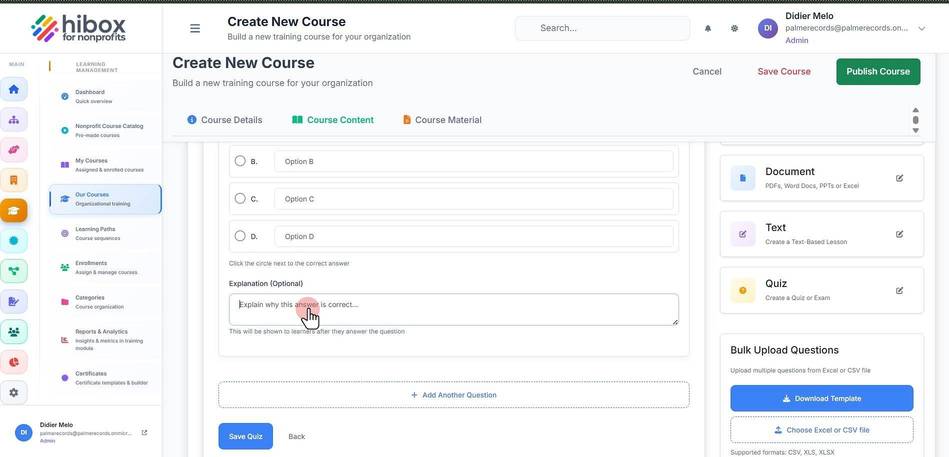
42. Click "Answer Options"
43. Enter an "Explanation (Optional)"
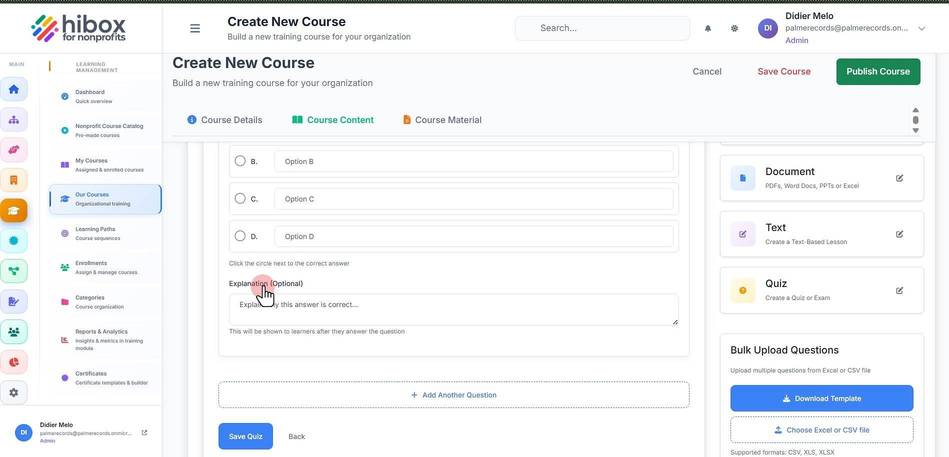
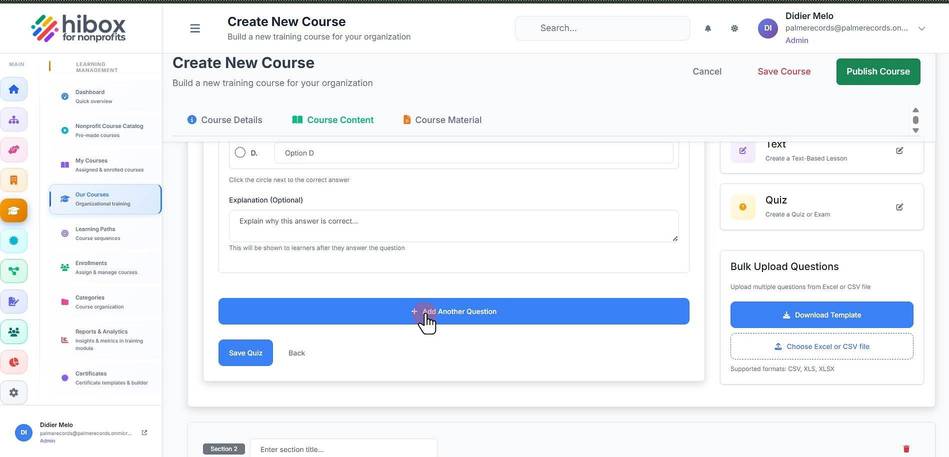
44. Explain why this answer is correct. This will be shown to learners after they answer the question
45. Click here to add another question
46. Click "Save Course" to save your progress
47. Click "Publish Course" if you are ready to publish