Creating a Child Registration Form
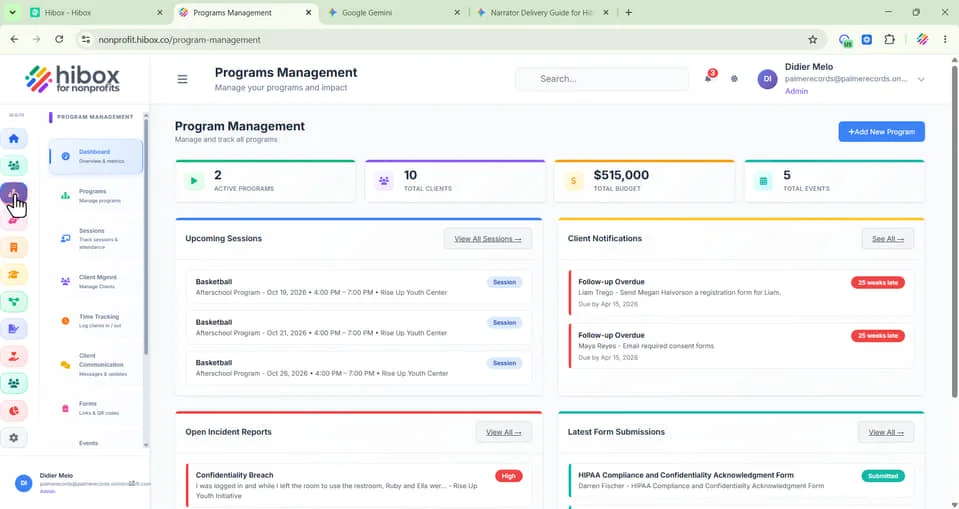
1. On the left - side menu, click on "Program Management"
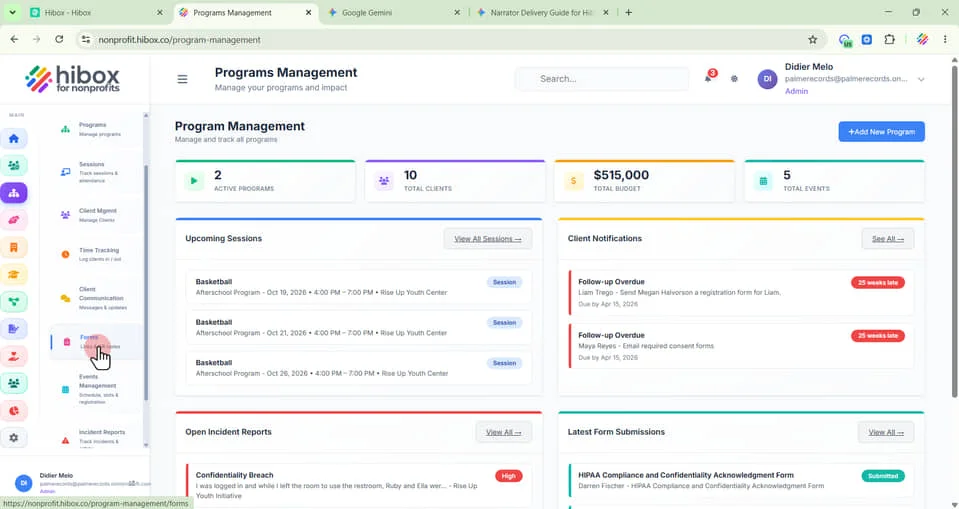
2. Click "Forms" on the left-side menu
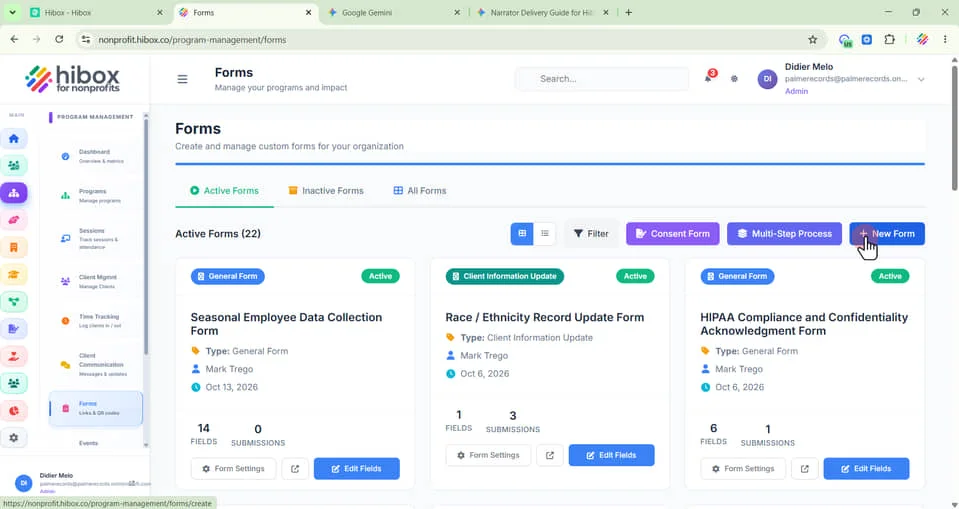
3. Click "New Form"
4. Enter a "Form Title"
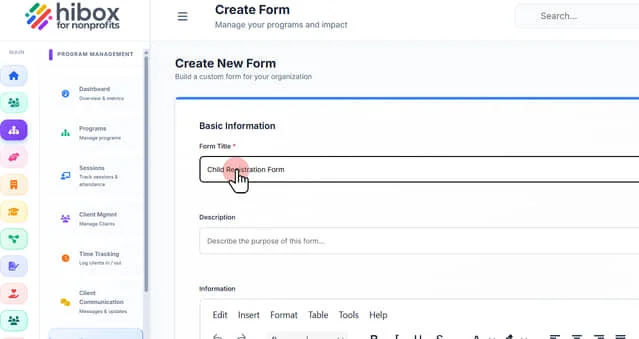
5. Enter a "Description"
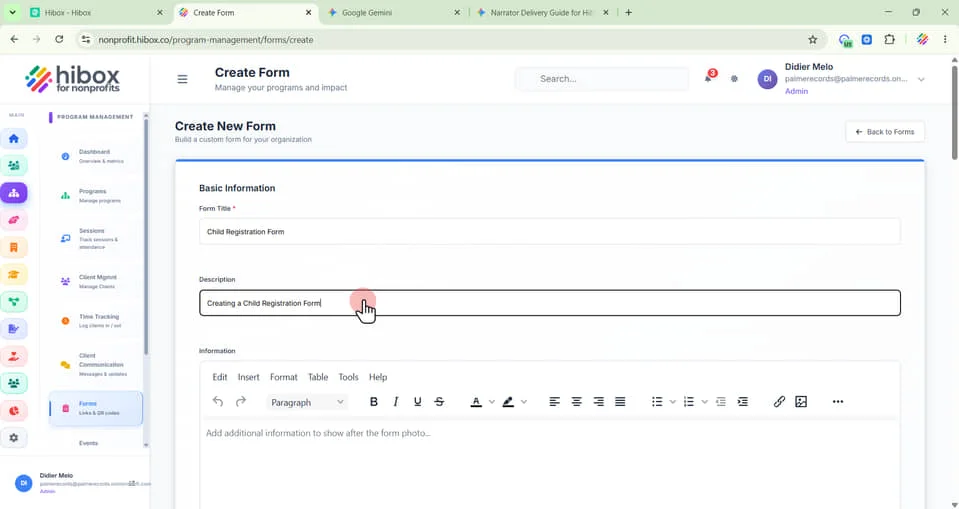
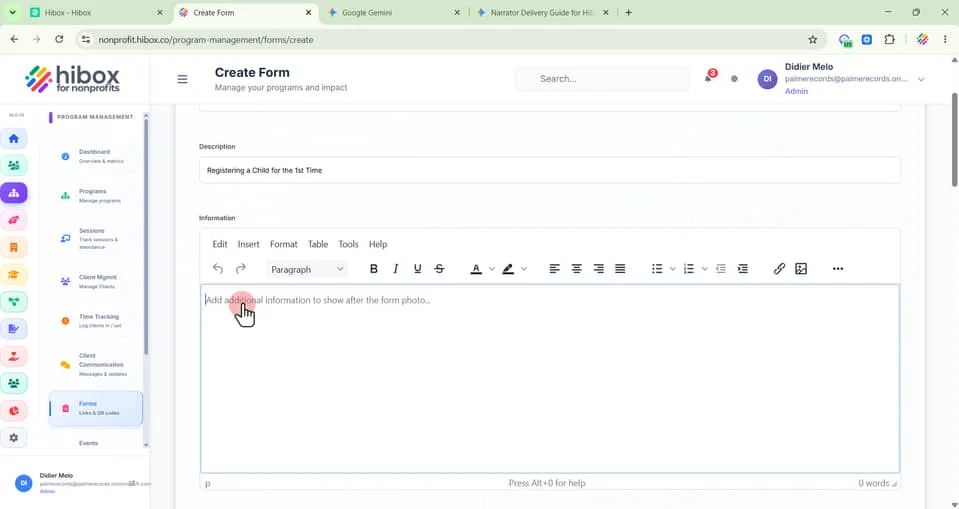
6. Add additional information about the form here
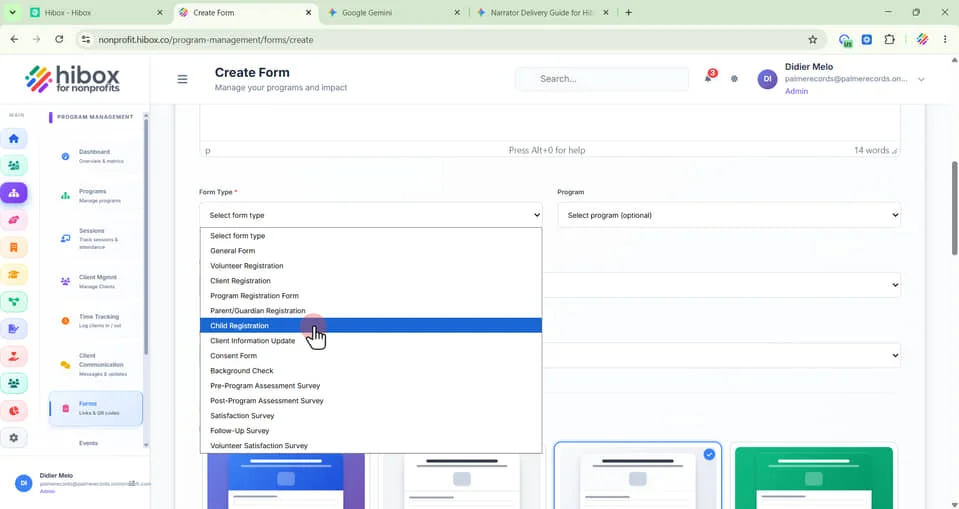
7. Select "Child Registration" using the Form Type menu
8. Select a "Program" (this is optional)
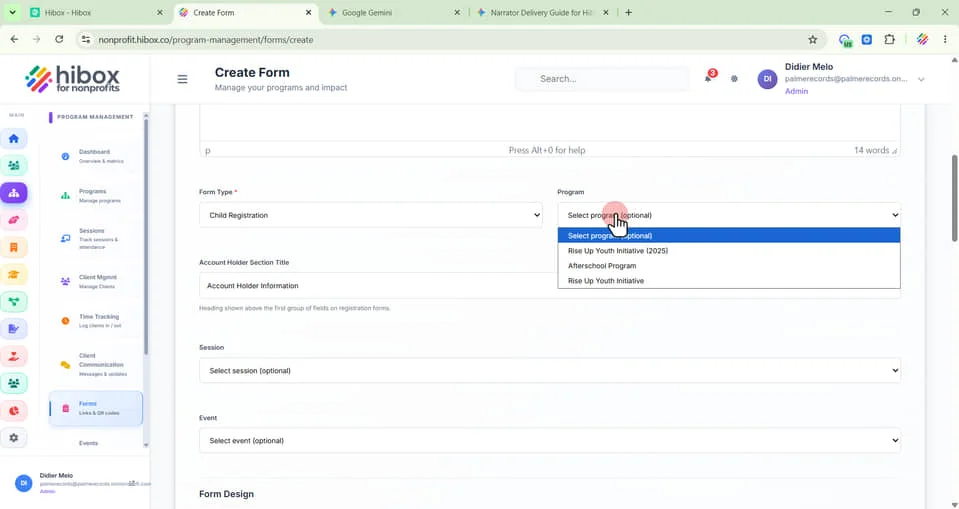
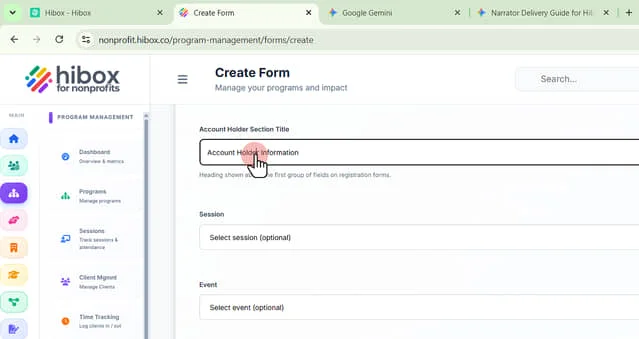
9. Enter the "Account Holder Section Title" it will be shown above the first group of fields on registration forms
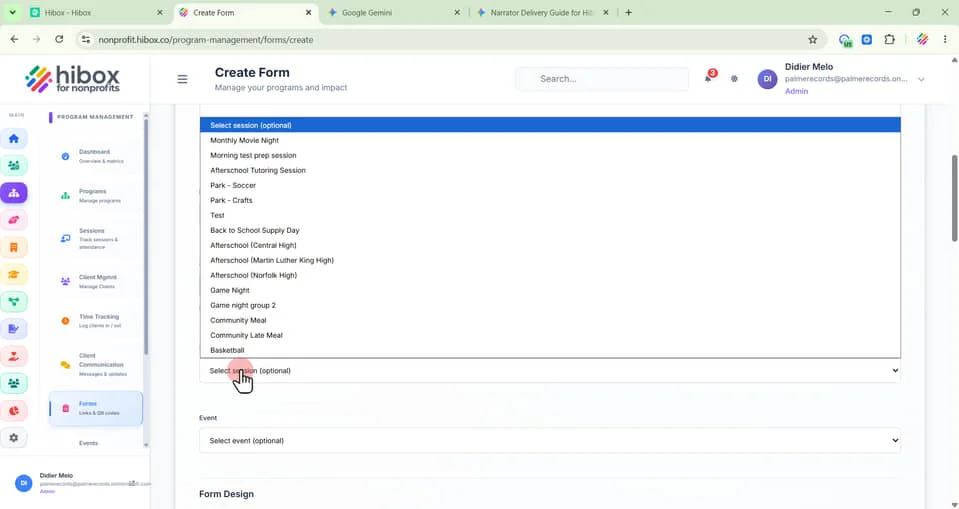
10. Select "Session" (this is optional)
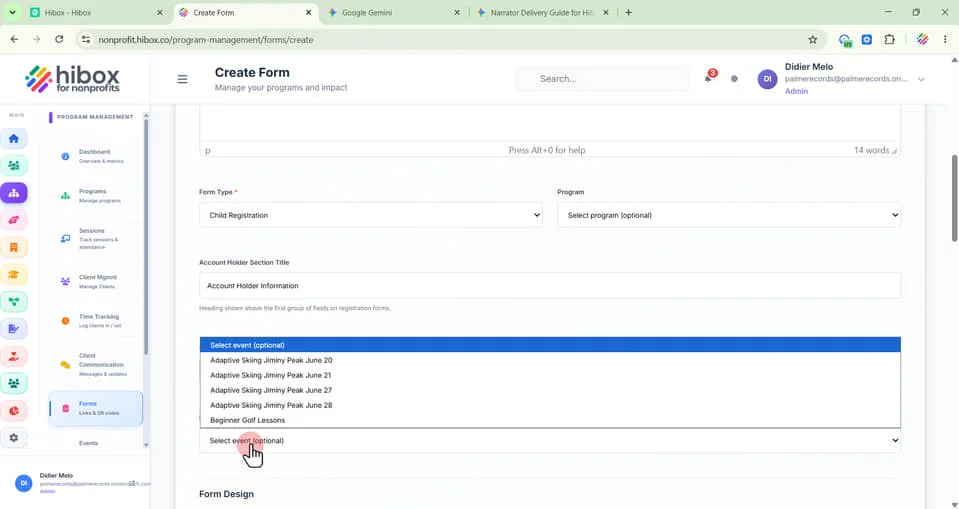
11. Select "Event" (optional)
12. Select a "Form Design" from the design options
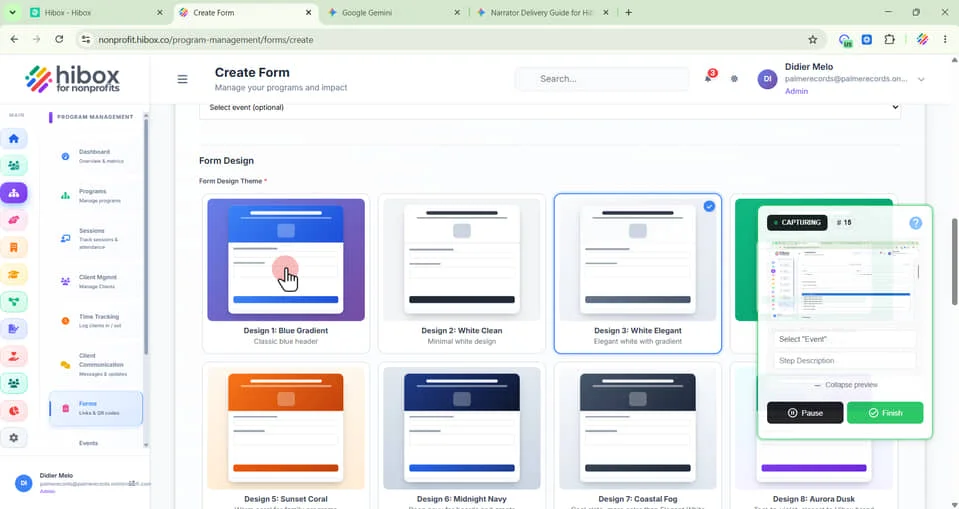
13. Click "Form Image"
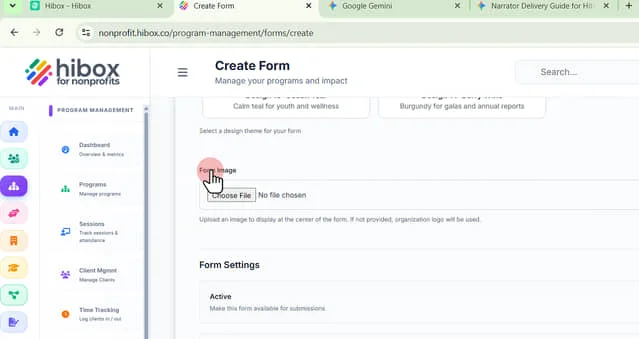
14. Click here to Upload an image to display at the center of the form. If not provided, the organization logo will be used."
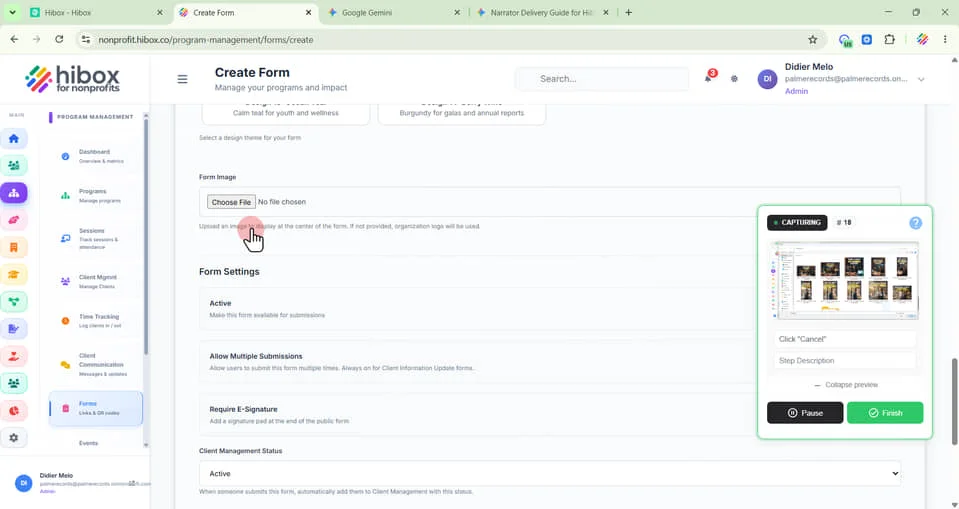
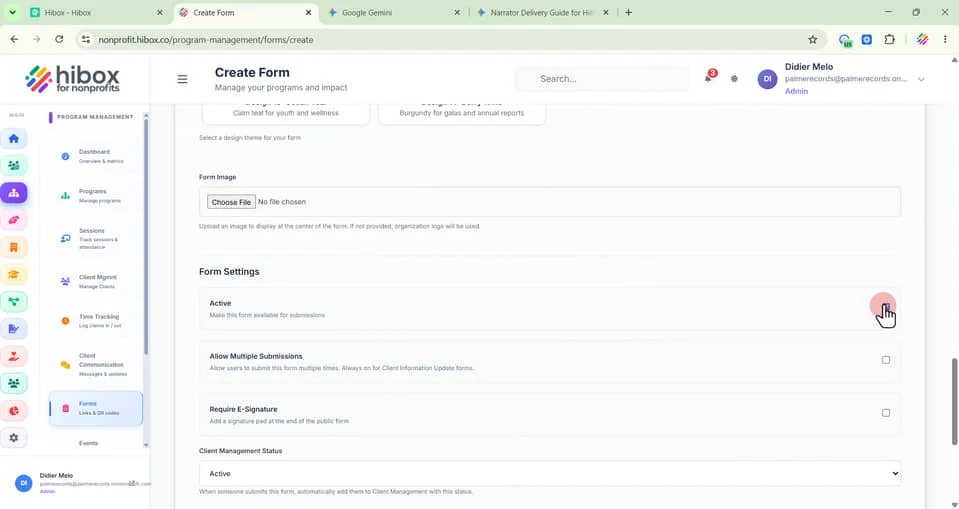
15. Set the "Form Settings" section by checking the box for each option below:
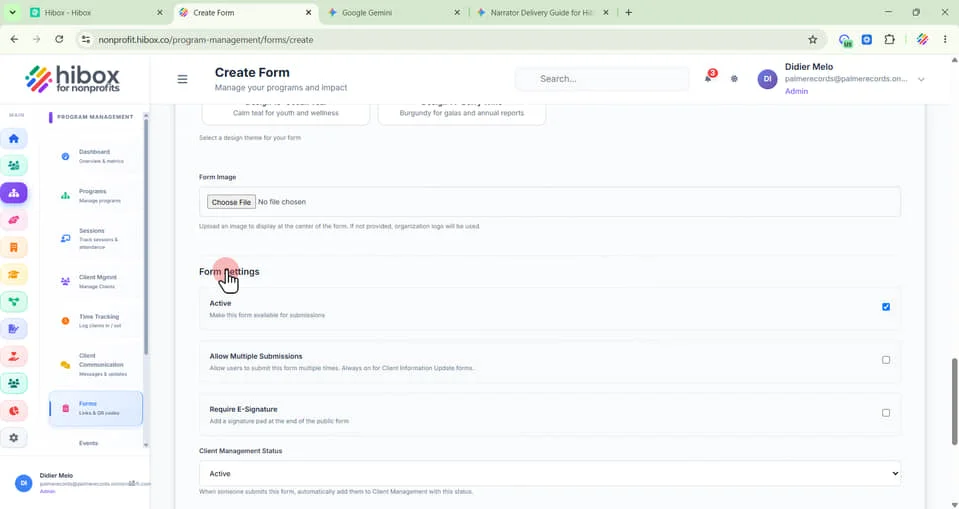
16. Select "Active" to make this form available for submissions
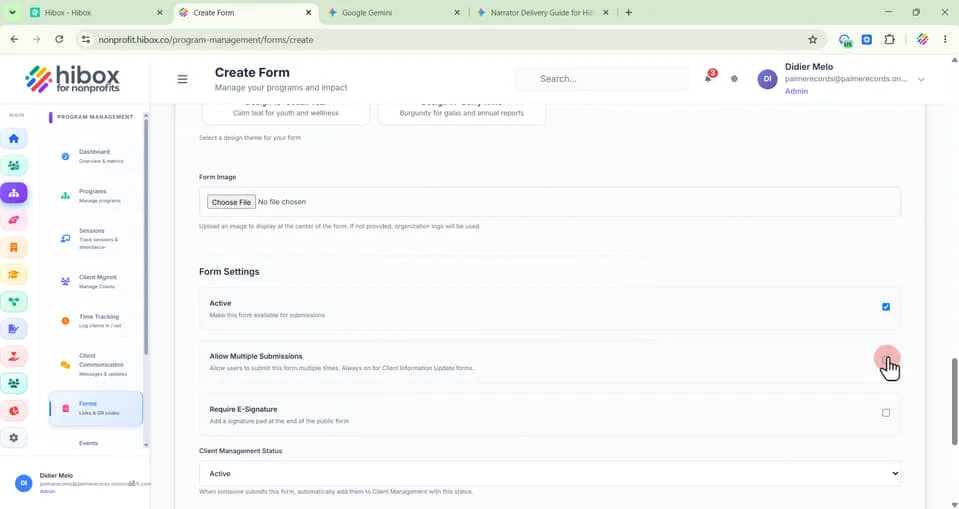
17. Click "Allow Multiple Submissions" to allow users to submit this form multiple times. Always on for Client Information Update forms
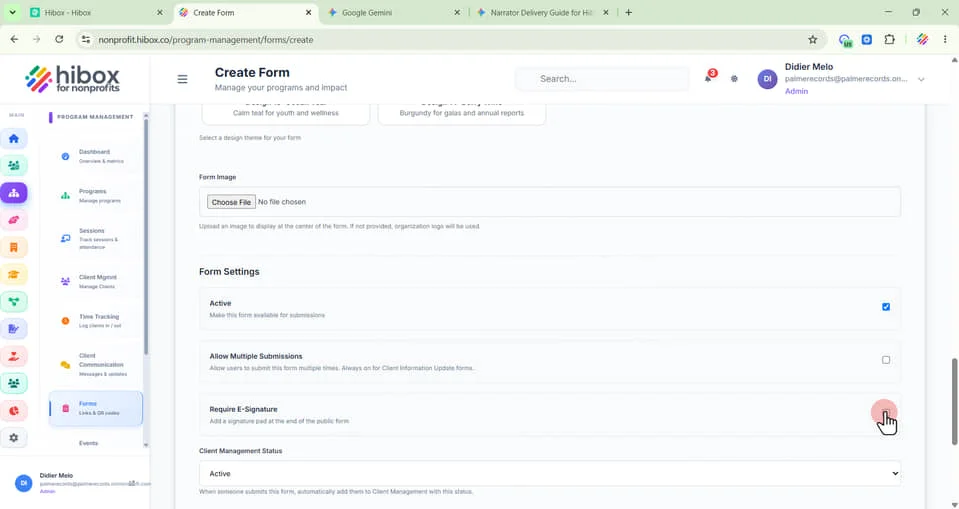
18. Click "Require E-Signature" to add a signature pad at the end of the public form
19. Set the "Client Management Status" to "Active" or "Pending"
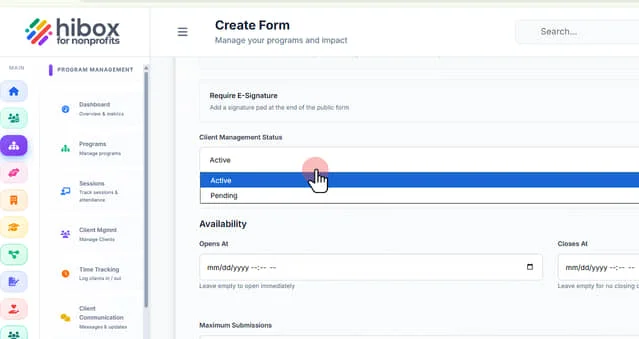
20. Set the "Availability"
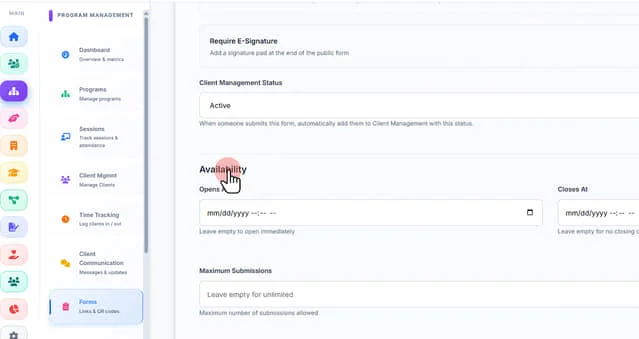
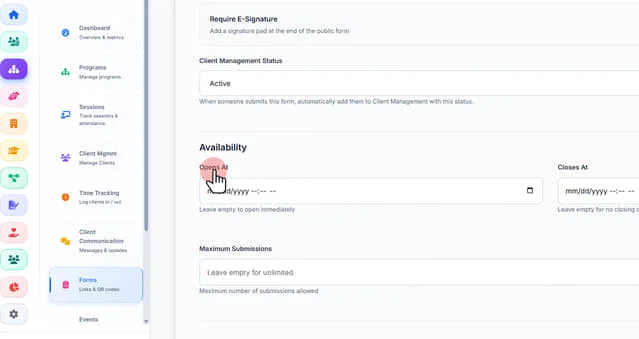
21. Set the "Opens At" time
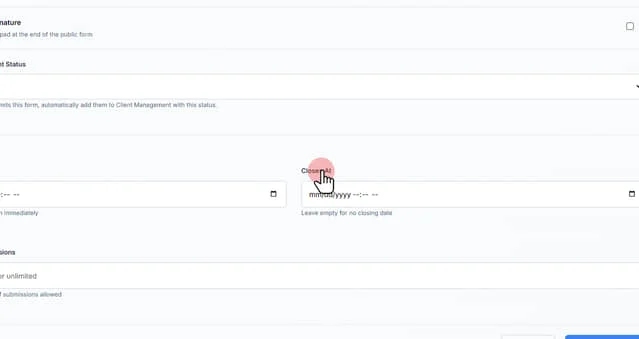
22. Click "Closes At" time (leave empty to open immediately)
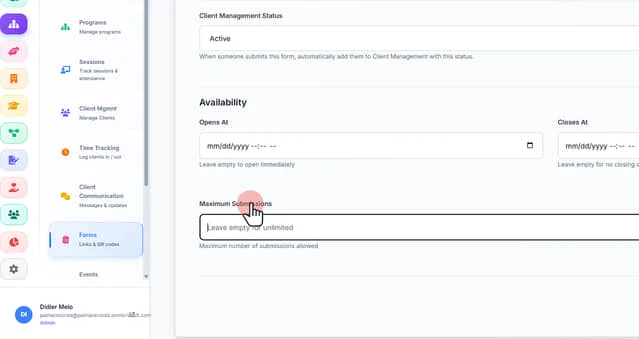
23. Set a "Maximum Submissions" (leave empty for no closing date)
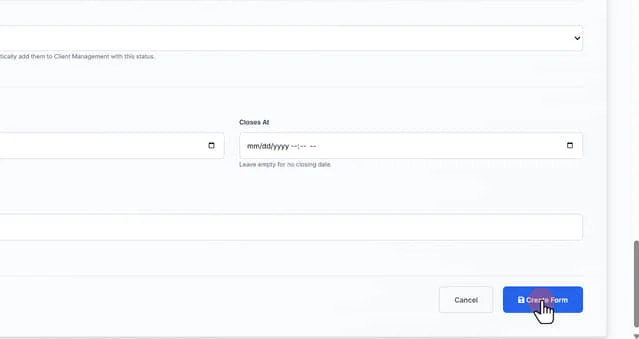
24. Scroll down and click "Create Form" to finish