Creating a Multi-step Process for New Program Registrations
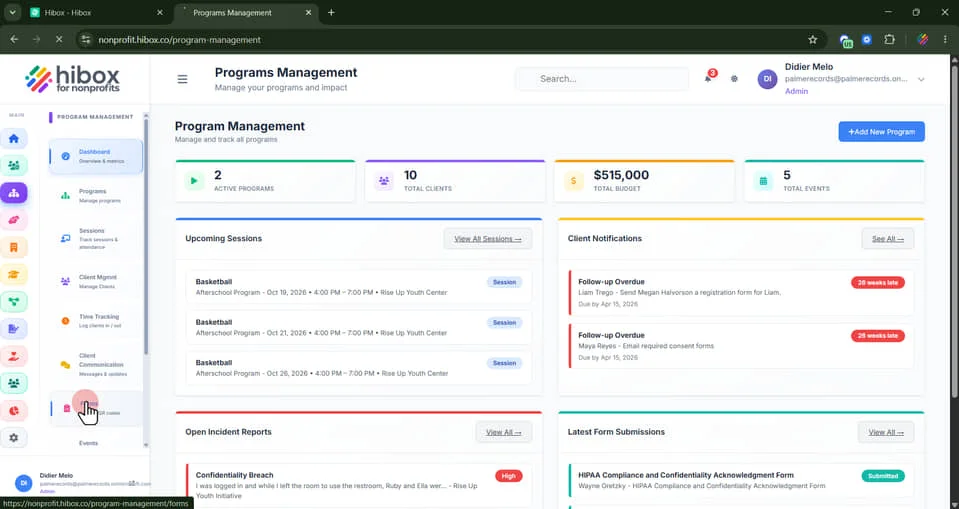
1. Click "Program Management" on the left-side menu
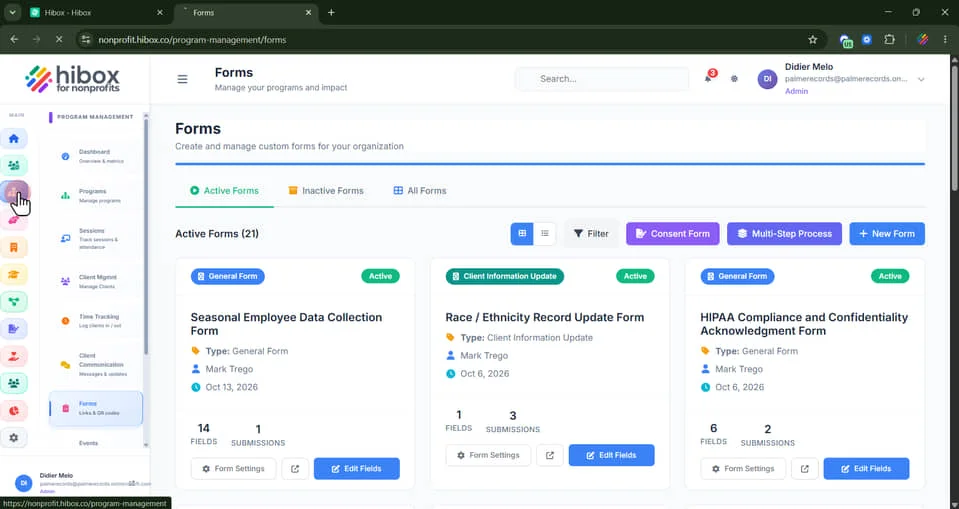
2. Click "Forms" on the sub-menu
3. Click "Create Multi-Step Process"
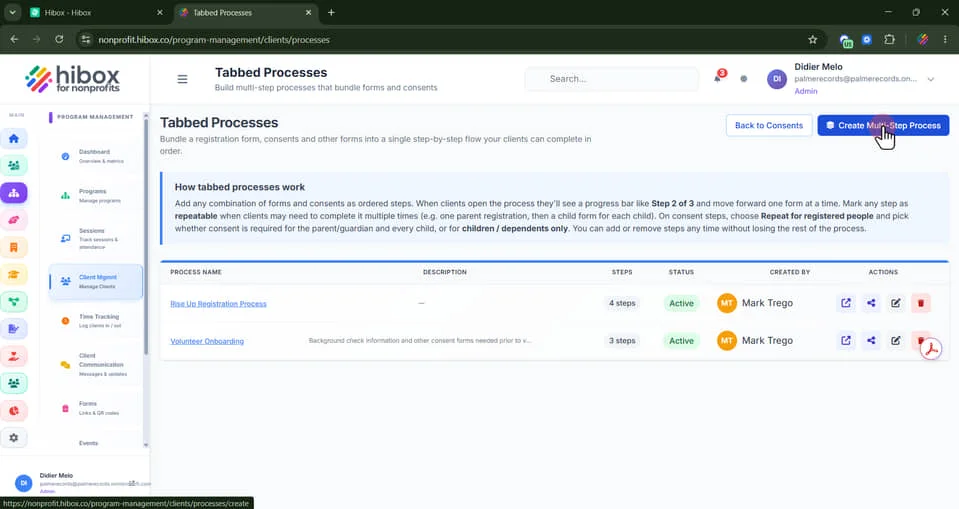
4. Click "+ Create Multi-Step Process"
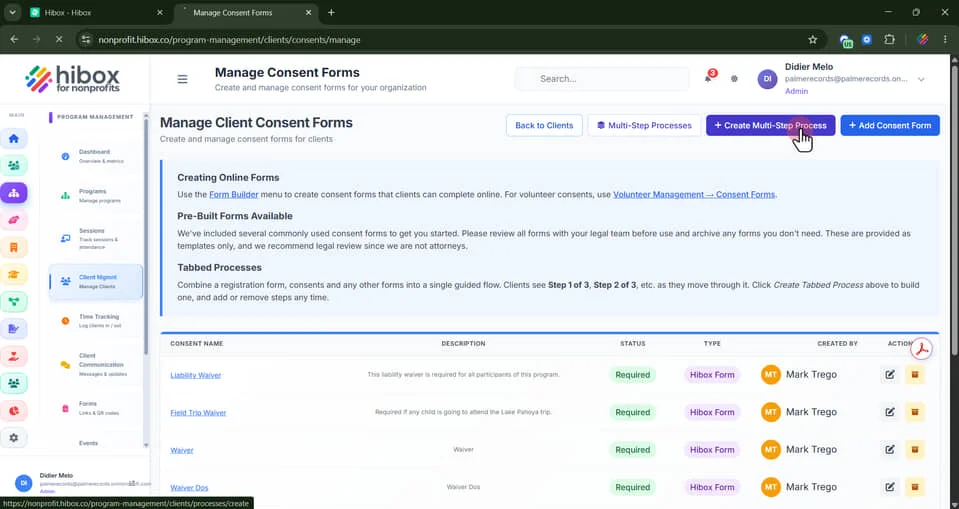
5. From here, you can stack a registratio, consents and other forms into a step-by-step flow your clients can complete
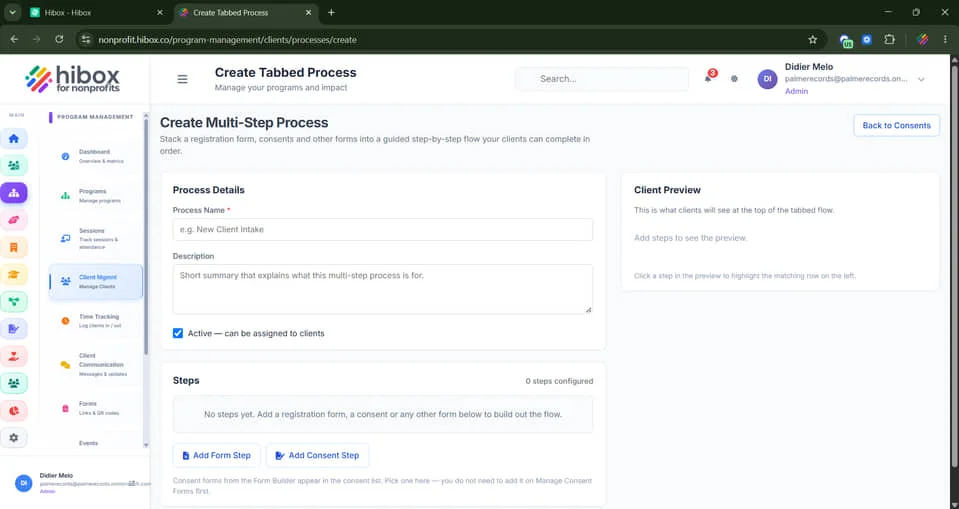
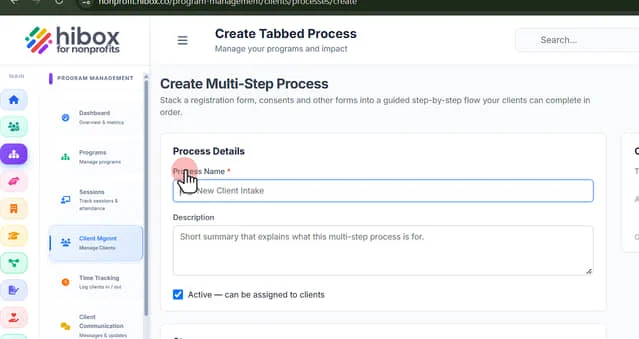
6. Enter a "Process Name"
7. Type a "Description"
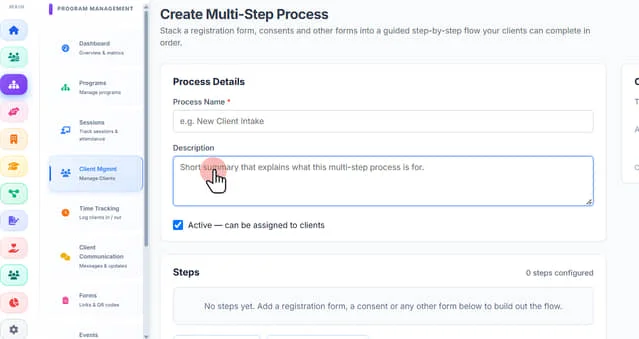
8. Use the checkbox to activate the form as soon as you finish creating it, and so it can be assigned to clients
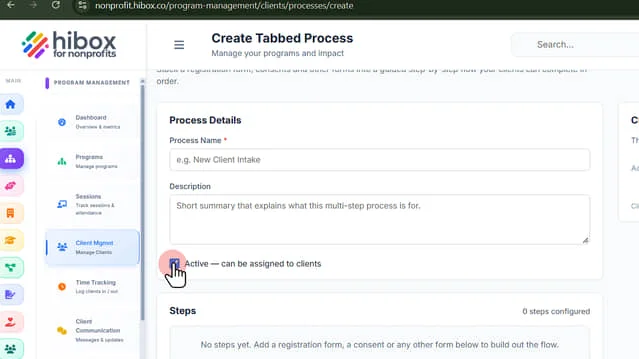
9. Click "Add Form Step" or "Add Consent Step" to add your 1st step into the multi-step process. Let's add a "Form" first
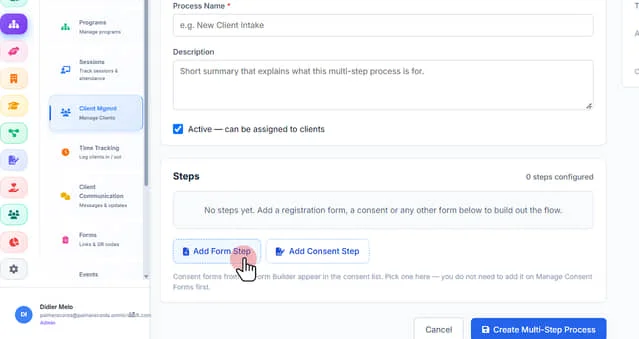
10. If you need to change this, you can select "Form" or "Consent" under "Step type" at any moment
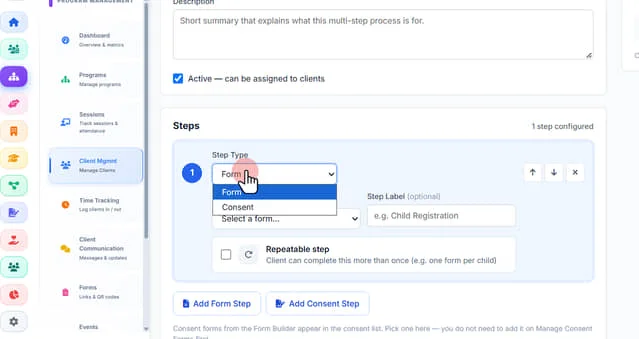
11. Select a "form" from the dropdown menu
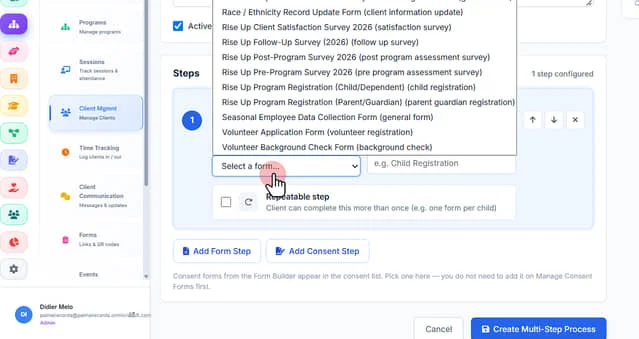
12. Enter a name/label for this step
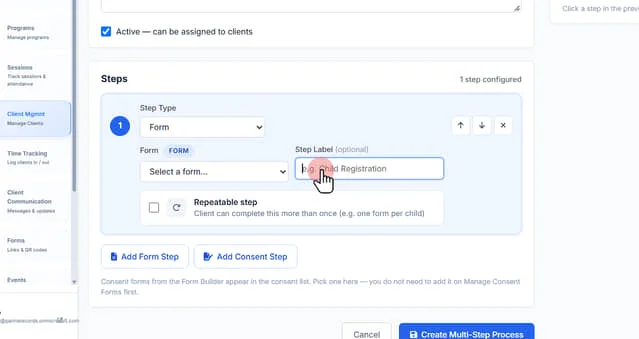
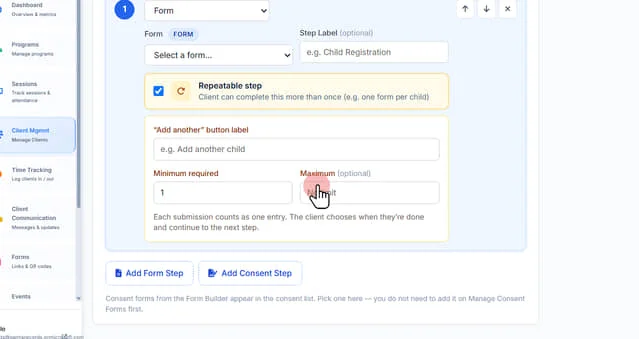
13. Check the "Repeatable step" checkbox if the client can complete this step more than once. (e.g. one form per child)
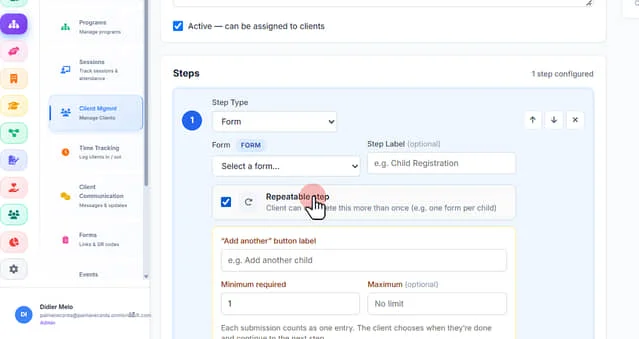
14. If this is a repeatable step, type the button to add another submission. (e.g "add another child")
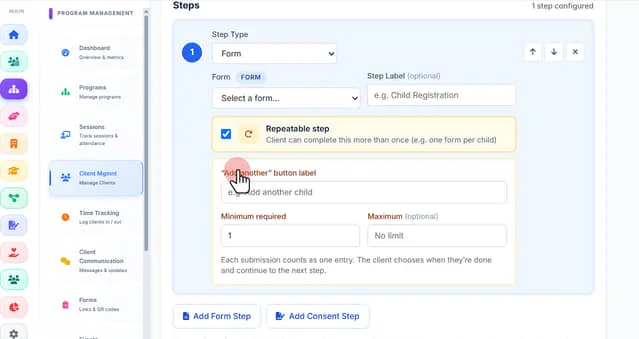
15. Enter a "Minimum required" amount of submissions
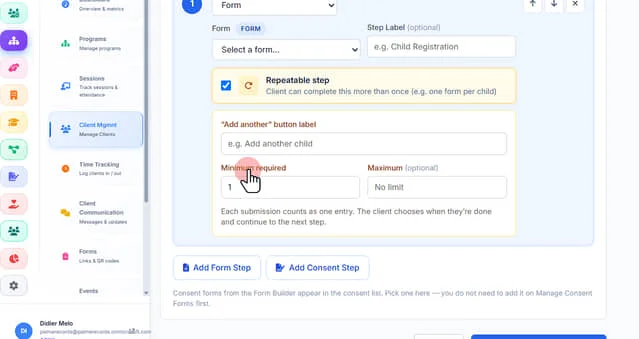
16. Enter a "Maximum required" amount of submissions. Each submission counts as one entry. The client chooses when they’re done and continue to the next step. Leave blank for an unlimited amount
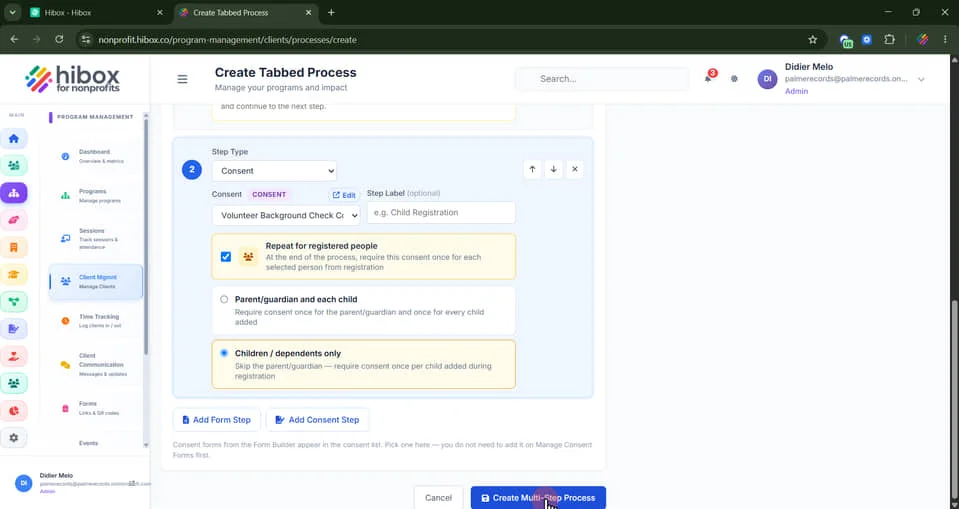
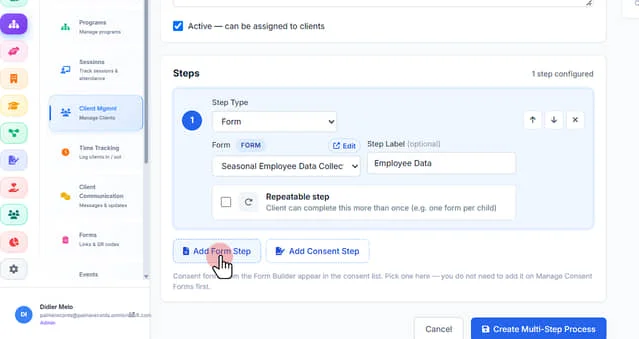
16.1. Click "Add Form Step" or "Add consent Step" as a 2nd step
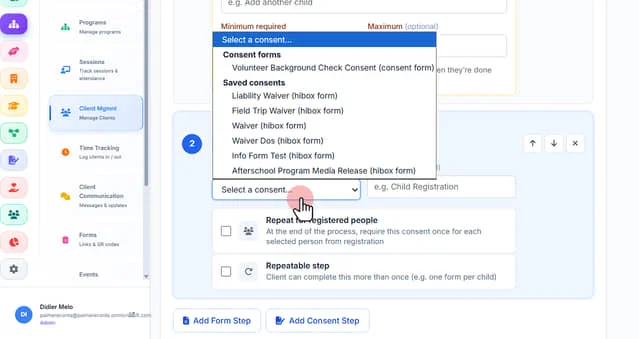
17. Select "Select a consent form" using the dropdown menu
18. Enter a "Step Label" for this 2nd step
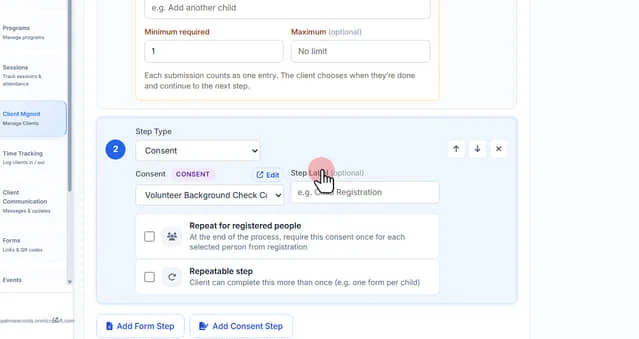
19. Mark the checkbox "Repeat for registered people" and " Parent / guardian and each child" to require consent once for the parent/guardian and once for every child added
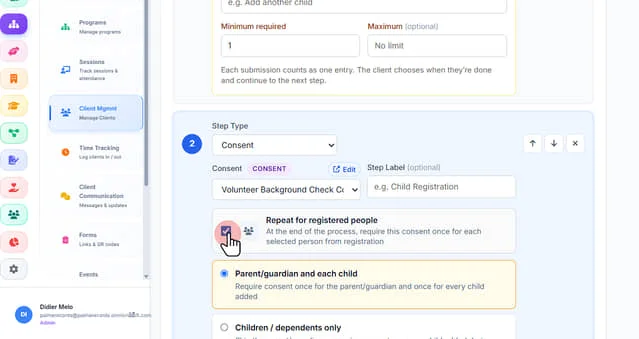
20. or select "Children / dependents only to skip the parent/guardian — require consent once per child added during registration
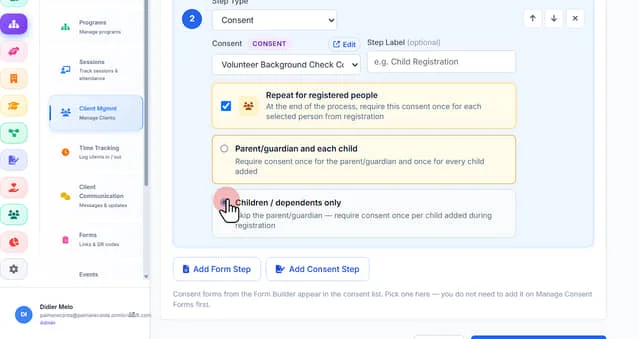
21. Scroll down and click "Create Multi-Step Process" to finish