Creating a New Form
Creating a New Form
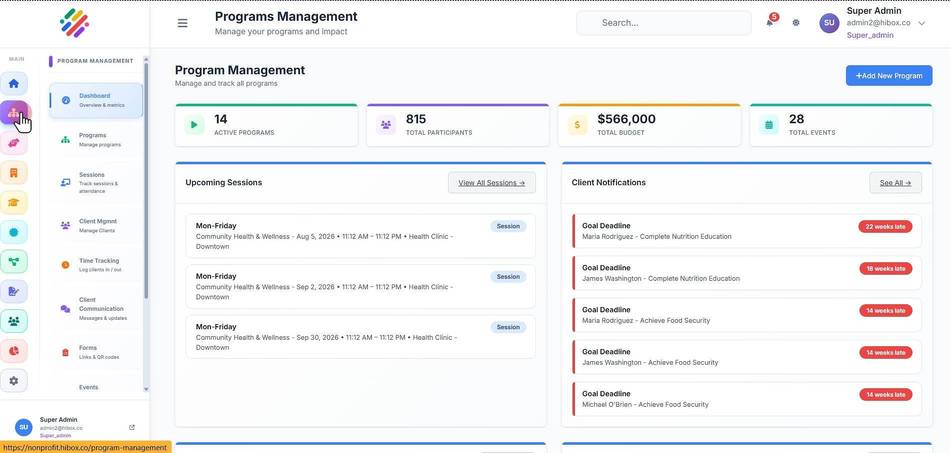
1. Click "Program Management" on the left side menu
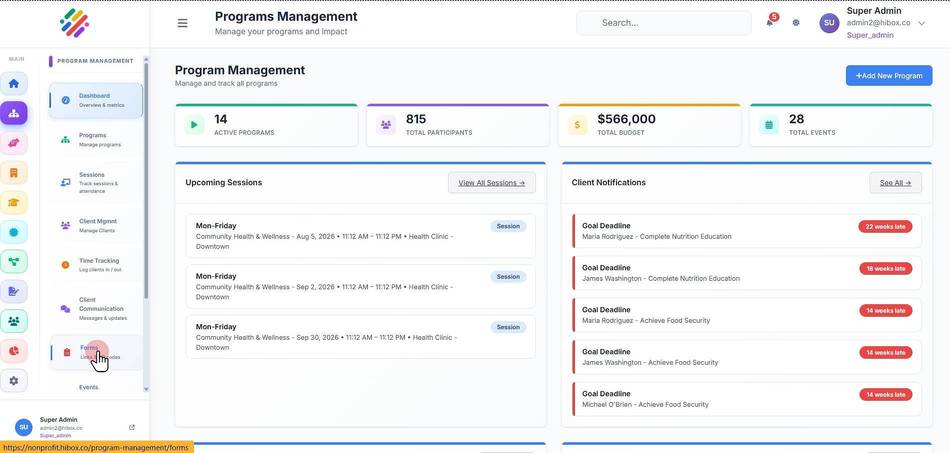
2. Select "Forms" on the sub-menu
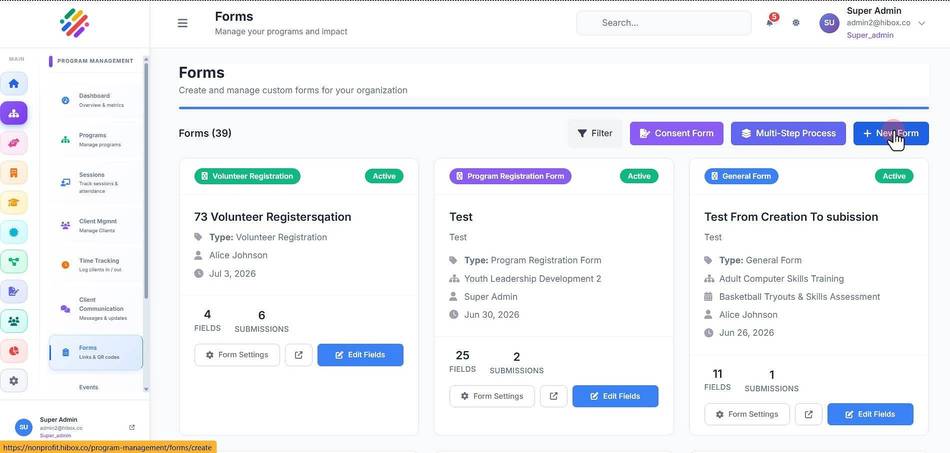
3. Click the "+ New Form" button
4. Type the "Form Title"
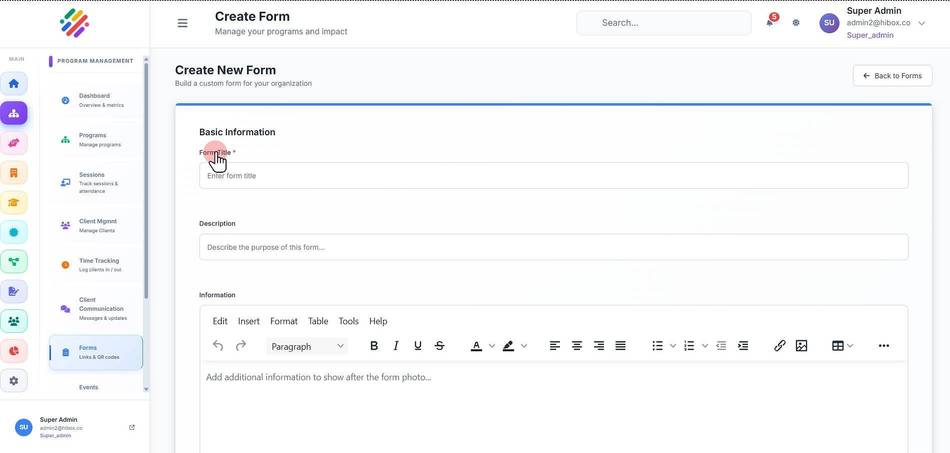
5. Type a "Description" for the form
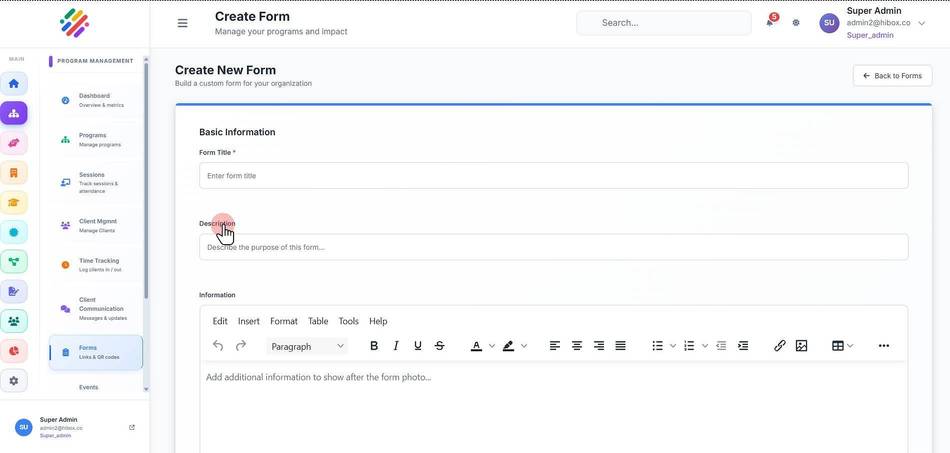
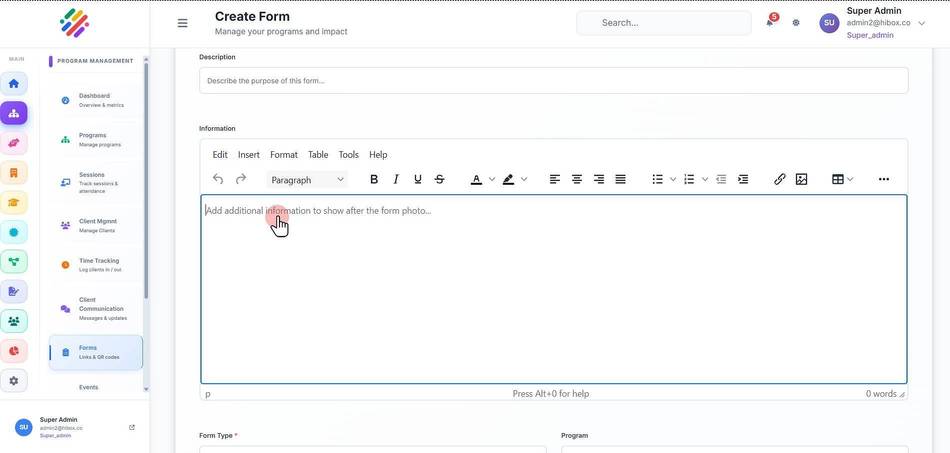
6. You can add more details under the "Information" section
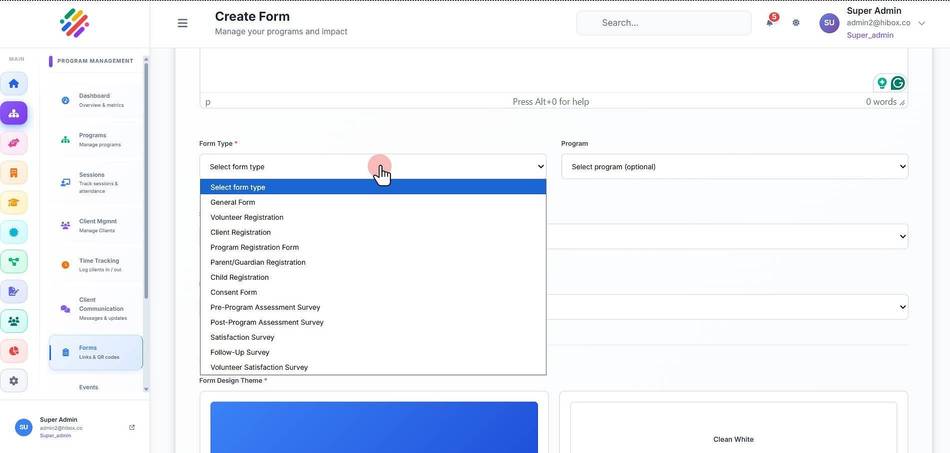
7. Scroll down and select the "Form Type"
8. Choose a "Program"
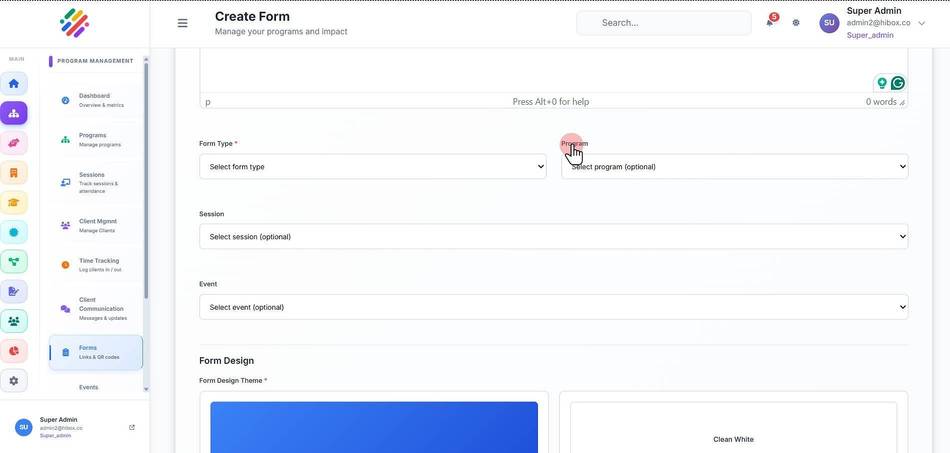
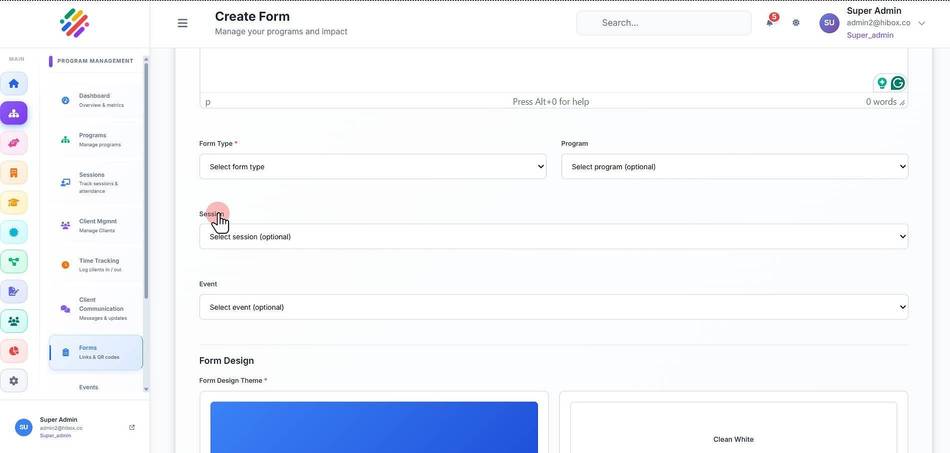
9. Select a "Session" using the dropdown menu
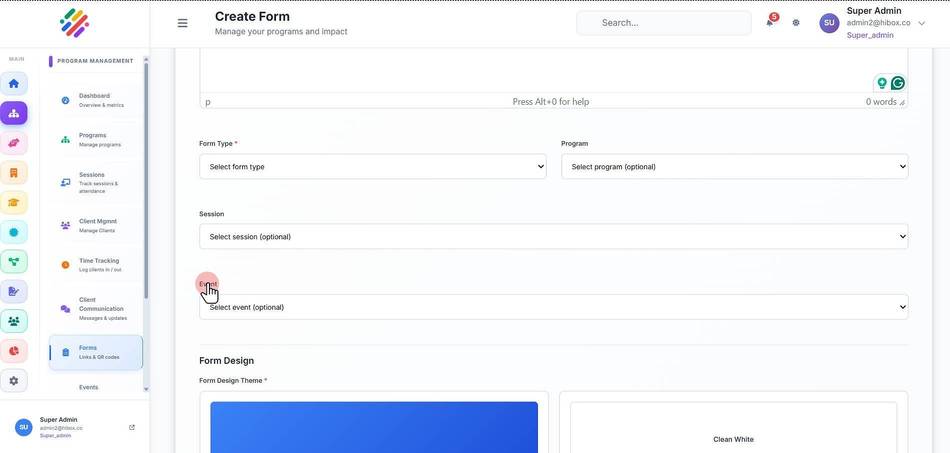
10. Choose a"Event" if this form is for a specific event
11. You can find 4 different templates under "Form Design"
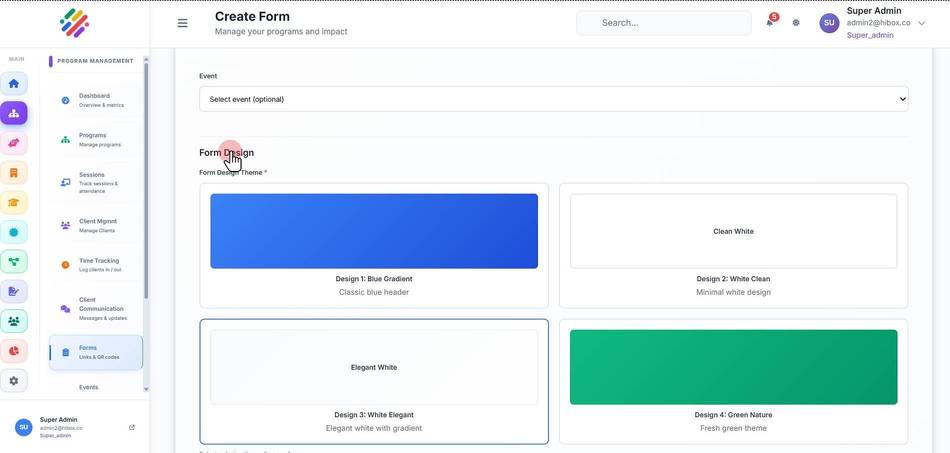
12. You can also upload an image to display yout organization logo.
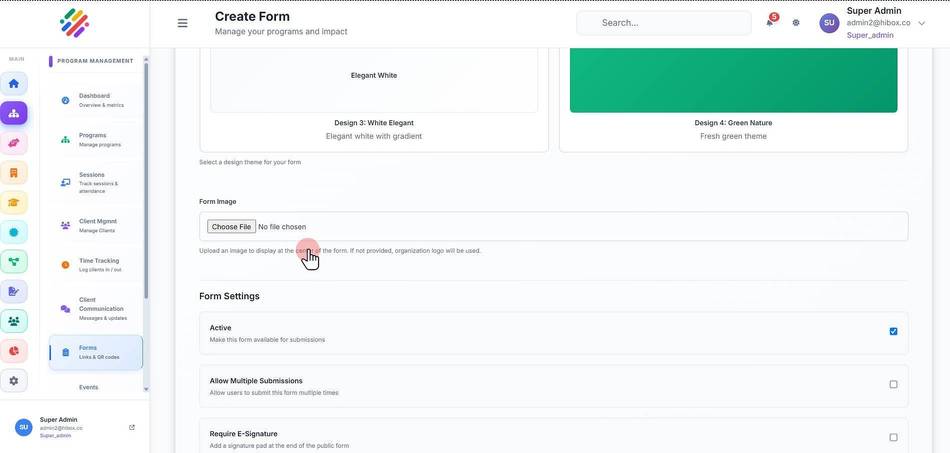
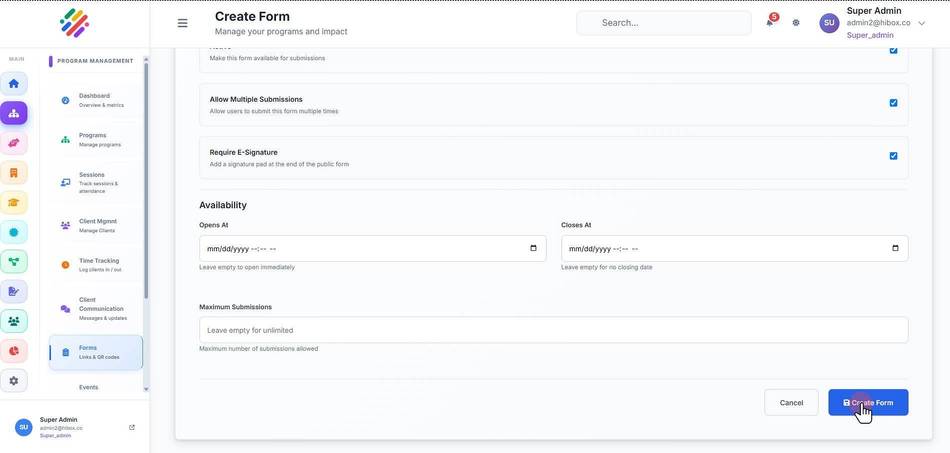
13. Scroll down to find the "Form Settings" section
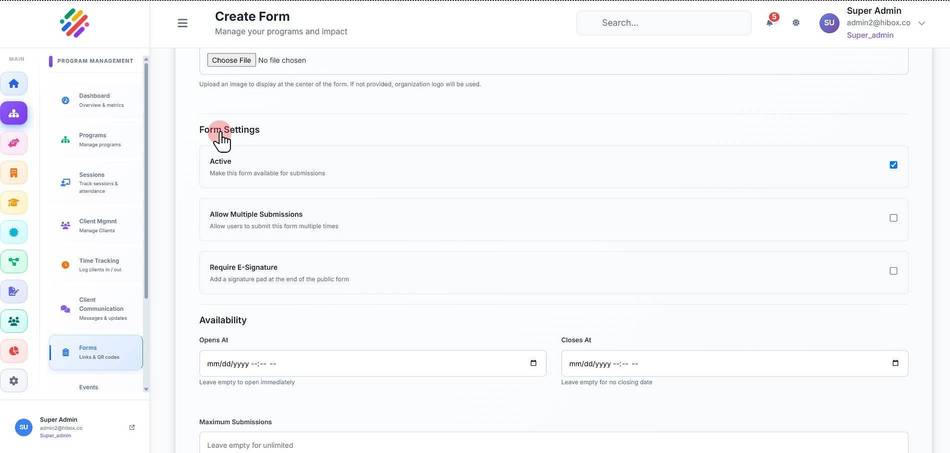
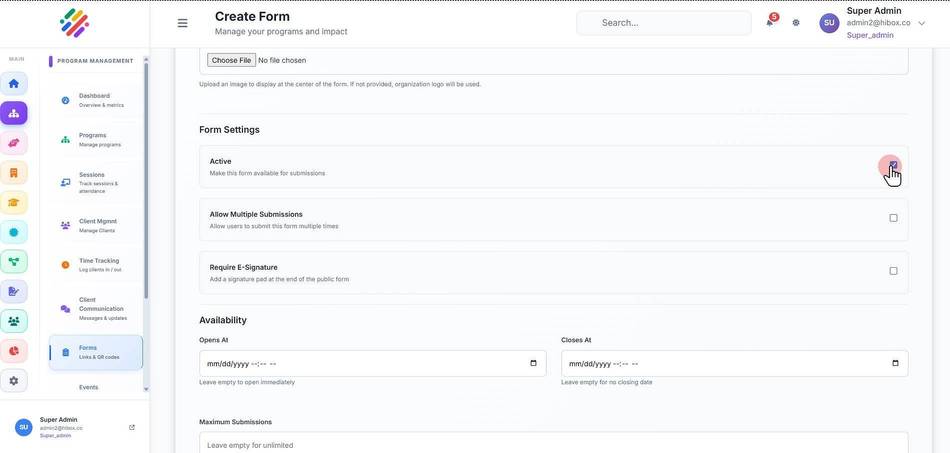
14. Click "Active" if you wish the form to be live
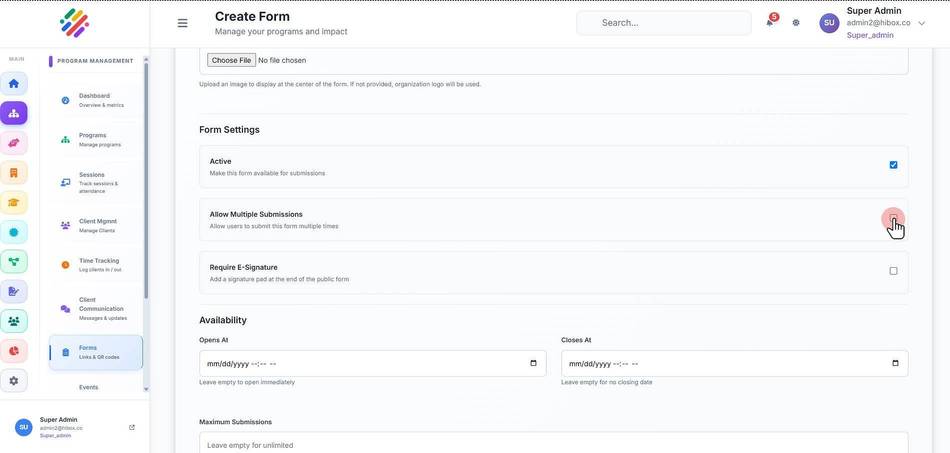
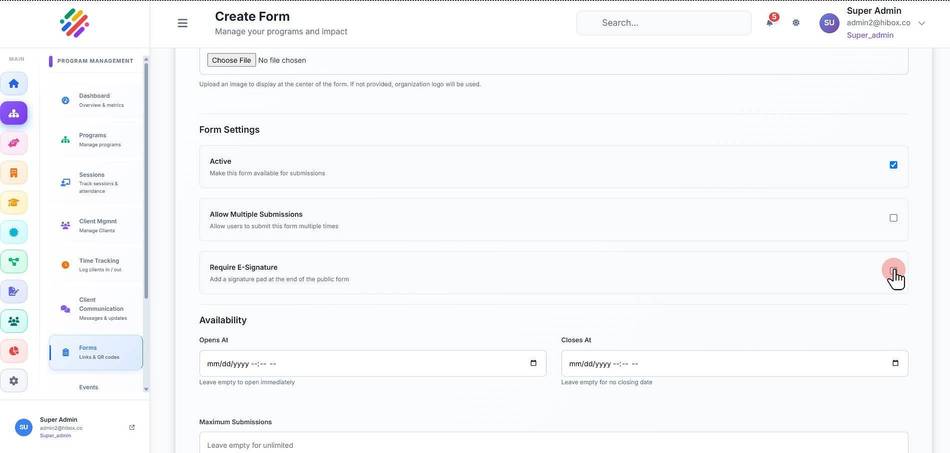
15. Check "Allow Multiple Submissions" if you don't want this limit
16. Check "Require E-Signature" if this is a requirement for the specific form
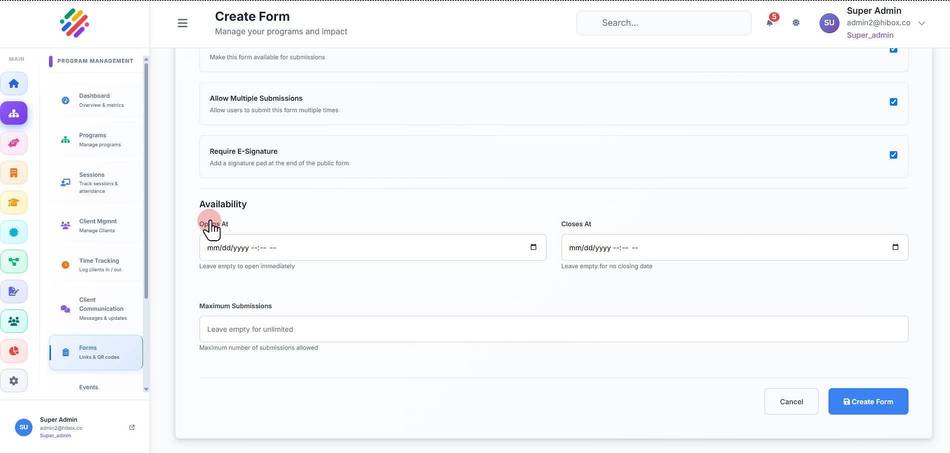
17. Under Availability , set the "Opens At" time and date
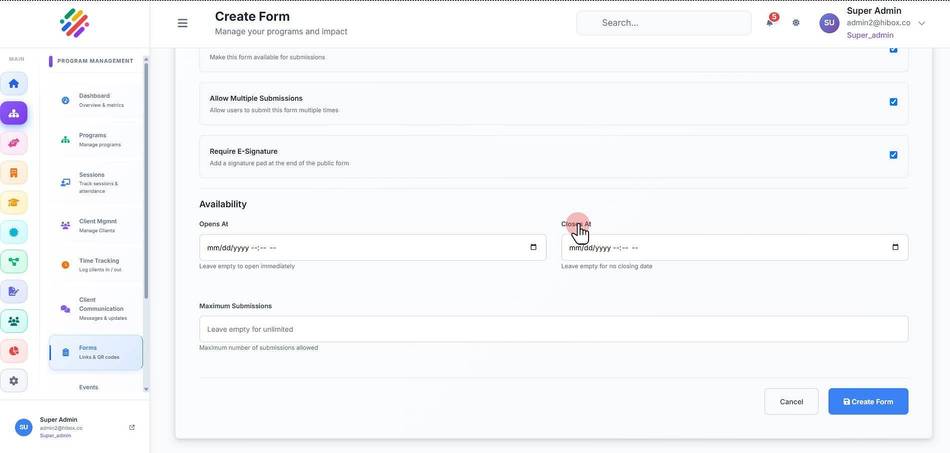
18. as well as a "Closes At", leave empty if not needed
19. Ser a Maximum number of Submissions, if applicable, or leave empty.
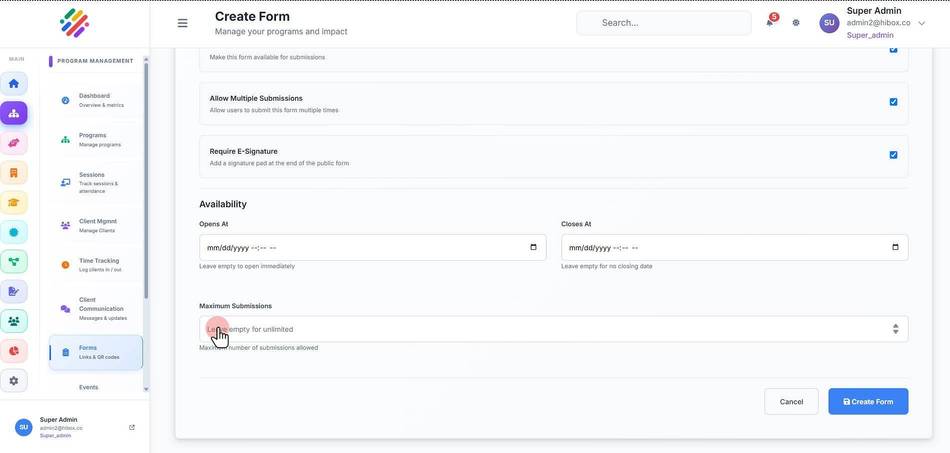
20. Once ready, scroll down and click on "Create Form"