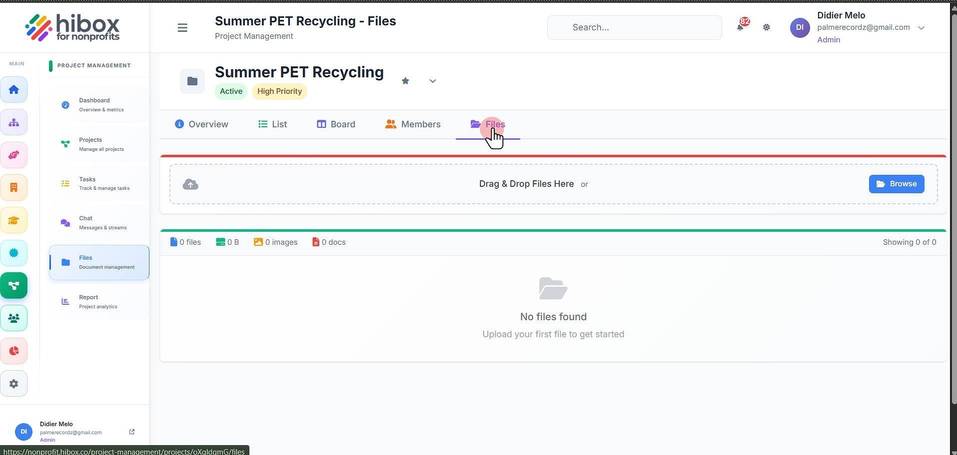
Creating a New Project
Creating a New Project
1. Click "Project Management" on the left-side menu
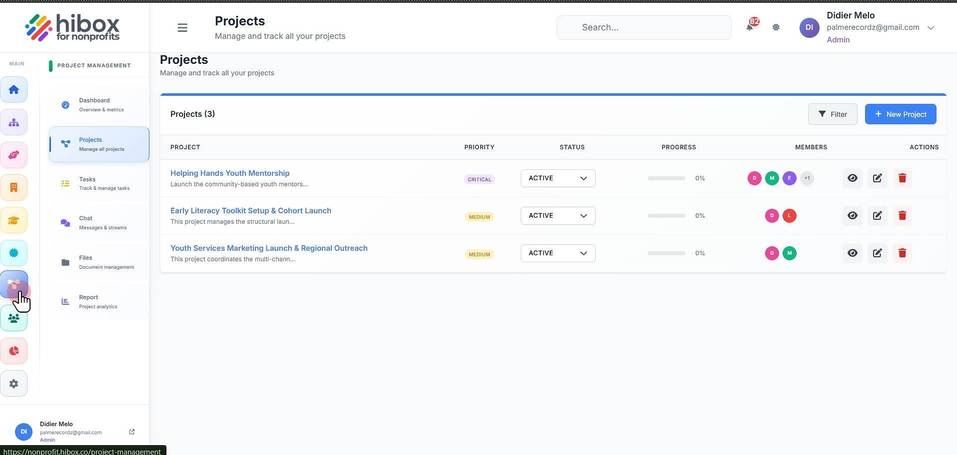
2. Click "Projects" on the sub-menu
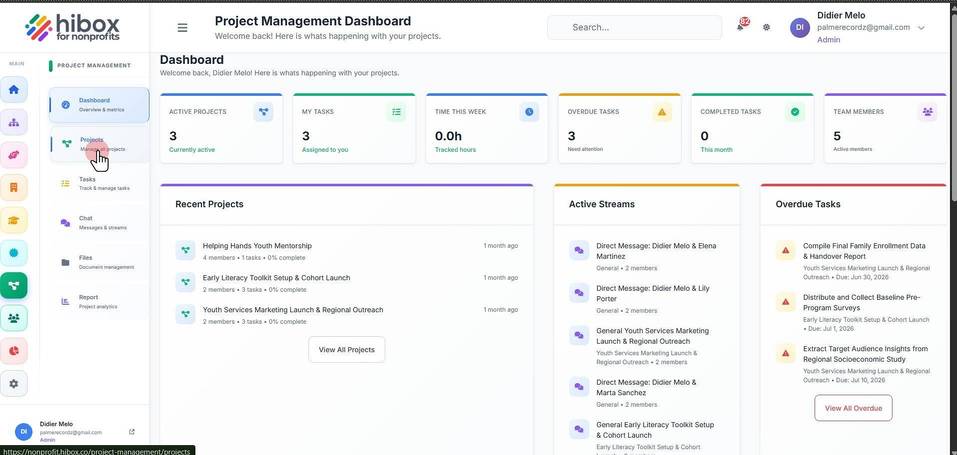
3. Click "+ New Project"
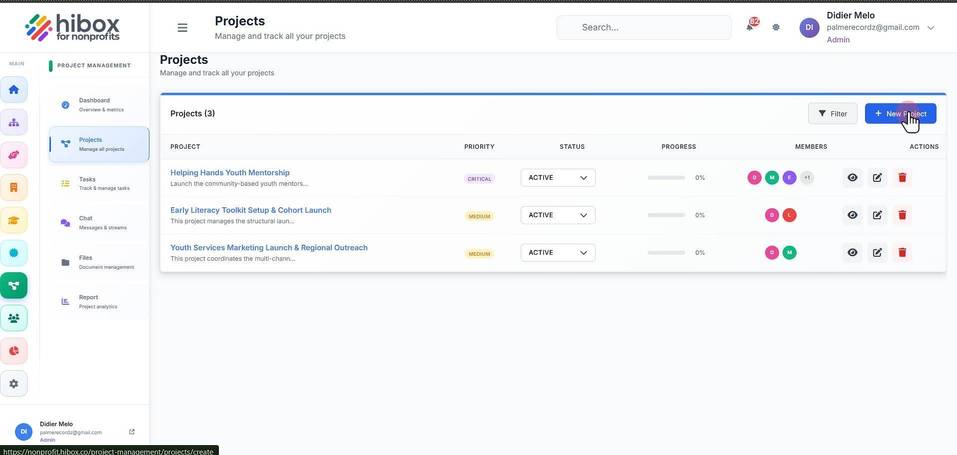
4. Enter a "Project Name"
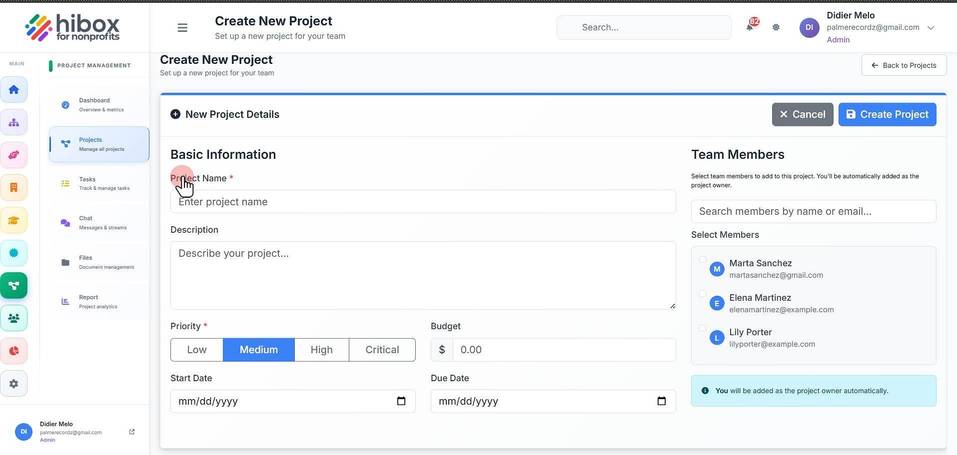
5. Enter a "Description"
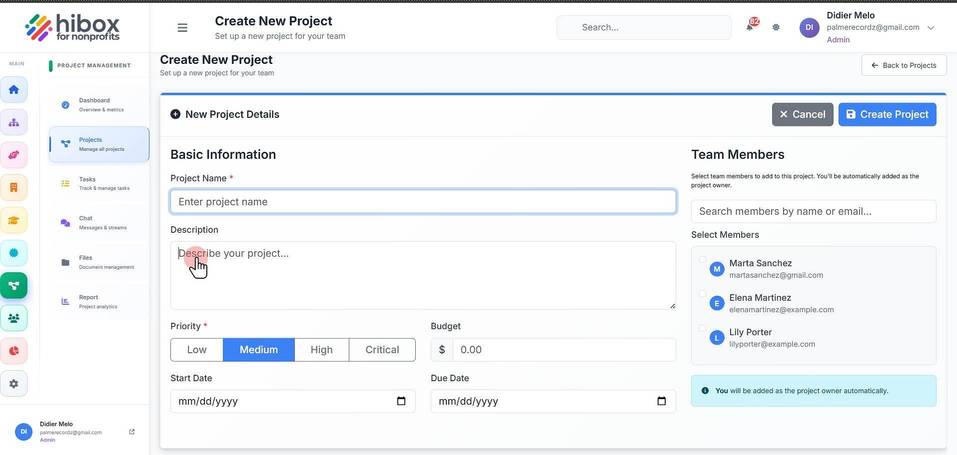
6. Set a "Priority"
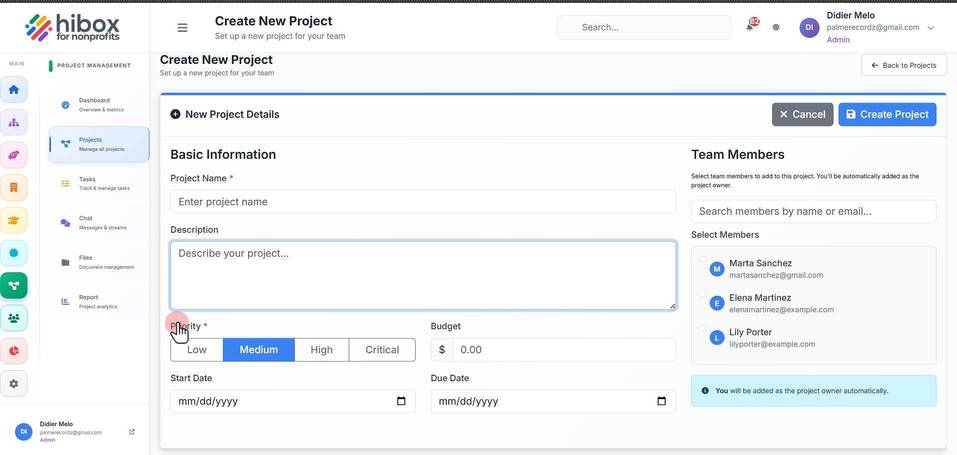
7. Set the "Budget"
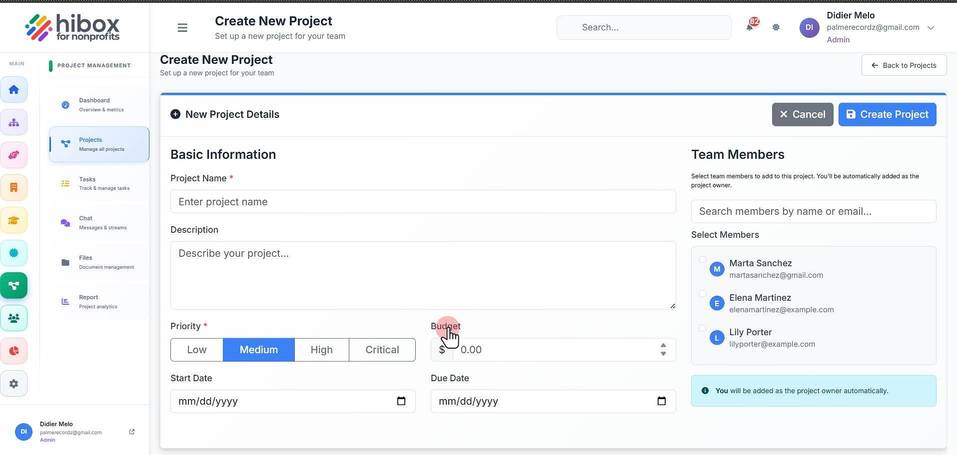
8. Set the "Start Date"
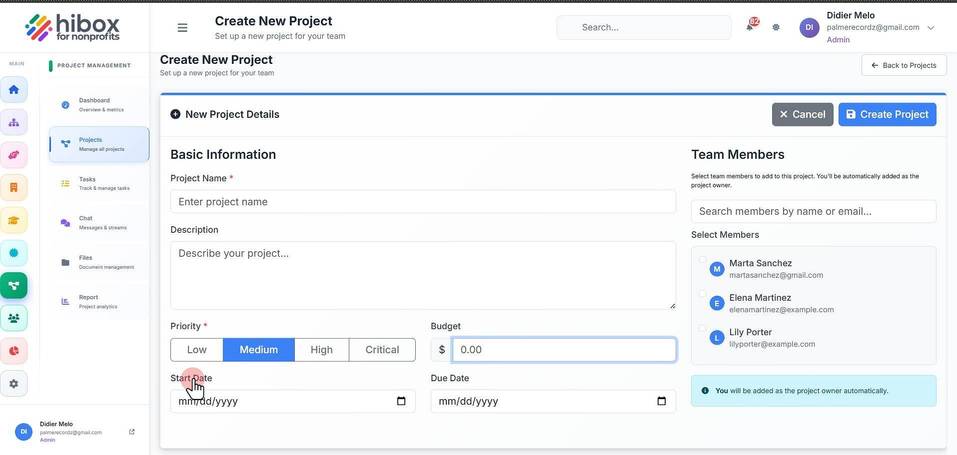
9. Set a "Due Date"
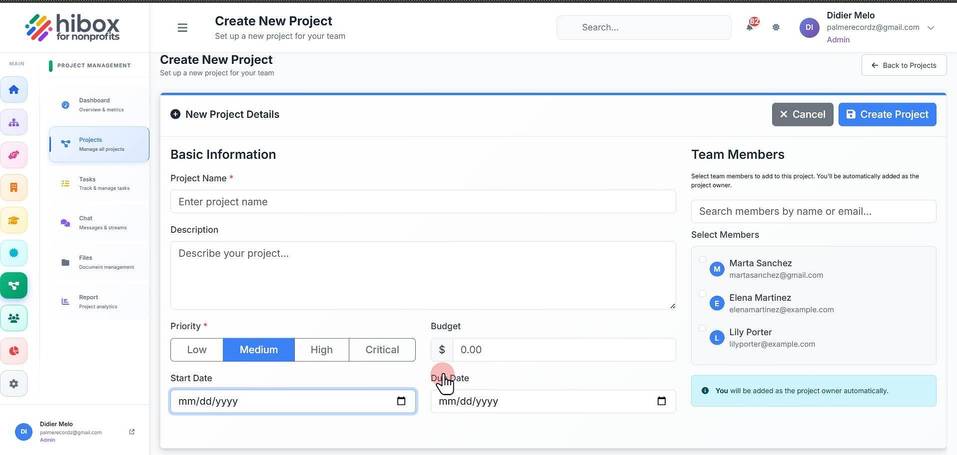
10. Select the "Team Members"
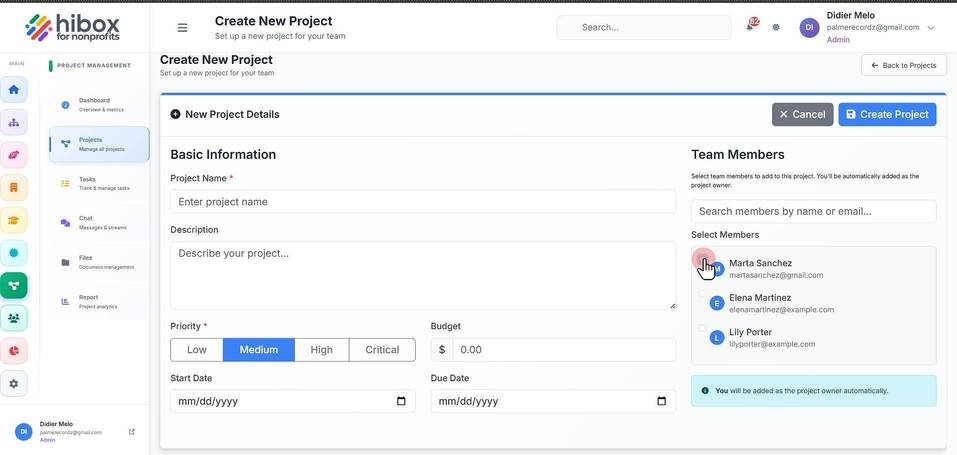
11. Click "Create Project"
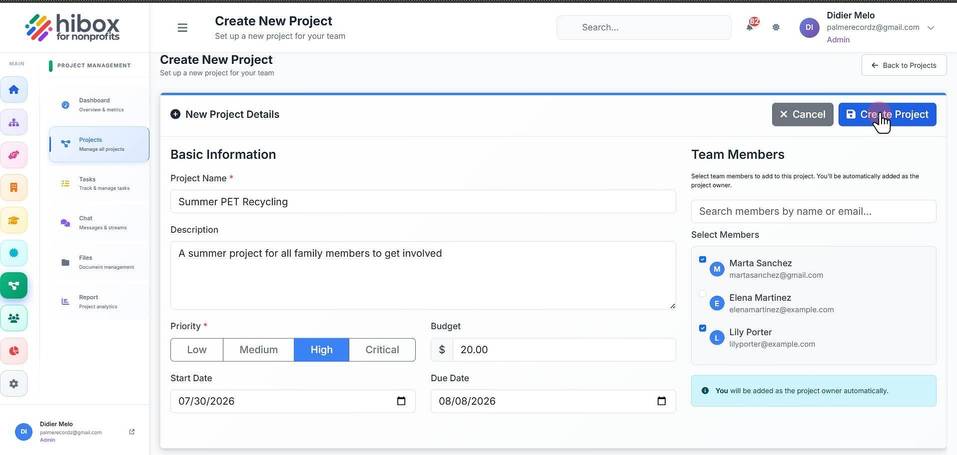
12. The project has been created successfully
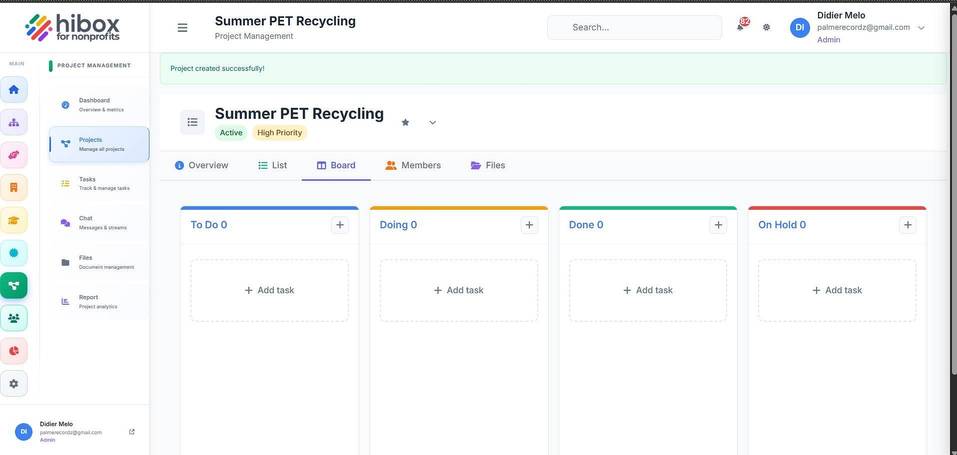
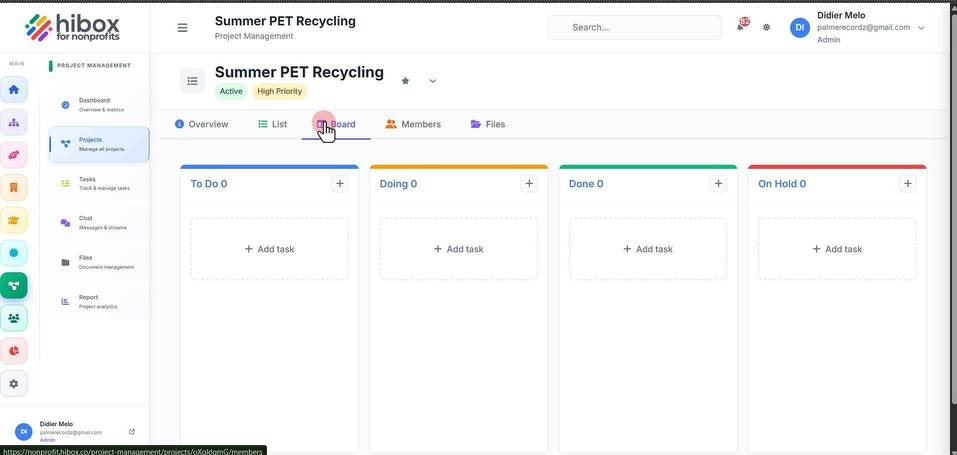
13. You will see the "Board" view, use the menu to navigate
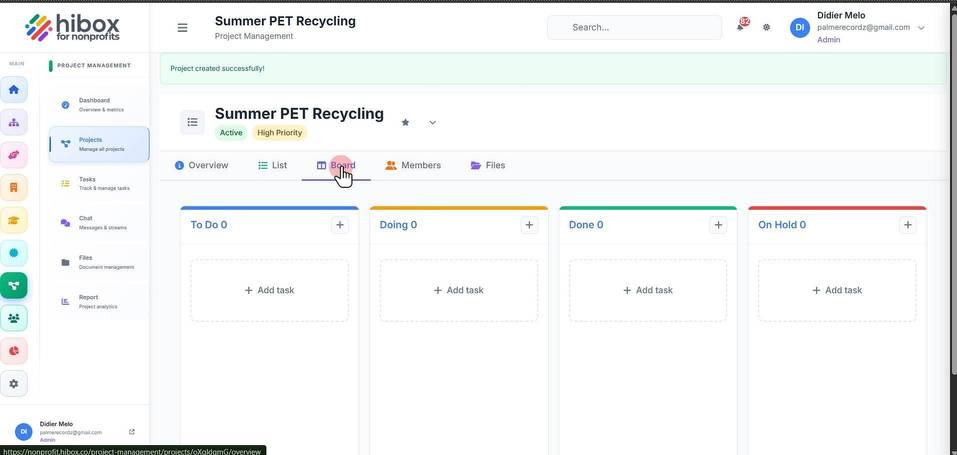
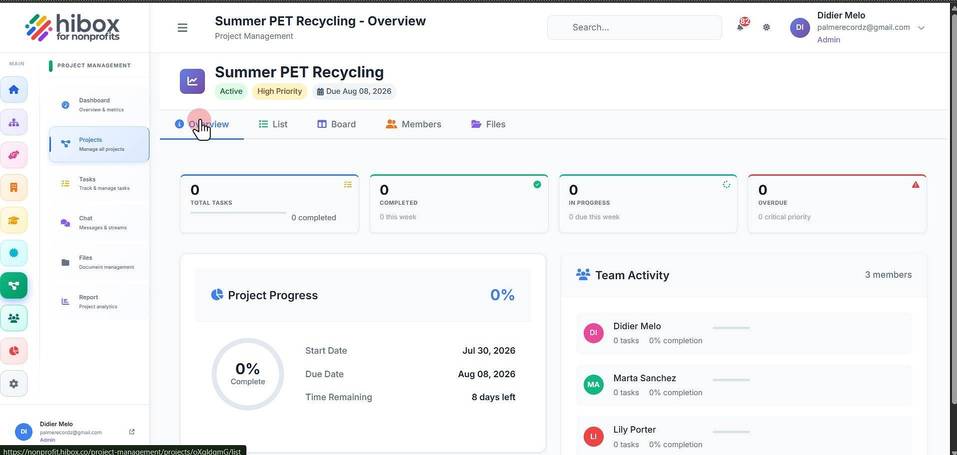
14. Click "Overview " to change the view, you will find key information here
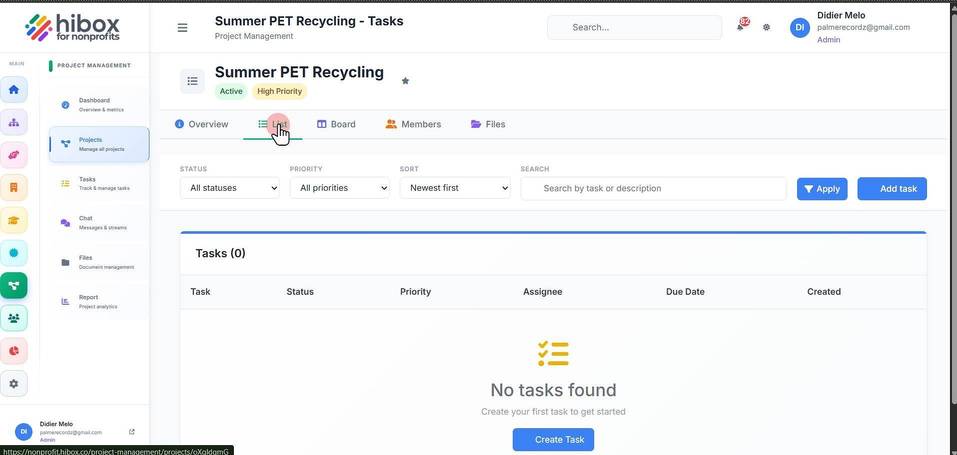
15. Click "List" to change to list view
16. Click "Board" to see a Kanban view
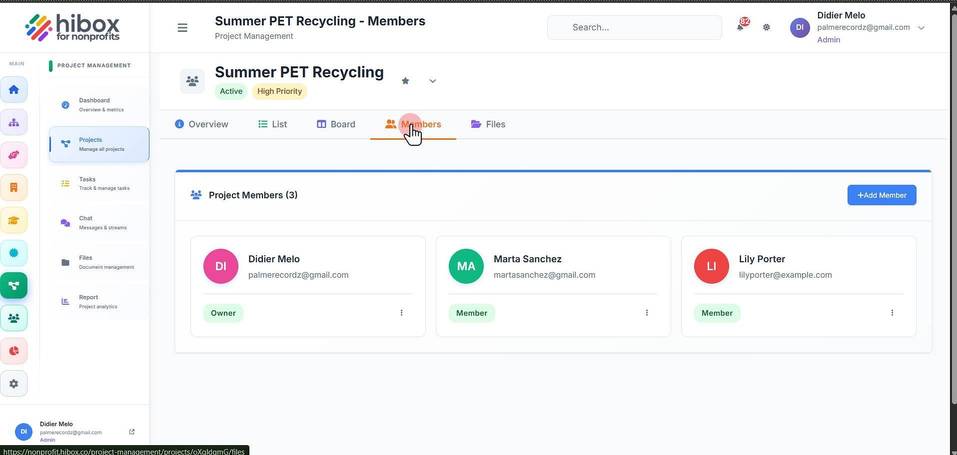
17. Click "Members" to see al assigned members to this project
18. Click "Files" to navigate into the file section, where you can upload files