Creating Custom Fields from Scratch
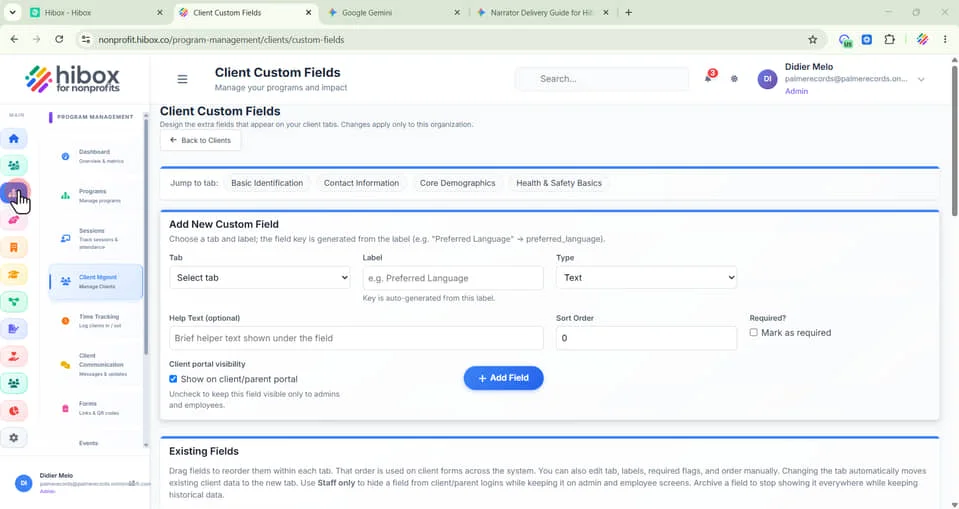
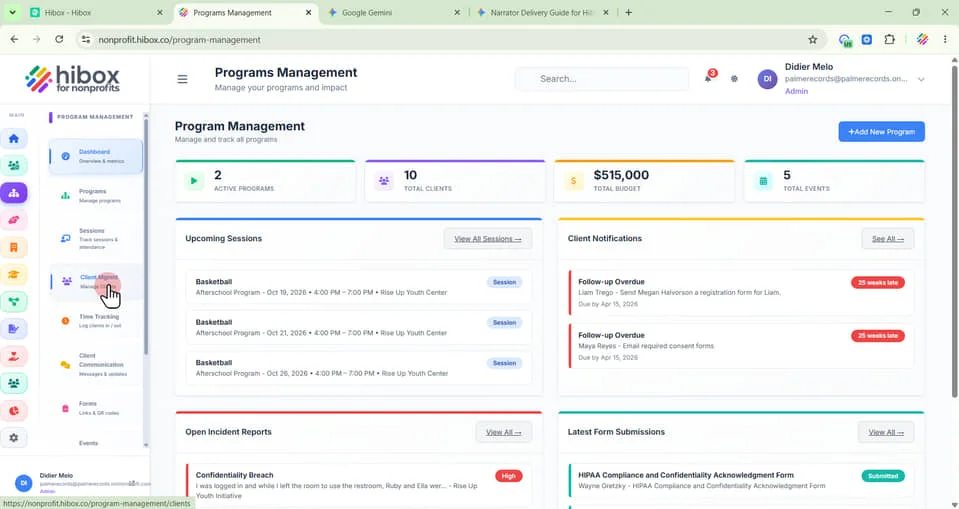
1. On the left-side menu , click "Program Management"
2. Click "Client Mgmnt" on the left-side menu
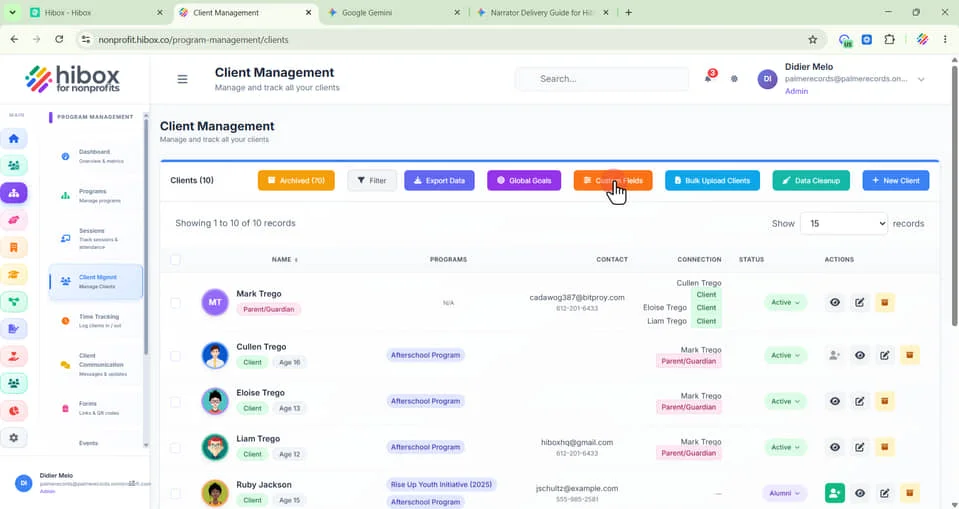
3. Click "Custom Fields" on the tp sub-menu
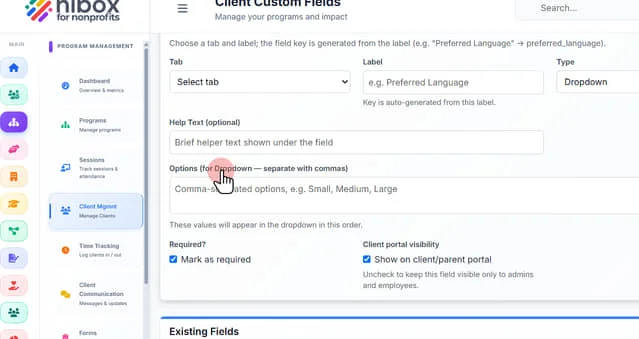
4. Select a tab. Choose a tab and label; this is where the tab where the custom field will appear on each client profile
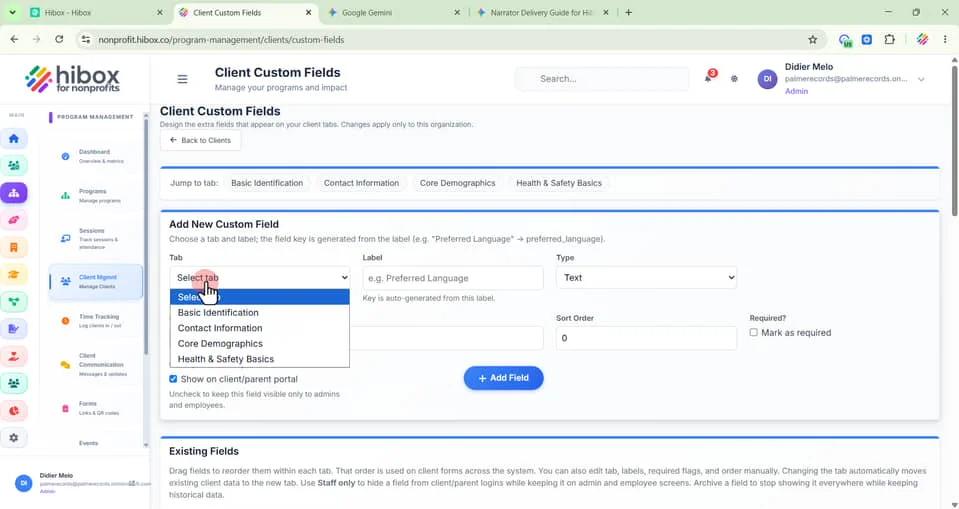
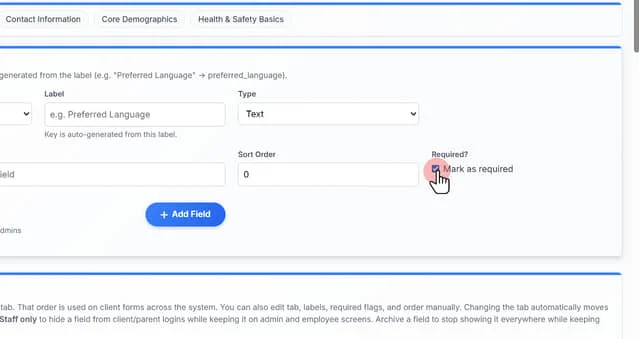
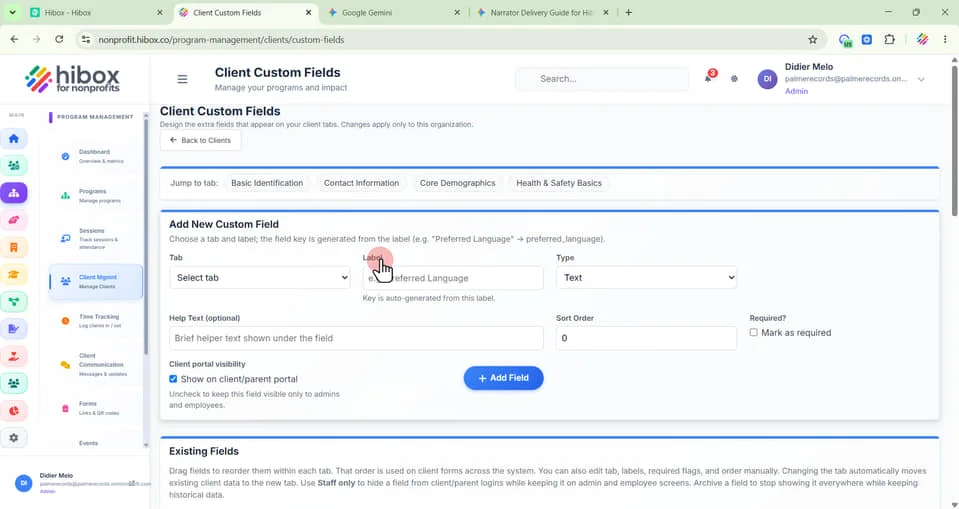
5. Enter a "Label" (Key is auto-generated from this label)
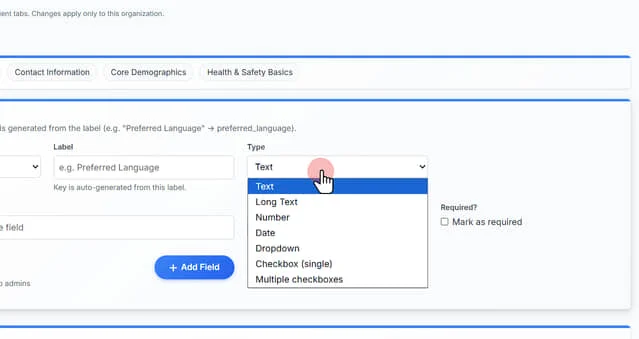
6. Select the type of custom field: "Text" "Long Text", "Number", "Date", "Dropdown" , "Checkbox (single)", or "Multiple Checkboxes"
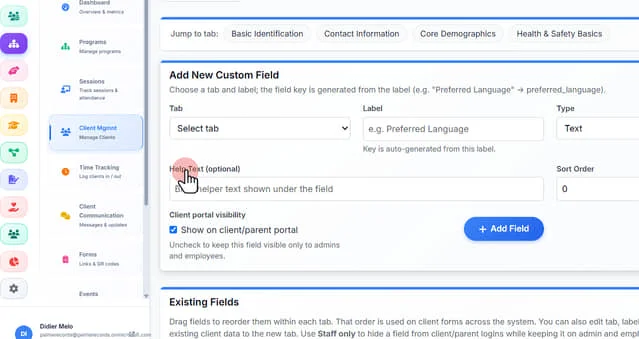
7. Enter a "Help Text (optional)" the text will be shown under the field
8. Click options and use comma-separated options, e.g. Small, Medium, Large
9. Enter a number to "Sort Order"
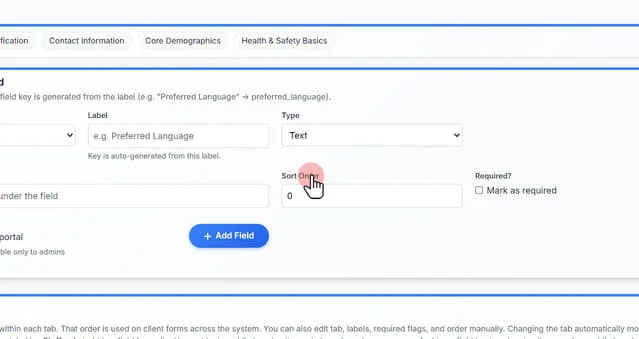
10. Click "Mark as required" to make this field mandatory