Creating Global Client Goals
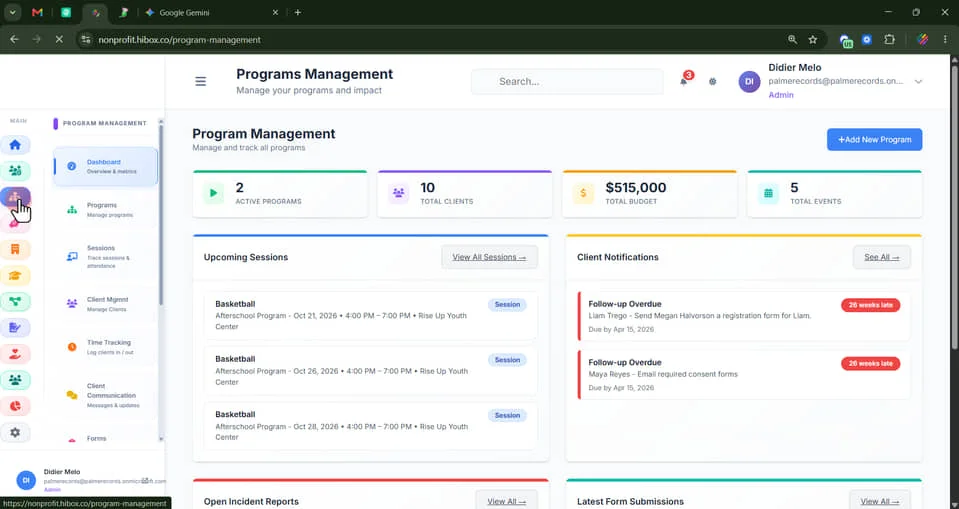
1. Click "Programs Management" on the left-side menu
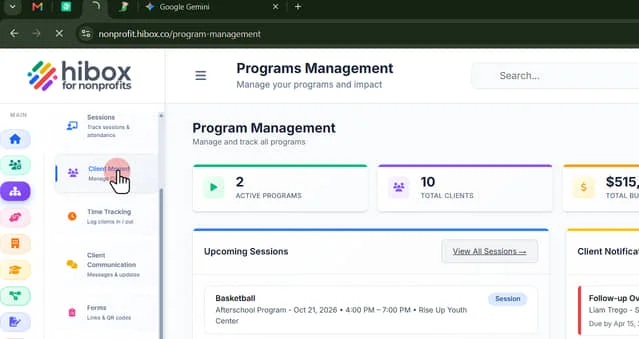
2. Click "Client Mgmnt" on the sub-menu
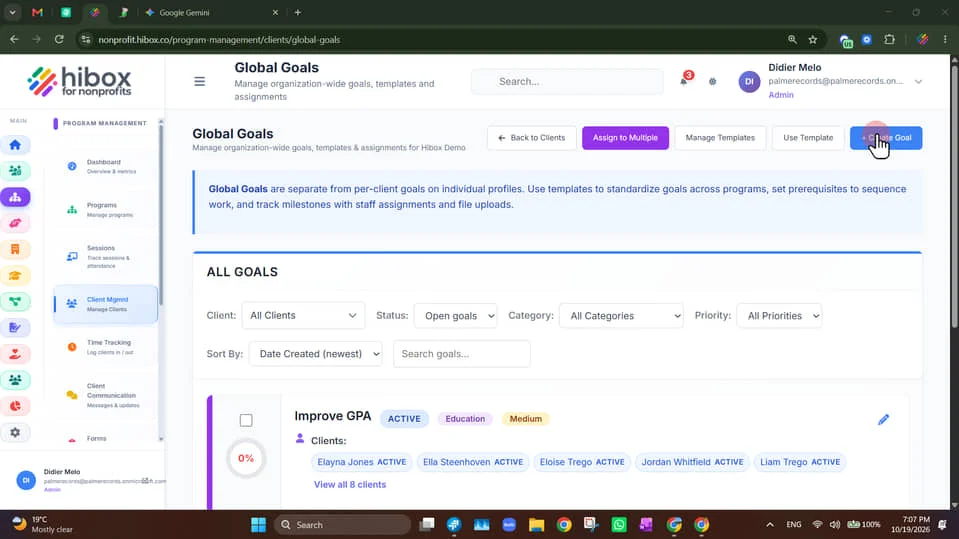
3. Click "Create Goals"
4. Under Goal Details, enter the "Goal Title"
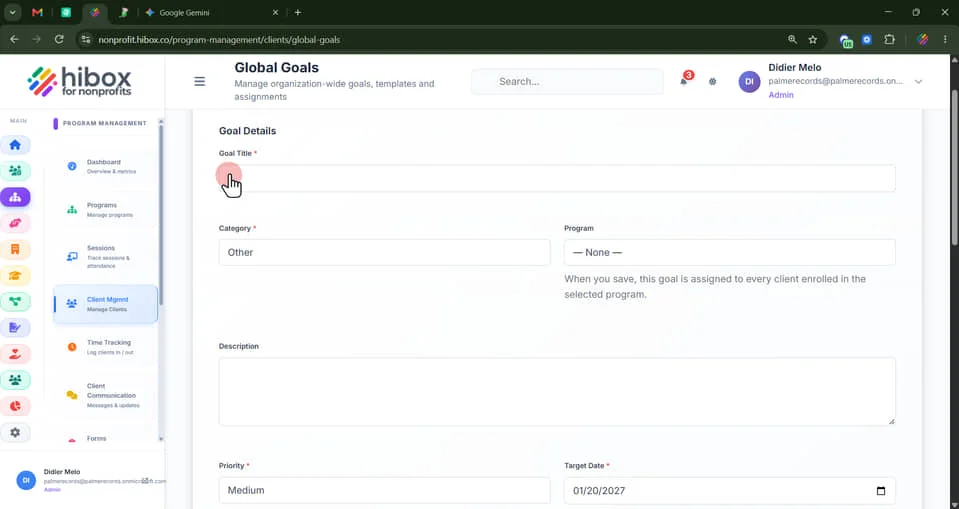
5. Enter a "Category"
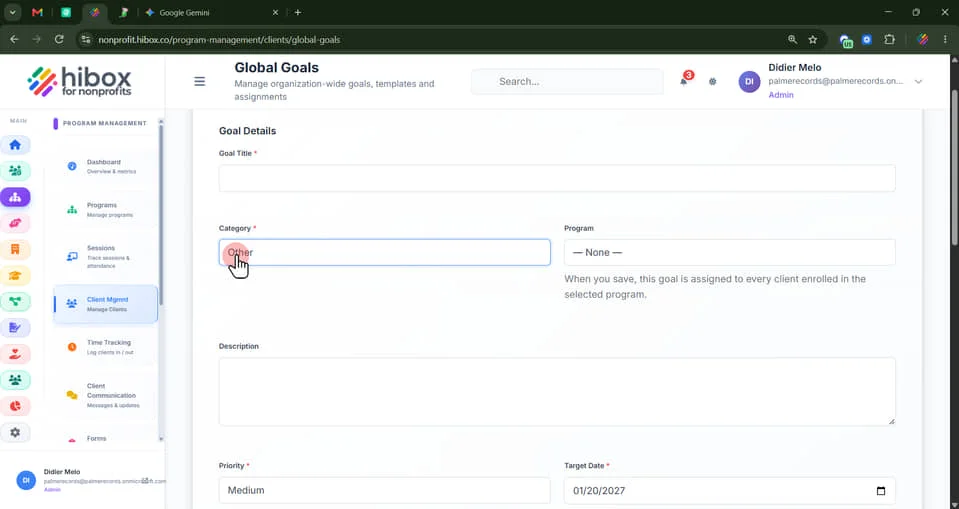
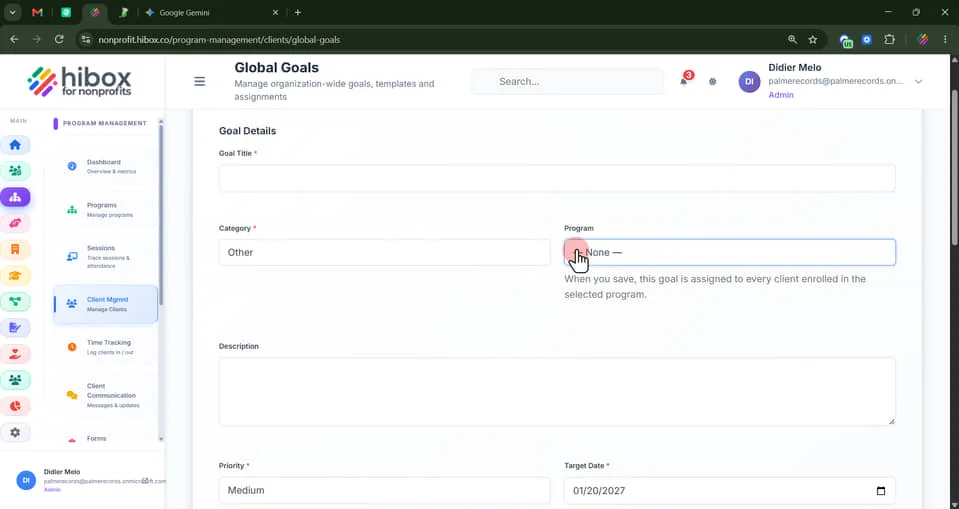
6. Set a "Program". When you save, this goal is assigned to every client enrolled in the selected program.
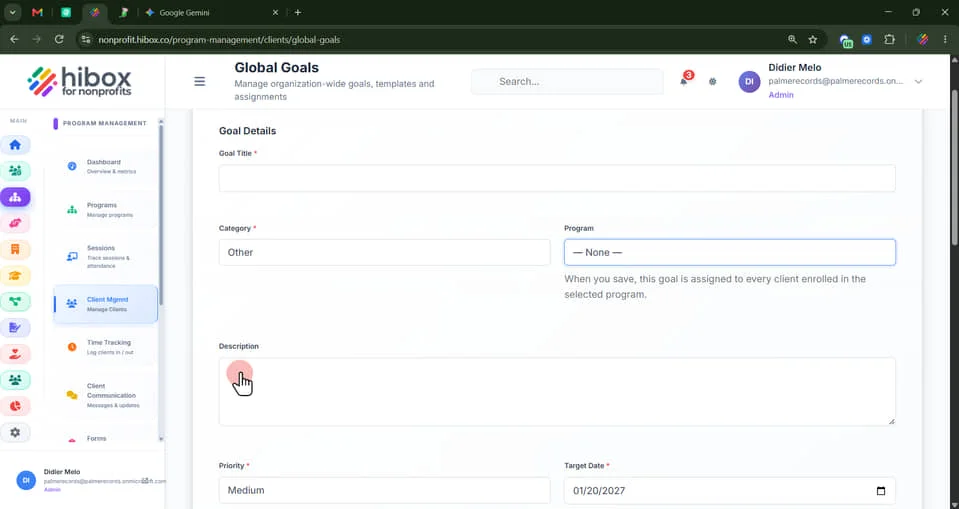
7. Type a "Description" for this goal
8. Set a "Priority" as "High", "Medium", "Low"
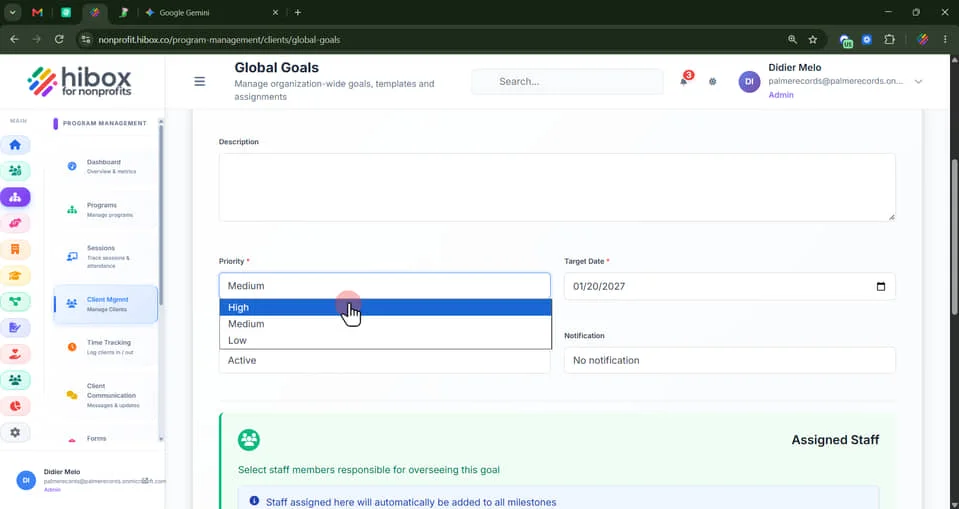
9. Set a "Target Date"
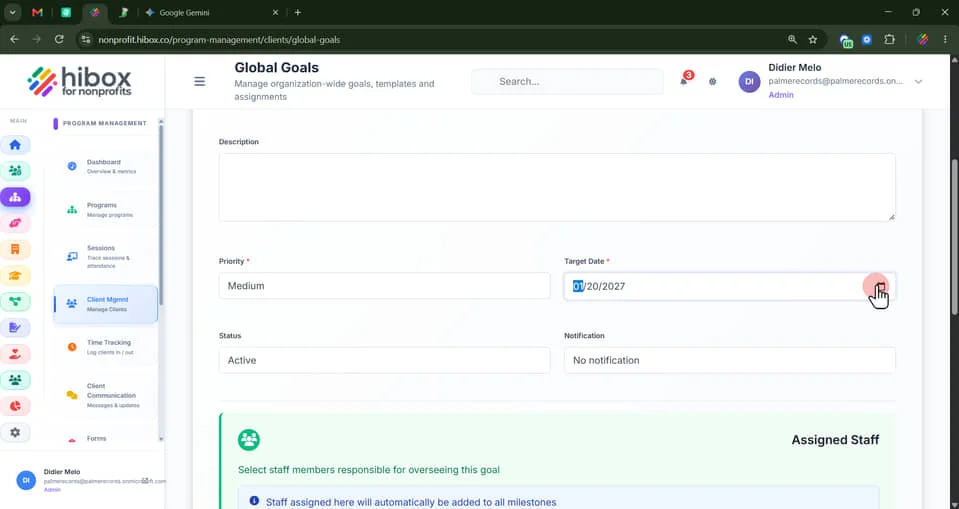
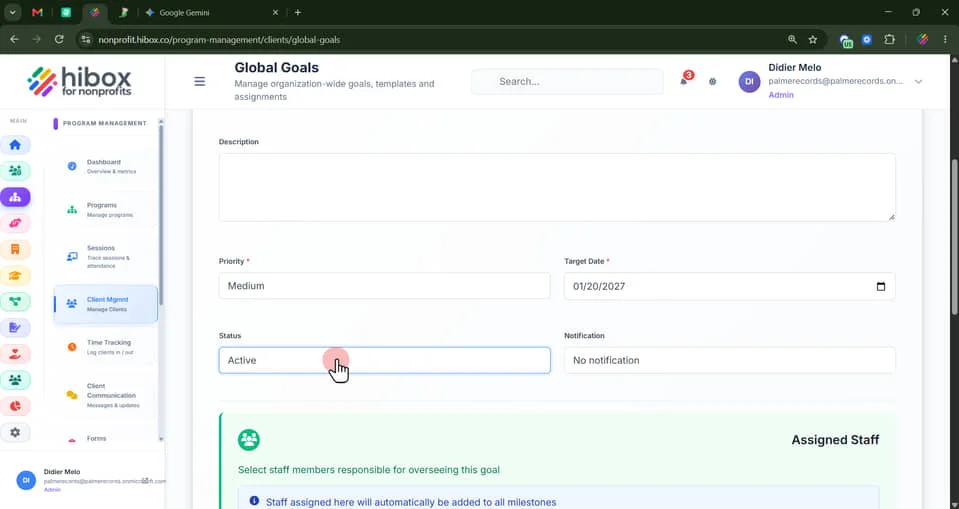
10. Set the "Status" as "Active" or "Completed", "Paused" or "Cancelled"". "
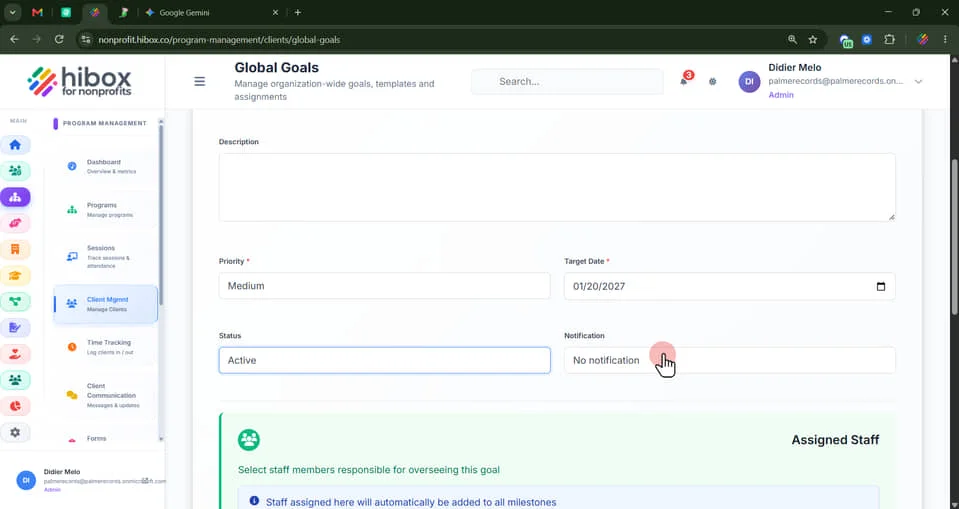
11. Configure the "Notifications"
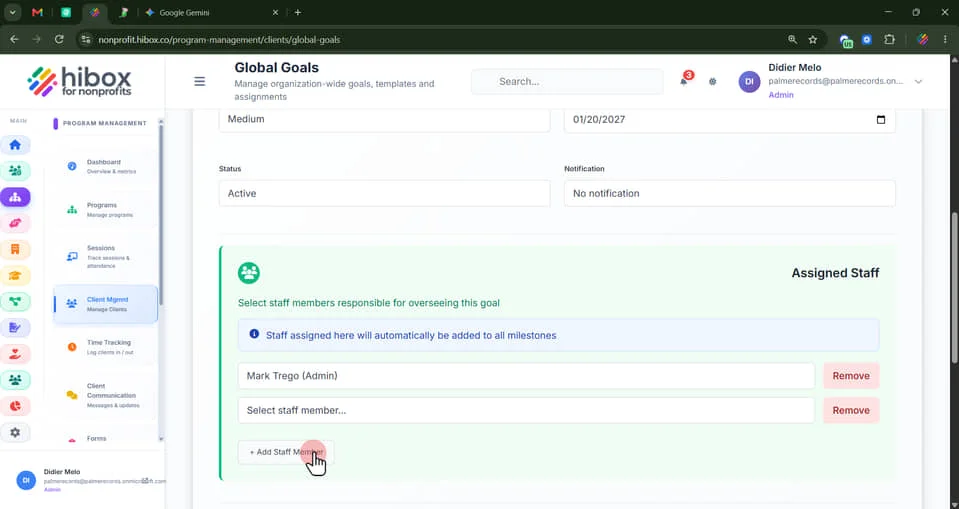
12. Scroll down "Select staff members responsible for overseeing this goal"
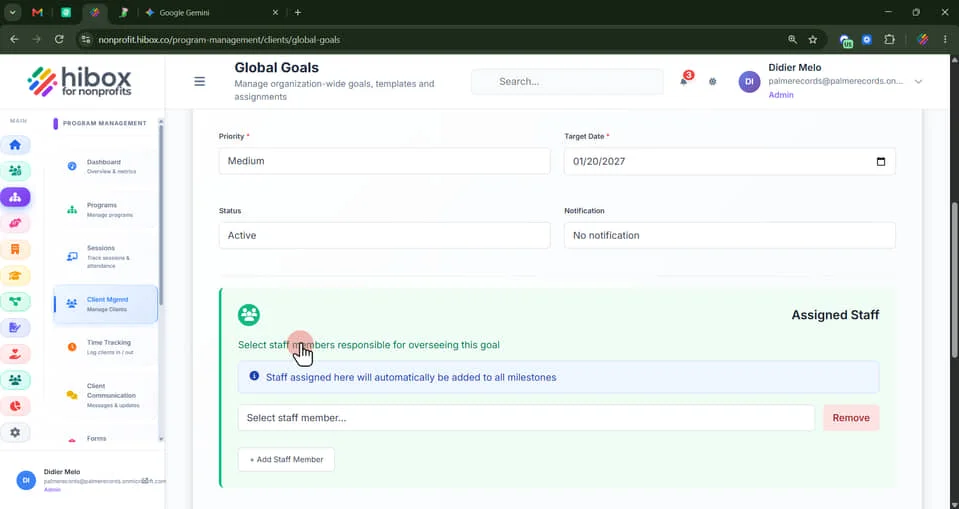
13. The staff assigned here will automatically be added to all milestones
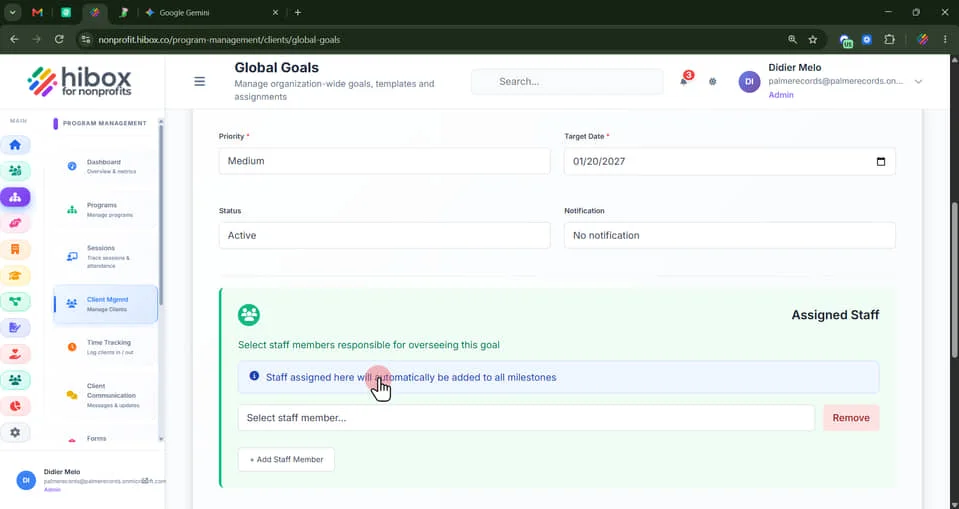
14. Assign a staff member using the dropdown menu
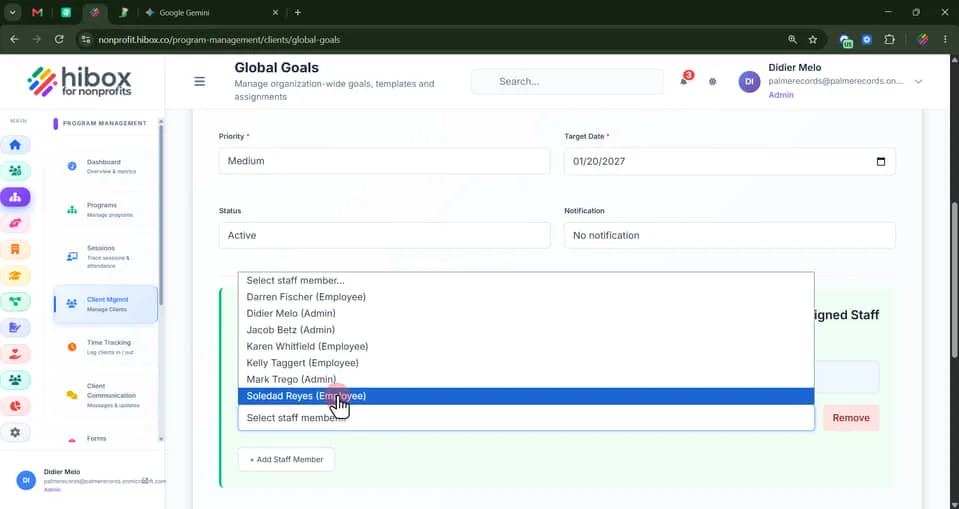
15. Click "+ Add Staff Member" to add another person
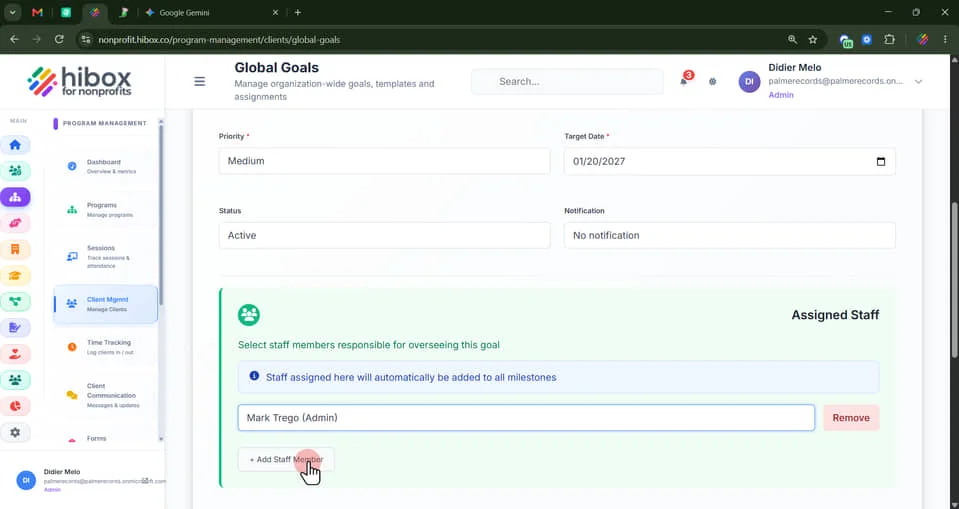
16. Click "+ Add Staff Member"
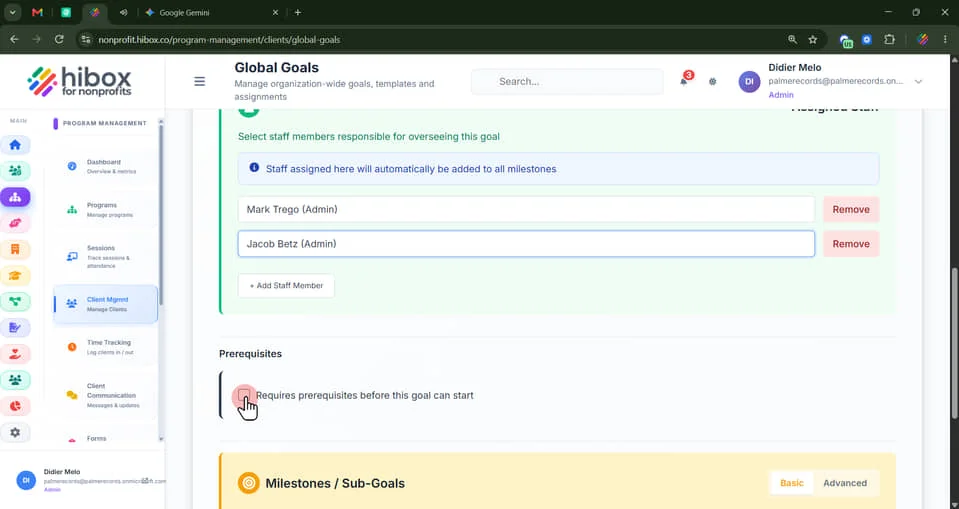
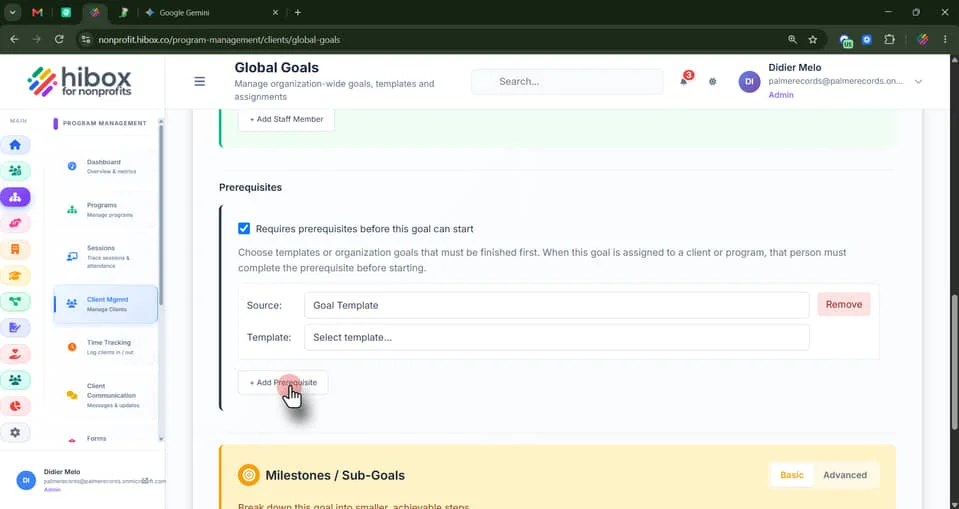
17. Check this box if this goal requires prerequisites before this goal can start. Choose templates or organization goals that must be finished first. When this goal is assigned to a client or program, that person must complete the prerequisite before starting
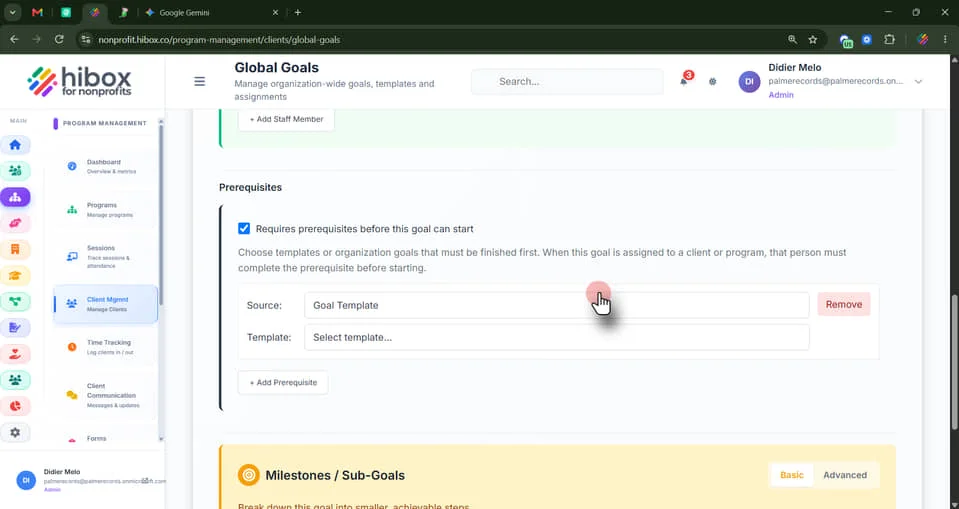
18. Select a Source using the "dropdown" menu
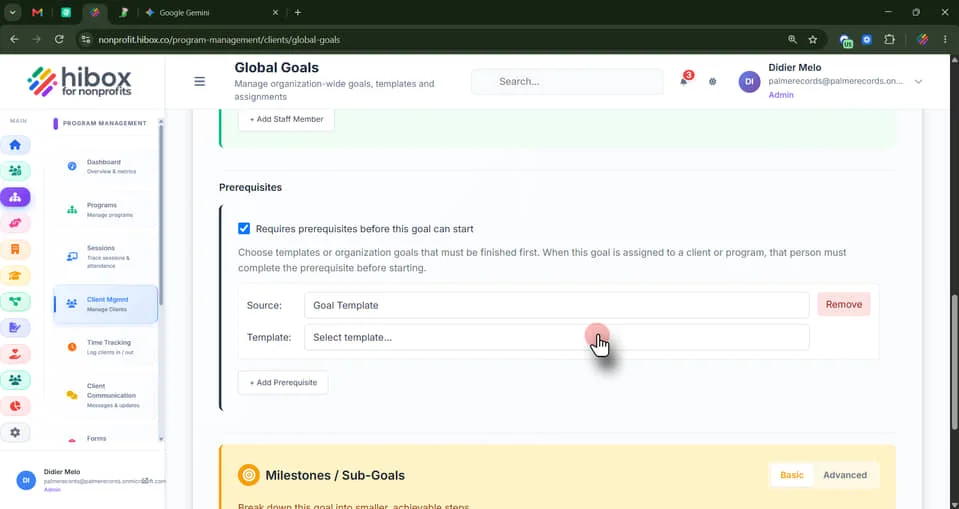
19. Select a Template using the "dropdown" menu
20. Click here to "+ Add a New Prerequisite"
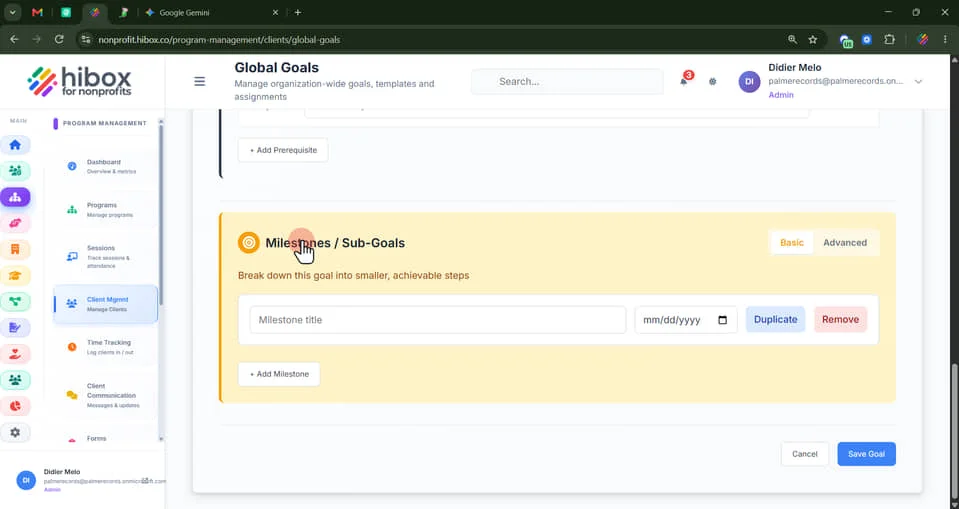
21. Add Milestones & Sub-Goals, to break down this goal into smaller, achievable steps
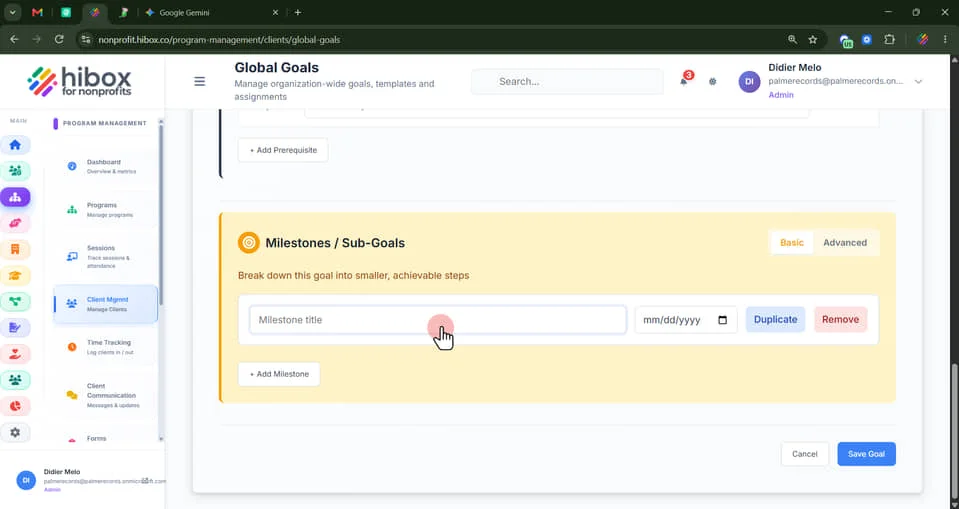
22. Enter a "Milestone title"
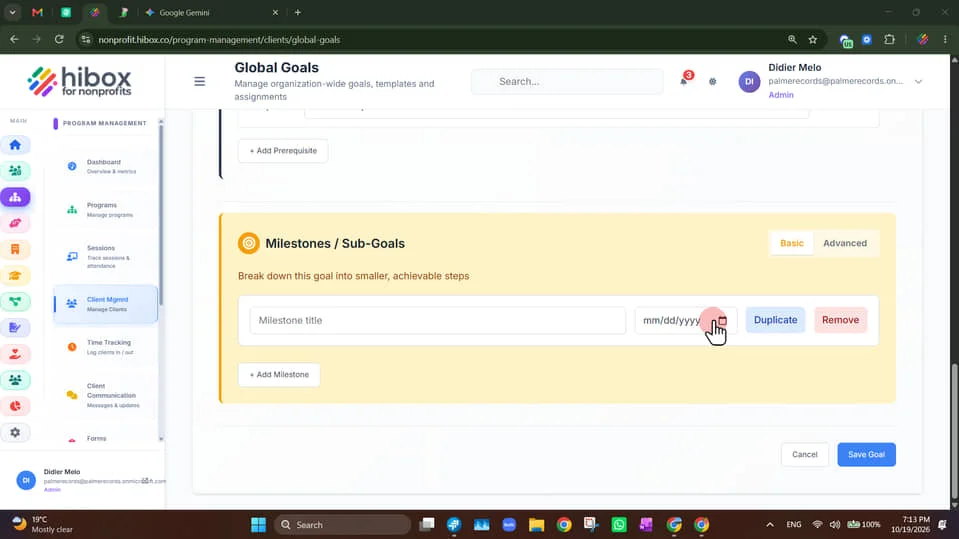
23. Set a date by clicking on the calendar icon
24. Click "Advanced" for more options
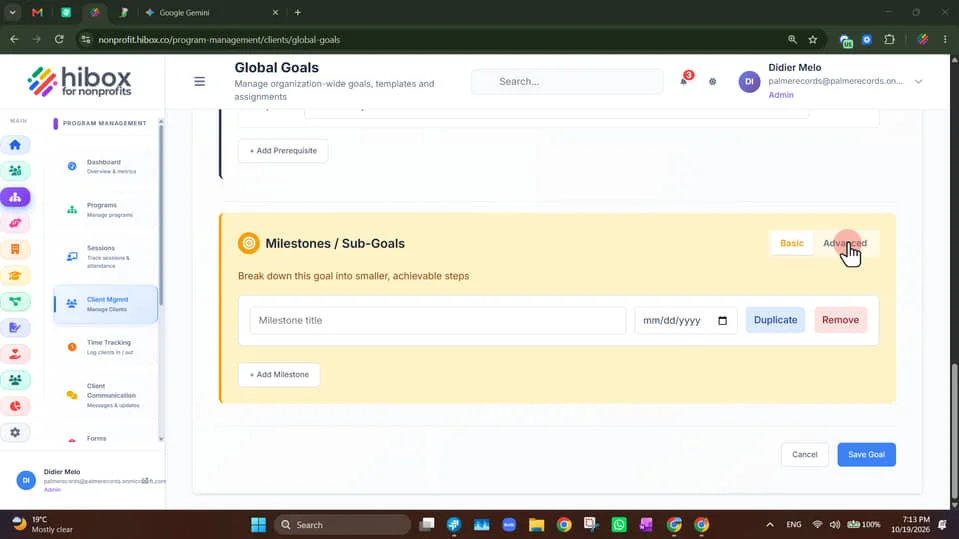
25. Choose a "Tracking Type" such as: Checkbox, GPA, Test Score, Percentage, Currency, or Count
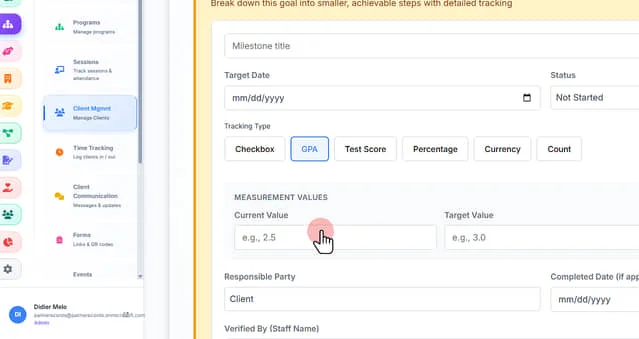
26. If you choose: "GPA, Test Score, Percentage, Currency, or Count"...
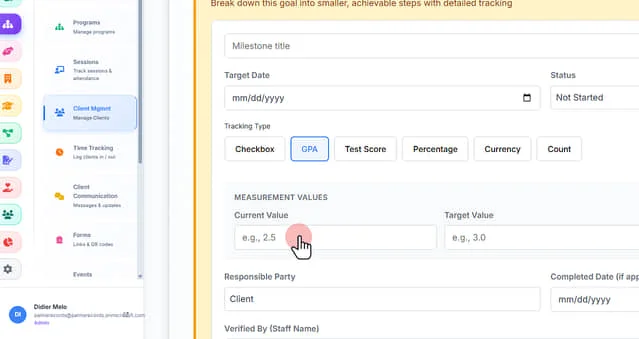
27. Set the measurement values such as; "Current Value", "Target Value", and "Unit"
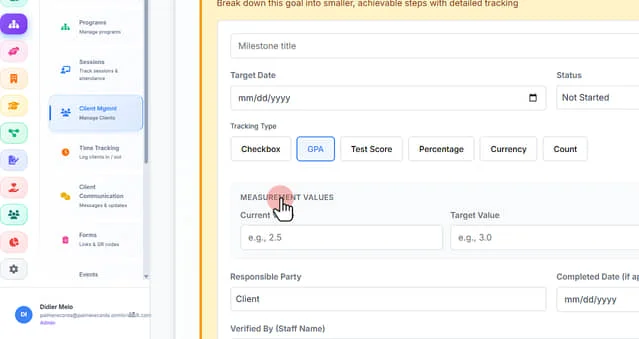
28. Select a "Responsible Party" using the dropdown menu options
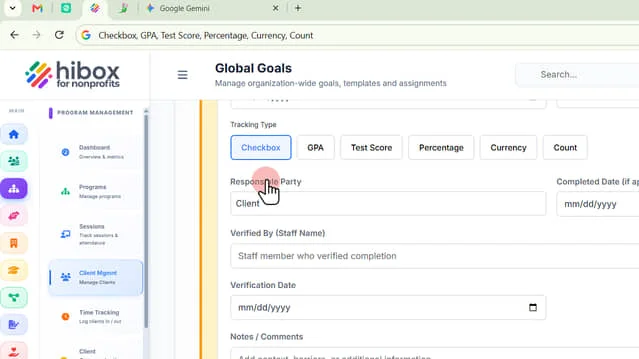
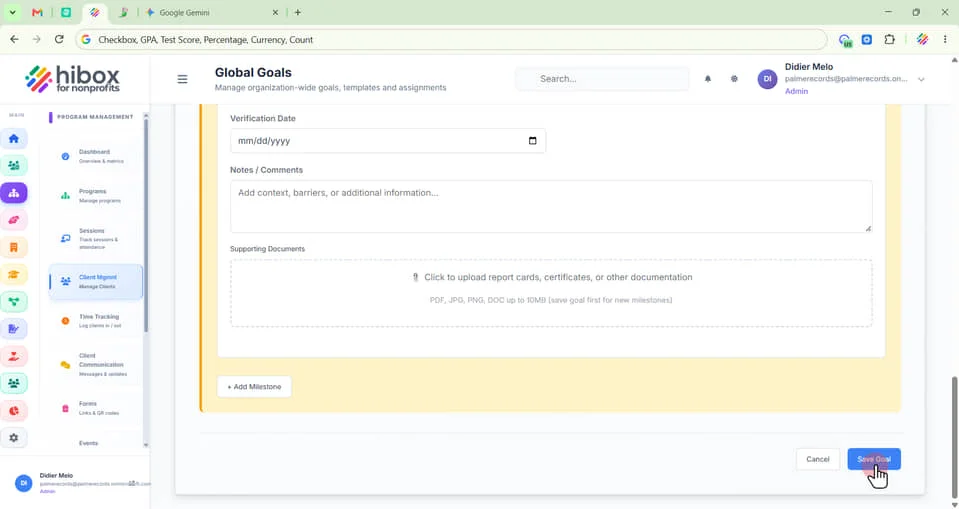
29. Set a "Completed Date (if applicable)"
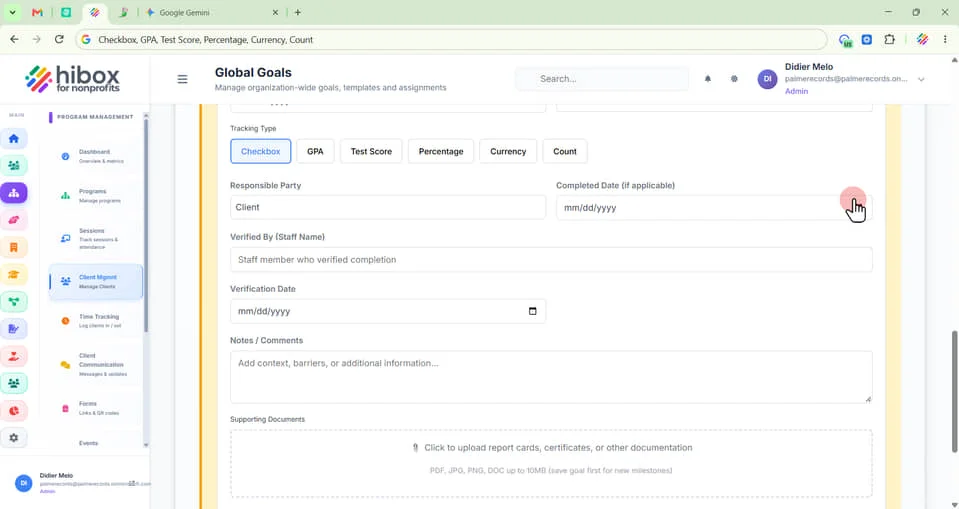
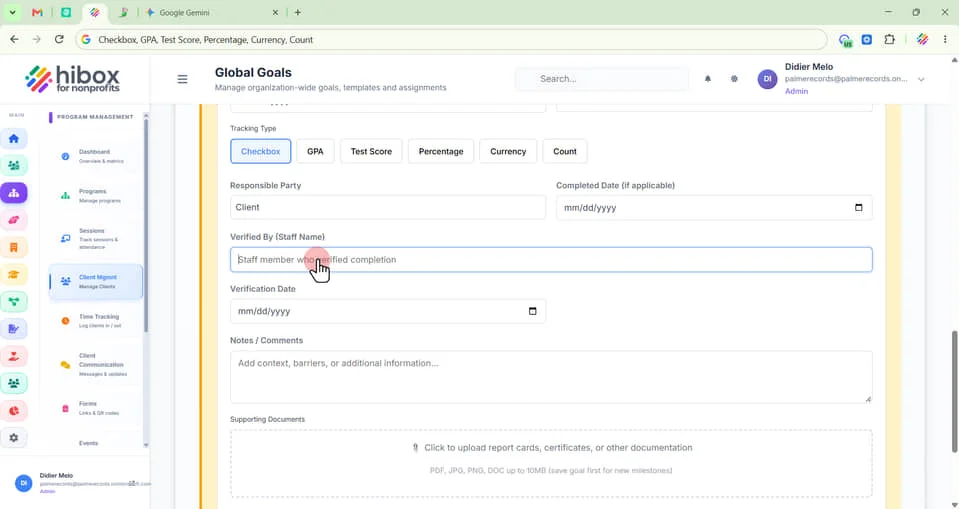
30. Choose a "Staff member who verified completion"
31. Enter "Notes / Comments" for more details
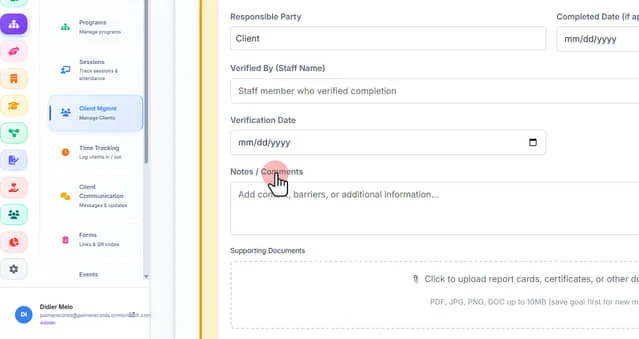
32. Click inside this box to upload report cards, certificates, or other documentation
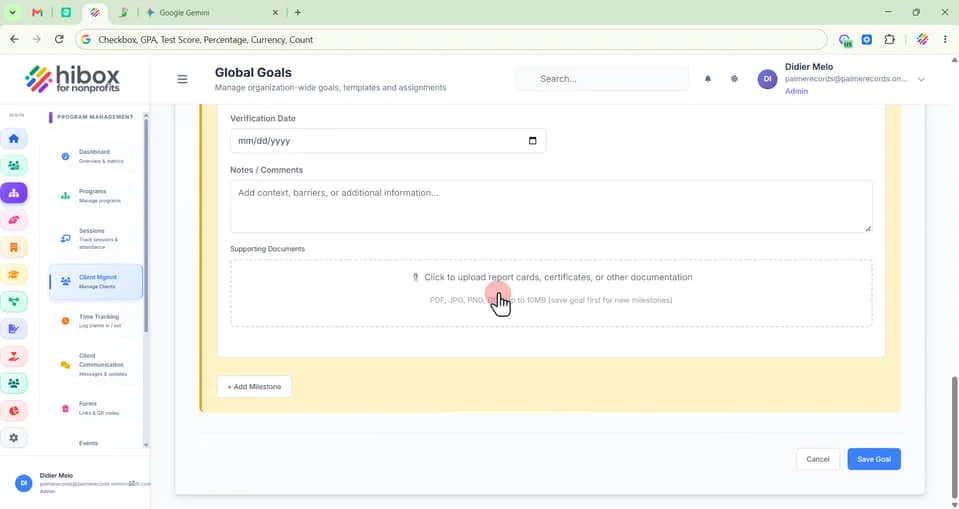
33. Scroll down and click "Save Goal" to finish