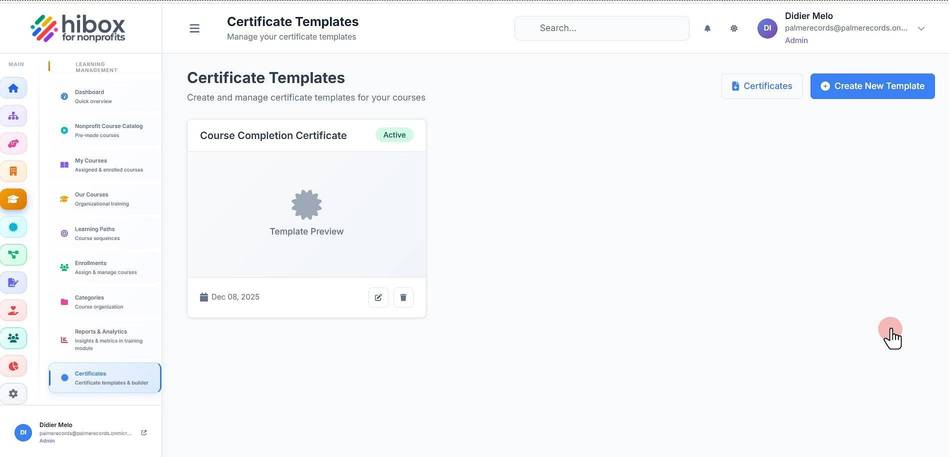
Edit a Certificate Template
Edit a Certificate Template
1. Click "Training & Onboarding" on the left-side menu
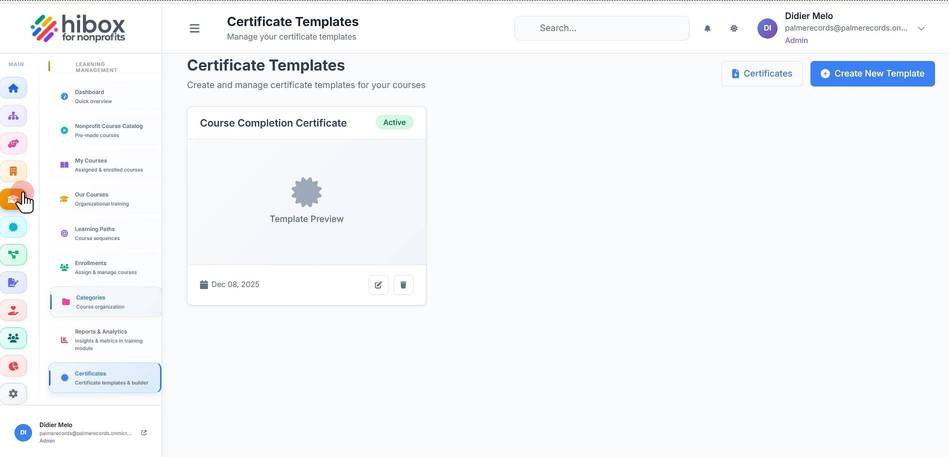
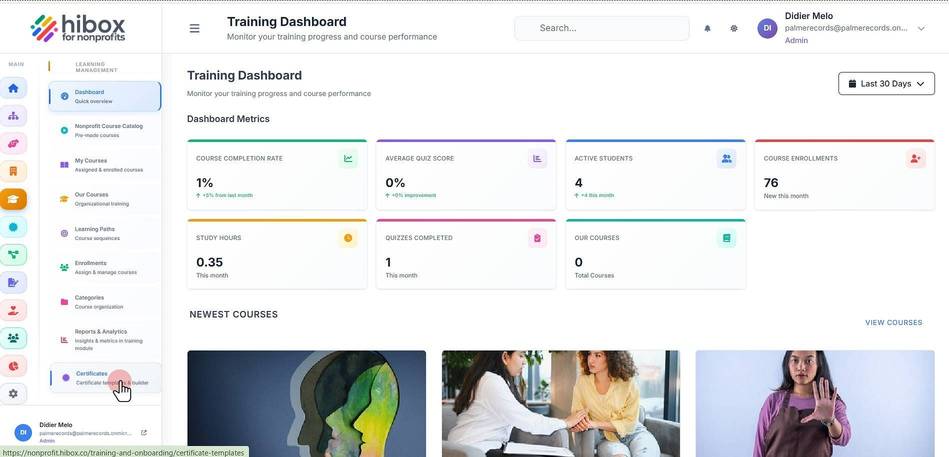
2. Click "Certificates" on the left-side menu
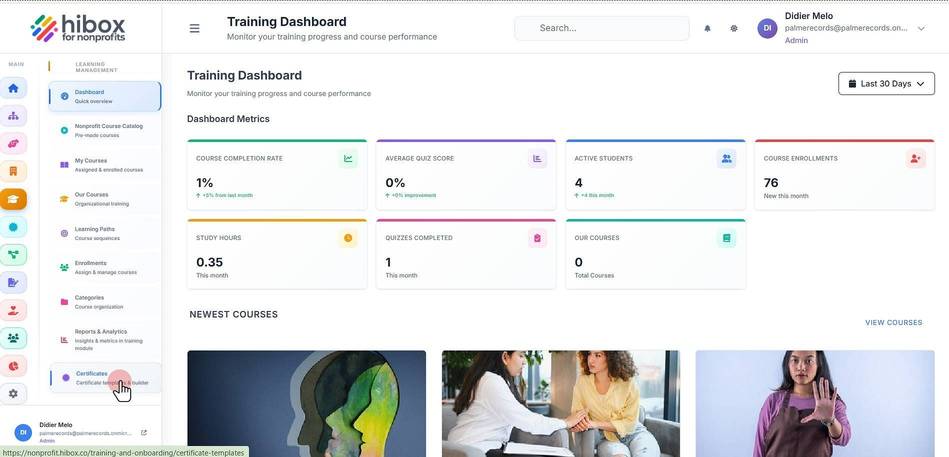
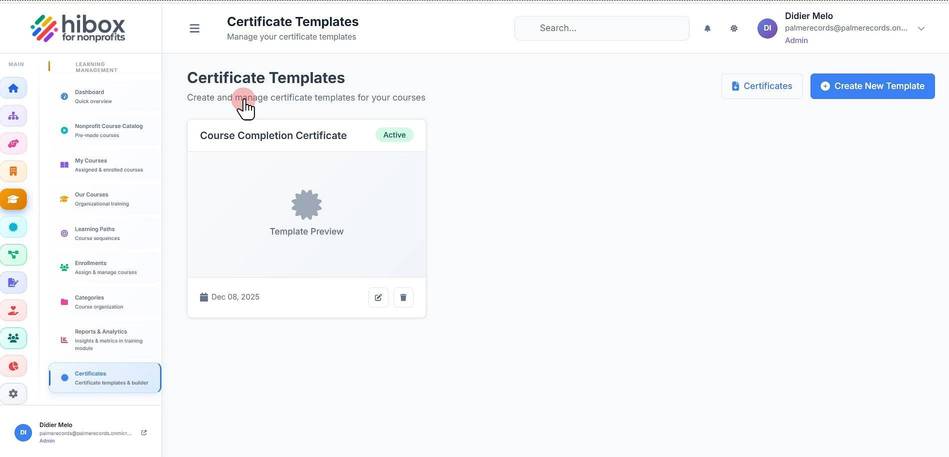
3. From here, you can create and manage certificate templates for your courses
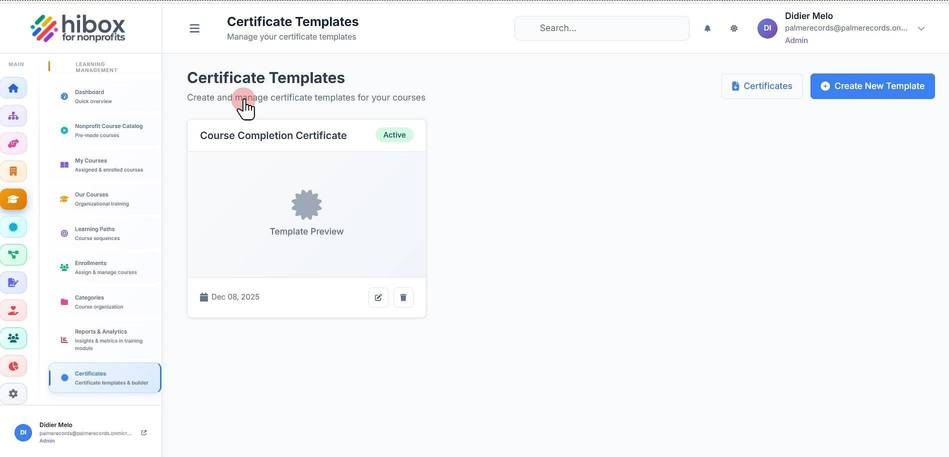
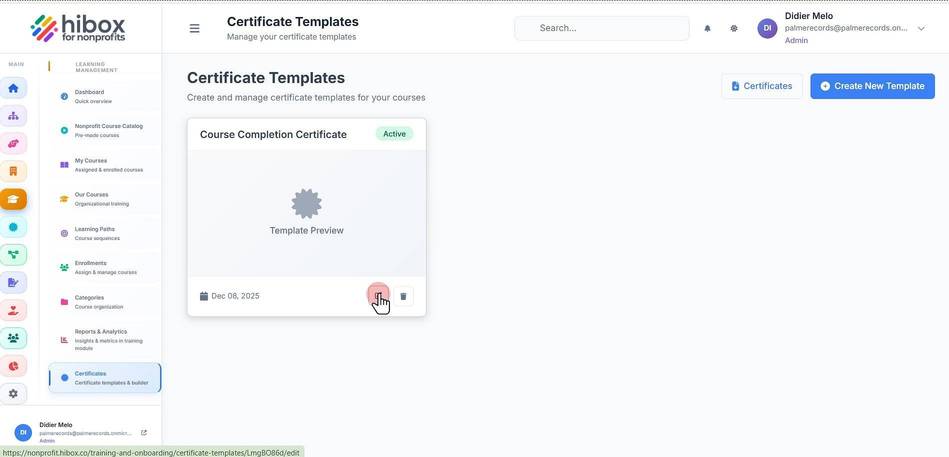
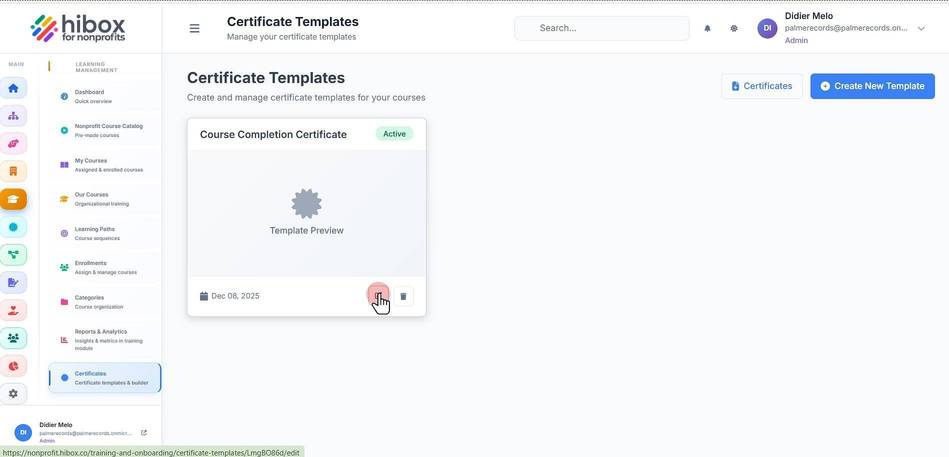
4. Click "Edit" to edit certificate templates
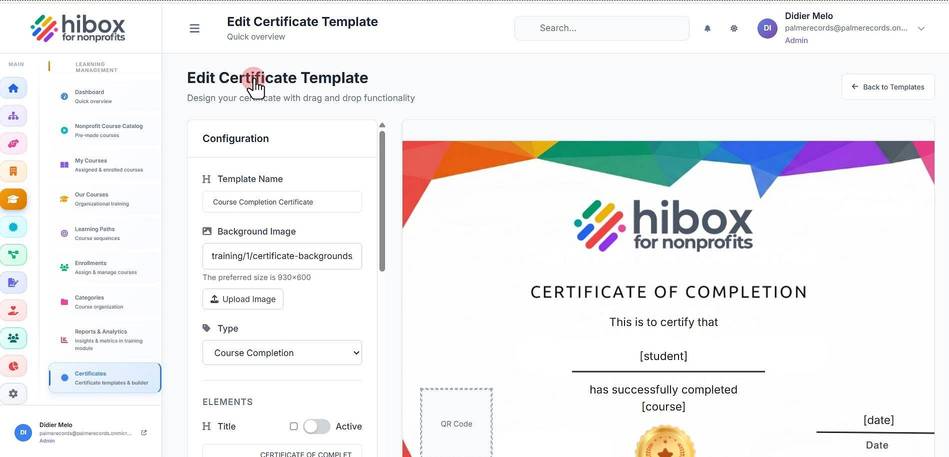
5. Edit the certificate template using the left-side menu
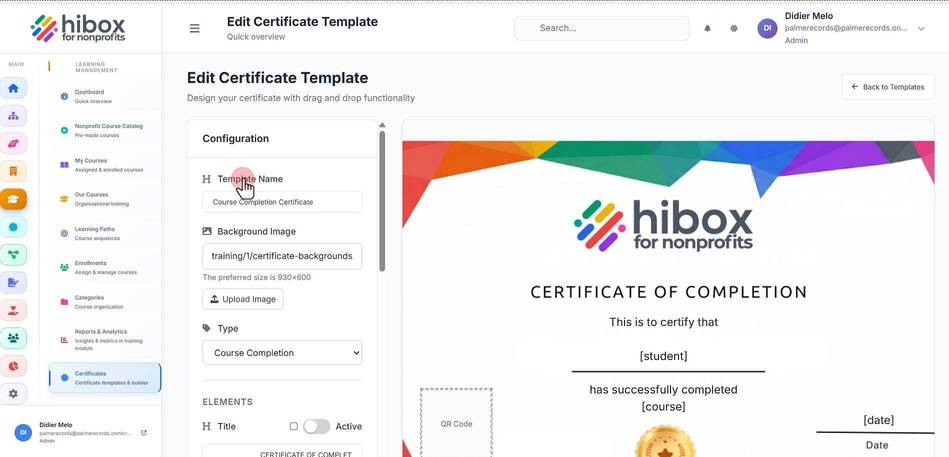
6. Edit the "Template Name"
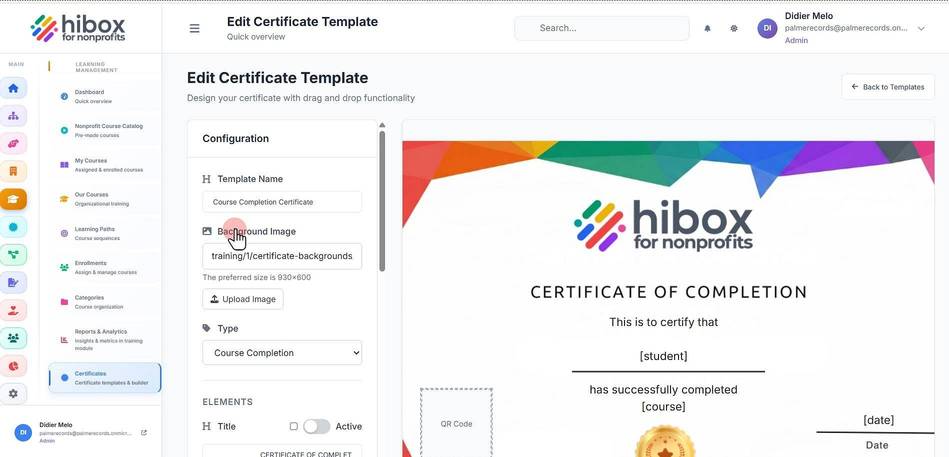
7. Edit the "Background Image"
8. Edit the "Type"
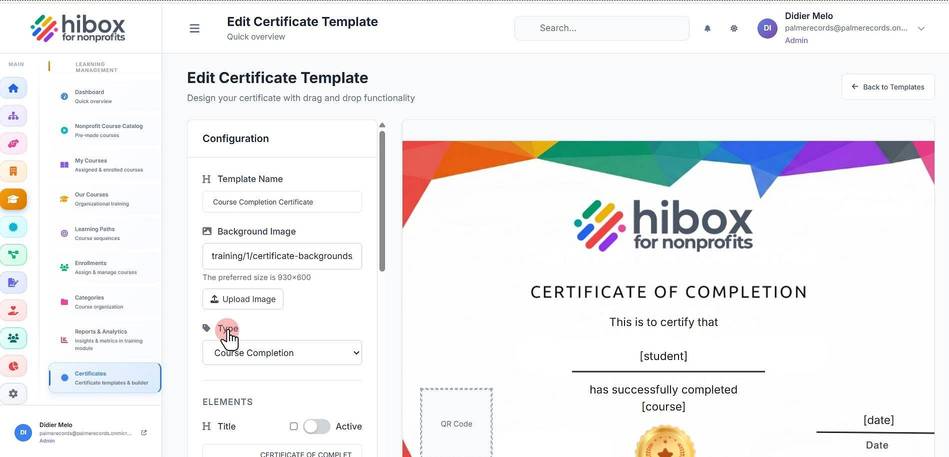
9. Edit the "Certificate Type"
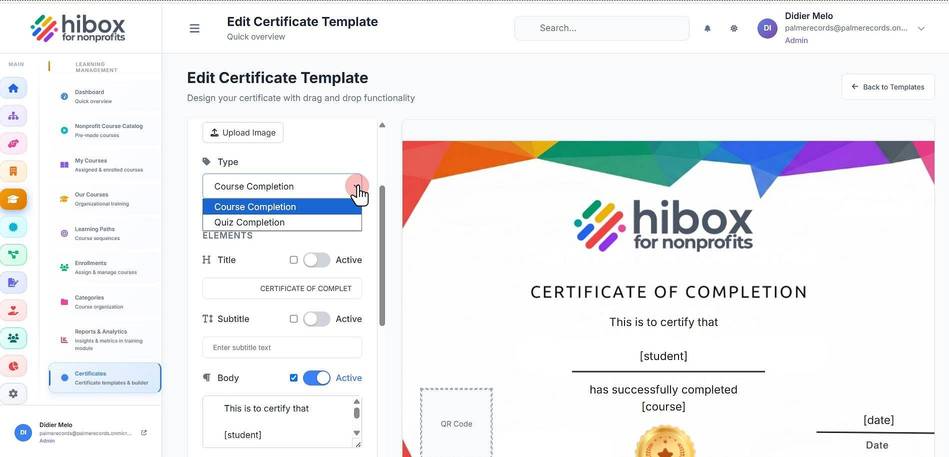
10. Edit the "Course Completion"
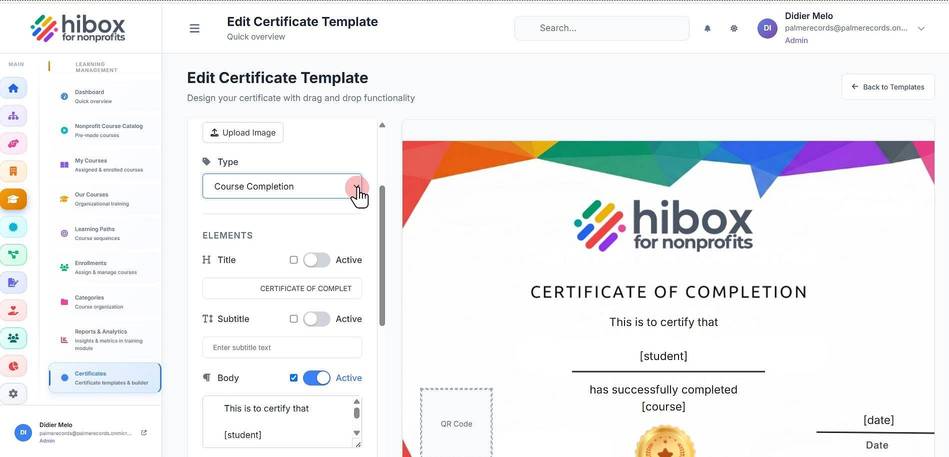
11. Edit the "ELEMENTS"
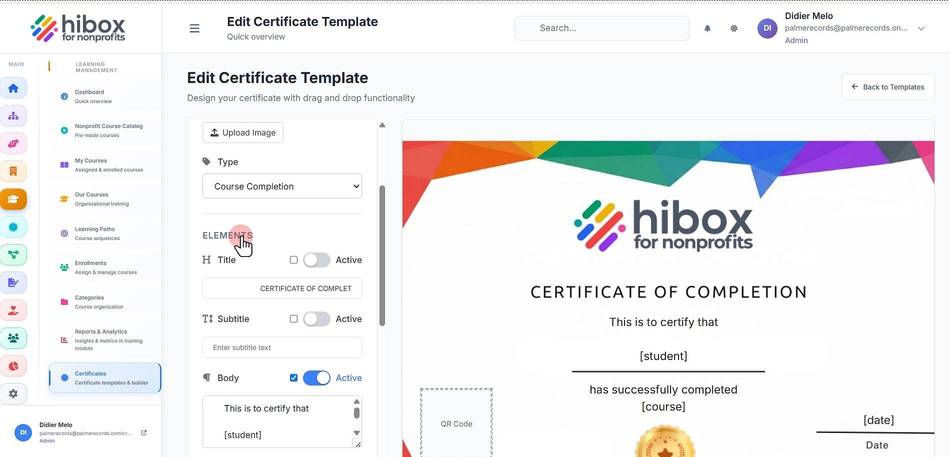
12. Edit the "Title"
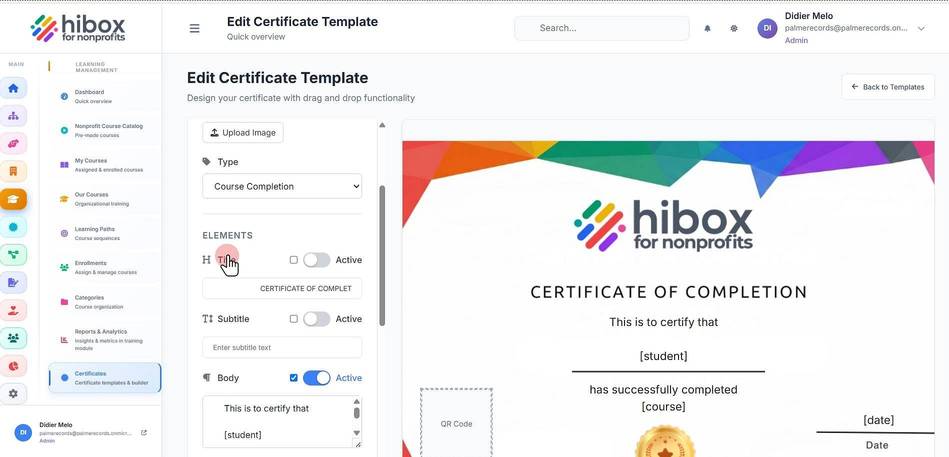
13. Edit the "Subtitle"
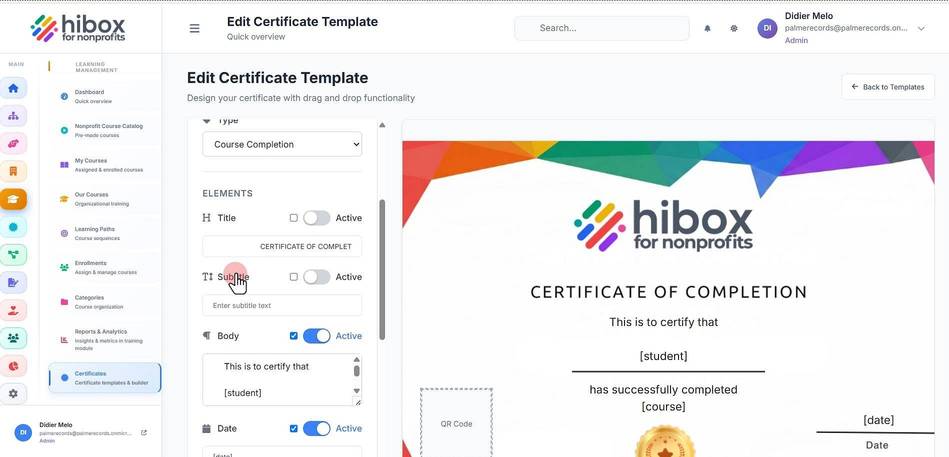
14. Edit the "Body"
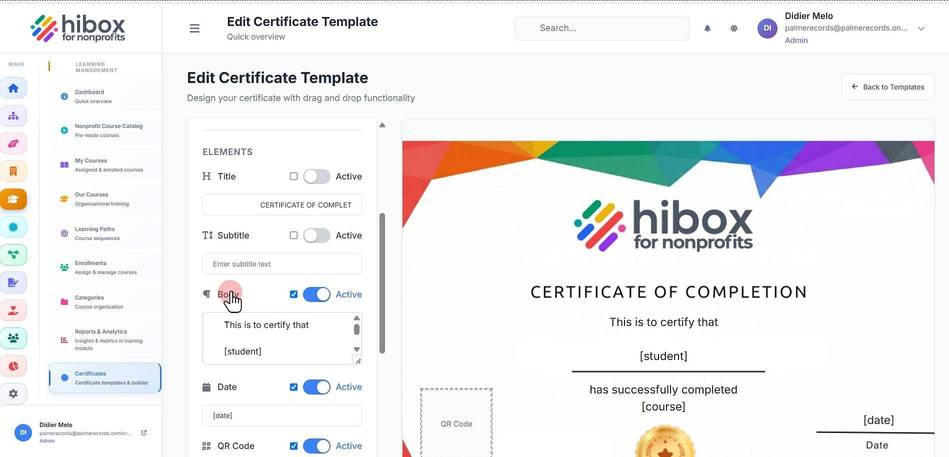
15. Edit the "Date"
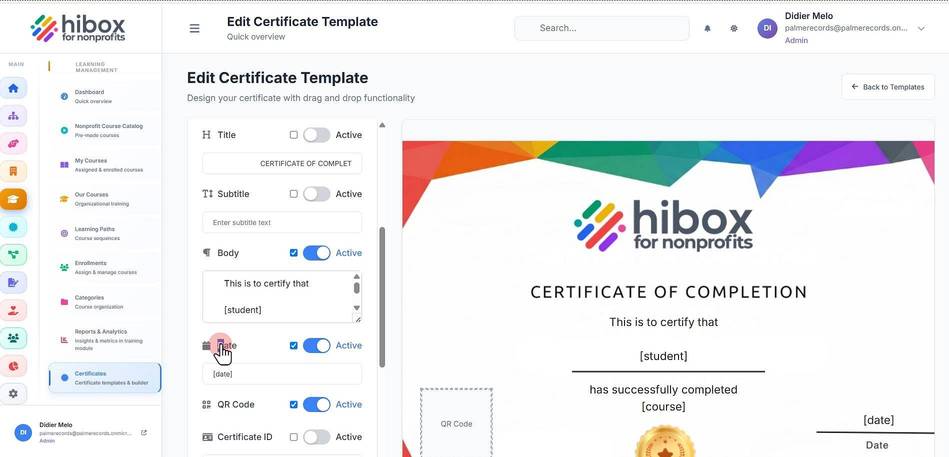
16. Edit the "QR Code"
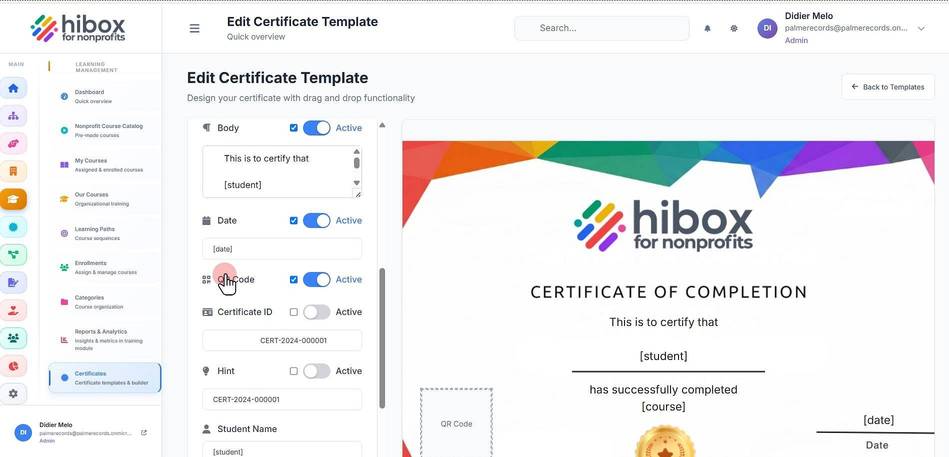
17. Edit the "Certificate ID"
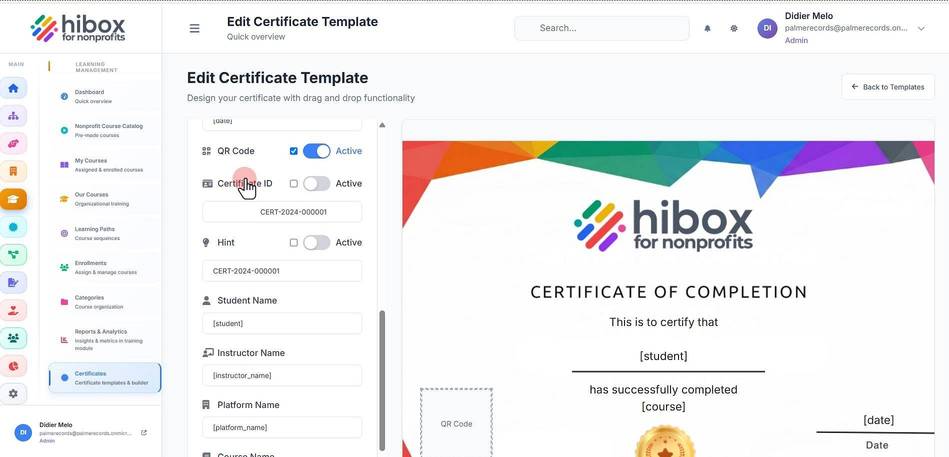
18. Edit the "hint or placeholder"
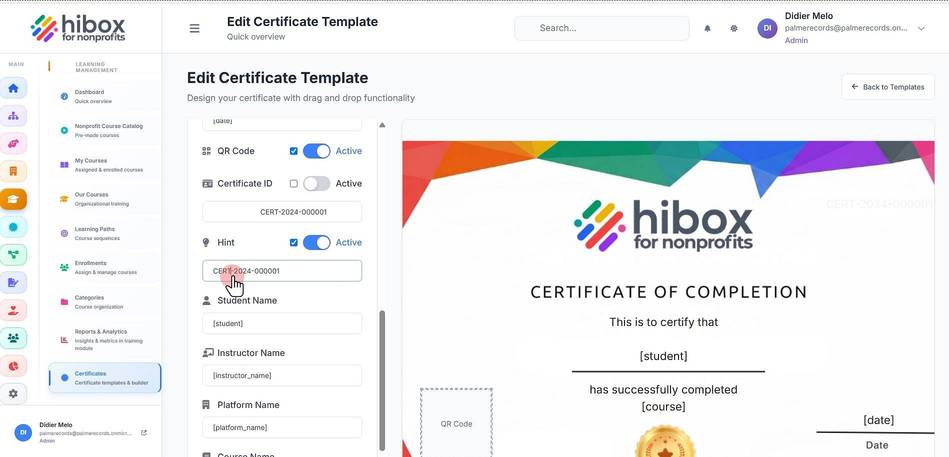
19. Edit the "Student Name"
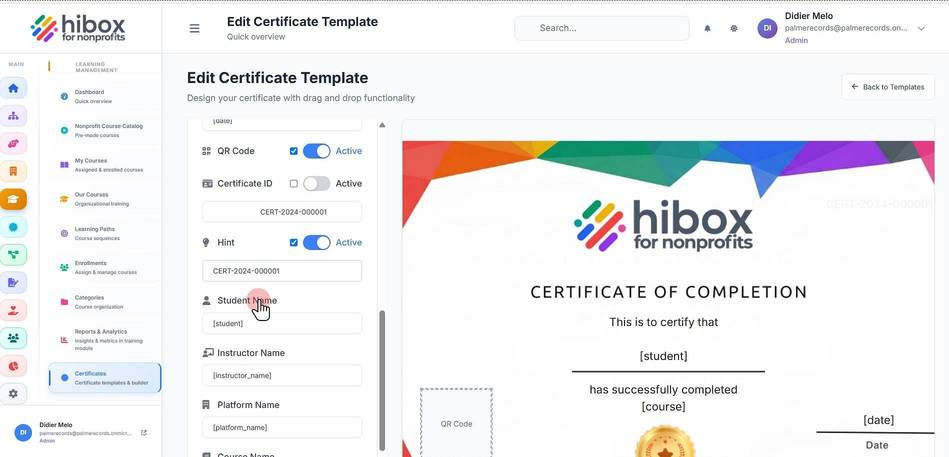
20. Edit the "Instructor Name"
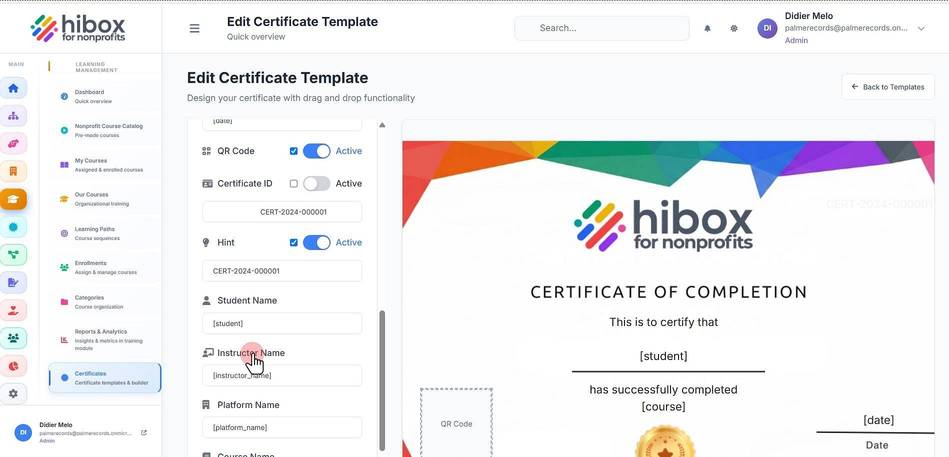
21. Edit the "Platform Name"
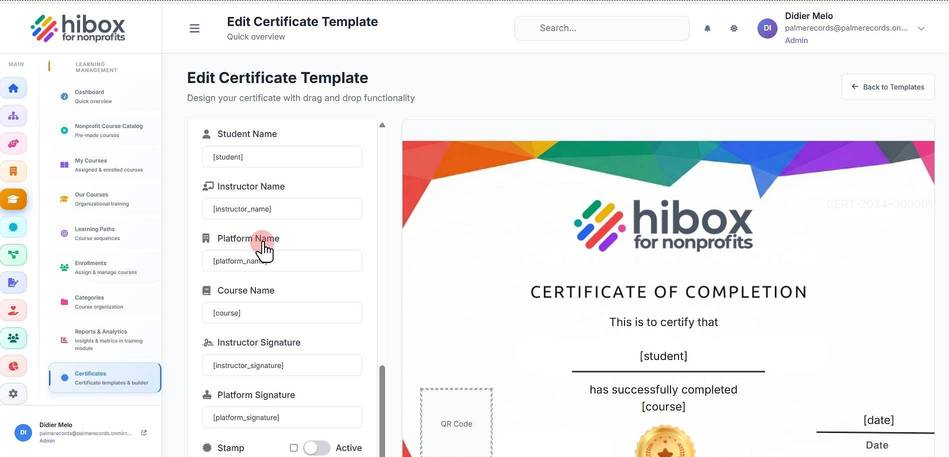
22. Edit the "Course Name"
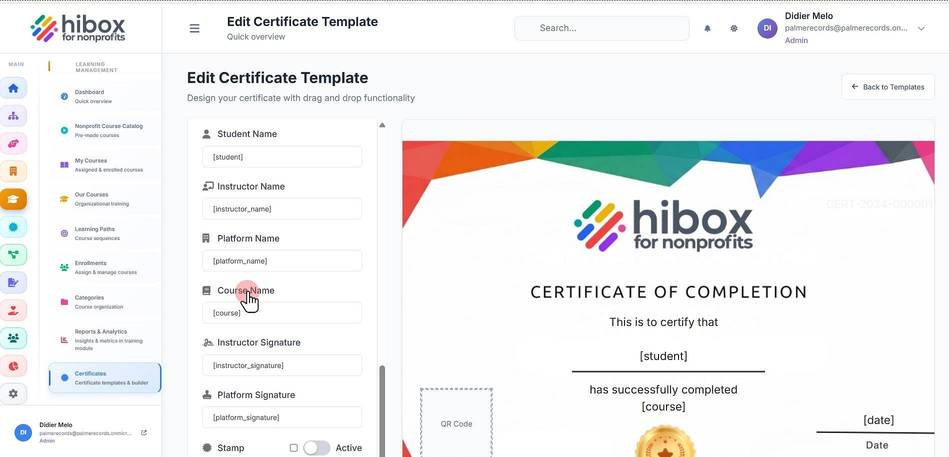
23. Edit the "Instructor Signature"
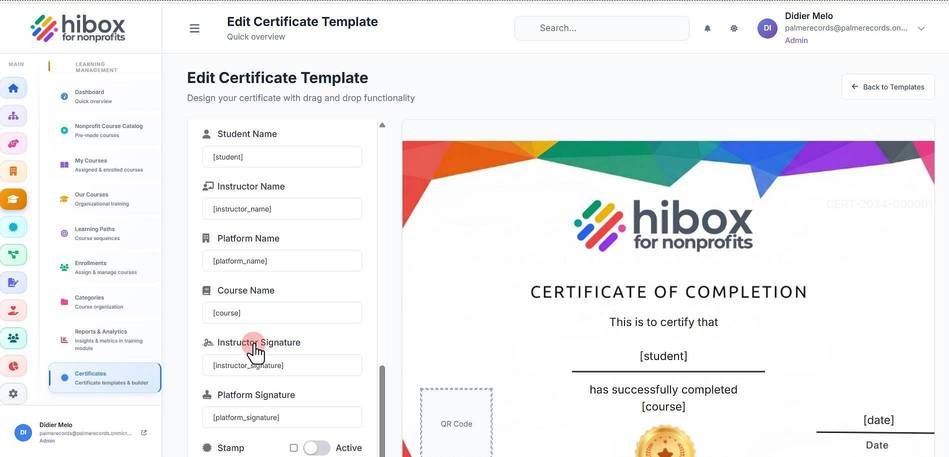
24. Edit the "Platform Signature"
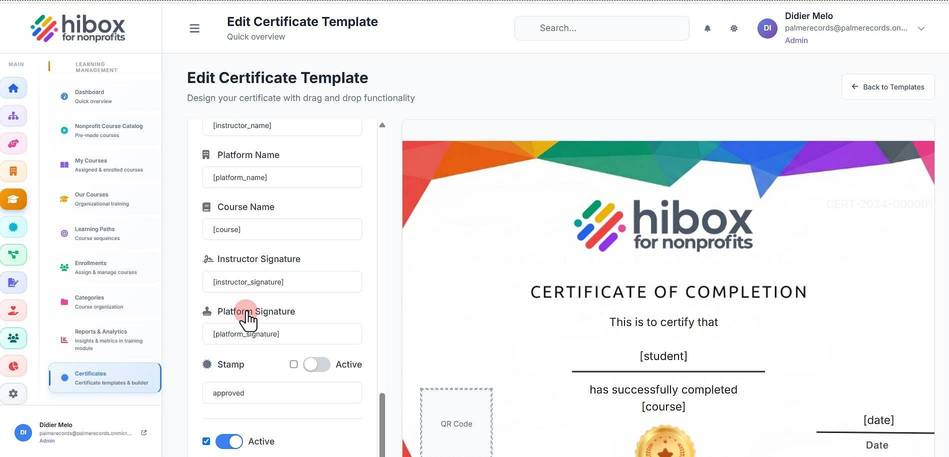
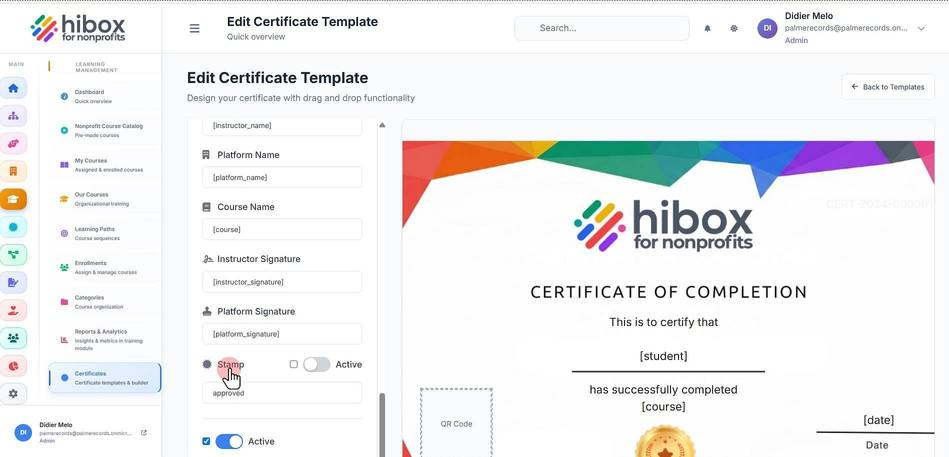
25. Edit the "Stamp"
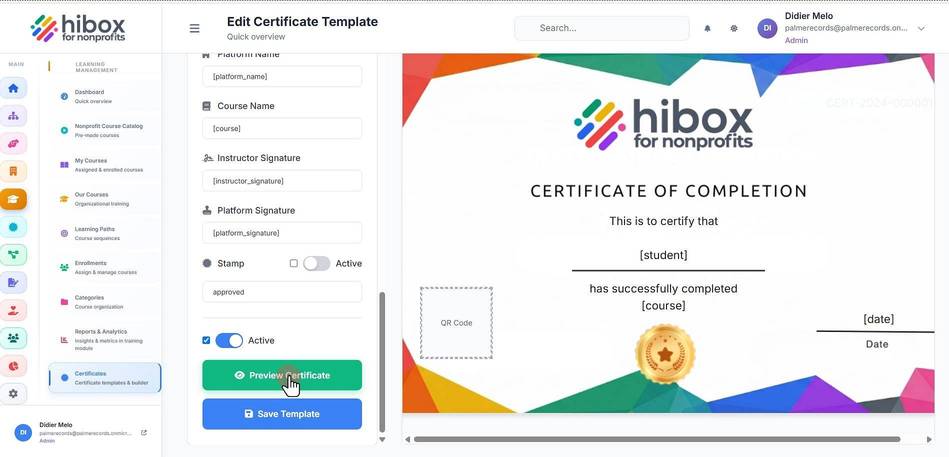
26. Click "Preview Certificate" to preview
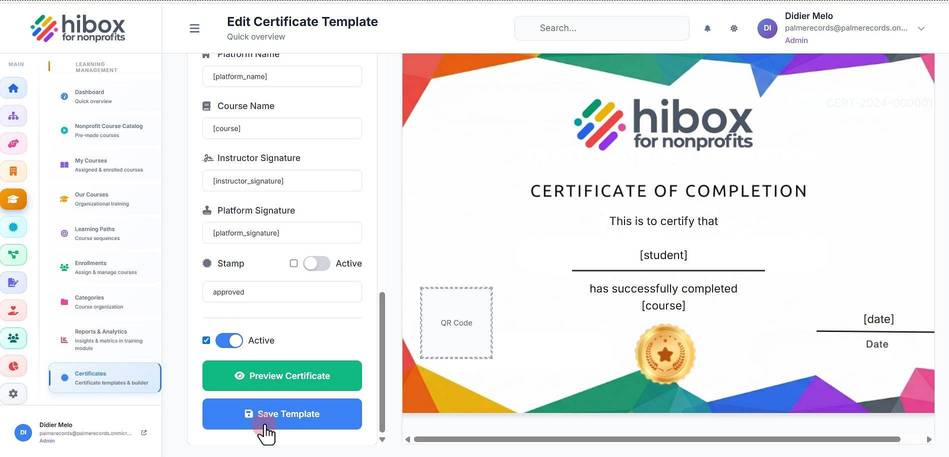
27. Click "Save Template" to save and continue
Edit a Certificate Template
1. Click "Training & Onboarding" on the left-side menu
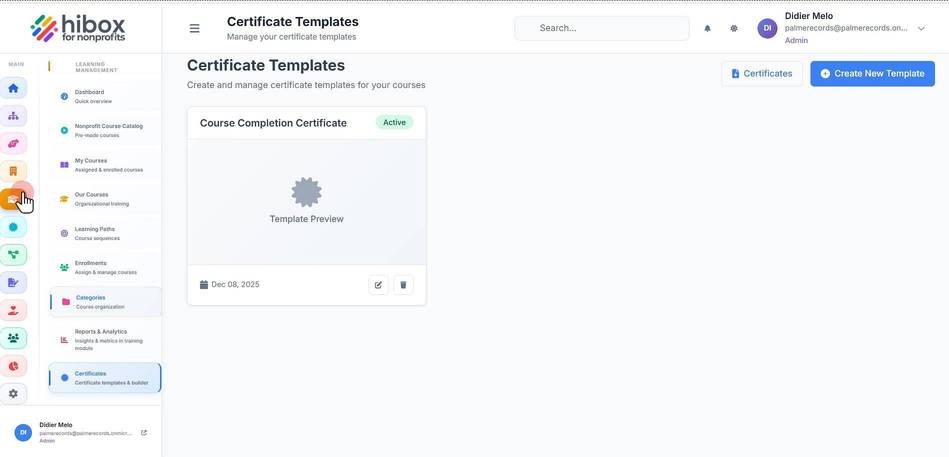
2. Click "Certificates" on the left-side menu
3. From here, you can create and manage certificate templates for your courses
4. Click "Edit" to edit certificate templates
5. Edit the certificate template using the left-side menu
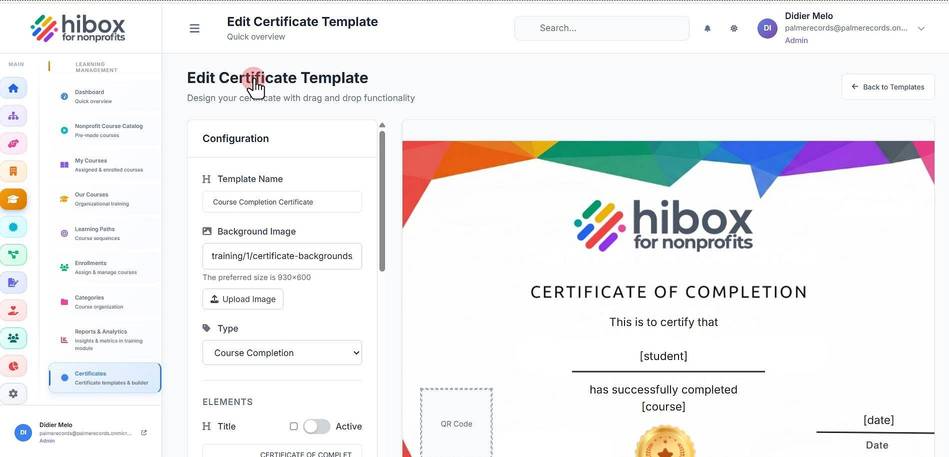
6. Edit the "Template Name"
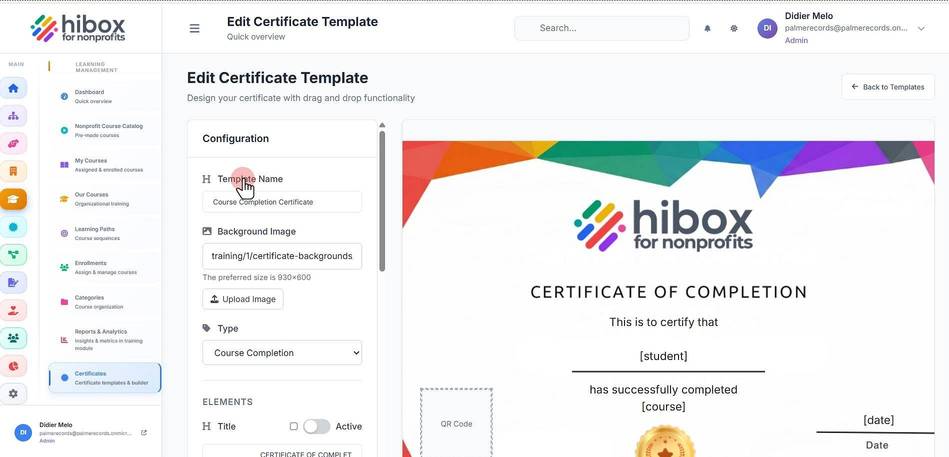
7. Edit the "Background Image"
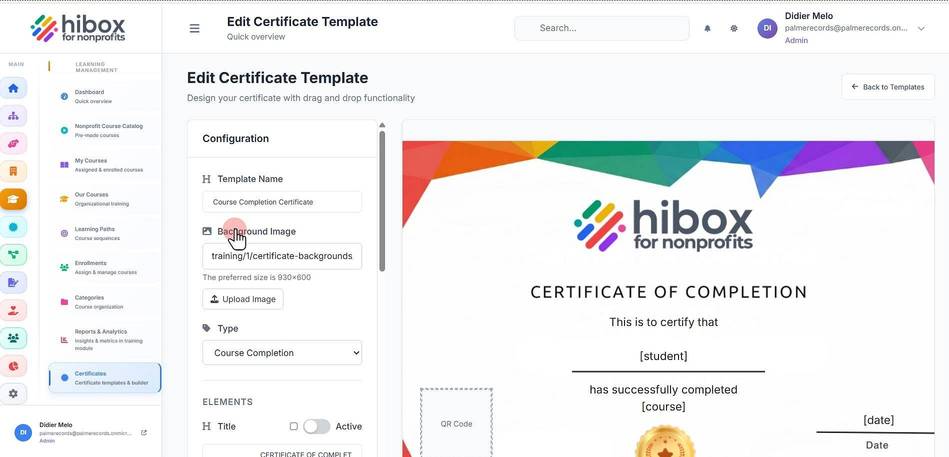
8. Edit the "Type"
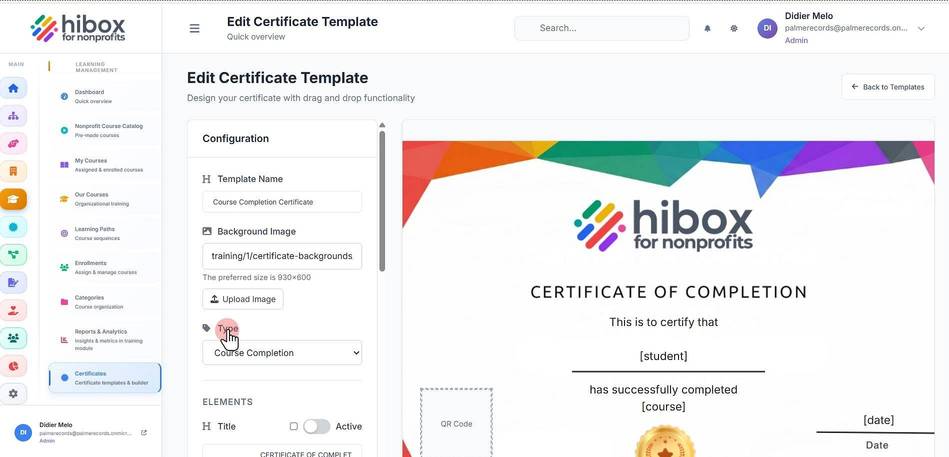
9. Edit the "Certificate Type"
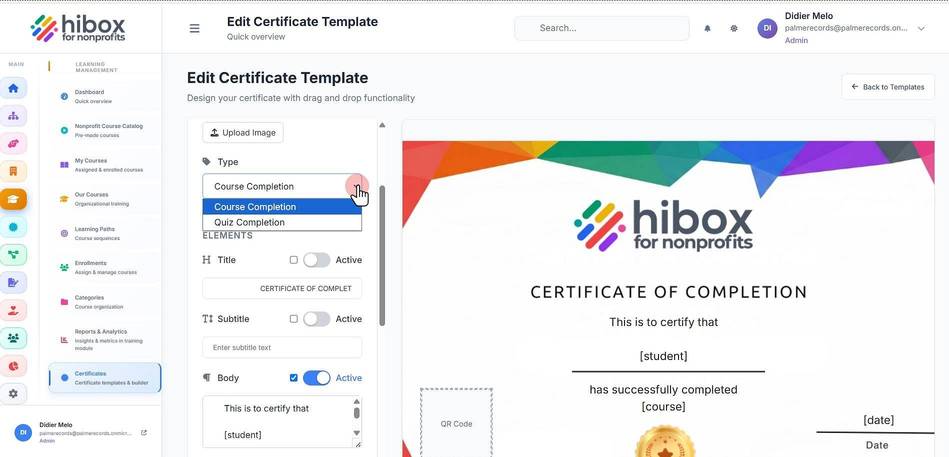
10. Edit the "Course Completion"
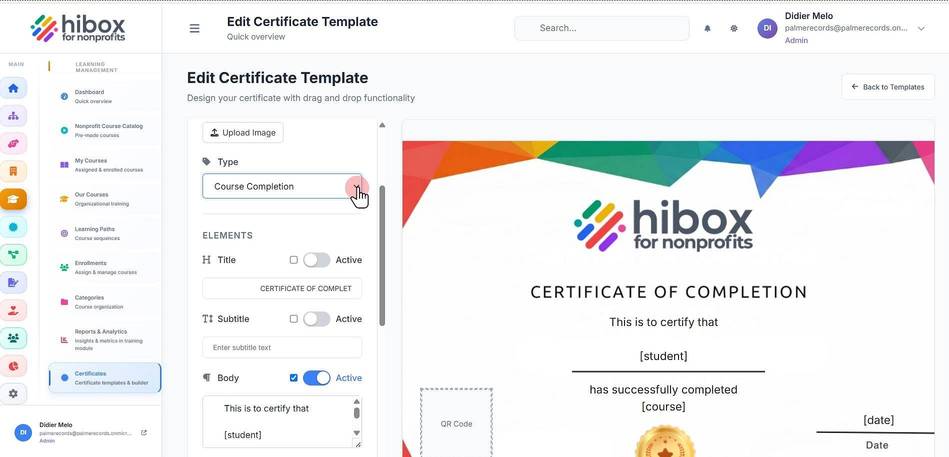
11. Edit the "ELEMENTS"
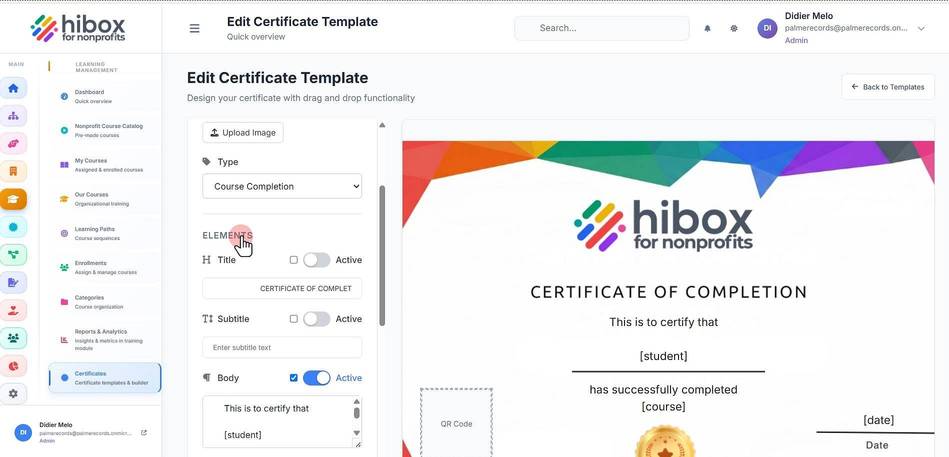
12. Edit the "Title"
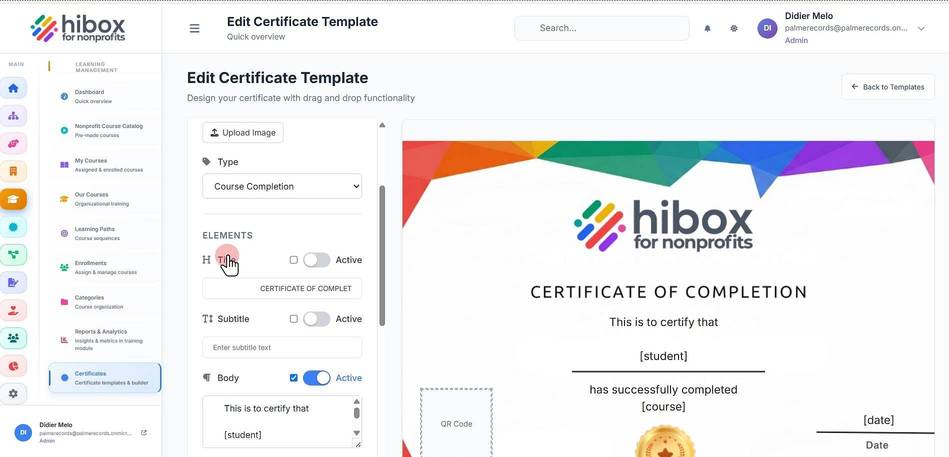
13. Edit the "Subtitle"
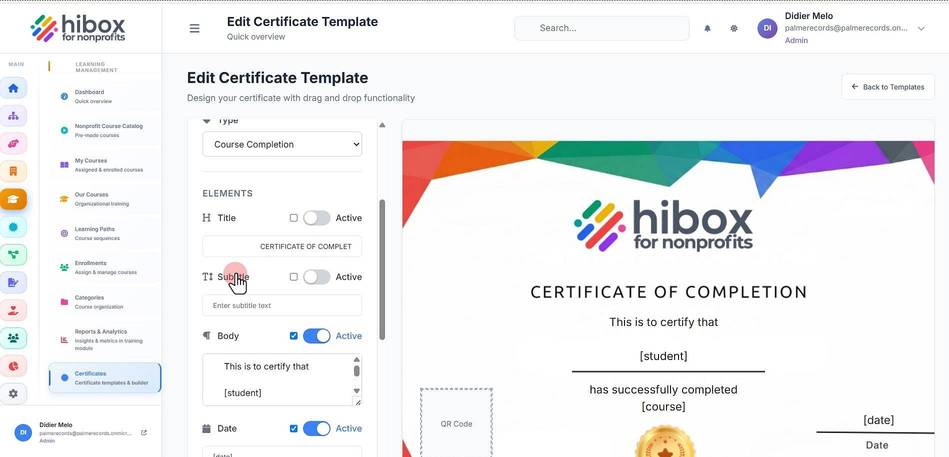
14. Edit the "Body"
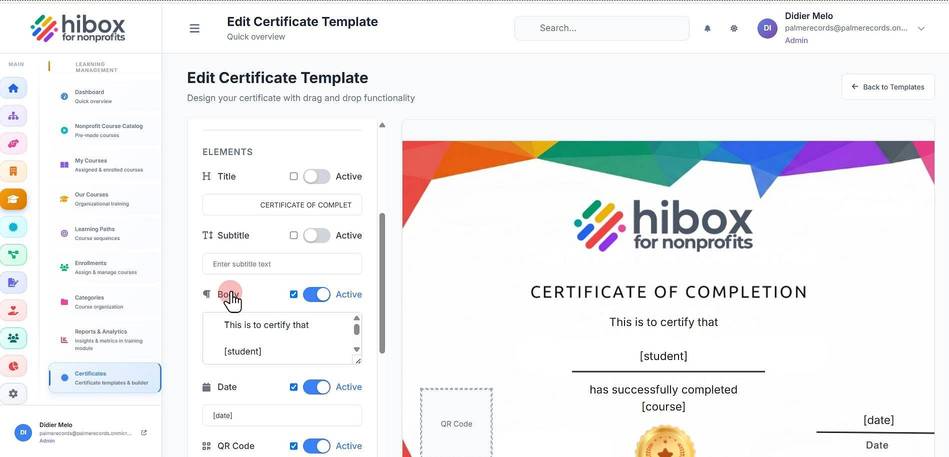
15. Edit the "Date"
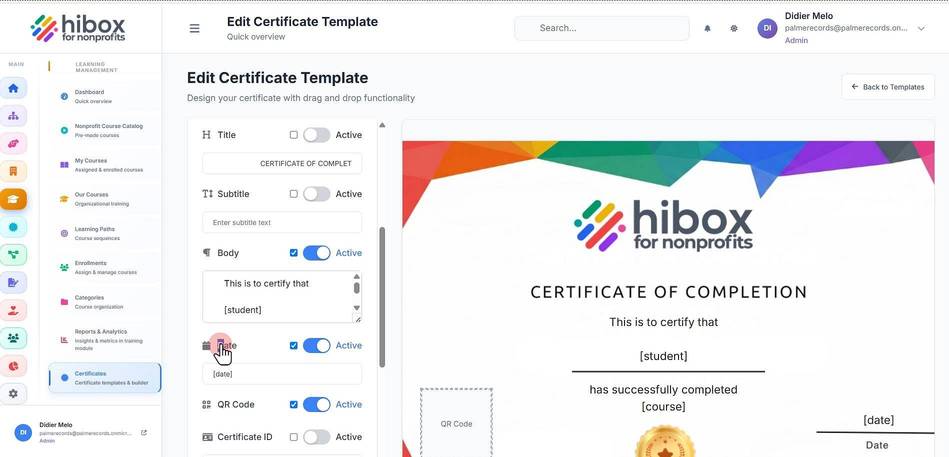
16. Edit the "QR Code"
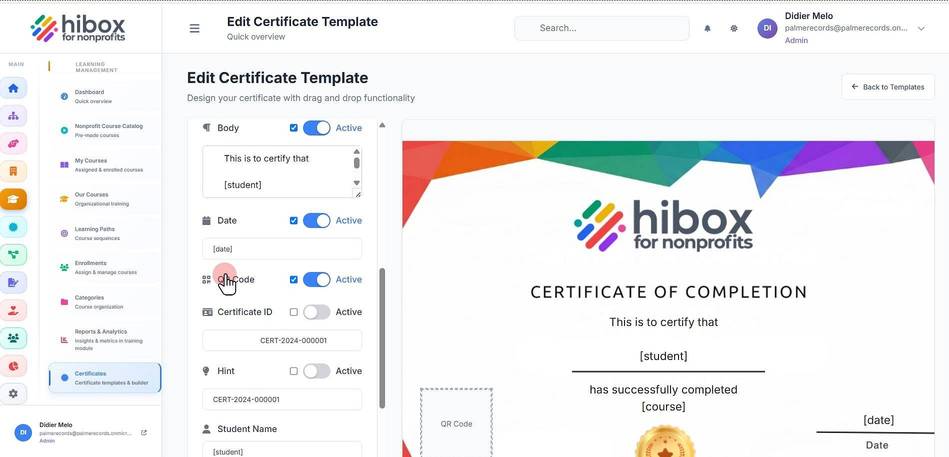
17. Edit the "Certificate ID"
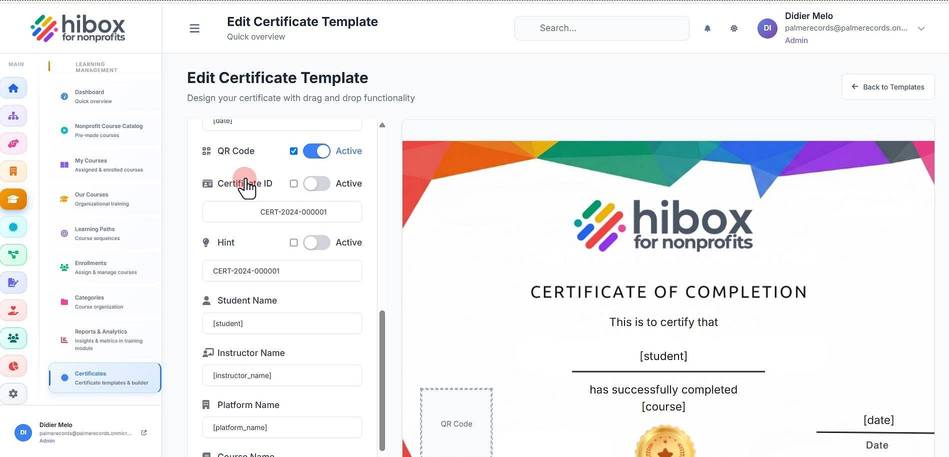
18. Edit the "hint or placeholder"
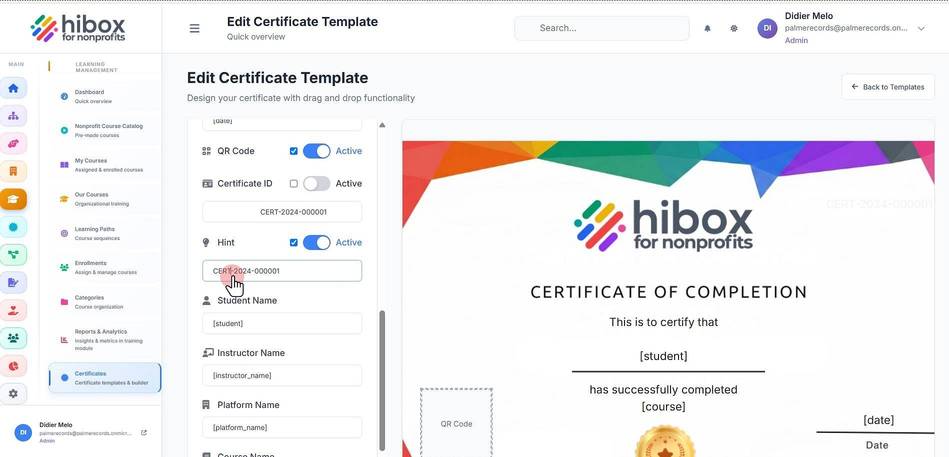
19. Edit the "Student Name"
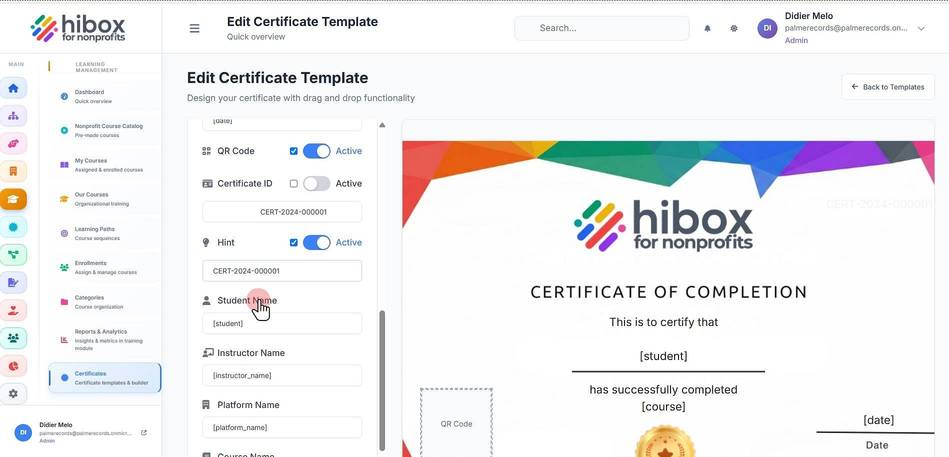
20. Edit the "Instructor Name"
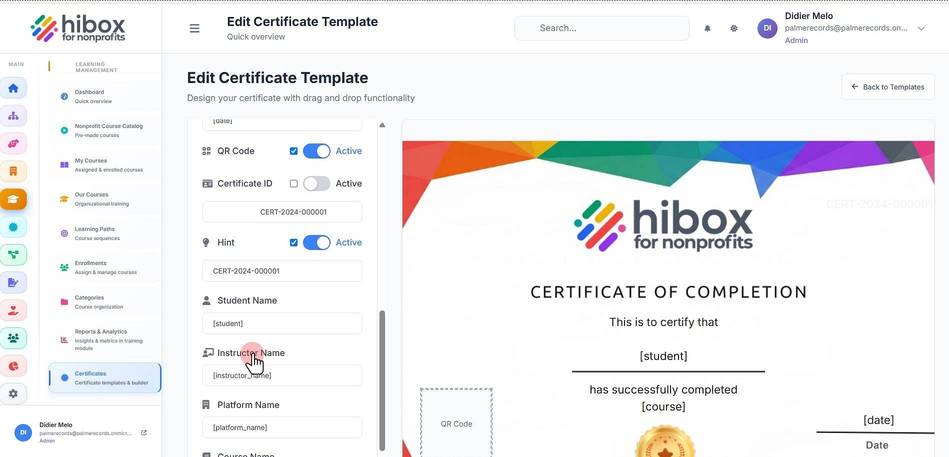
21. Edit the "Platform Name"
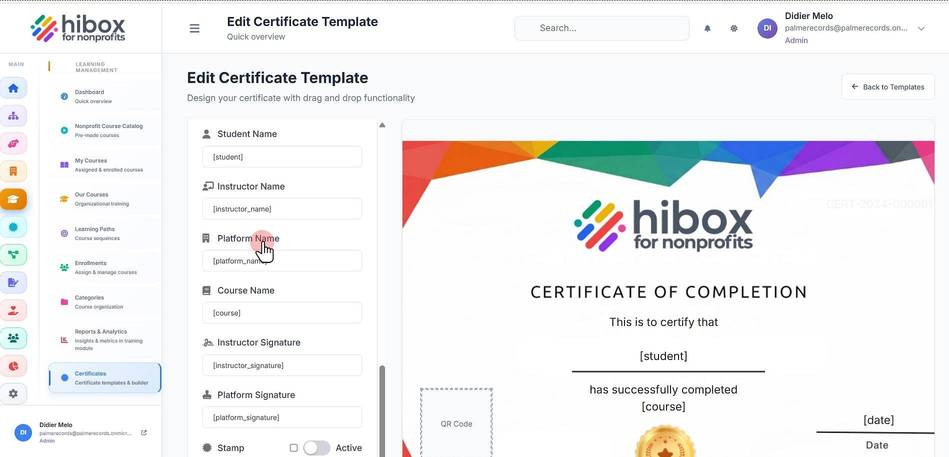
22. Edit the "Course Name"
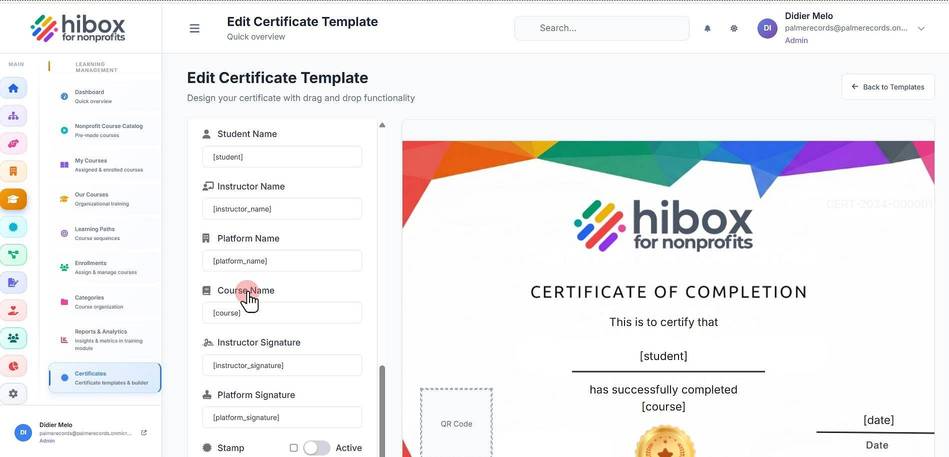
23. Edit the "Instructor Signature"
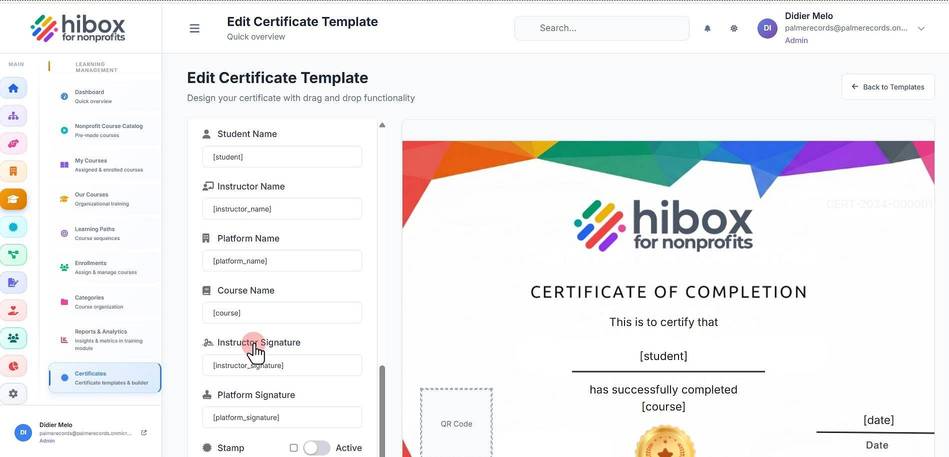
24. Edit the "Platform Signature"
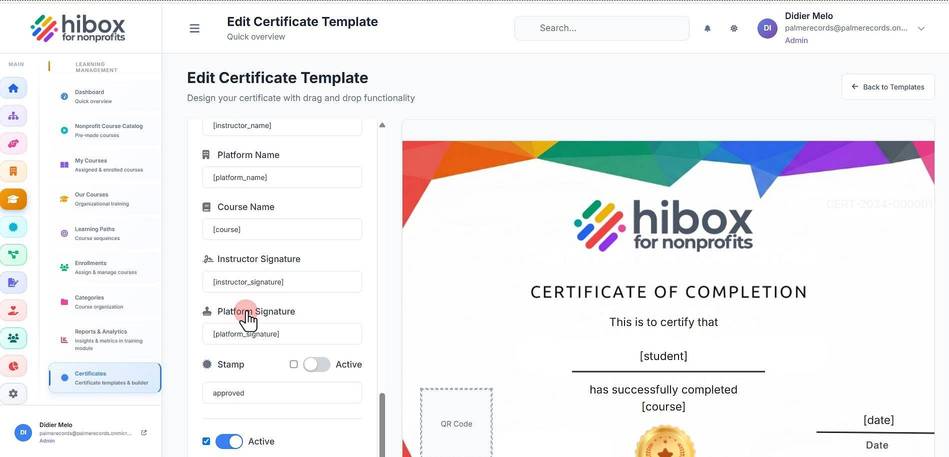
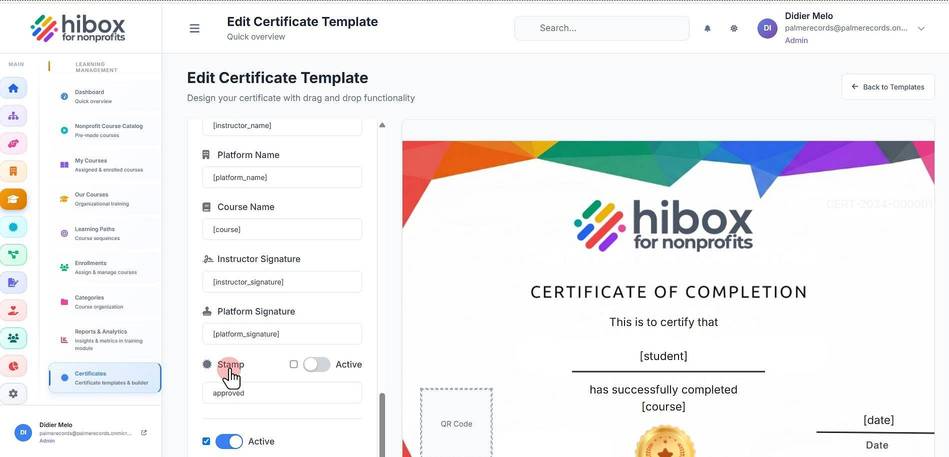
25. Edit the "Stamp"
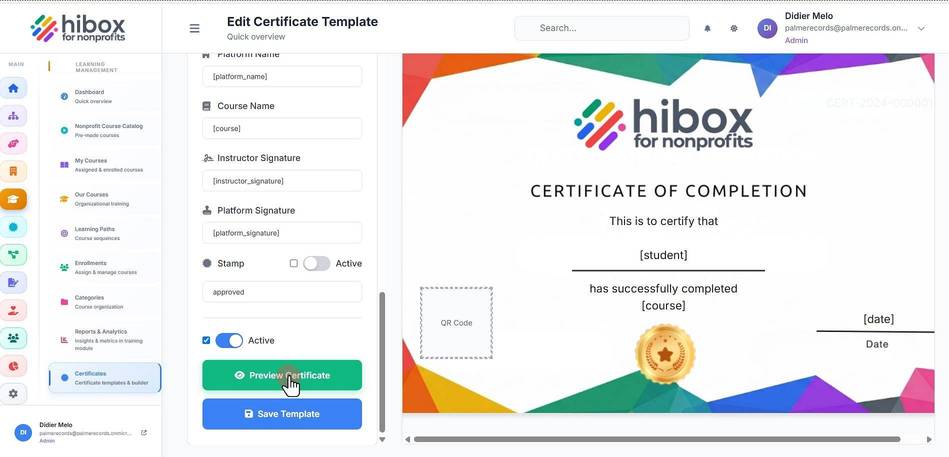
26. Click "Preview Certificate" to preview
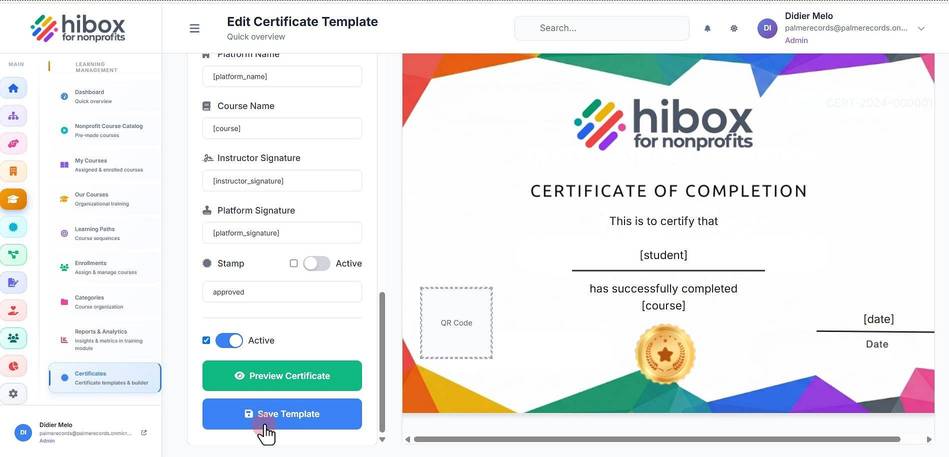
27. Click "Save Template" to save and continue
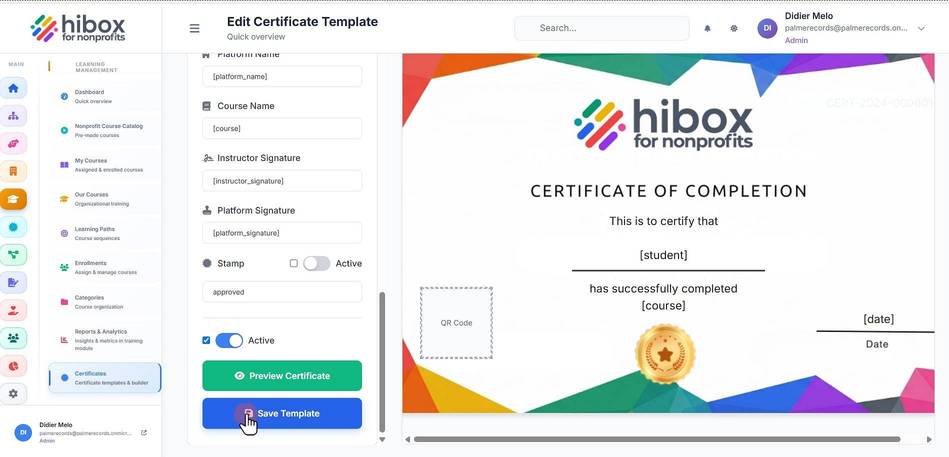
28. Click " Save Template"
29. Click " Certificates"