Managing Program Participants
1. Click "Program Management" on the left-side menu
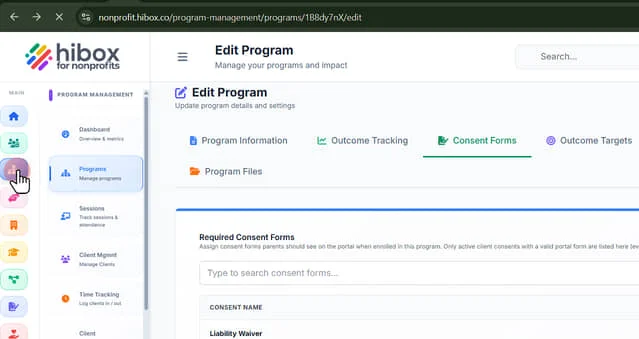
2. Click "Programs" on the sub-menu
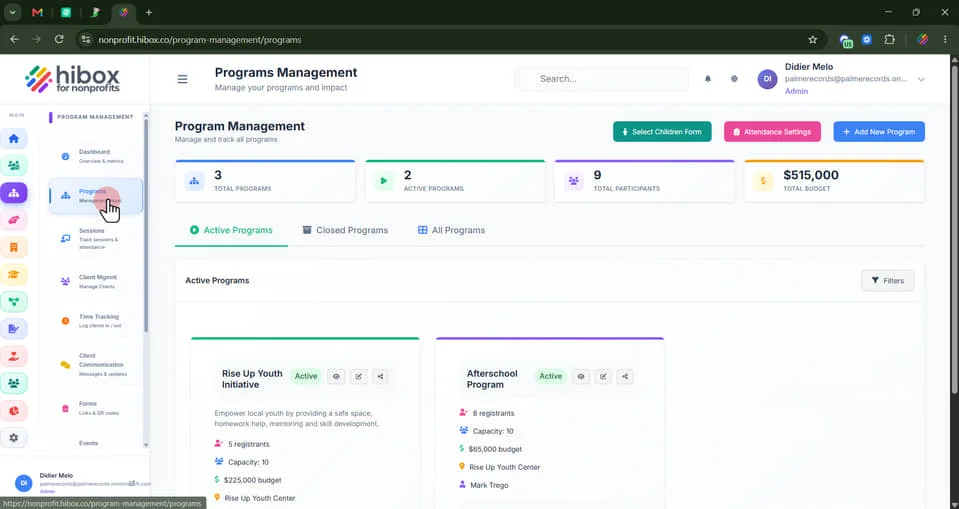
3. Click on the program name
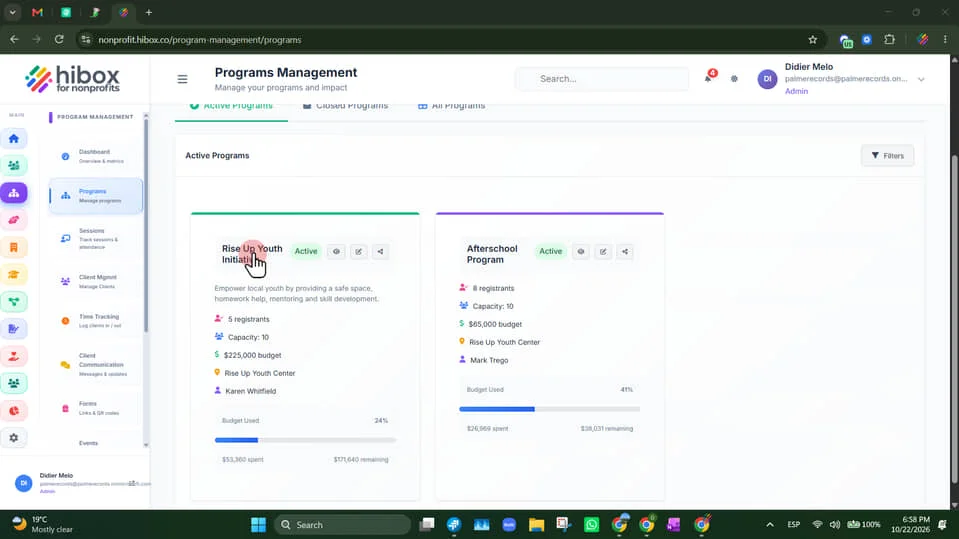
4. Click the "Manage Participants" tab
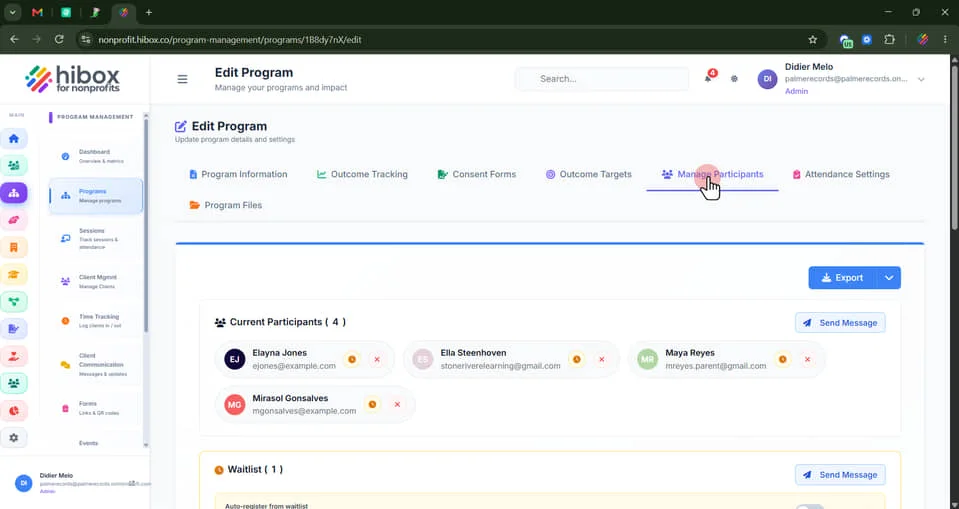
5. Click "Export" to download a pdf with a summary
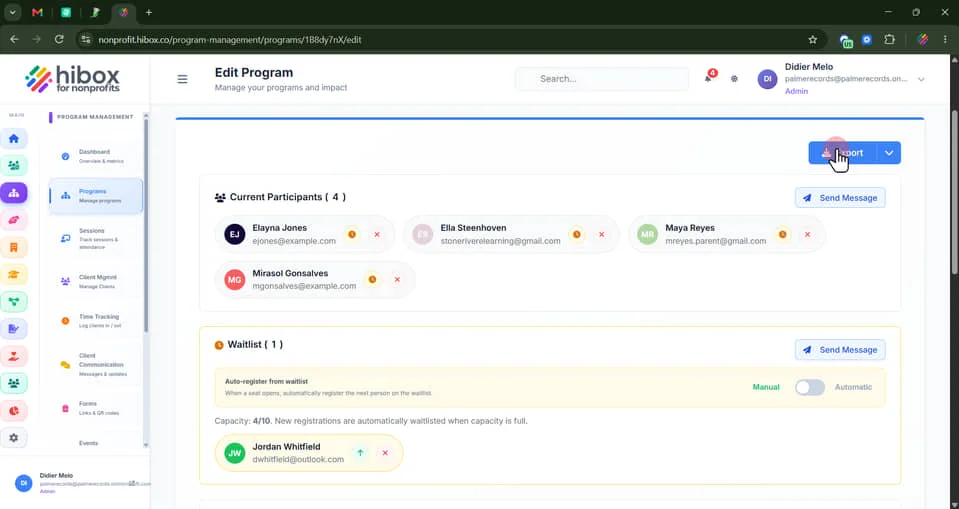
6. This is the "Current Participants" section where you can find the registered participants
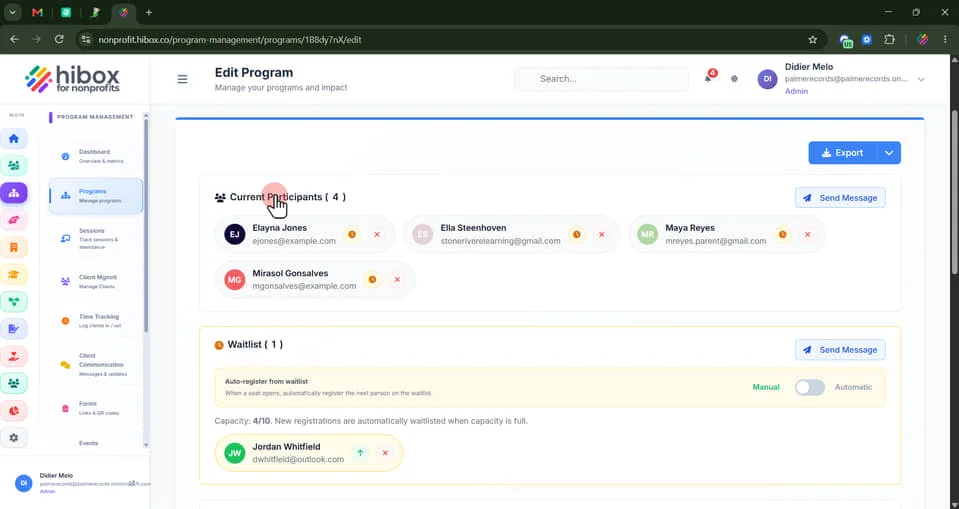
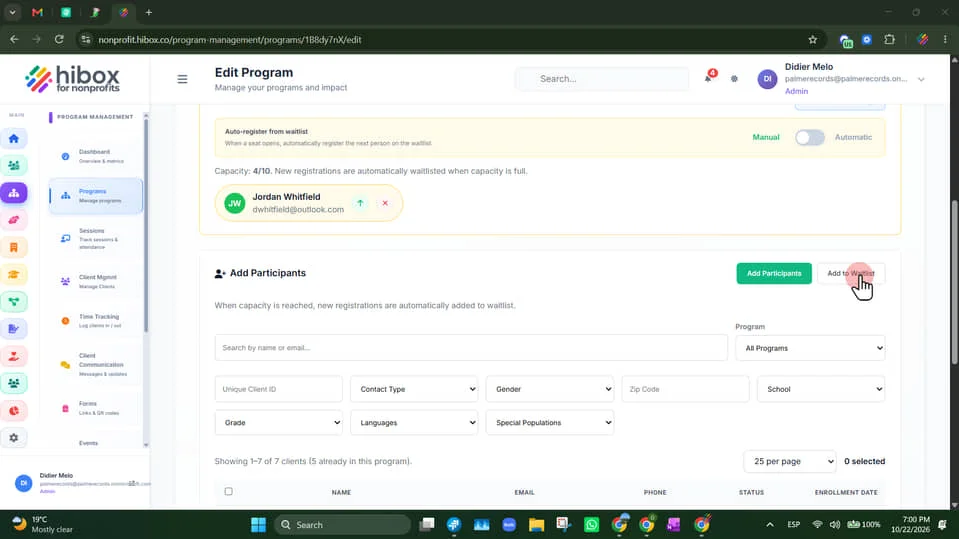
7. Scroll down to find the "Waitlist" section. When capacity is reached, new registrations are automatically added to waitlist
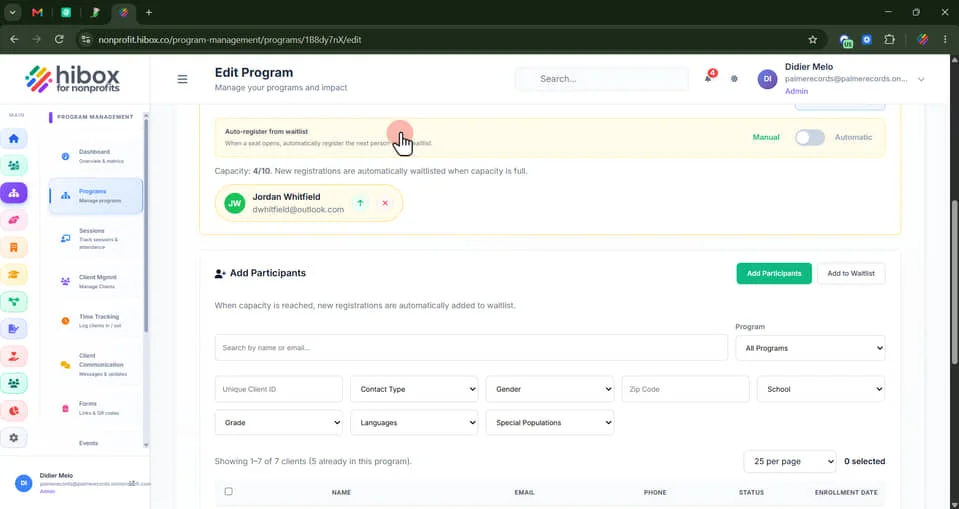
8. From here, you can enable or disable the "Auto-register from waitlist"
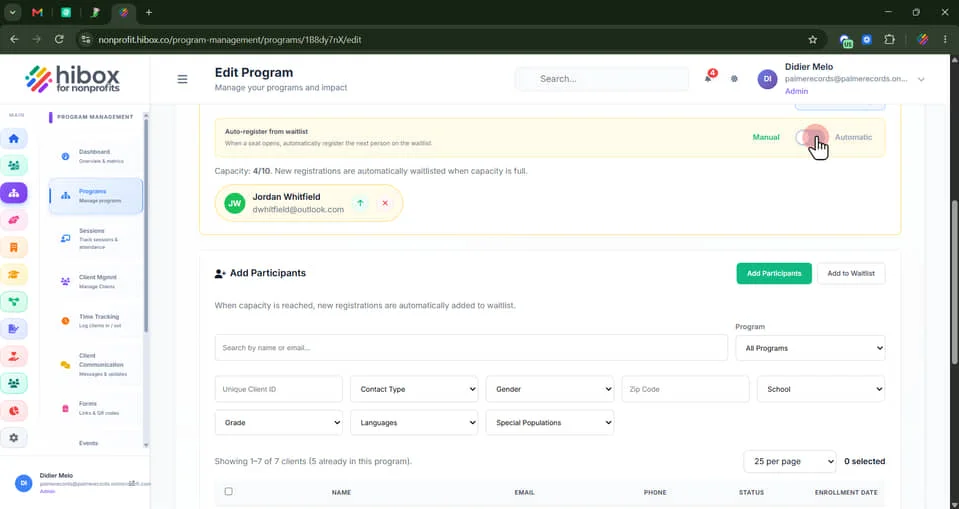
9. Enable or Disable the "Auto-register" from the waitlist When a seat opens, automatically register the next person on the waitlist
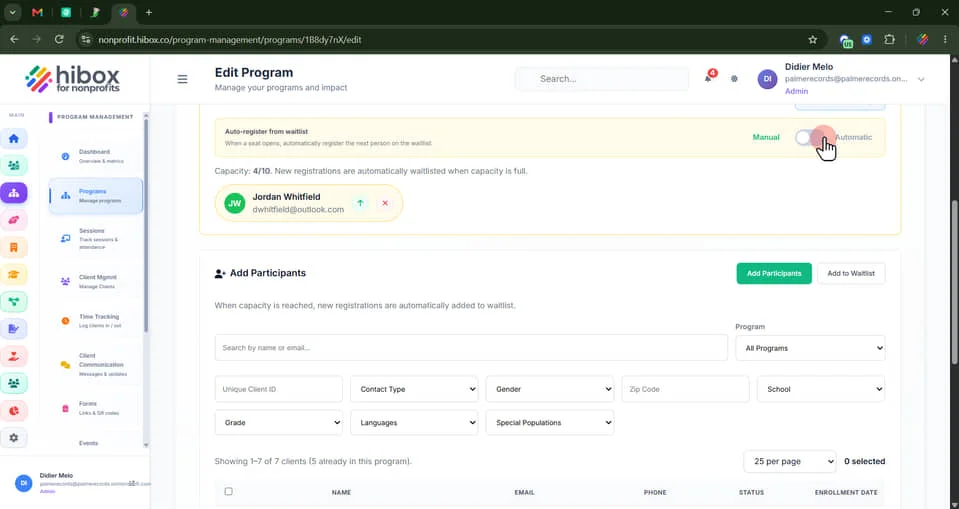
10. Click on the green arrow to move into current participants. Click on the "X" to remove from the waitlist and from the program
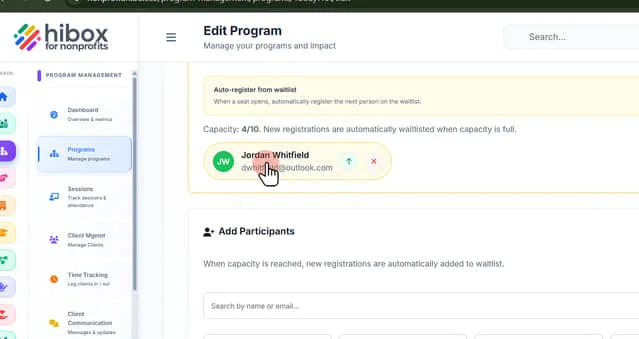
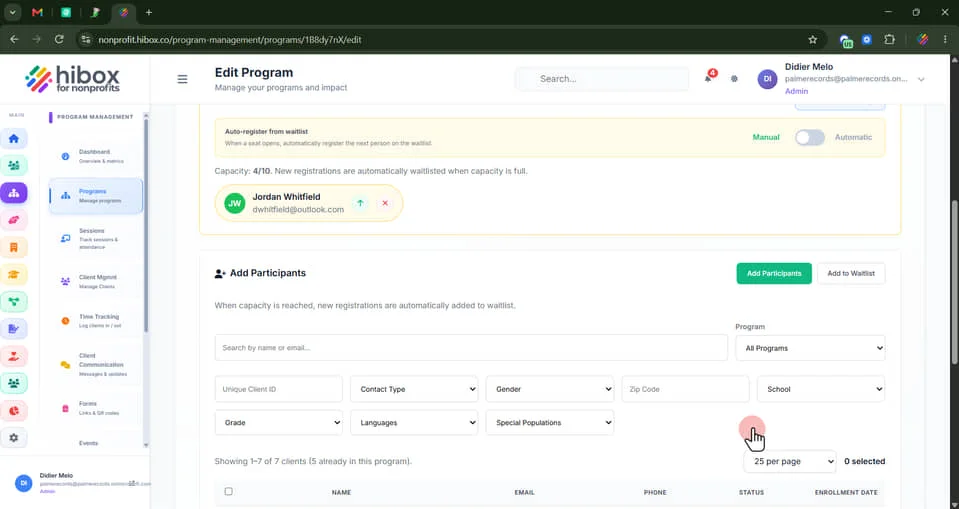
11. Scroll down to the "Add Participants" section
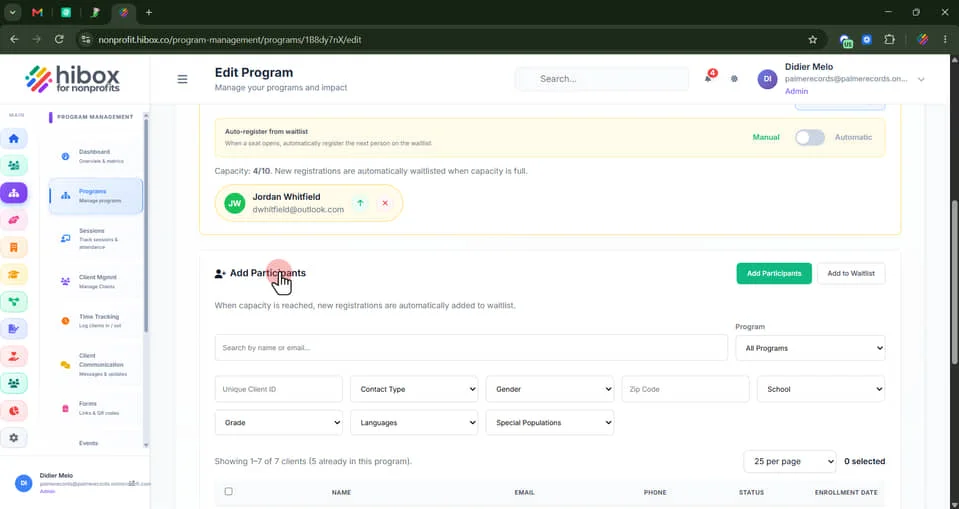
12. You can search by name or email here.
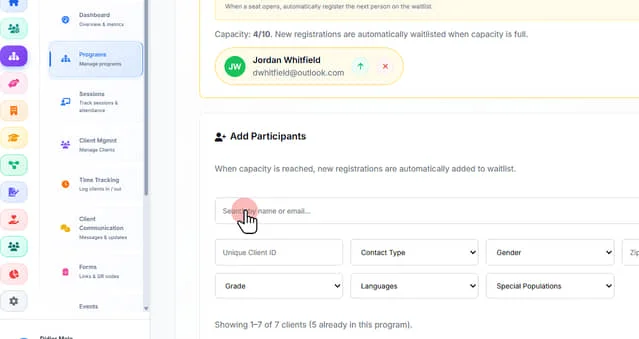
13. Use the different filters such as; Contact Type, Gender, Zip Code, School, Grade, Languages or Special Populations
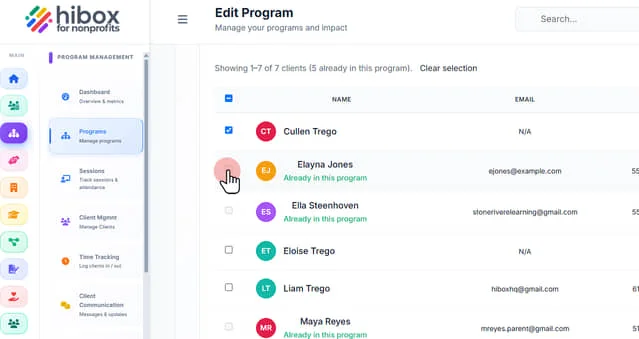
14. Use the checkboxes to select one or more participants
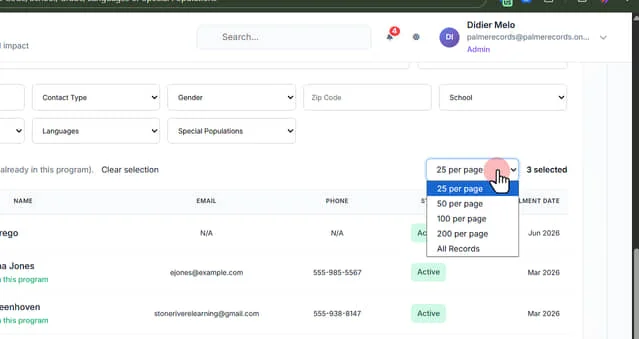
15. Change the "Clients per page" using the dropdown menu
16. Click "Add Participants" to add them as current participants
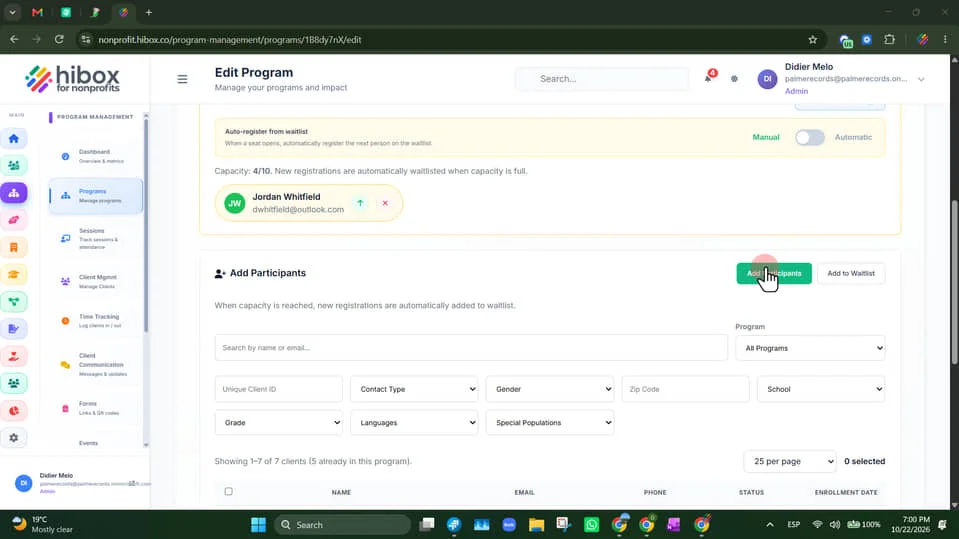
17. Click "Add to Waitlist" to add them on the wishlist
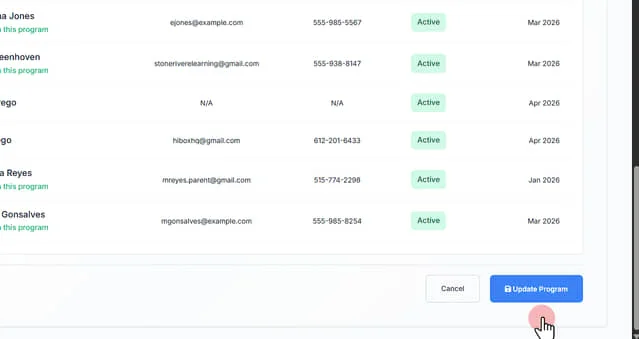
18. Click "Update Program" to save all changes
 Powered by ProductLift