Pre and Post-Surveys
1. On the left- side menu, click "Program Management"
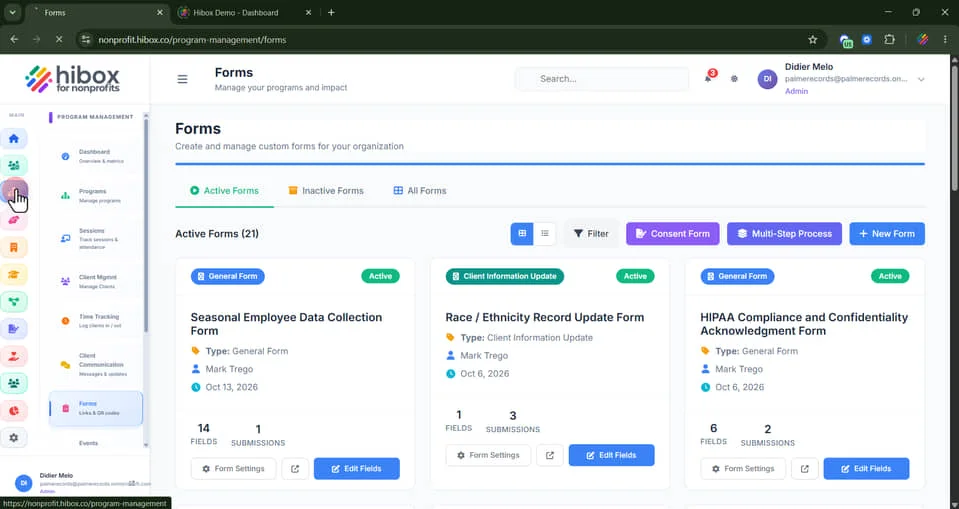
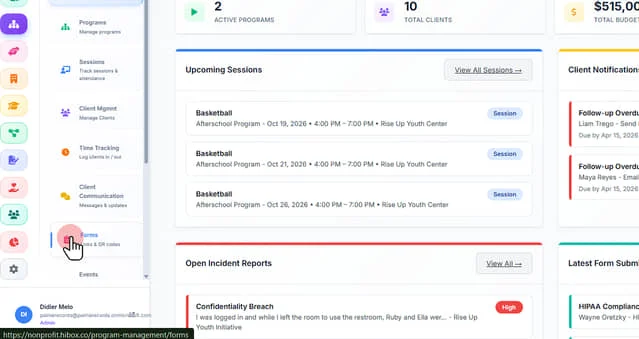
2. Click "Forms" on the sub-menu
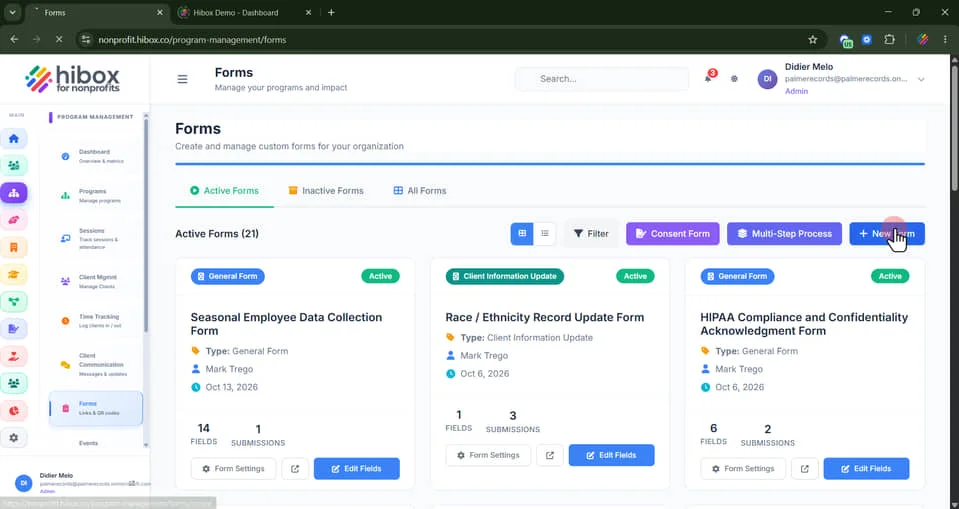
3. Click "+ New Form"
4. Enter a "Form Title"
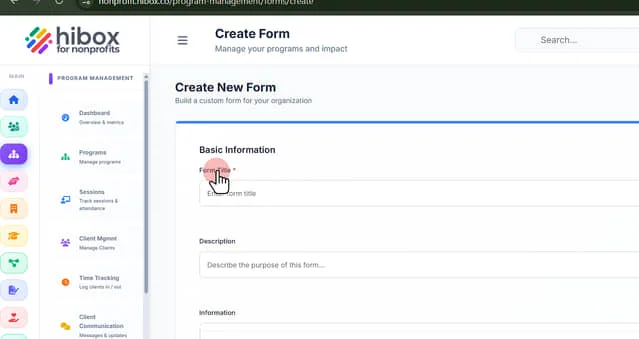
5. Enter a "Description"
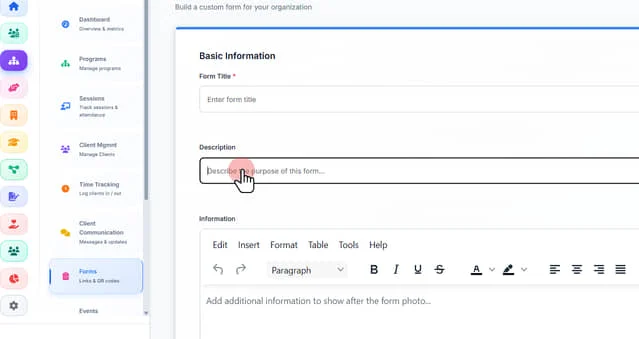
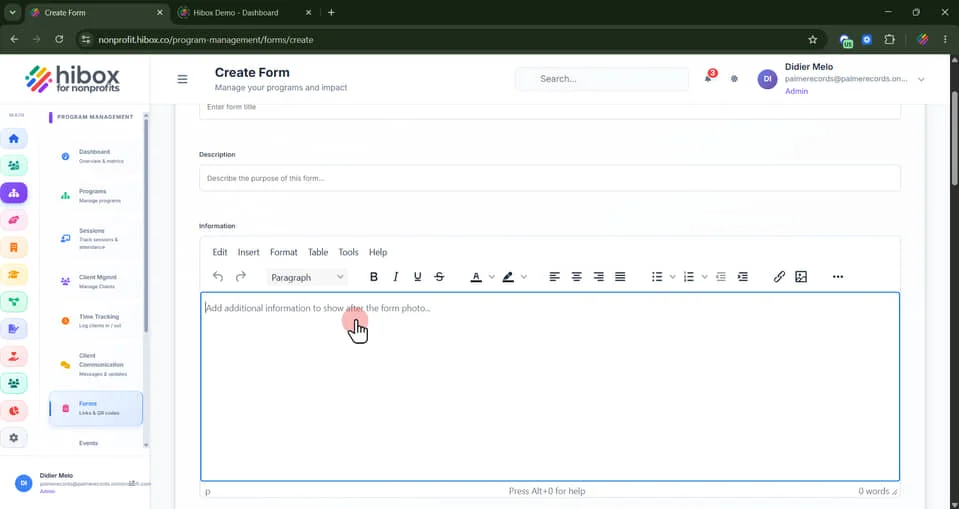
6. Add any additional information to show after the form photo here
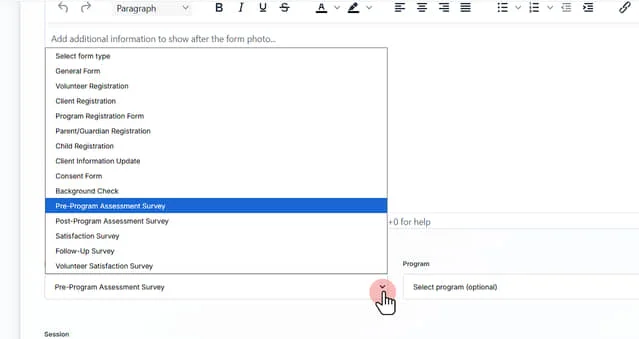
7. Select "Pre-Program Assesment Survey" or "Post-Program Assesment Survey"
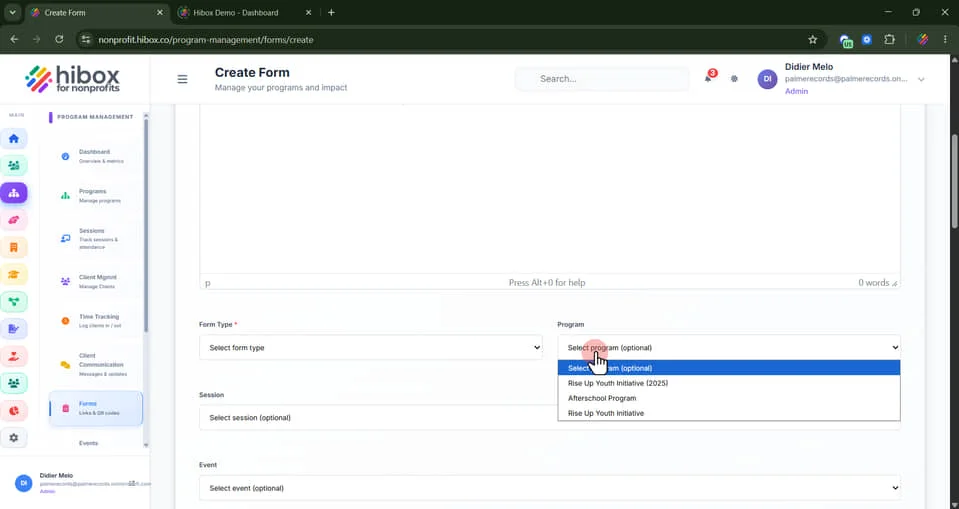
8. Assign to a "Program" this is optional
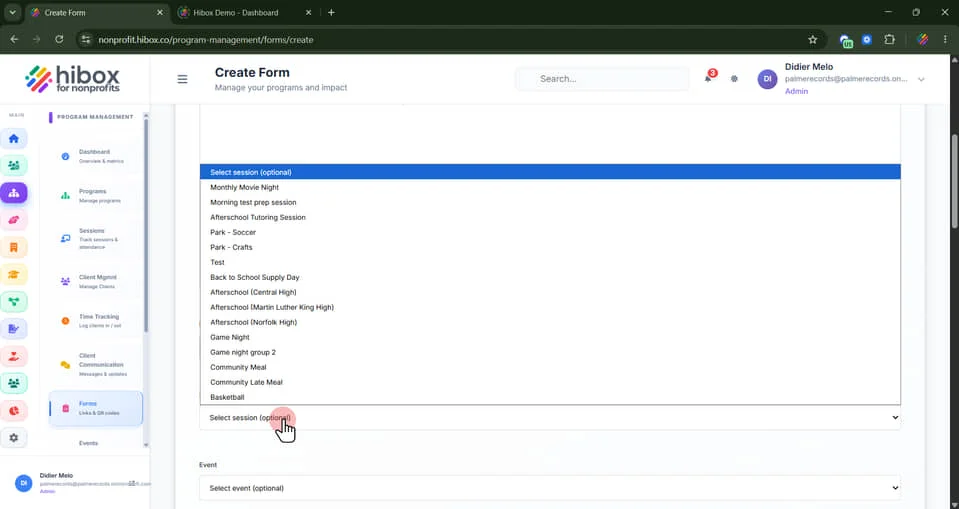
9. Assign to a "Session" this is optional
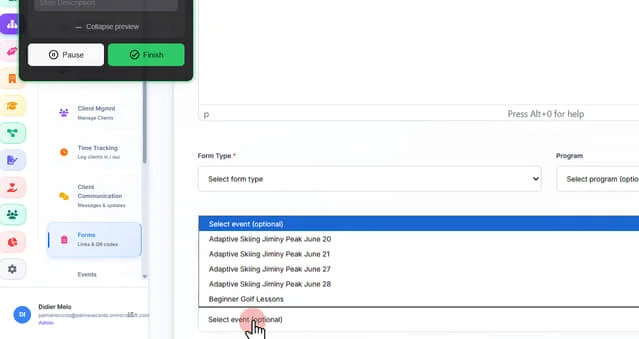
10. Assign to a "Event" this is optional
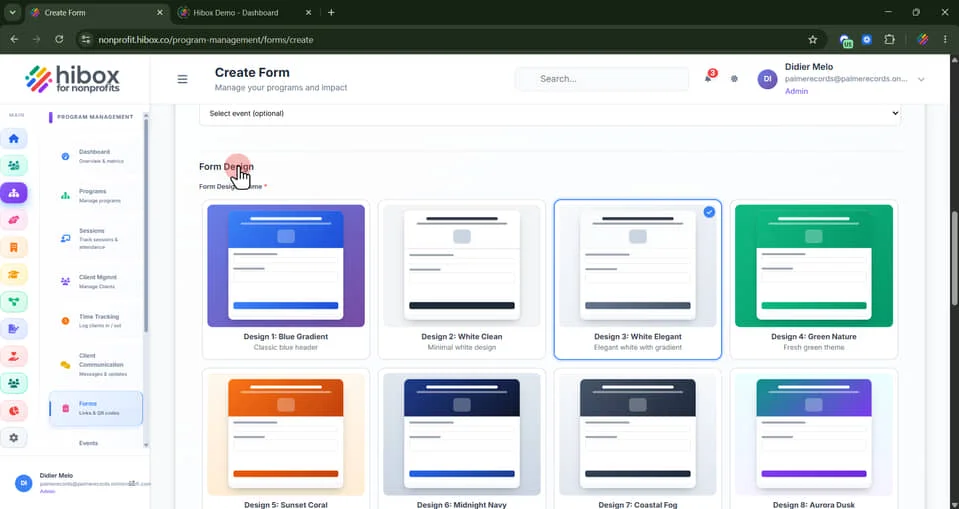
11. Scroll down to choose a Form Design
12. Scroll down to upload an image to the form, for example a logo
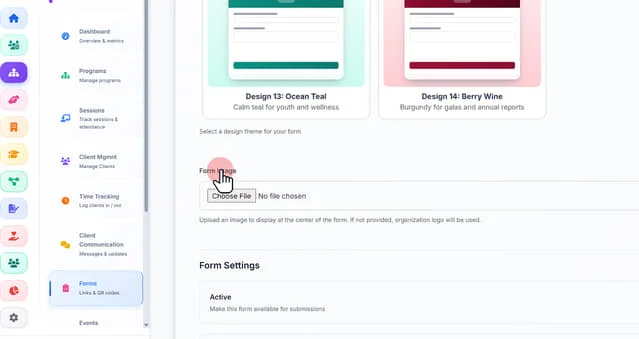
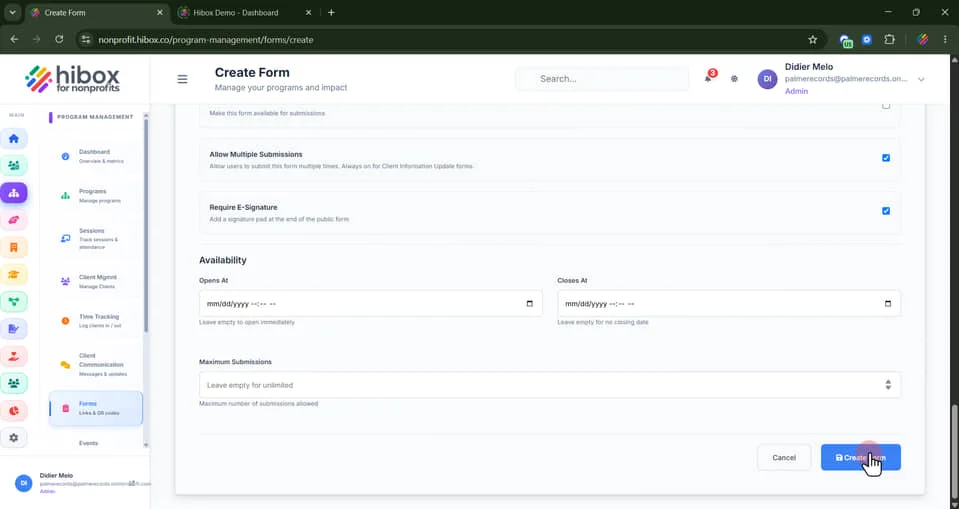
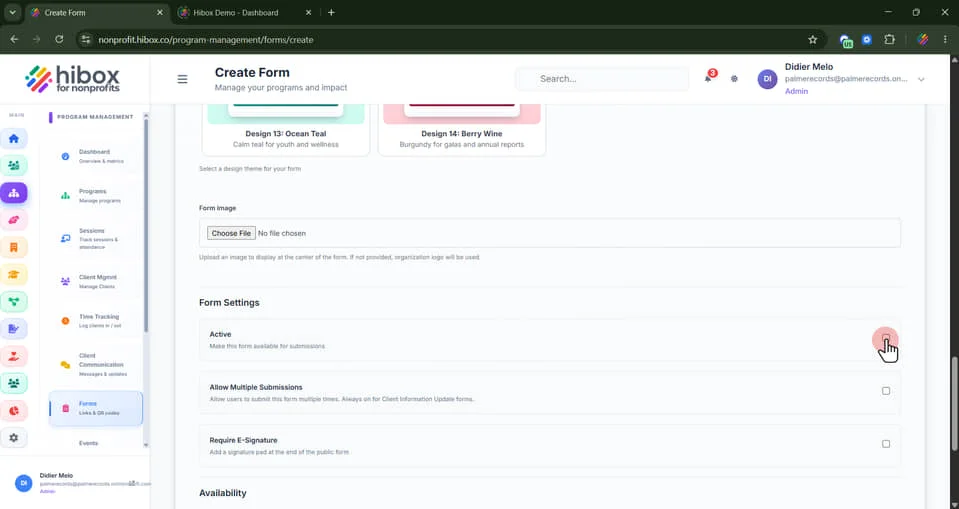
13. Under the "Form Settings" section, you can "Activate" or deactivate the form using the checkbox
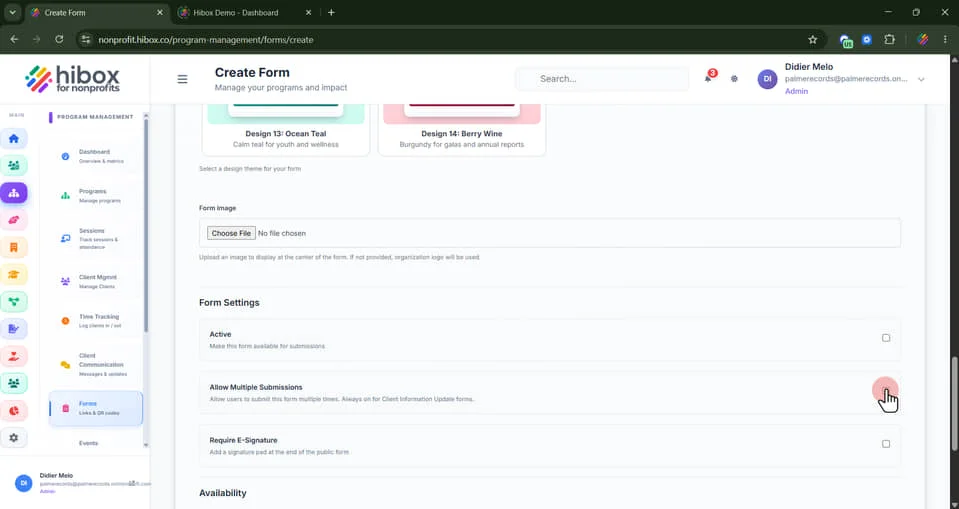
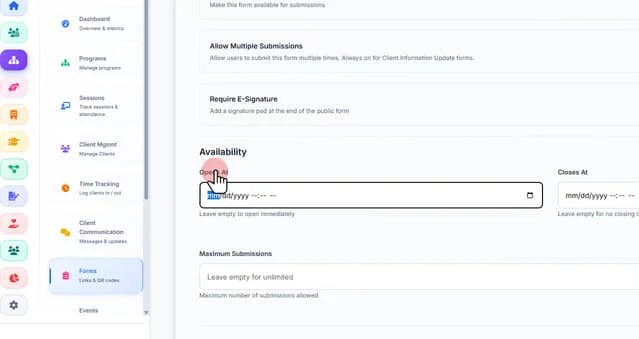
14. You can "Allow Multiple Submissions" to allow users to submit this form multiple times.
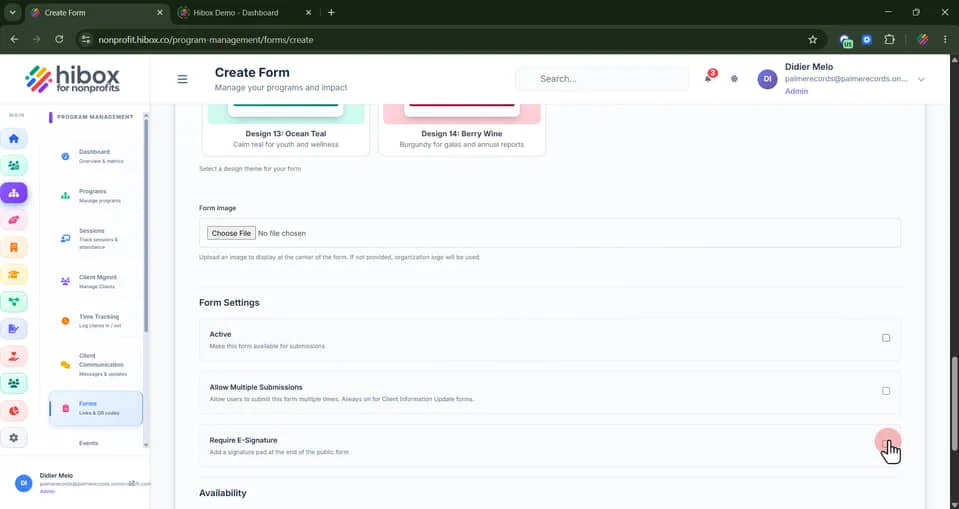
15. and make an "E'signature" mandatory
16. Set an opening time or leave empty to open immediately
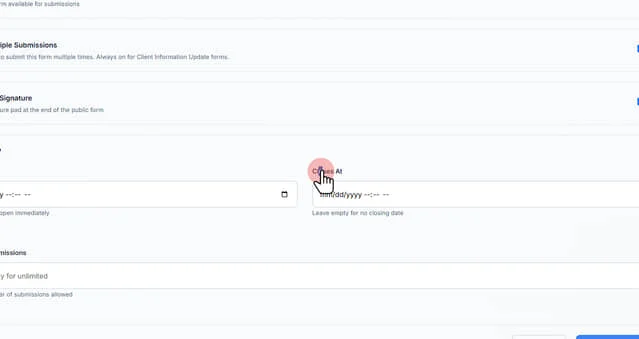
17. Set a Closing time or leave empty for no closing date
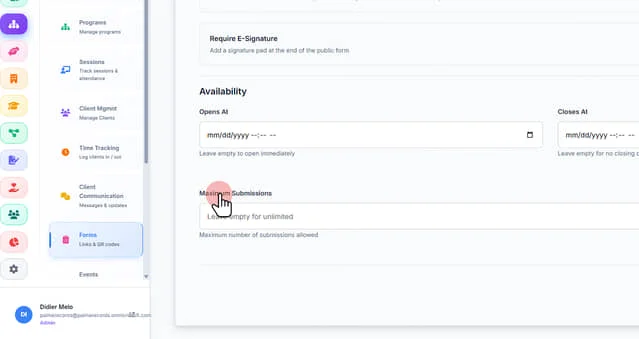
18. Set the "Maximum Number of Submissions"
19. Scroll down and click on "Create Form"