Resolving Client Login Issues
1. Log-in at nonprofit.hibox.co . The default username and password for each client are the client's email. If that does not work, click on the "Fogot password" link
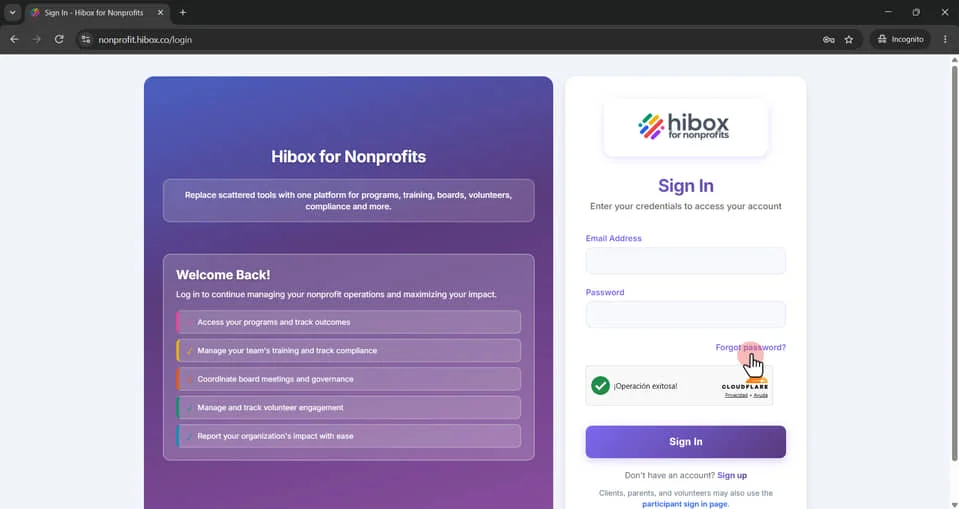
2. enter the e-mail
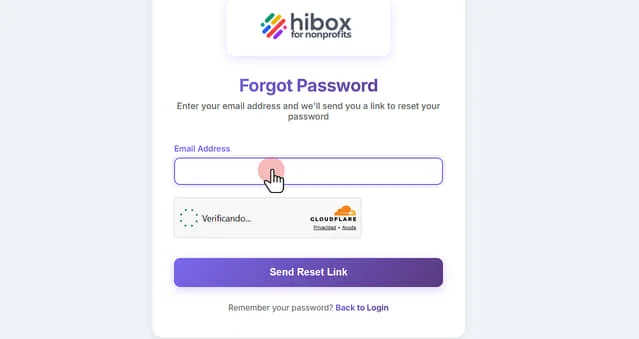
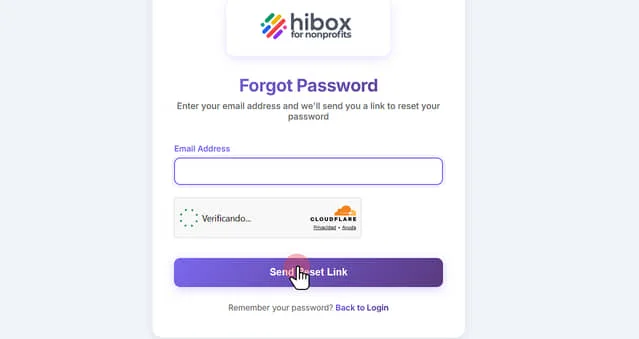
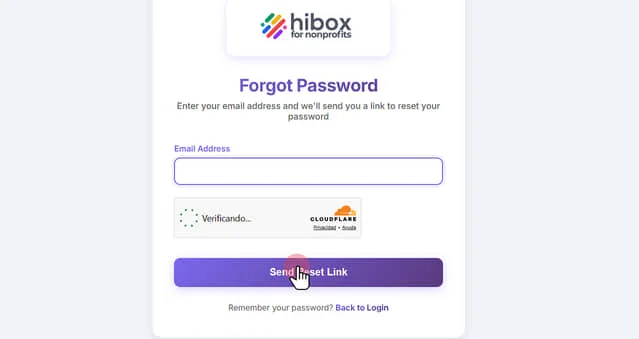
3. Click "Send Reset Link"
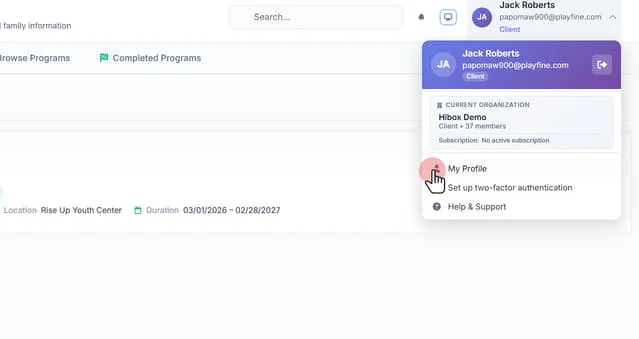
4. Once the client is logged-in, ask them to change their passwords by going into the top right section and clicking on their name/user
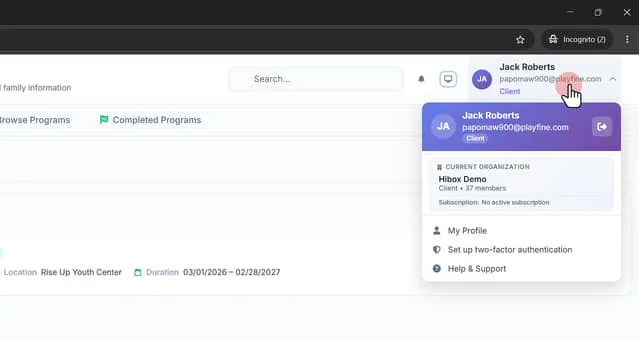
5. Click "My Profile"
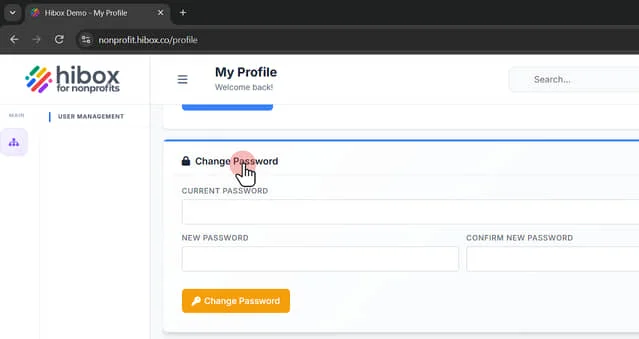
6. Scroll down to find the "Change Password" section
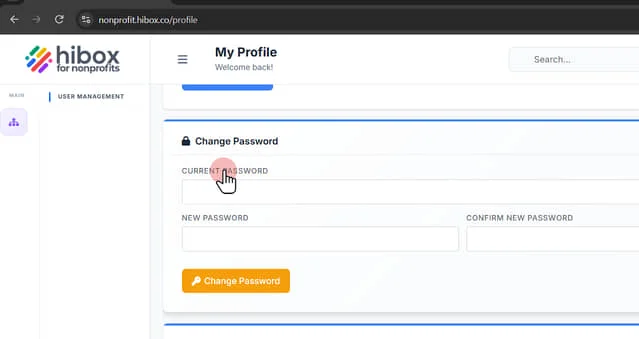
7. Type the current password
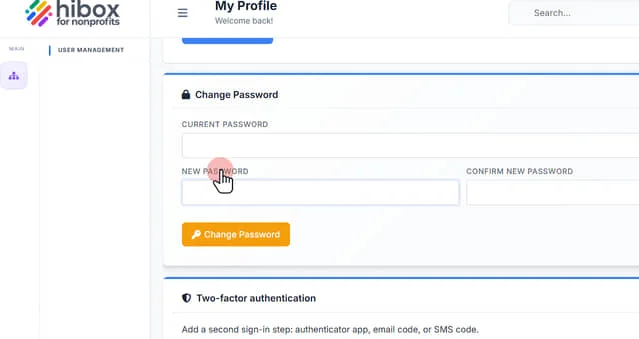
8. Type the "New Password"
9. Confirm the "New Password"
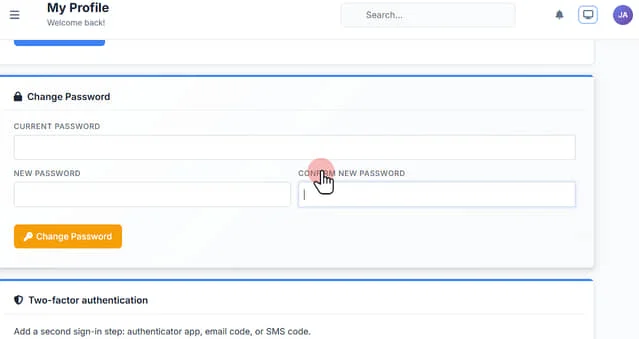
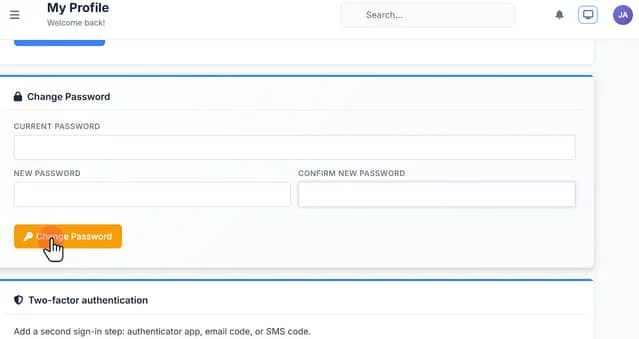
10. Click "Change Password" to confirm
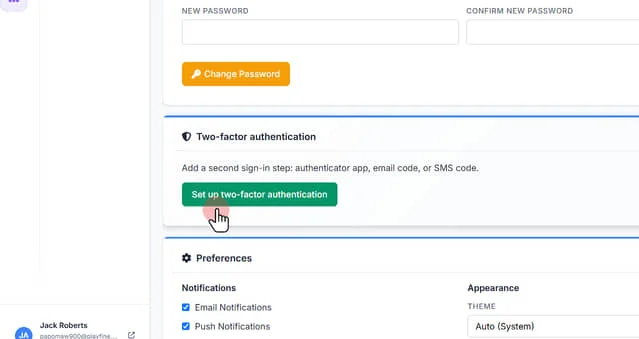
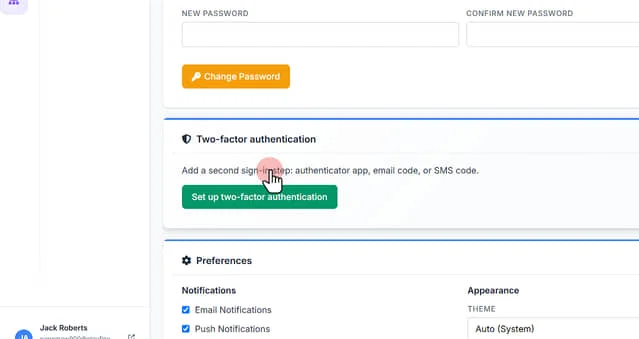
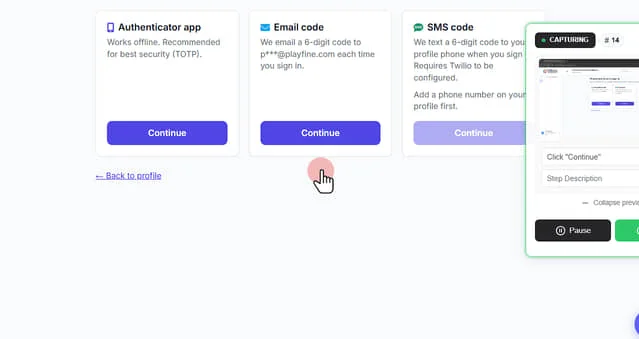
11. Click "Set up two-factor authentication" to add a second sign-in step: authenticator app, email code, or SMS code
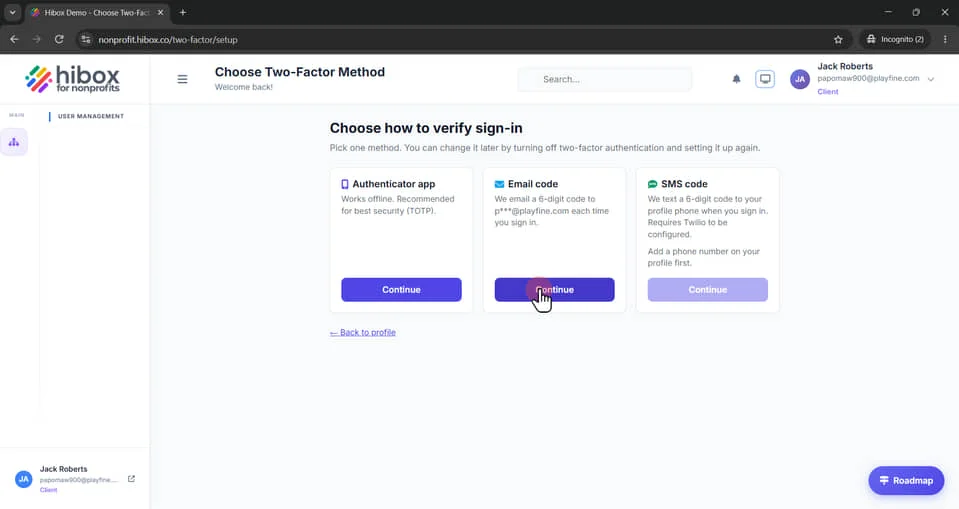
12. Choose any of the 3 options by clicking the "Continue" button and following the next steps button
1. Log-in at nonprofit.hibox.co . The default username and password for each client are the client's email. If that does not work, click on the "Fogot password" link
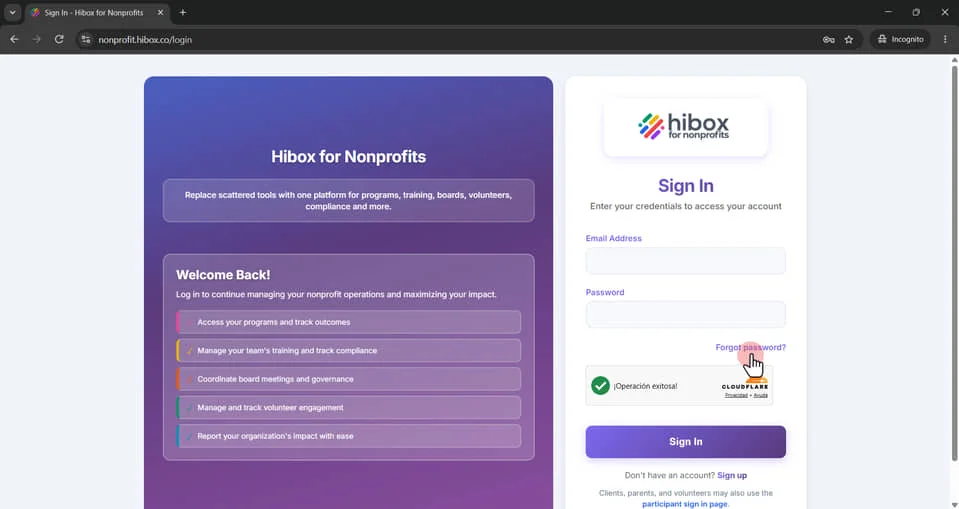
2. enter the e-mail
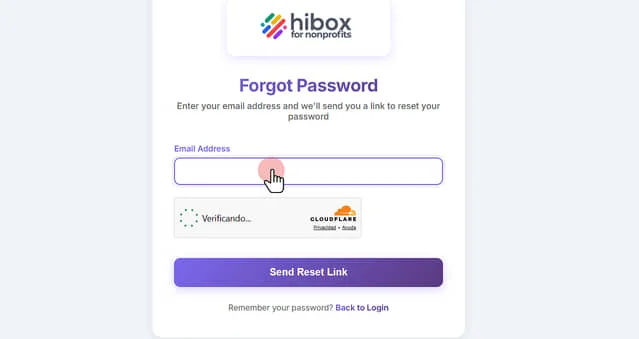
3. Click "Send Reset Link"
4. Once the client is logged-in, ask them to change their passwords by going into the top right section and clicking on their name/user
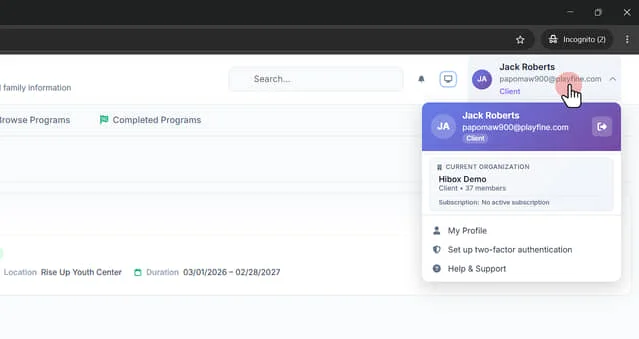
5. Click "My Profile"
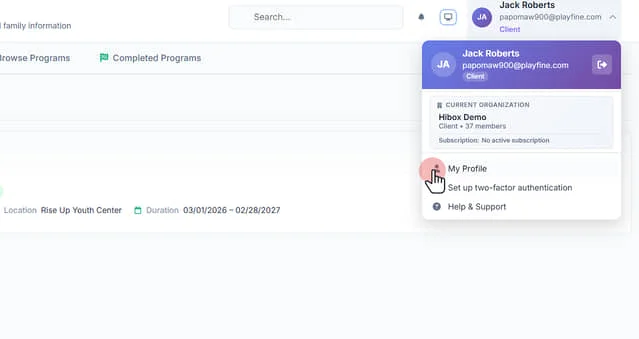
6. Scroll down to find the "Change Password" section
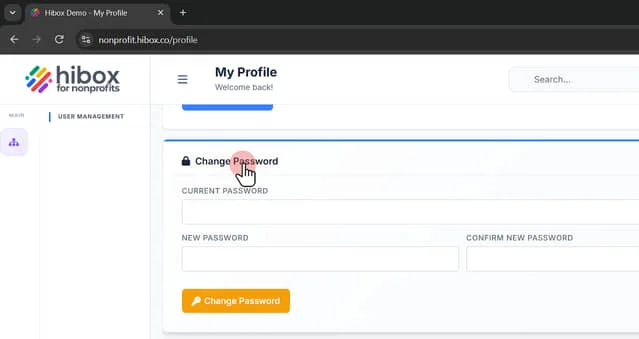
7. Type the current password
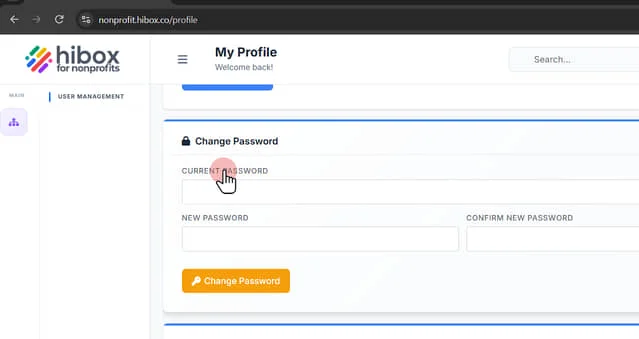
8. Type the "New Password"
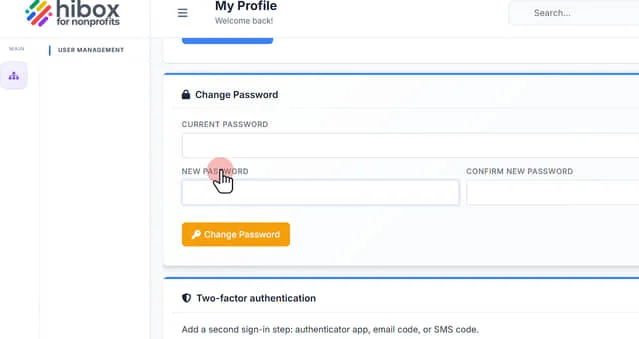
9. Confirm the "New Password"
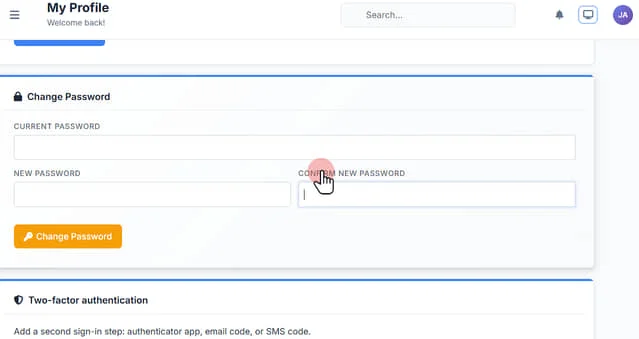
10. Click "Change Password" to confirm
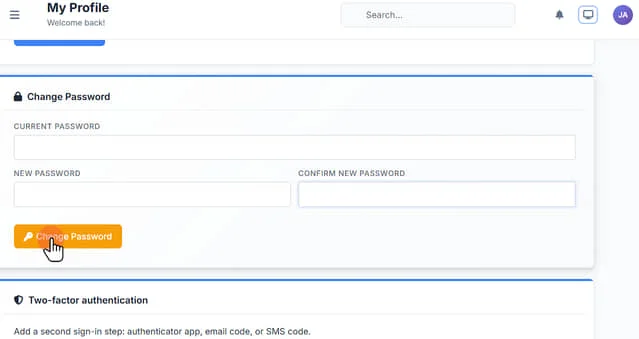
11. Click "FIRST NAME"
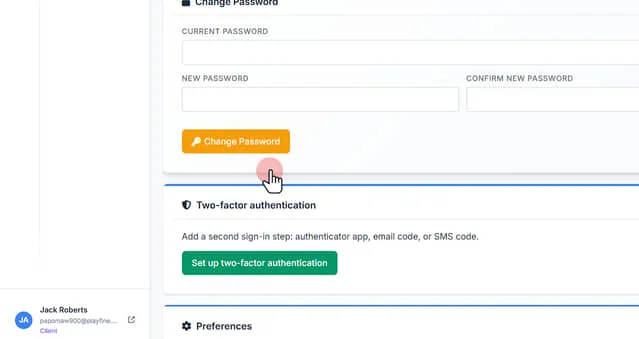
12. Click "FIRST NAME"
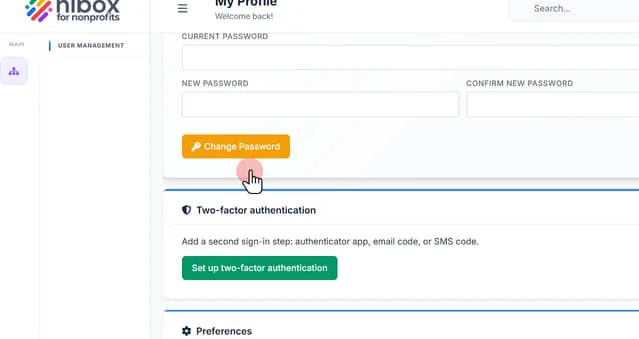
13. Click "Add a second sign-in step: authenticator app, email code, or SMS code."
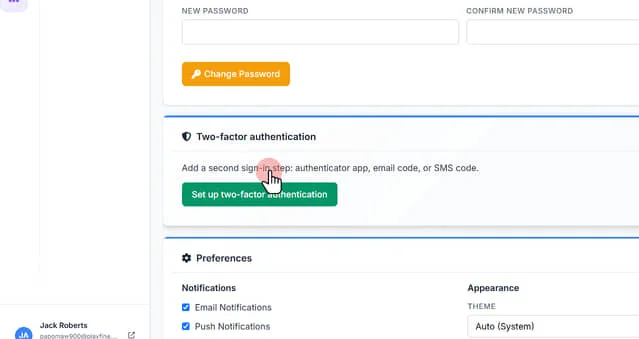
14. Click "Add a second sign-in step: authenticator app, email code, or SMS code."
15. Click "Continue"
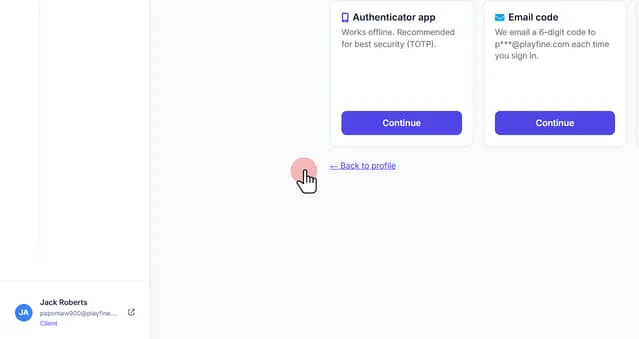
16. Click "Continue"
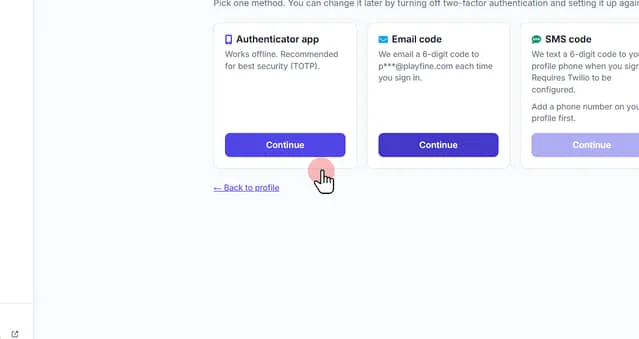
17. Click "Continue"
 Powered by ProductLift